

The question you must be asking yourself is, why Windows 11 device not showing in the Microsoft account?
It is common in Windows 11 users stating that their laptop or PC is not listed at “https://account.microsoft.com/devices” when they have signed in using the correct Microsoft account. This issue is usually perplexing. This guide will not only assist you in fixing the issue step by step, but will also reveal to you the root causes of this issue.
Page Contents
Why Your Windows 11 Device Is Not Showing in Your Microsoft Account
These are some of the typical causes of this error.
- Verification and synchronization of the account not done.
- Privacy settings are stopping the device sync.
- Name of PC incorrect or old information.
- The gadget is not connected to your Microsoft account.
- Lag behind with network or Microsoft server sync.
Fix Windows 11 Device not showing in Microsoft account
Assuming that your Windows 11 device is absent in your Microsoft account, then follow the procedures as discussed below.
Fix 1: Manually Link Your Windows 11 Device to Your Microsoft Account
There are times when your PC just fails to automatically sync, and you need to link it yourself within the shortest amount of time possible.
1. Open Settings on Windows 11. Go to Accounts > Your info.

2. Ensure that it is a Microsoft Account (not a local one).
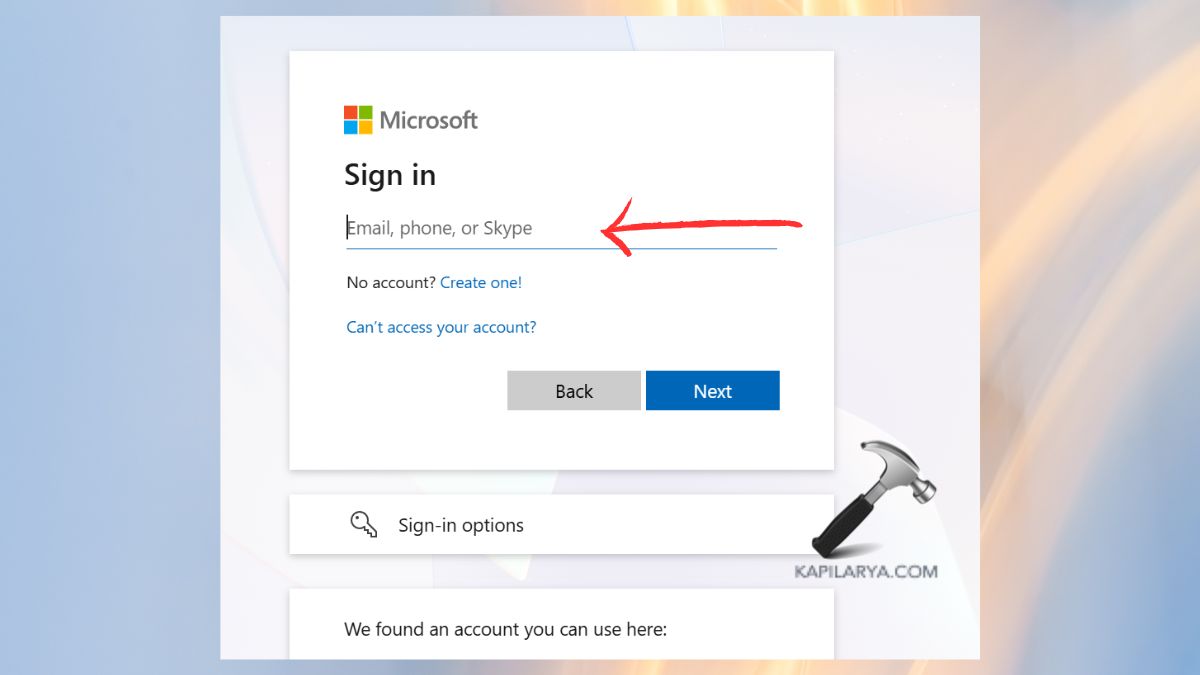
3. Visit the Microsoft page. Click Sign in and log in with the same account as you log in on your PC.
4. Select “Don’t see your device?” or “Add/Register device” (if available). Making a connection, restart your PC.
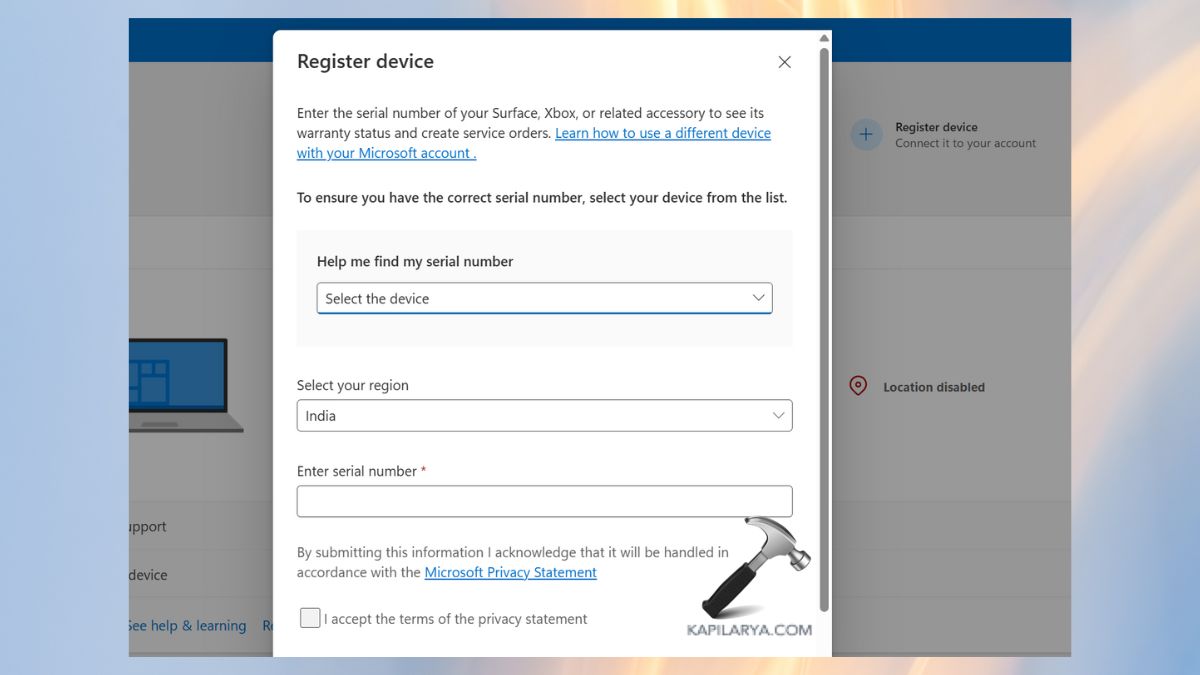
In case the manual link option does not appear, there is no need to periodically be worried, proceed to the next technique.
Fix 2: Re-Sign In to Your Microsoft Account on Your PC
In case your account token has expired or has failed to connect properly, your PC will not show online.
1. Click on the Start menu and navigate to your account name.
2. Tap on “Sign Out”.
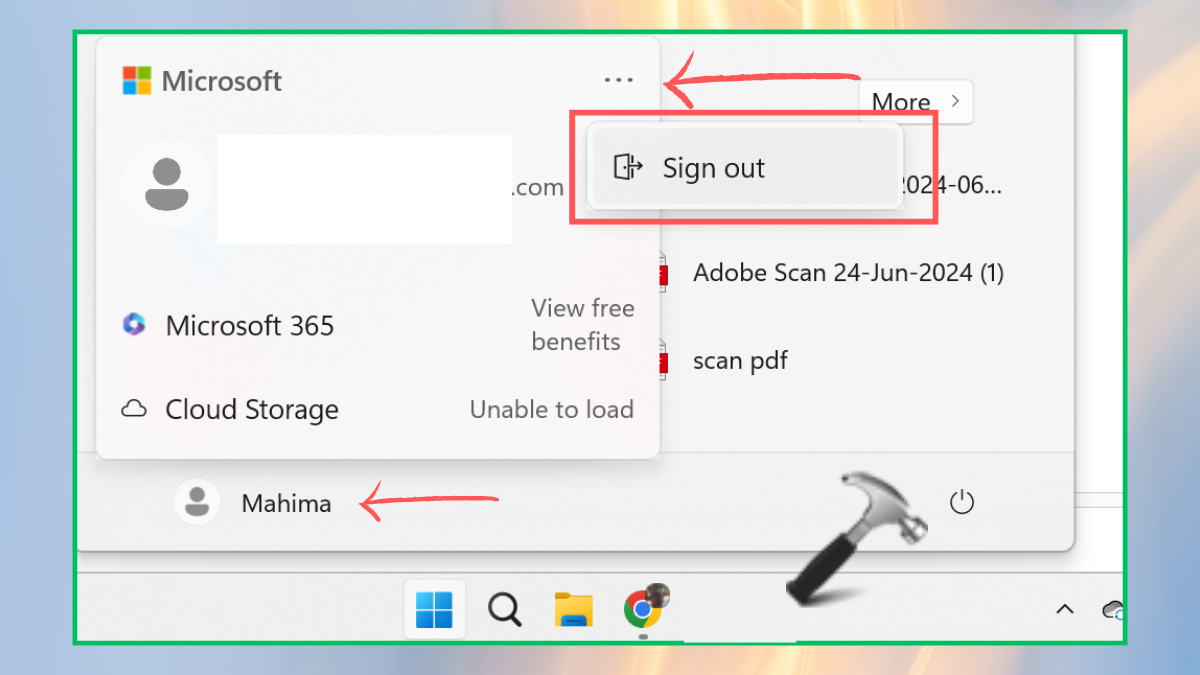
Restart the PC. Re-enter using the same Microsoft account. This will reset boot identity and result in Microsoft re-registering the PC.
Fix 3: Enable Device Sync & Required Privacy Settings
The Windows 11 PC is not seen on the Microsoft account unless privacy and sync settings are turned on.
Sync Settings
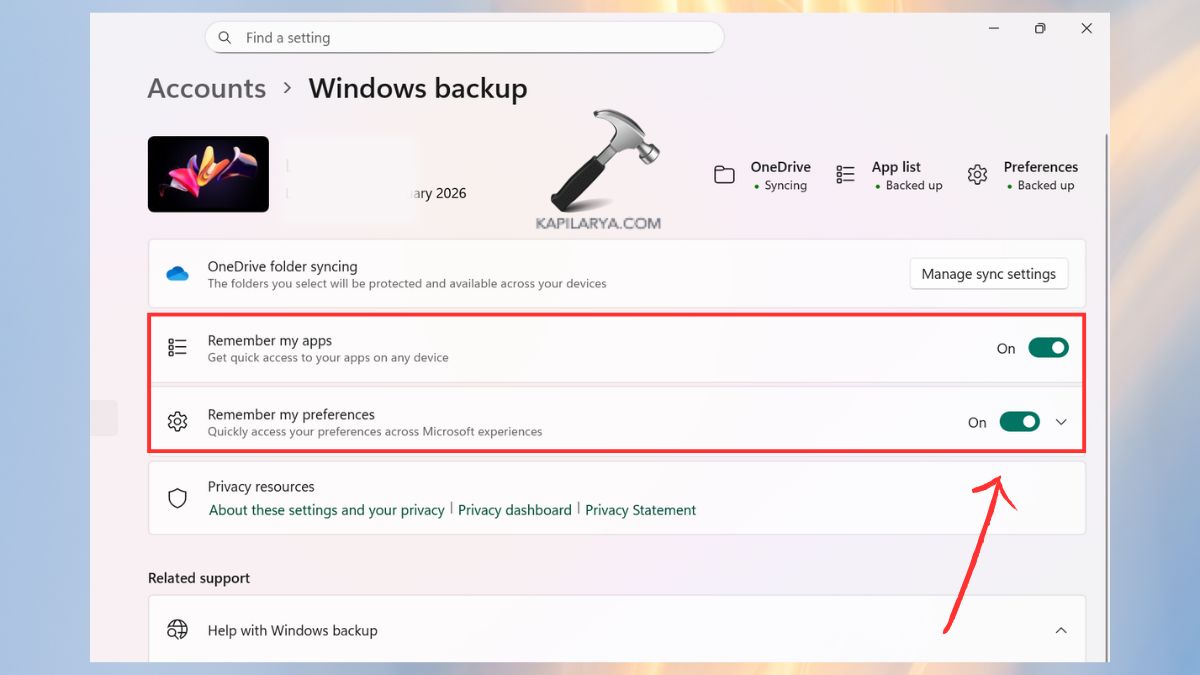
1. In the Settings, under the Accounts, Windows Backup.
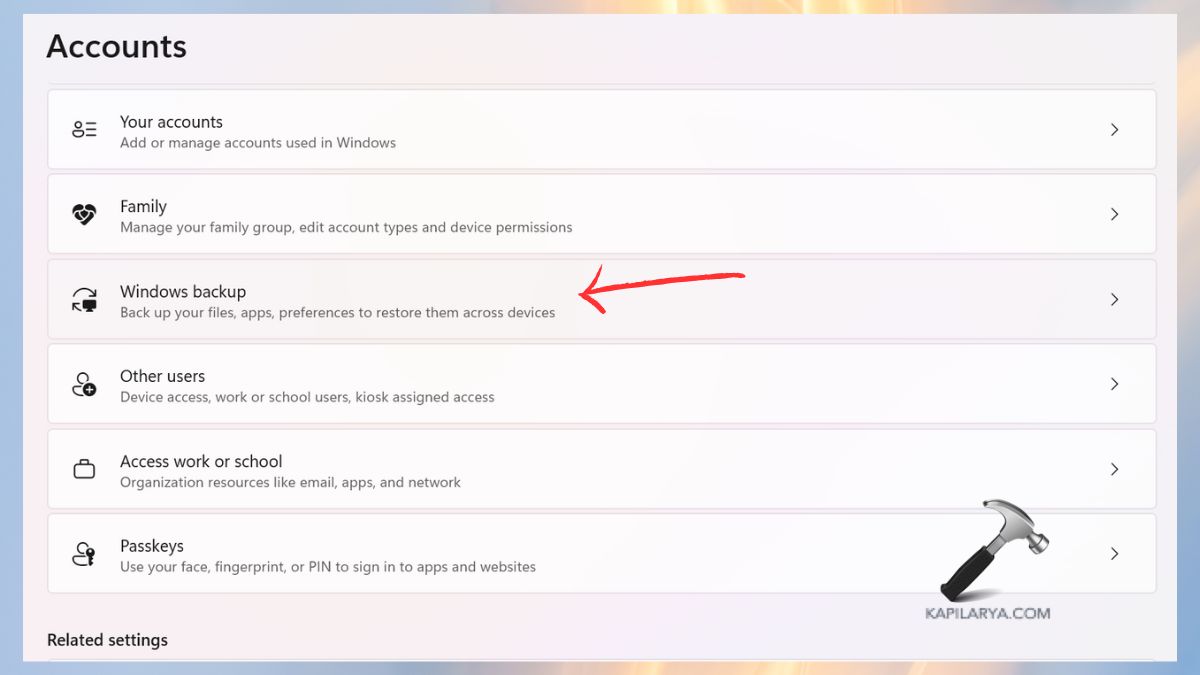
2. Switch on Remember my apps and Remember my preferences.
Device Privacy Settings
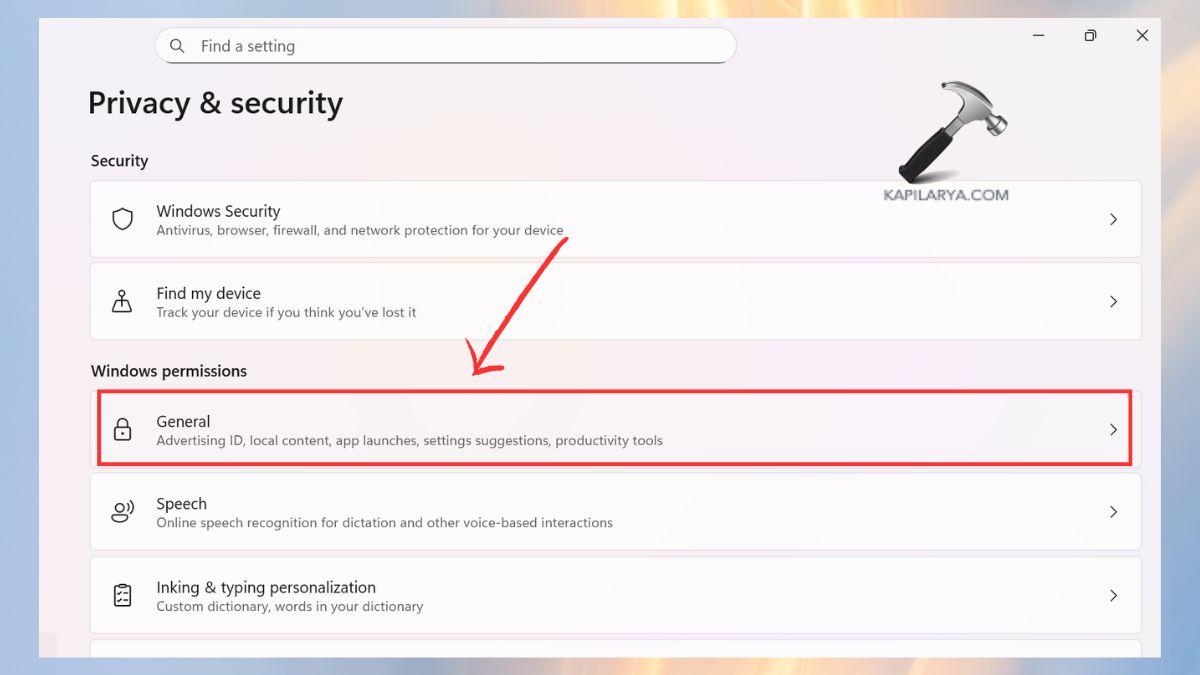
1. Open Settings > Privacy and security > General.
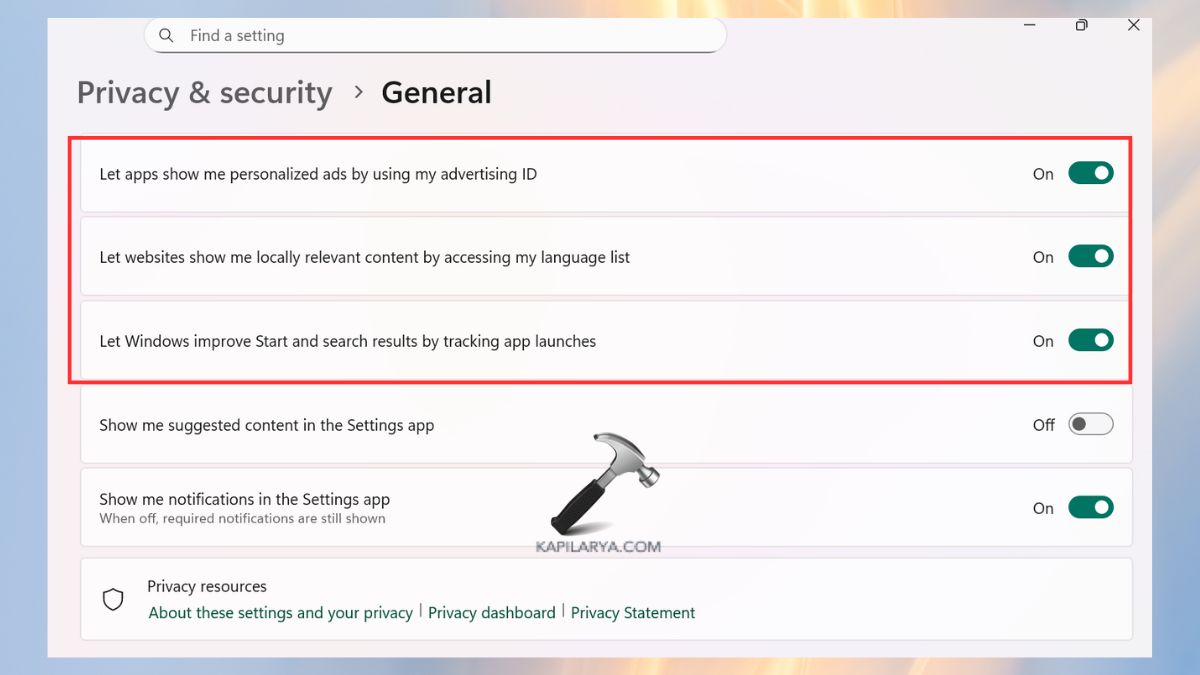
2. Turn on these settings –
- Let websites show locally relevant content
- Allow apps to use advertising ID
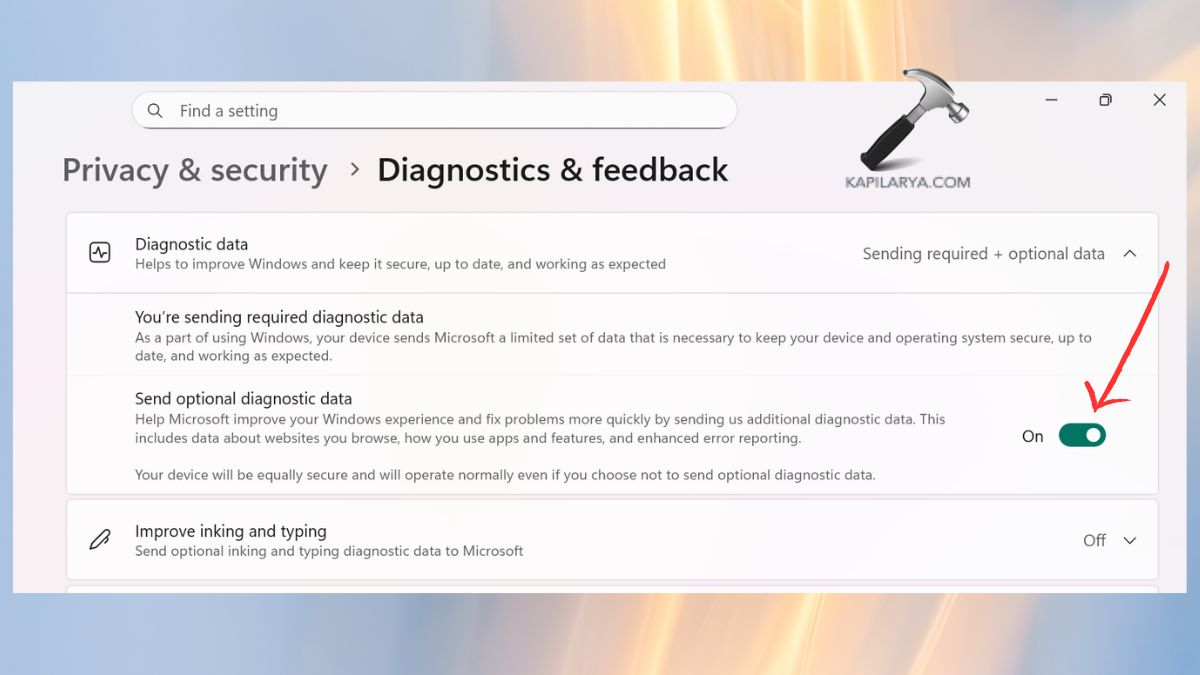
3. Go to Privacy & security > Diagnostics & feedback.
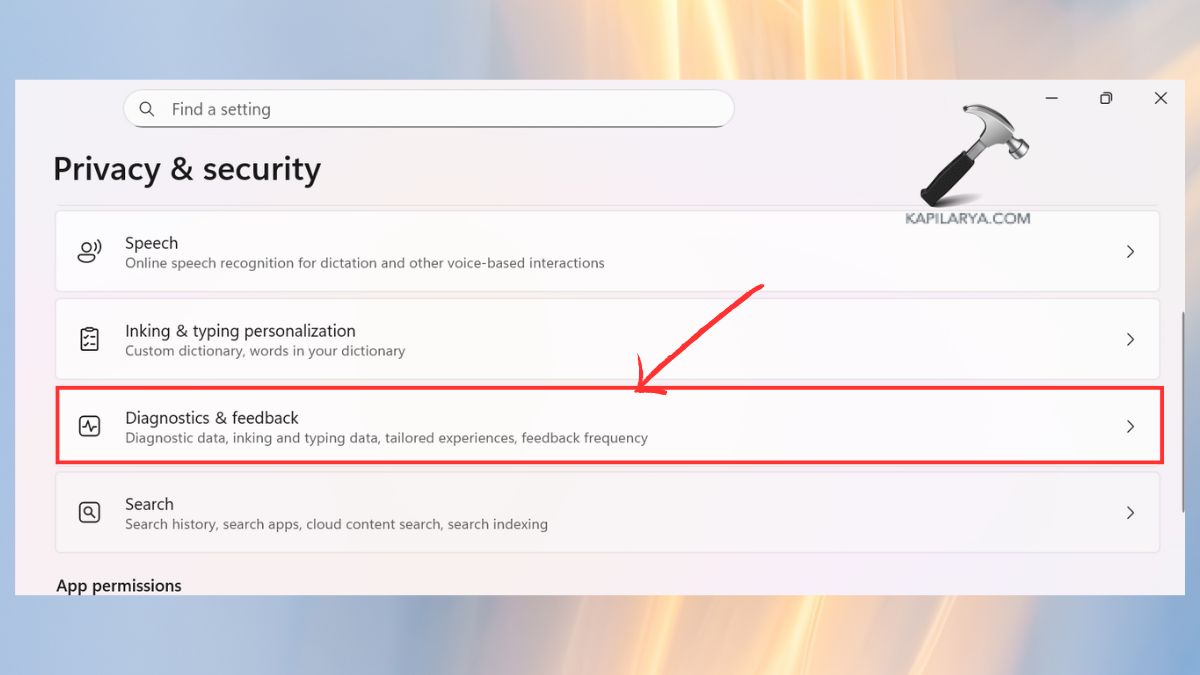
4. Send optional diagnostic data (Select this option on Your Choice).
Fix 4: Rename Your Windows 11 PC and Restart
In case your PC has a generic or duplicate name (DESKTOP-XXXX), then your PC can not be synced to your account.
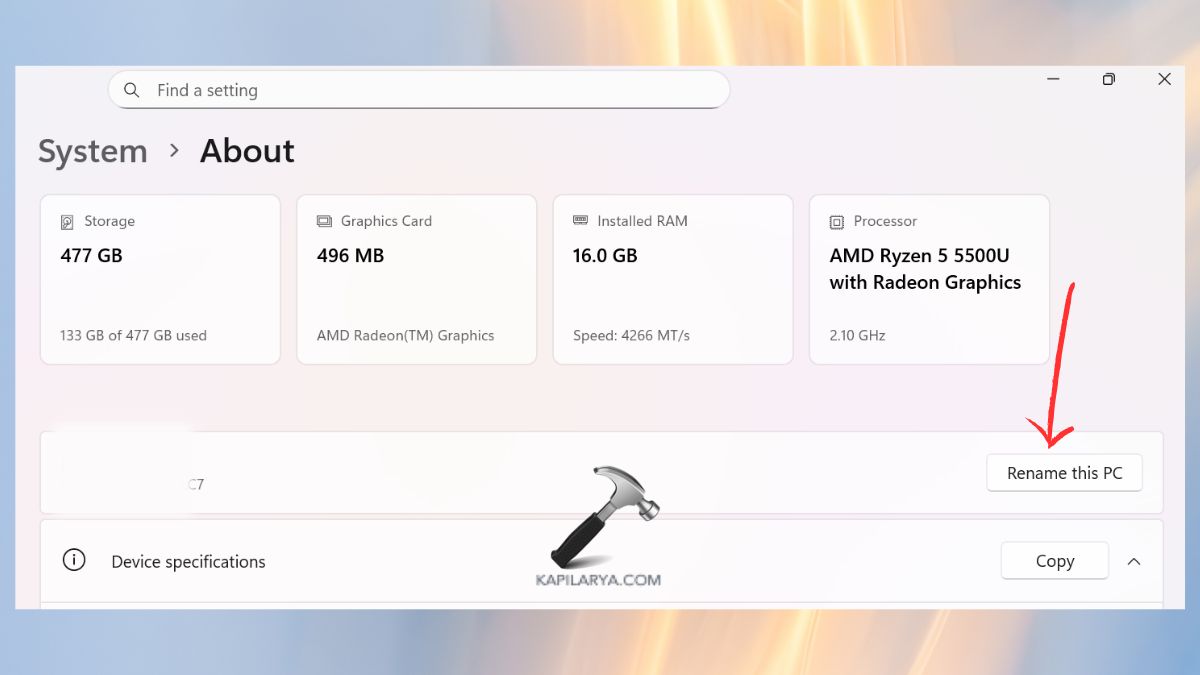
1. Open Settings > System > About.

2. Click “Rename this PC”.
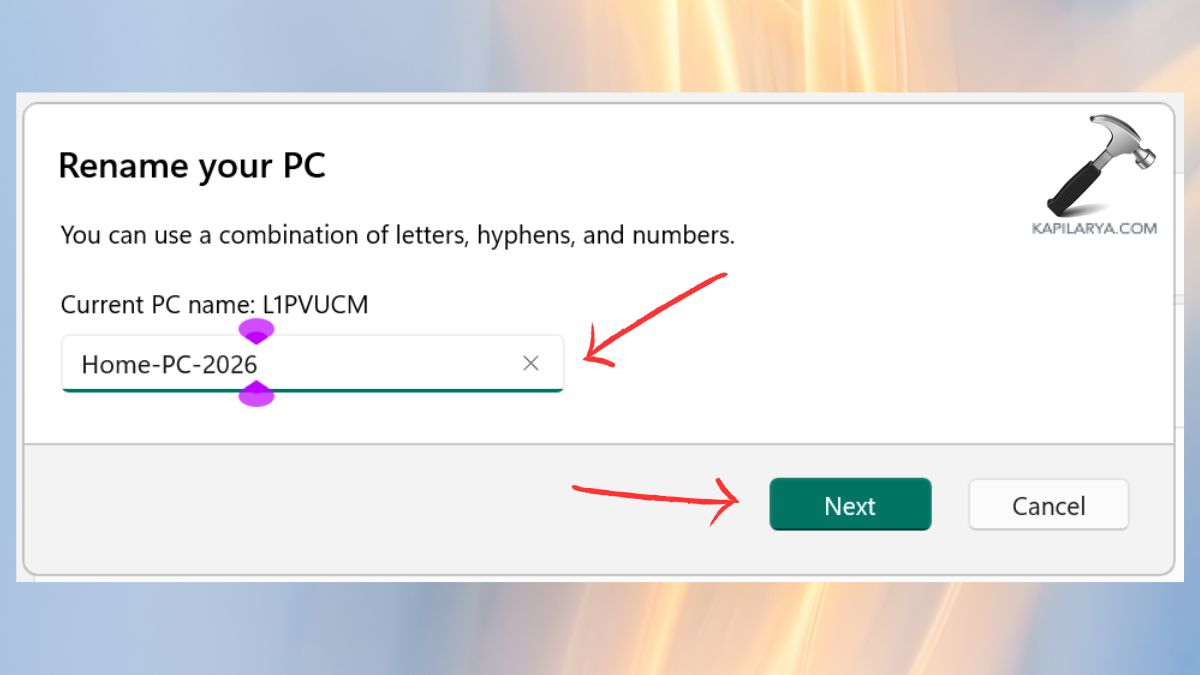
3. Enter distinctive or different name (e.g. Home-PC-2026). Restart your PC. Once the site comes up again, go back to the site.
Video fix
You can checkout following video guide to illustrate above mentioned methods:
Important Tips to Make Your Device Show
- First, do ensure that you are connected to the internet.
- Keep Windows updated (Settings > Windows update).
- Give Microsoft servers some time of 10-30 minutes to synchronize.
- Also, it is not recommended to have more than one Microsoft account in the same computer.
Frequently Asked Questions (FAQs)
Why is my Windows 11 device not appearing in my Microsoft account?
Due to the fact that your account or even your sync or privacy settings are not available, or Microsoft servers do not detect the PC/device.
How long does it take for a Windows 11 device to show in my Microsoft account?
Usually 5 to 30 minutes. In rare cases, up to 24 hours.
Does signing out and signing back in fix the issue?
Yes, it causes device re-registration and is known to fix sync issues immediately.
Can I link more than one PC to my Microsoft account?
Yes, it is possible to connect multiple Windows 11 devices, laptops, Xbox consoles, and Surface devices to one and the same account.
That’s it!




