When you are looking to find out how to remove fingerprints on Windows 11, you are likely to have log-in problems, want to replace fingerprint information, or you want to use a password/PIN to log in instead. Fingerprint login is handy, yet in some situations, one should be able to delete the old biometric data because of sensor issues, security or creating a new fingerprint. In brief, this is a guide with instructions on how to remove biometric fingerprint in Windows 11 through four various ways.
Page Contents
How to Remove Fingerprint from Windows 11
Windows 11 stores the fingerprint information in a hardware-based digital storage known as Trusted Platform Module (TPM). In case of corrupt biometric data, you may not be authenticated by Windows. It works well and removes the fingerprint, causing Windows to clear this secure storage and remake it, which explains why it also fixes most of the issues with a login.
Method 1: Remove Fingerprint Using the Settings App
It is the most prescribed and easiest way when dealing with ordinary issues.
1. Open Settings. Navigate to Accounts. Click Sign-in options.

2. Select Windows Hello Fingerprint, and under that click Remove.
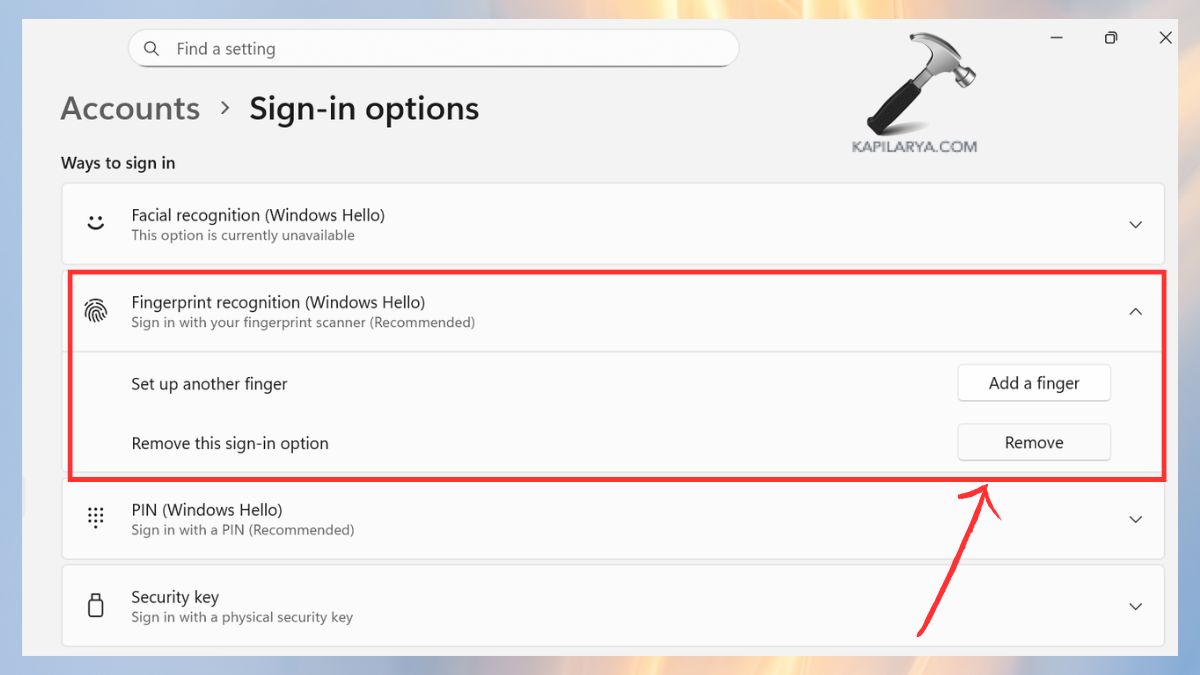
Confirm by entering your PIN. This will remove the fingerprint information of yours entirely.
Method 2: Remove Fingerprint via Device Manager
This is useful in cases where Windows Hello fingerprints are not showing up or are not working.
1. Click with the right button on the Start button and choose Device Manager.

2. Expand Biometric devices. Now, right-click on your fingerprint sensor (e.g. Synaptics, Goodix, EgisTec).
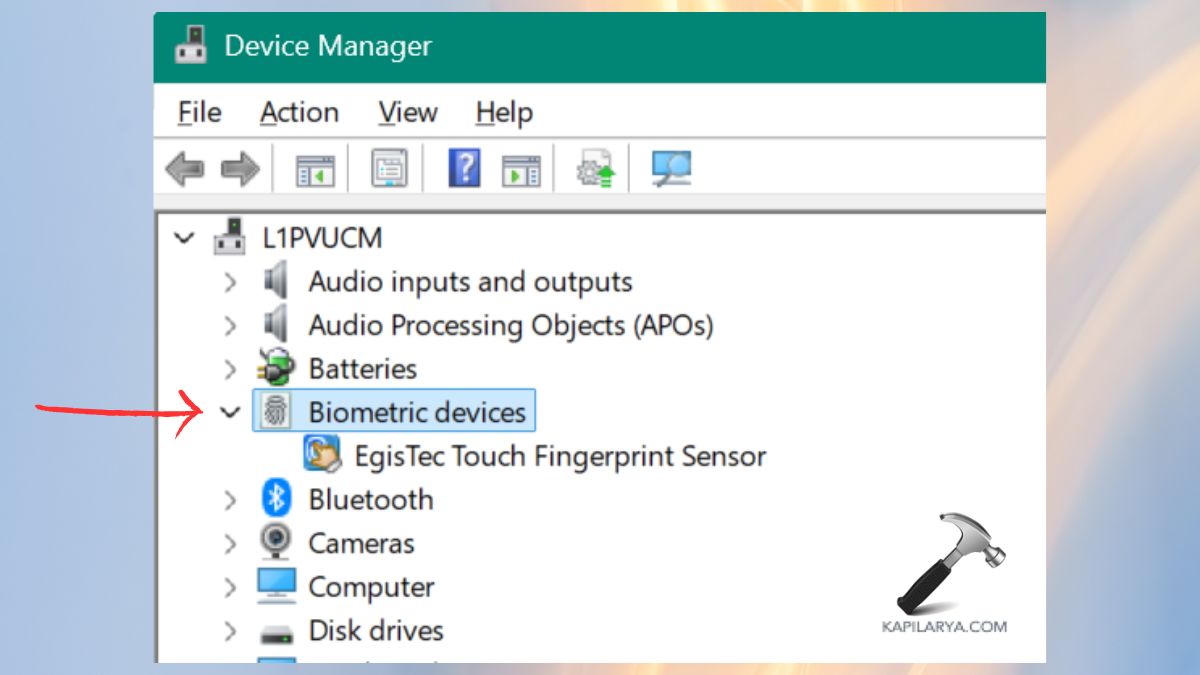
3. Select Uninstall device. Erase this device (worth deleting the driver).
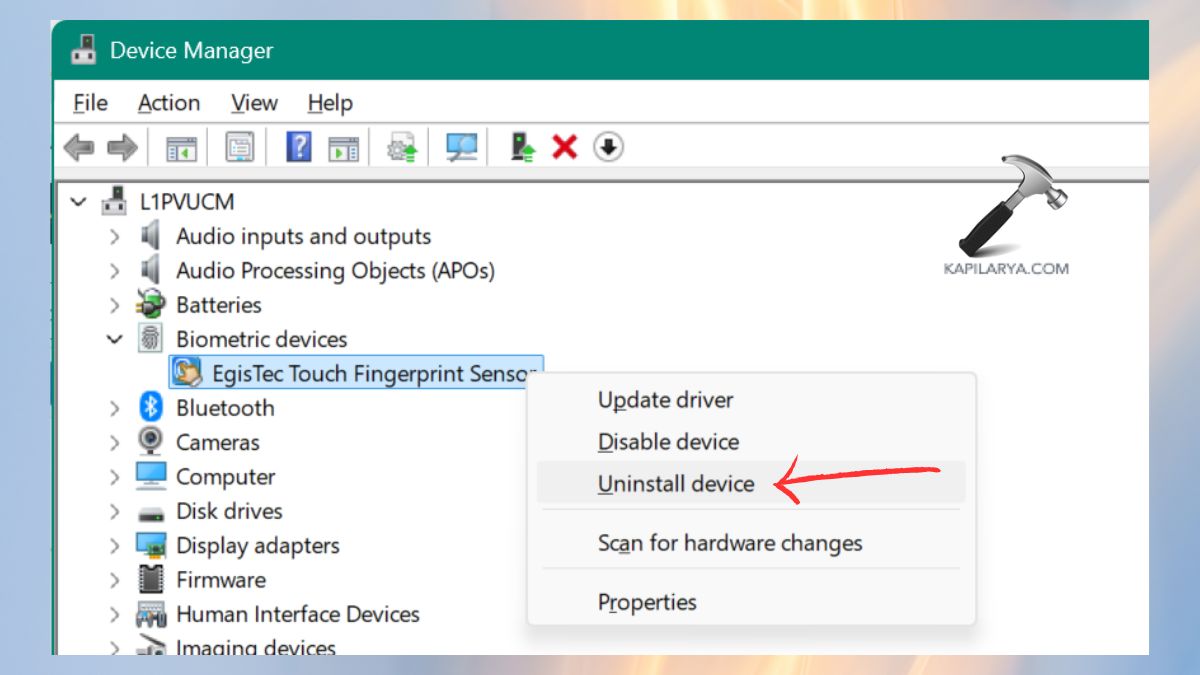
The driver will be automatically reconstructed by Windows after a restart and will clear out all of the old fingerprint data.
Method 3: Configure Local Group Policy Editor
This is handy in case Windows Hello policies or restrictions are deployed.
1. Click on Windows + R and press Enter.
gpedit.msc

2. Next, navigate to this path:-
Computer Configuration > Administrative Templates > Windows Components > Biometrics
Locate the policy named Allow the use of biometrics, and then double-click.
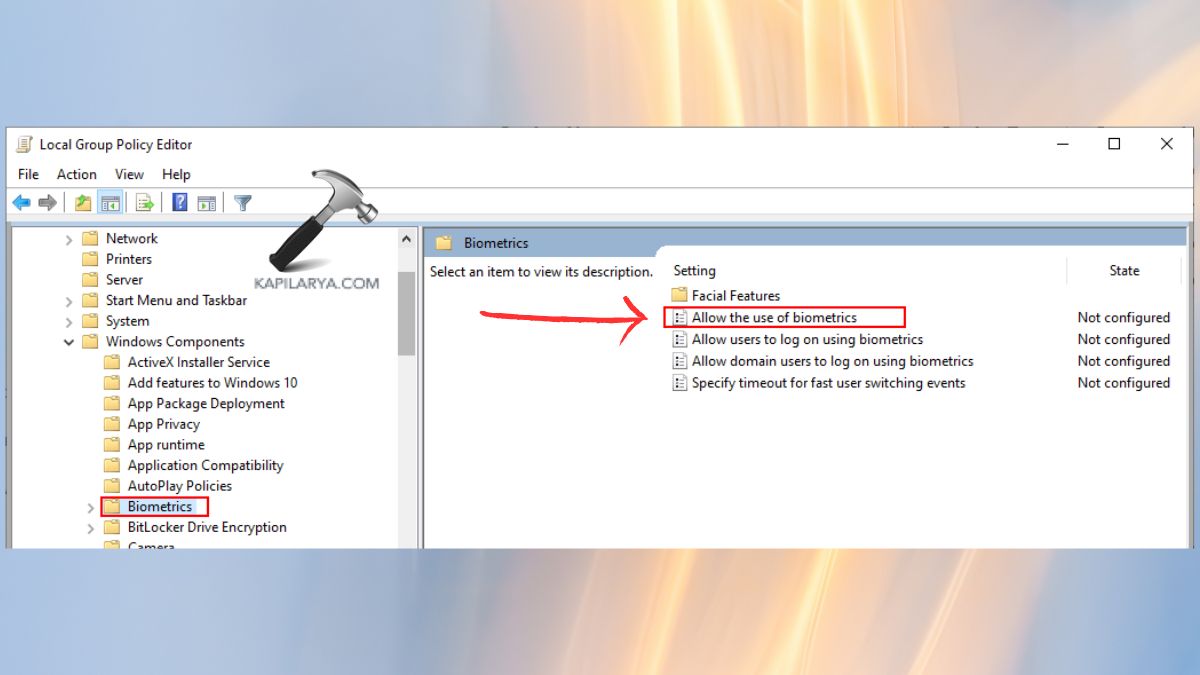
3. Now, set it to Disabled > Apply > OK.
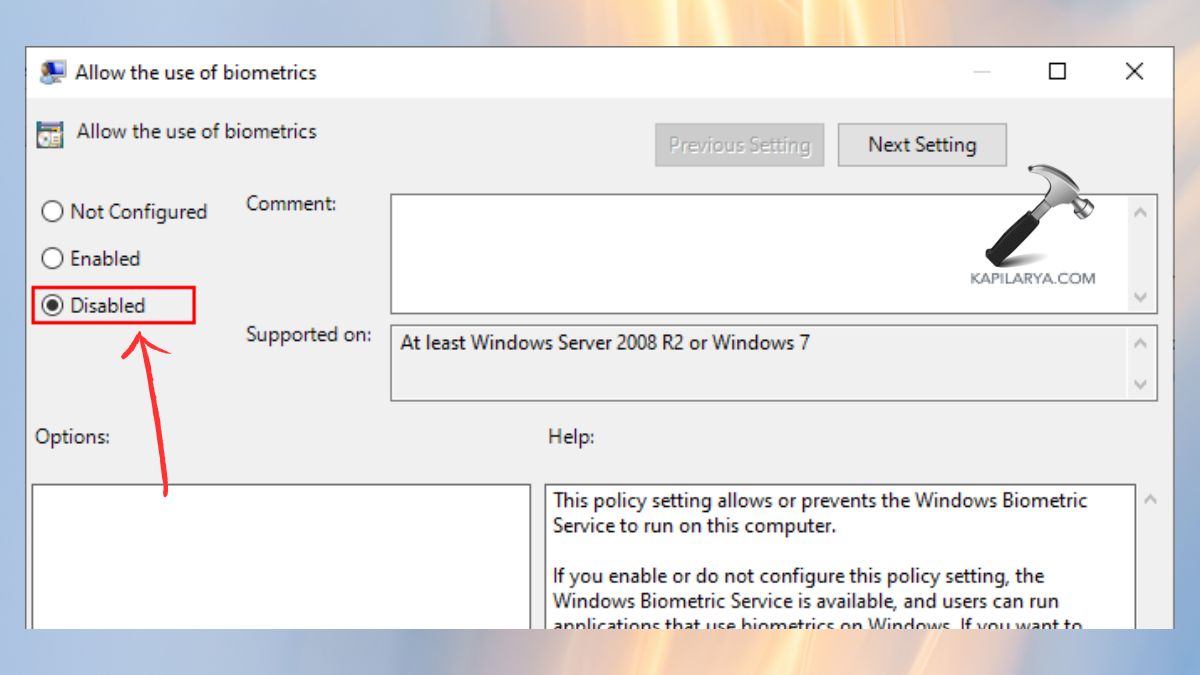
4. Now, go to the Sign-in option in Settings, and delete the current fingerprints.
Hence, turning off biometrics requires Windows to wipe out fingerprint credentials that had been stored in the past.
Method 4: Remove Fingerprint Using Registry Editor
This is a manual procedure for eliminating the fingerprint database that has been stored.
1. Click Windows + R, copy-paste this and hit Enter.
regedit
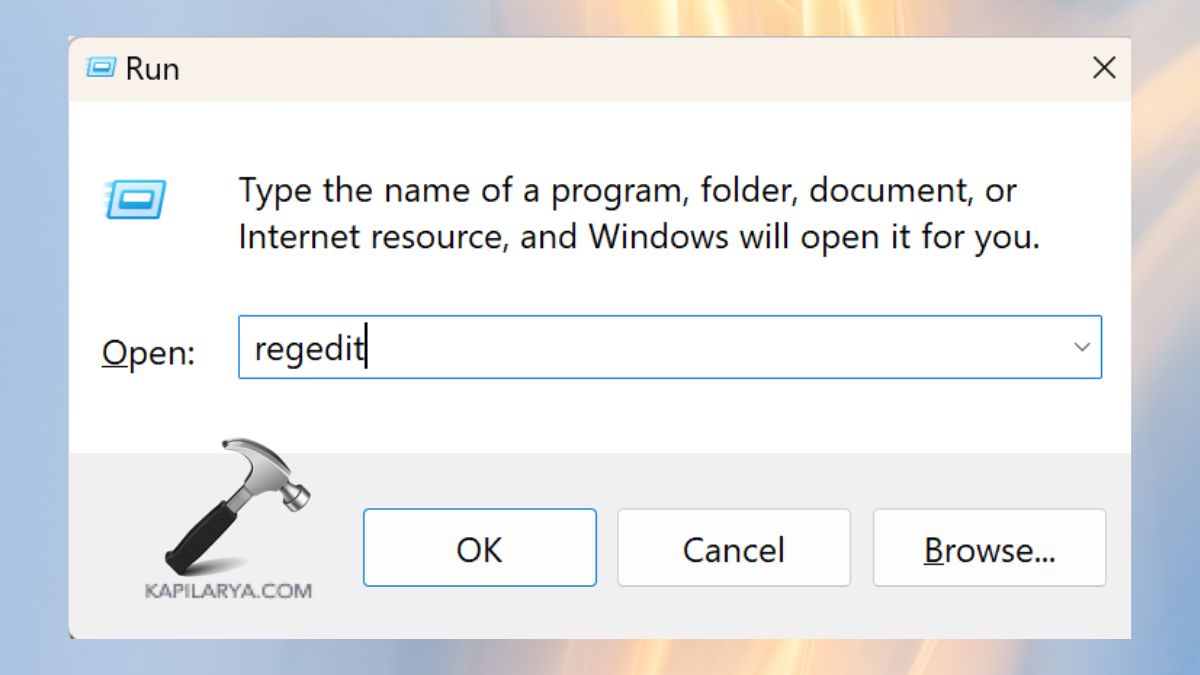
2. Go on to the next path:-
HKEY_LOCAL_MACHINE\SOFTWARE\Microsoft\Windows\CurrentVersion\Authentication\LogonUI\Biometrics
You will find these as the subkeys in the Biometrics folder:-
- Credential Provider Data
- Enrollments
3. Right-click on the folder > click Delete.
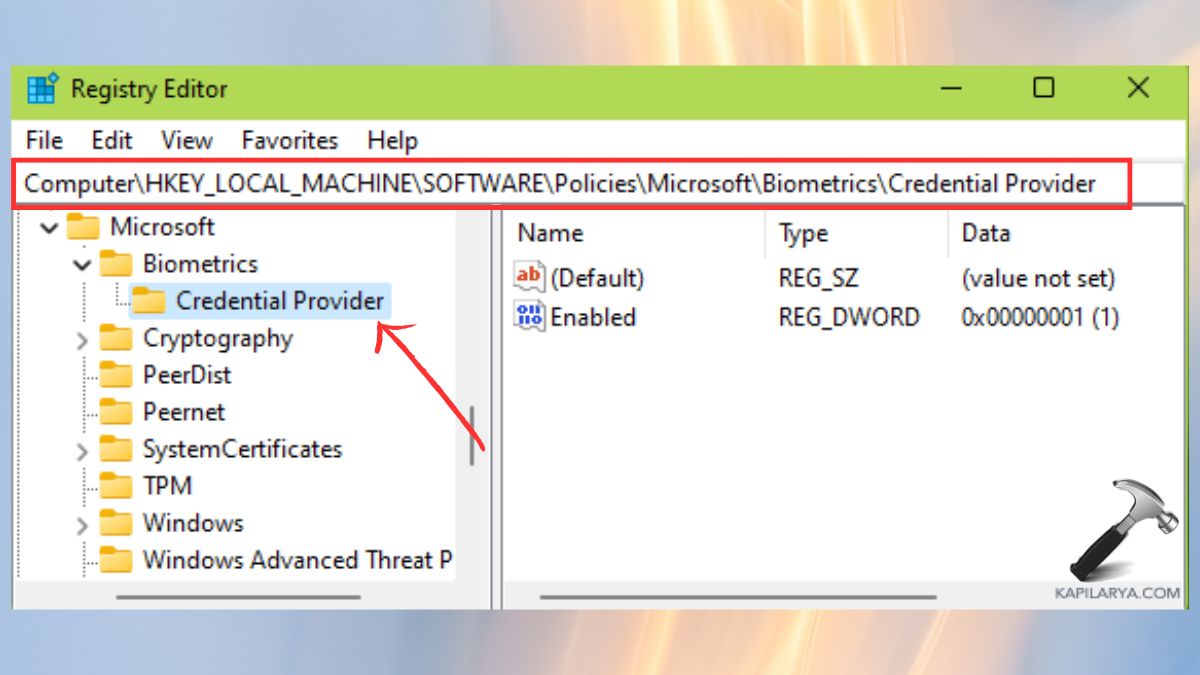
Now, restart the PC. The improper editing of the registry may be the cause of system problems. It is only when you are sure that you can go down this route.
Video guide
You can also refer this video guide for further guidance:
Frequently Asked Questions (FAQs)
Why can’t I remove my fingerprint from Windows 11?
In case the Remove button is greyed, update biometric drivers, Device Manager or delete policies through Group Policy Editor.
Does removing fingerprints delete my Windows Hello PIN?
No, the PIN is stored independently. Any process of deleting fingerprints only erases biometric data.
Can I add new fingerprints after removing old ones?
Yes, once you have deleted the old fingerprints, you can proceed to Settings, Set up and add new ones.
Is it safe to delete fingerprint data from Registry Editor?
Yes, but you must get rid of the biometrics enrollment keys in the correct way. Always save up your registry and make a copy of it.
That’s it!
![Windows Hello not working in Windows 11/10 [2026 Fix]](https://www.kapilarya.com/assets/Windows-Hello-768x343.jpg)