

Windows became irritating for us when it takes long time to start-up or shut down. This might be the problem with you PC. In this article we’ll teach you how to find and resolve this issue. Here firstly we have to detect shutdown time. To manually find this, follow these steps:
1. Open Run, type EVENTVWR.MSC. If required permission, affirmative it.
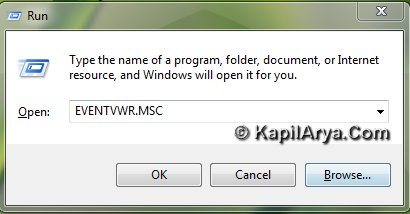
Now you’ll see summary of administrative events, also a list is being populated there.
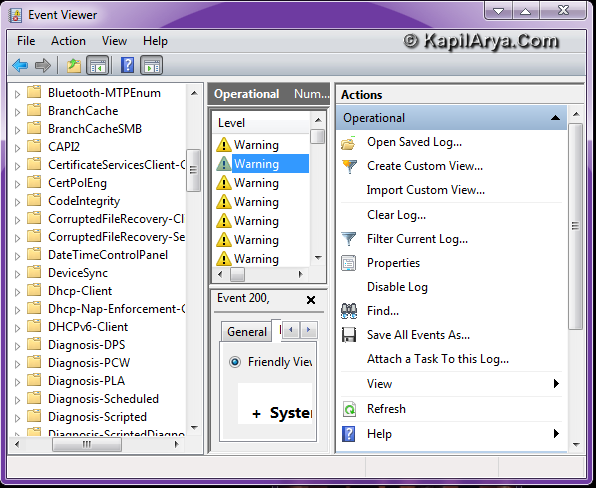
2. Navigate here:
Application and services log -> Microsoft ->Windows -> Diagnostics-Performance -> Operational
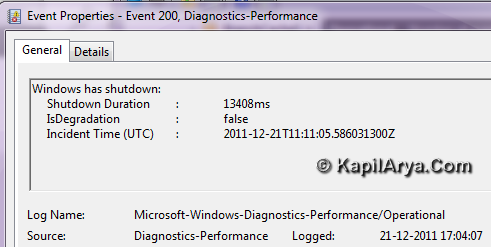
3. Now right click on operational and select Open. A list is again being populated in middle. The EventID 200 is for shutdown operation. Right click over it, select Event Properties. It will give you the shutdown time. Alternatively by experience you can know if your PC is slow at shutdown.
FIX : Windows 7 Taking Long Time To Shut Down
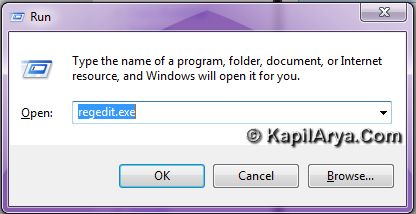
1. Press  + R and put regedit.exe in Run dialog box to open Registry Editor (if you’re not familiar with Registry Editor, then click here). Click OK.
2. Navigate here:
HKEY_LOCAL_MACHINE\SYSTEM\CurrentControlSet\Control\Session Manager\Memory Management
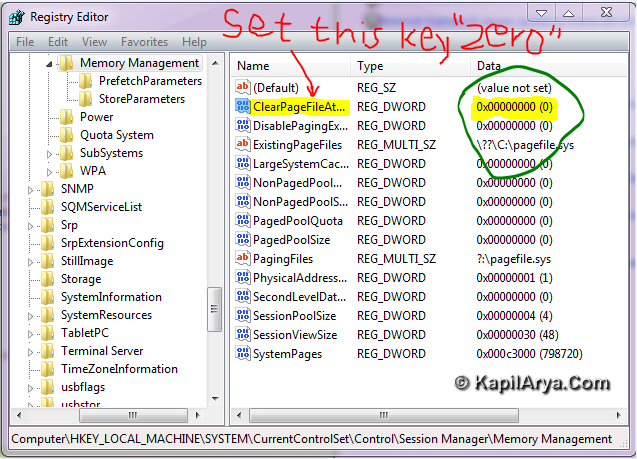
3. In the right pane of this location, look for the DWORD name ClearPageFileAtShutdown (REG_DWORD) and double click on the same, put its Value data to 0. Click OK and close Registry Editor, reboot to get fixed.
That’s it!



as usual nice tutorial kapil
must read tip.. shared to friends
good topic to talk on!
lets see the alternative for detecting problem, type this command:
xbootmgr -trace shutdown -noPrepReboot -traceFlags BASE+CSWITCH+DRIVERS+POWER -resultPath C:TEMP
Shutdown log file will autogenerated!!
^^ Got it! The file generated is :
[2011/12/22-09:11:30.663] Starting trace…
[2011/12/22-09:11:31.692] Enabled user-mode logging to ‘C:TEMPshutdown_BASE+CSWITCH+DRIVERS+POWER_1_um_premerge.etl’ for flags ‘0063715b-eeda-4007-9429-ad526f62696e+06184c97-5201-480e-92af-3a3626c5b140+dbe9b383-7cf3-4331-91cc-a3cb16a3b538+9c205a39-1250-487d-abd7-e831c6290539+5322d61a-9efa-4bc3-a3f9-14be95c144f8+43e63da5-41d1-4fbf-aded-1bbed98fdd1d+de7b24ea-73c8-4a09-985d-5bdadcfa9017+aea1b4fa-97d1-45f2-a64c-4d69fffd92c9+30336ed4-e327-447c-9de0-51b652c86108+63d2bb1d-e39a-41b8-9a3d-52dd06677588+1fd7c1d2-d037-4620-8d29-b2c7e5fcc13a+e23b33b0-c8c9-472c-a5f9-f2bdfea0f156+4ee76bd8-3cf4-44a0-a0ac-3937643e37a3+67fe2216-727a-40cb-94b2-c02211edb34a+e6307a09-292c-497e-aad6-498f68e2b619+206f6dea-d3c5-4d10-bc72-989f03c8b84b+e8316a2d-0d94-4f52-85dd-1e15b66c5891+331c3b3a-2005-44c2-ac5e-77220c37d6b4+9d55b53d-449b-4824-a637-24f9d69aa02f’.
[2011/12/22-09:11:31.692] Enabled regular logging to ‘C:TEMPshutdown_BASE+CSWITCH+DRIVERS+POWER_1_km_premerge.etl’
[2011/12/22-09:17:20.443] Merging previous trace…
Then take XML and extract it
exactly. now extract it to see shutdown time interval. thanx 4 reply.
wats about start-up?
@QXP THERE ARE TONS OF TUTORIAL ON IT ALREADY & GOOGLE IS YOUR FRIEND!!