The entrance of viruses in the PC can lead to various problems in the system. These may include losing, deletion or corruption of files. Thus, this post delves into the main fixes using which the users can Recover data from a virus in Windows 11. It also consists of some tips for the users for protecting their system from viruses.
Page Contents
How to recover data from a virus infected Windows 11 system
The existence of various viruses such as Boot sector virus, Macro virus, File infector virus, etc. can cause loss of data in the PC. For recovering the data from a virus infected Windows 11, the users have to first remove the bugs and then can recover their lost files. Now, let us first check the fixes for eliminating the viruses in detail.
Fix 1: Scanning Viruses
The existence of virus or malware in the system can lead to various problems in the PC including the issue of viruses. Solving it using the steps below can help in fixing the problem.
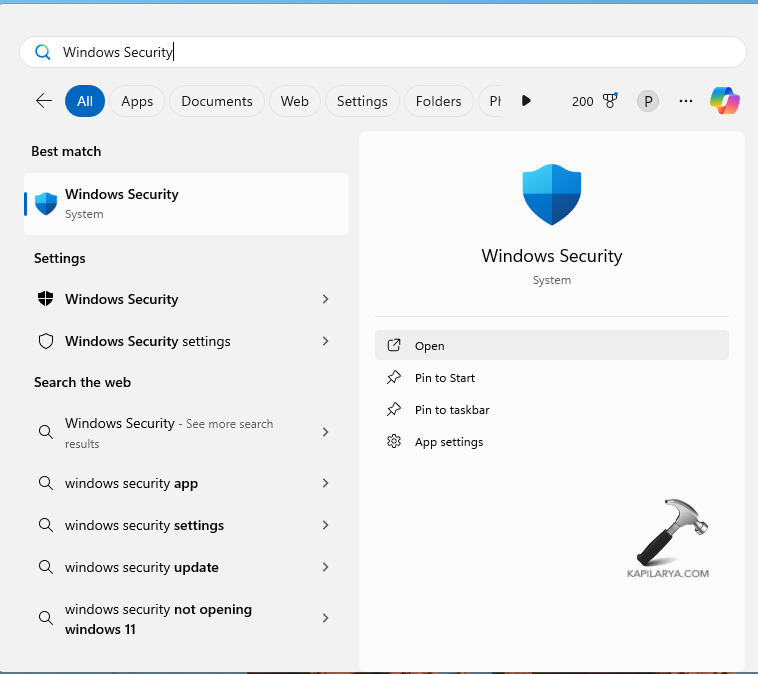
Step 1- Open Windows Security.
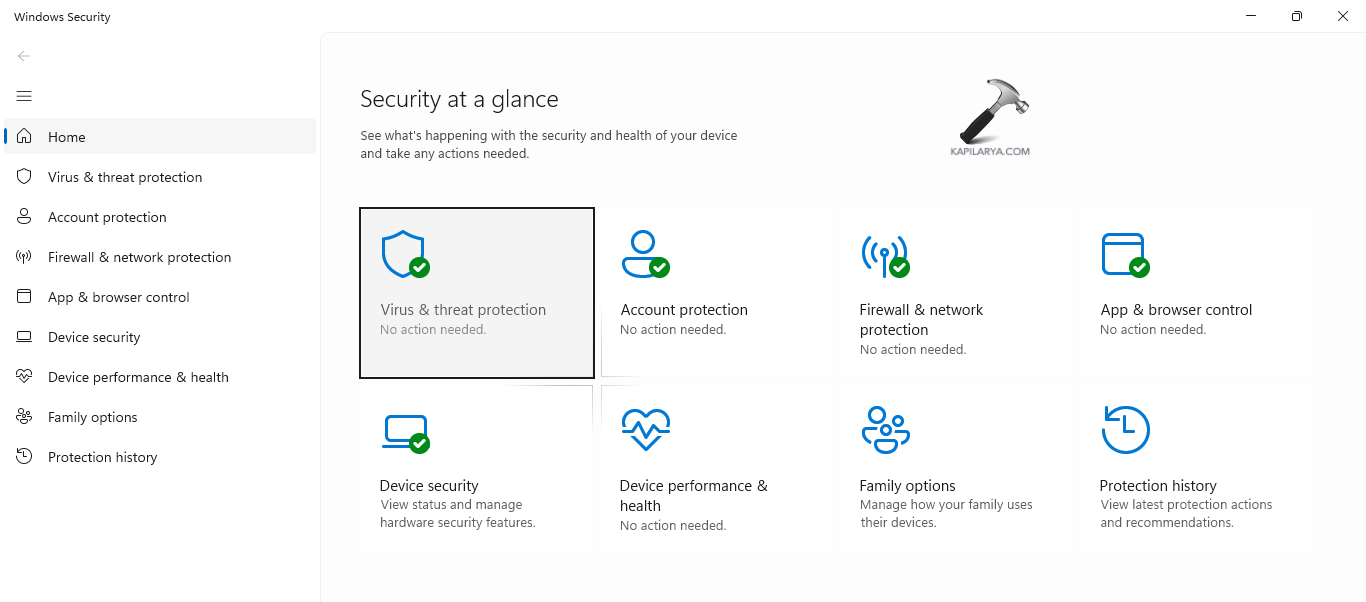
Step 2- Next go to Virus & threat protection.
Step 3- Open Current threats and press Scan options.
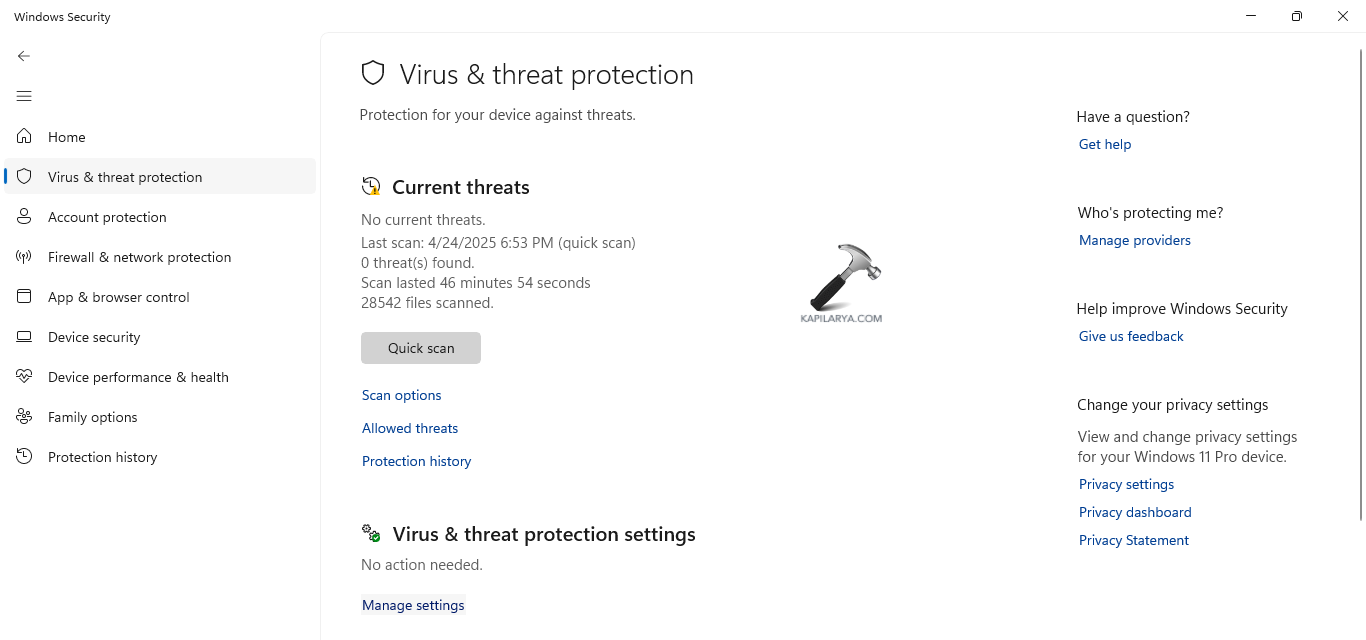
Step 4- Now, press Microsoft Defender Offline scan and select Scan now.
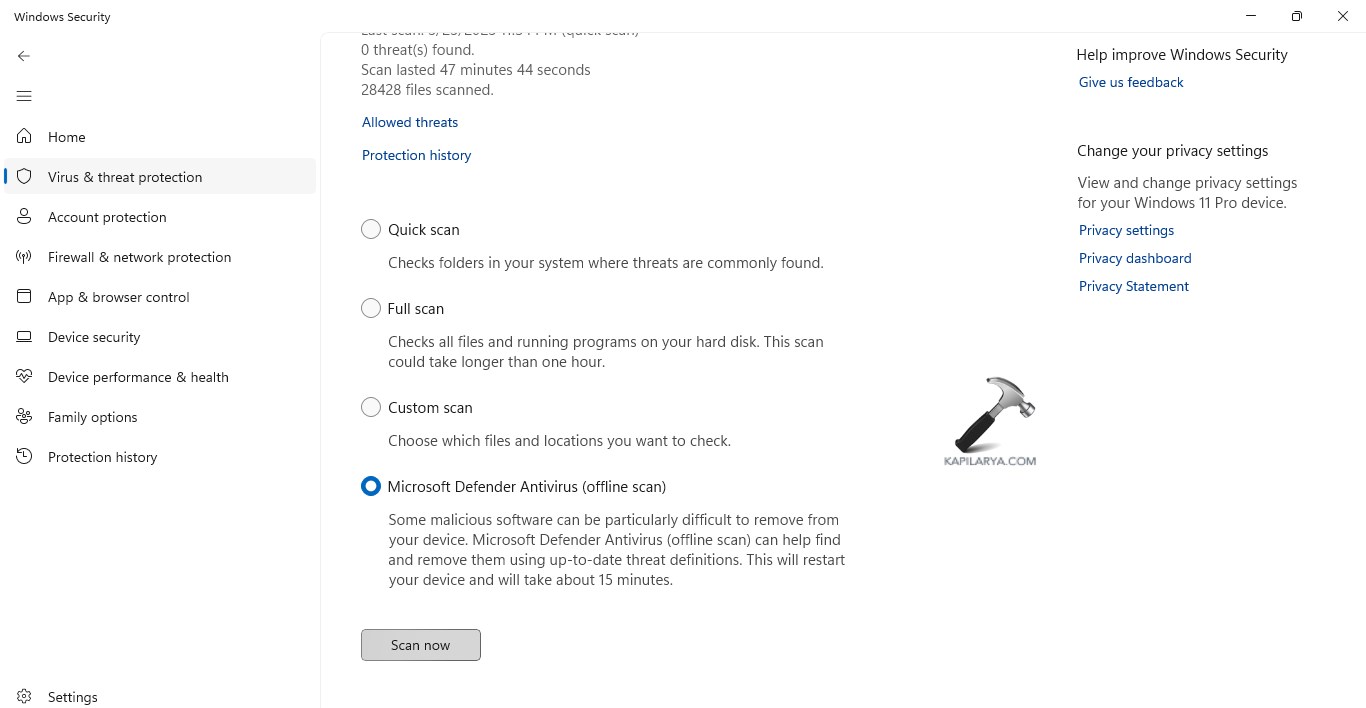
Step 5- When the PC reboots, Microsoft Defender Offline will perform a scan.
Step 6- After the scan is finished, the PC will restart. This should fix the issue.
Fix 2: Rebooting in Safe Mode
Booting the PC in Safe Mode which will remove any kind of bug existing in the PC in return fixing the issue. The steps for doing the same are provided below.
Step 1- Firstly, open the Start Menu and press the power icon.
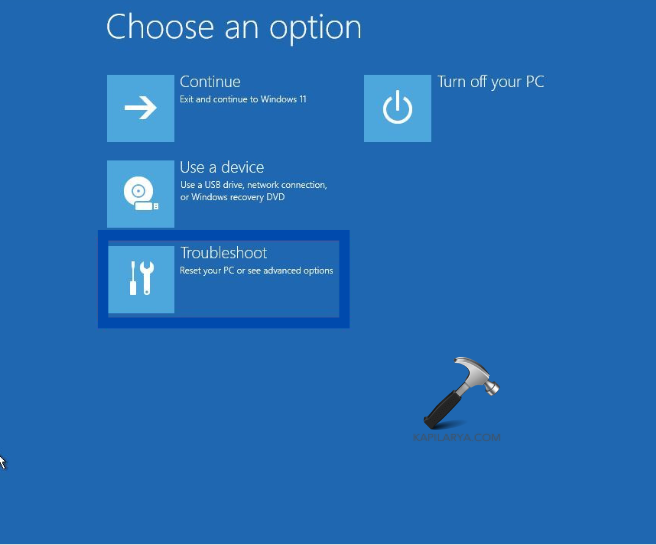
Step 2- Next, hold the Shift button and press Restart.
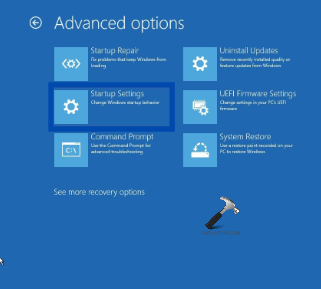
Step 3- Now, select Troubleshoot > Advanced Options > Startup Settings.
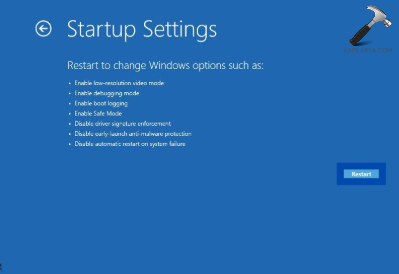
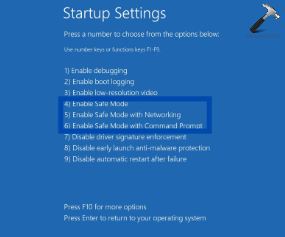
Step 4- Again, select Restart and click 4 on keyboard. This will enter the PC in Safe Mode.
Now let us check the fixes for recovering the data from a virus infected PC.
Fix 3: Recovering Hidden Files With CMD
The first way for recovering hidden file is with CMD. For that, follow the steps provided below.
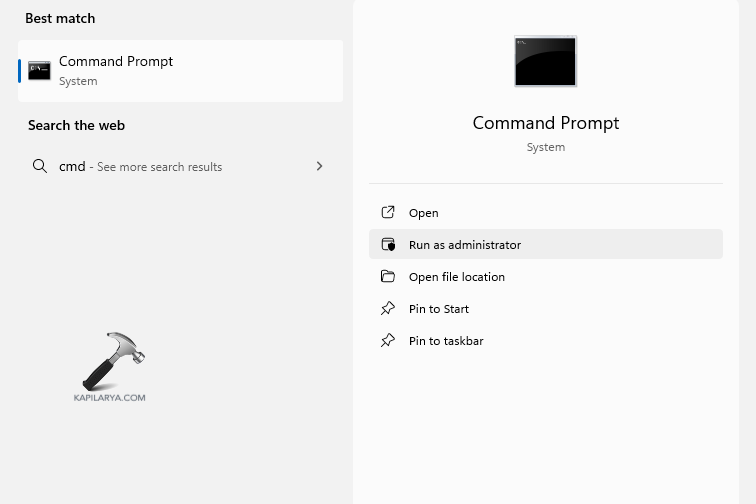
Step 1- Run CMD as an administrator.
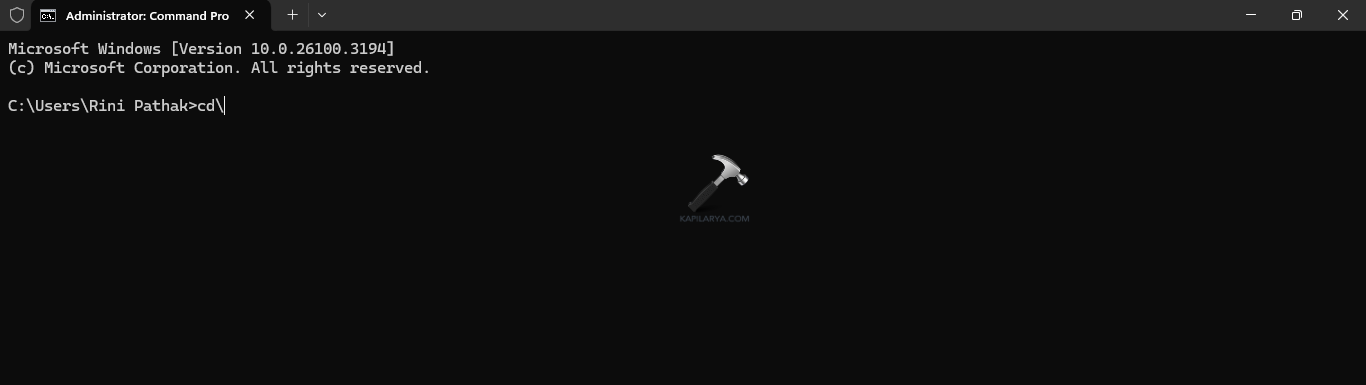
Step 2- Now, enter the command below and click Enter.
cd\
Step 3- Next, write the drive letter for examining hidden files, followed by a colon (:). Then, click Enter.
Step 4- Further, write the command below and click Enter. This will show all the hidden files and folders inside the above-mentioned drive.
dir/ah
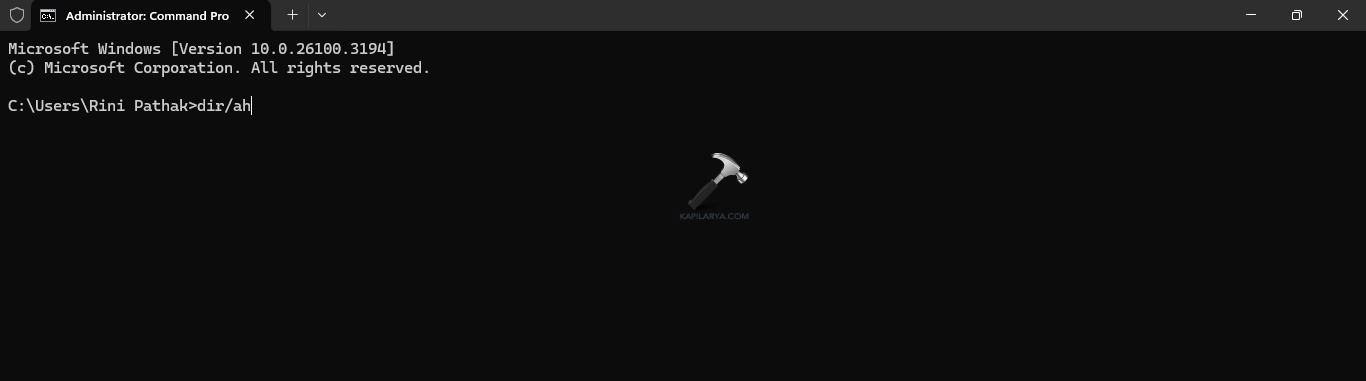
Step 5- After the lost files are visible in the command prompt, write the command below for making them visible again.
attrib *. –h –s /s /d
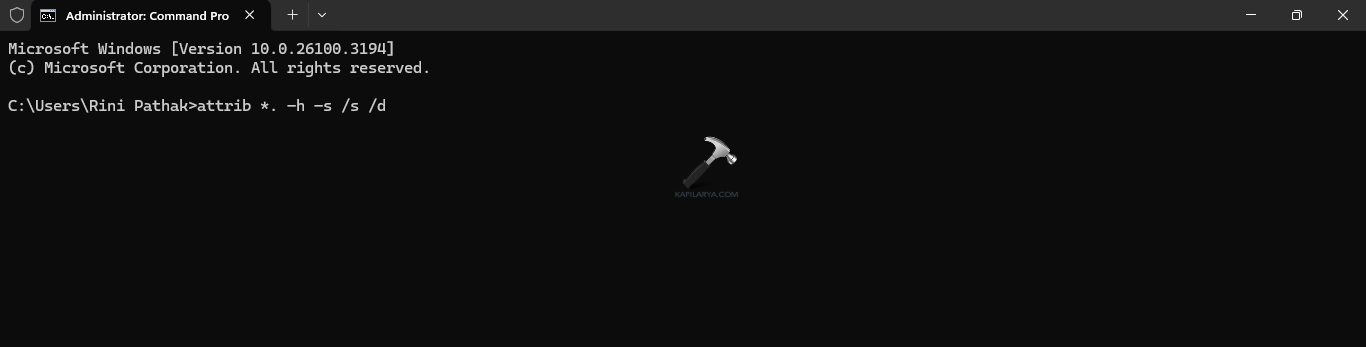
Lastly, check if this makes the files unhidden again.
Fix 4: Recovering deleted files with Previous Versions
Again, the users can also recover deleted files with previous versions using the step below.
Step 1- Firstly, go to the folder where the deleted files are saved.
Step 2- Next, right-click the folder and press Properties.
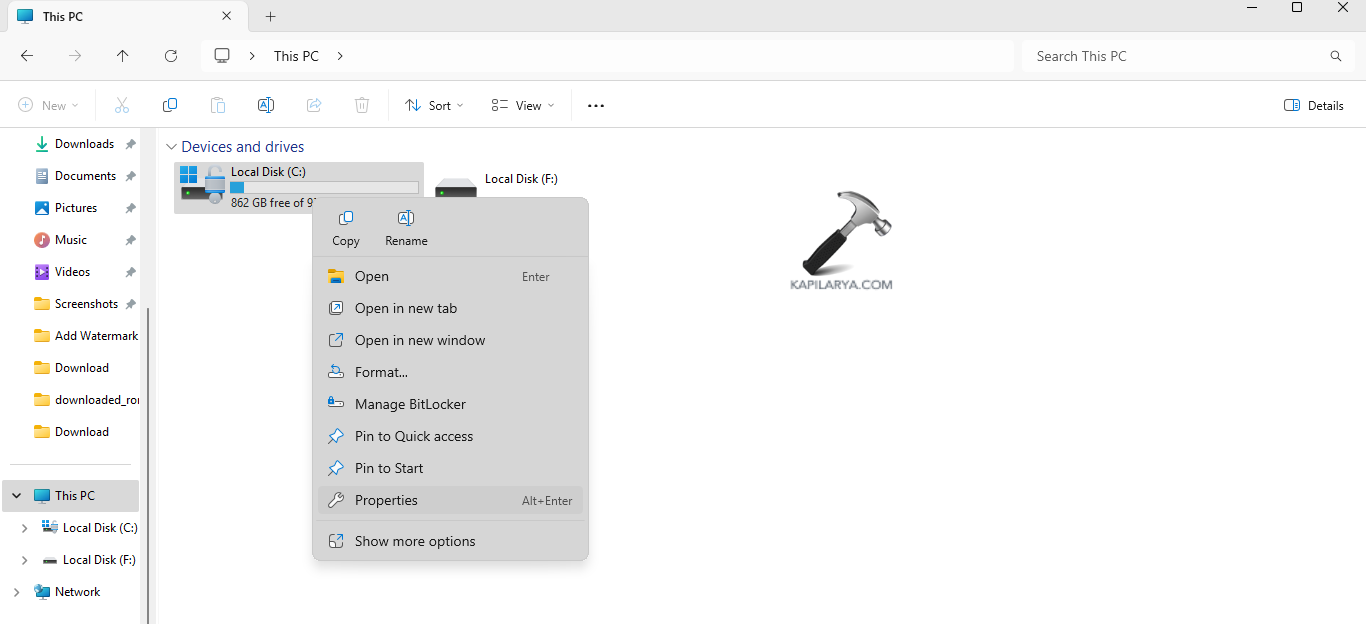
Step 3- Further, visit the Previous Versions tab. The list of the previous snapshots made by File History will appear here.
Step 4- Here, choose the version which existed before deleting the files. Press Restore for replacing only the files which were present in this version. Leave the additional additions.
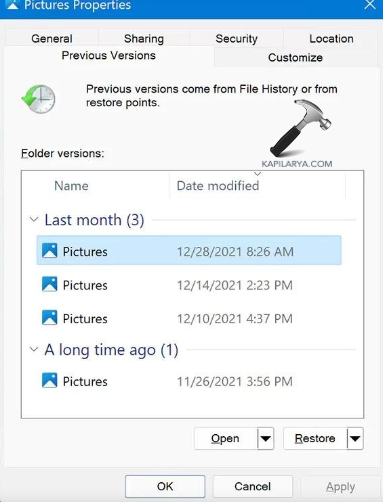
Step 5- Alternatively, press Restore to…. This will restore the folder to some other location leaving the present one undamaged.
Bonus Tips for Securing Windows 11
Finally, let us check some bonus tips for securing the PC from viruses in future.
- Activating Secure Boot- Make sure to always enable Secure Boot in BIOS/UEFI for blocking malwares from loading during the time of system startup.
- Using BitLocker Encryption- Encrypting the drives for protecting the data if device gets lost will also help in securing Windows 11.
- Updating the PC- Timely install Windows updates for protecting the PC and for removing any security issues.
- Disabling Remote Desktop- Disable remote desktop connections when not required. This will prevent any problematic remote access.
- Regular Scanning- Regularly scanning the PC for malwares and viruses using the Windows Security will help in keeping the PC safe and secure.
That’s it!