

MicrosoftSecurityApp.exe is an essential element for Windows 11/10. This executable file is needed for Windows Security and its services such as Virus & threat protection, account protection, firewall and network protection, and a lot more.
The error message ”Windows cannot find MicrosoftSecurityApp.exe” indicates that Windows cannot locate or launch this file. This might be a result of accidental deletion or corruption of MicrosoftSecurity.exe. The other reason might be some system paths and registry changes. In this article, we’ll see ways to fix it.
Page Contents
Fix Windows cannot find MicrosoftSecurityApp.exe in Windows 11/10
Below are the different ways of fixing this error for your Windows.
Fix 1: Use PowerShell to reinstall Windows Security
1. Right click Start Button or press Windows + X keys and select Terminal (Admin).
2. In administrative Windows PowerShell window, type/paste following and press Enter key:
Add-AppxPackage -Register -DisableDevelopmentMode "C:\Windows\SystemApps\Microsoft.Windows.SecHealthUI_cw5n1h2txyewy\AppXManifest.xml"
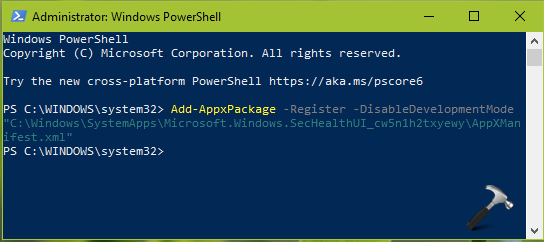
3. Let the code executed and you’ll see deployment progress for this. Once the execution is completed, you can close Windows PowerShell. Now attempt to open Windows Security/Defender and it should work fine this time.
Fix 2: Fix system file corruption
Fixing damaged system files, with the program fixes MicrosoftSecurity.exe.
1. Search Windows for cmd and run it as administrator.
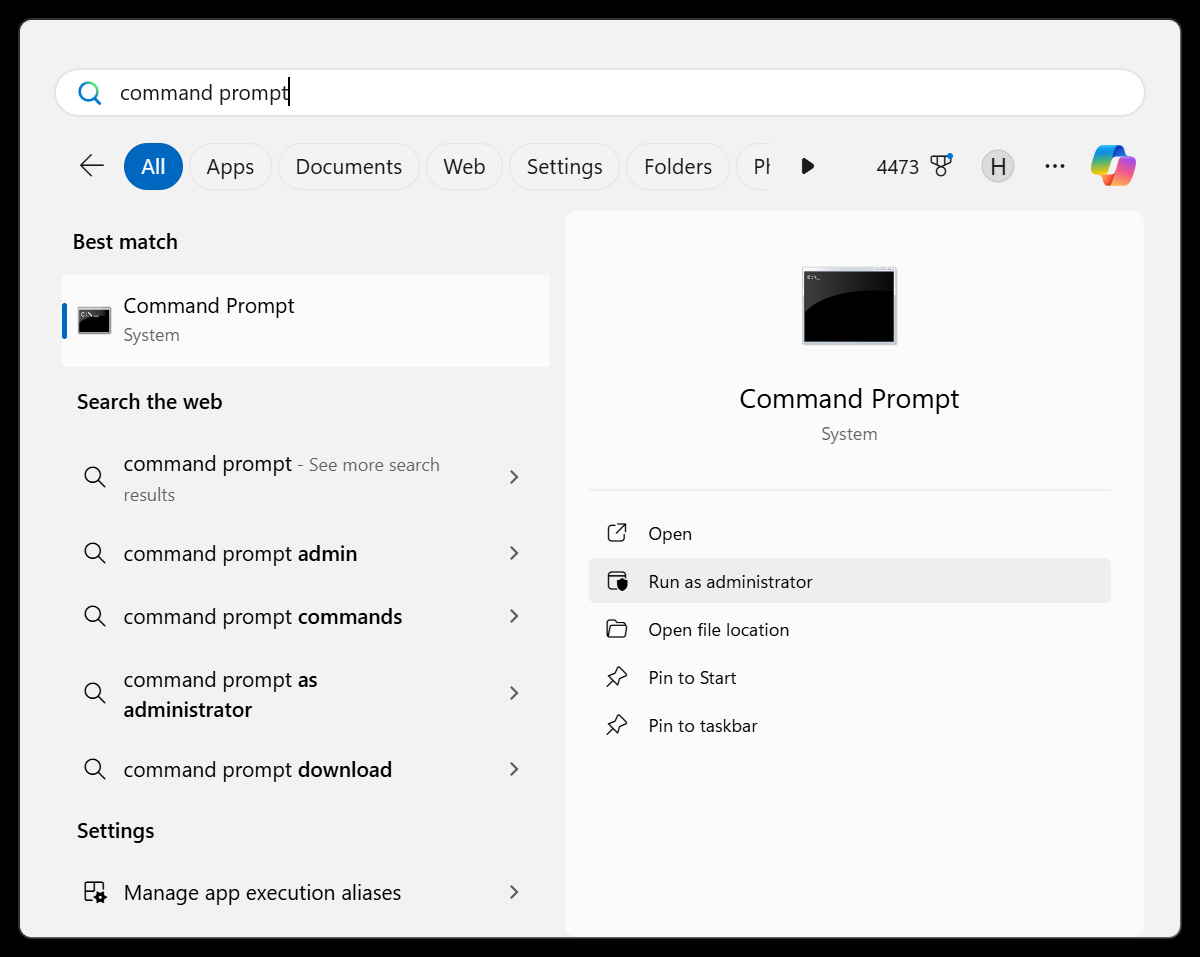
2. Click Yes when User Account Control asks to allow system modifications.
3. Paste and enter the following command and let it complete.
sfc /scannow

4. Check if the issue is now resolved, else proceed to step 5.
5. Next, run these commands one-by-one to repair system image:
Dism /Online /Cleanup-Image /CheckHealth
Dism /Online /Cleanup-Image /ScanHealth
Dism /Online /Cleanup-Image /RestoreHealth
6. Restart the system.
Fix 3: Check background services
Multiple services must operate for the Windows Security to work properly.
1. Press Windows + R, type services.msc and hit Enter.
2. Find these services in the new window:
- Microsoft Defender Antivirus Service
- Windows Security
3. Please ensure these services are functioning. Not yet? Right-click and select Start.
4. Be sure to follow these setting. Double-click Security Center. Select “Automatic (Delayed)” from the Startup type drop-down menu and click OK.

5. Then ensure Microsoft Defender antivirus is running in background.
6. Windows Security Service should start manually.
Hope something helps!




Security center is not showing on the services.msc
Also, I tried all the steps but nothing is working. What should I do?