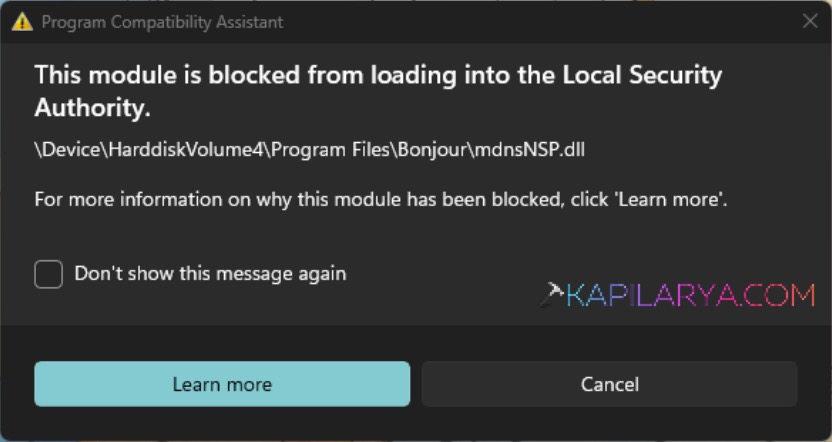
The Local Security Authority pop-up message on a Windows 11 PC displaying the error “This module is blocked from loading into Local Security Authority” may be confusing in its appearance. The error usually occurs following a Windows update or once some applications or services (such as Bonjour or third-party applications) attempt to load files that are not fully trusted by Windows Security.
The positive side is that it can be fixed with some easy steps. In this tutorial, we will break down what this error entails, how it occurs, and how you can correct it step by step, without any high-level tech knowledge.
Page Contents
What Causes the “This Module Is Blocked from Loading into Local Security Authority” Error?
This failure normally occurs when Windows Defender or Local Security Authority (LSA) has prevented a suspicious or untrusted module (DLL) or a module blocked by anti-protection software from being loaded into its secure memory. The following is the list of the common causes you should avoid.
- These may include old or outdated software, including Bonjour, VPN clients, or security software.
- Incorrect registry records on LSA packages.
- The Windows updates that have occurred recently have stricter Memory Integrity or LSA protection.
- A misconfigured group policy or Intune policy that blocks some of the DLLs.
Fix “This Module Is Blocked from Loading into Local Security Authority”
Now, we are going to discuss the solutions step by step. You have to apply one after another till the problem is solved.
Fix 1: Disable Bonjour or Other Problematic Services
Among the frequent offenders of such mistakes is the Bonjour service distributed by Apple and installed with iTunes or Adobe programs. It may interfere with security measures taken by LSA. Here are the instructions to turn Bonjour off.
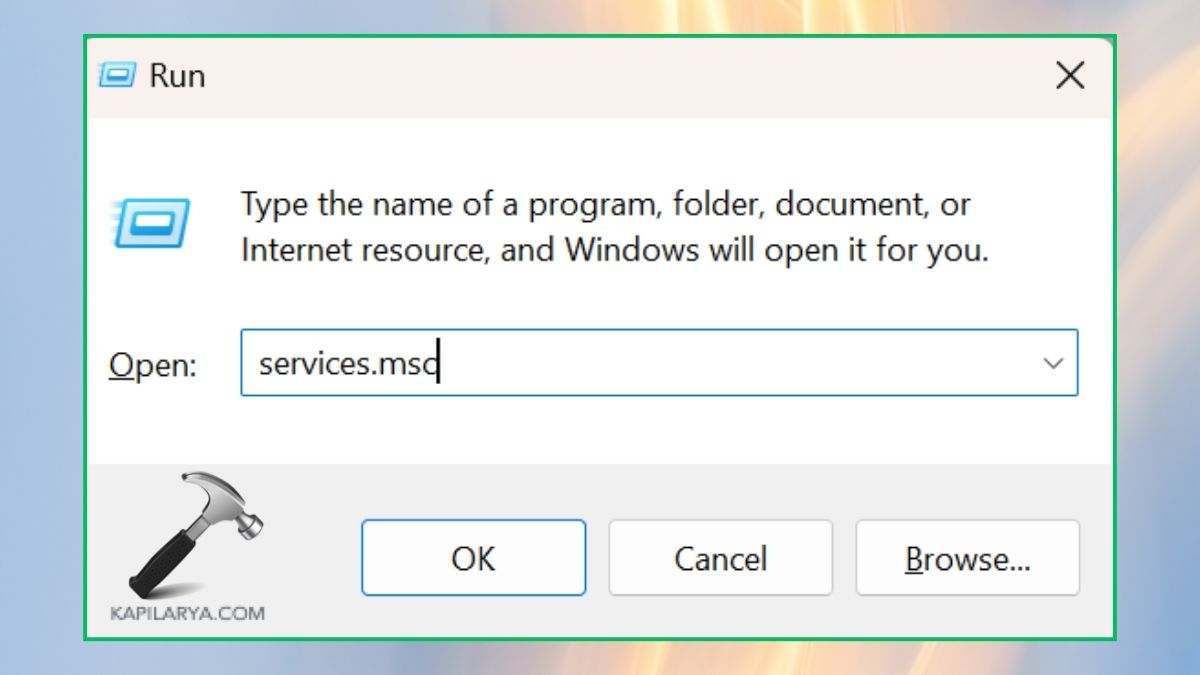
1. Go to the Win+R command box and type the following command in order to open the application called Services, and press Enter.
services.msc
2. Locate the Services window and under it, Bonjour Service. Then, right-click it and choose Properties. Use Disabled as the Startup type.
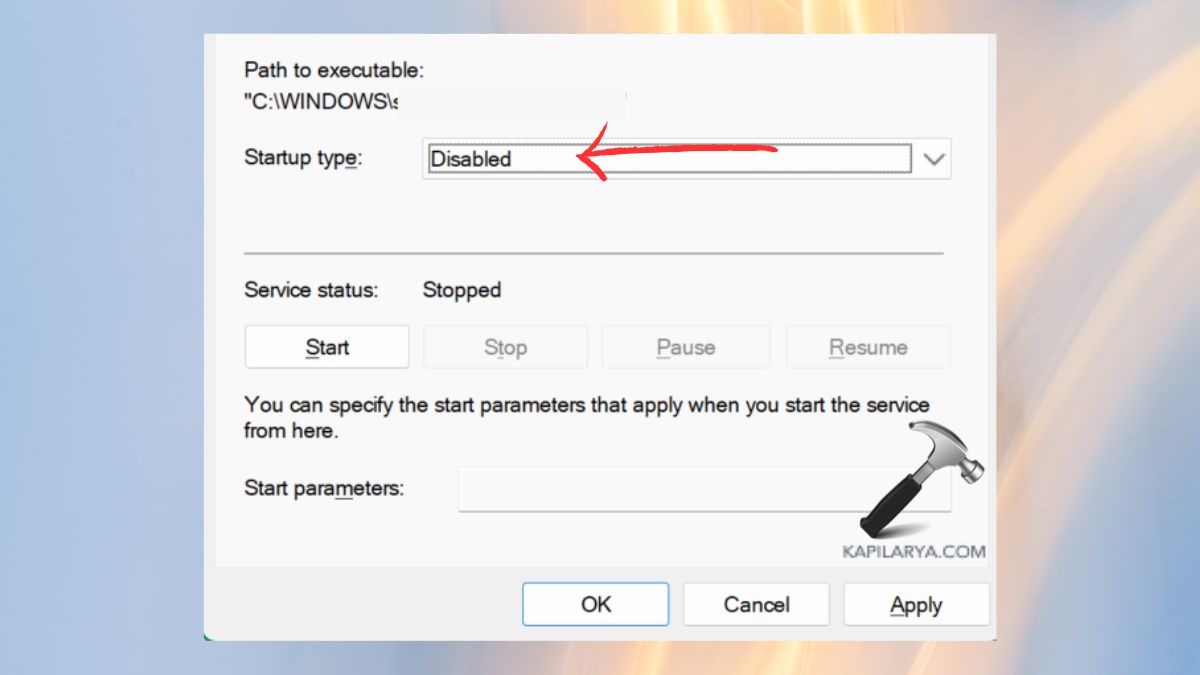
3. Click Stop and pick Apply, and OK. At this point, reboot your PC and make sure that the error message does not show any longer.
Fix 2: Uninstall Problematic Software to Fix Local Security Authority Error
This error may be initiated by injecting DLLs into secure Windows programs by third-party software. The identification of such software can be done in the following steps.
1. To start the Task Manager, press Ctrl + Shift + Esc. Or find Task Manager in the Start menu.
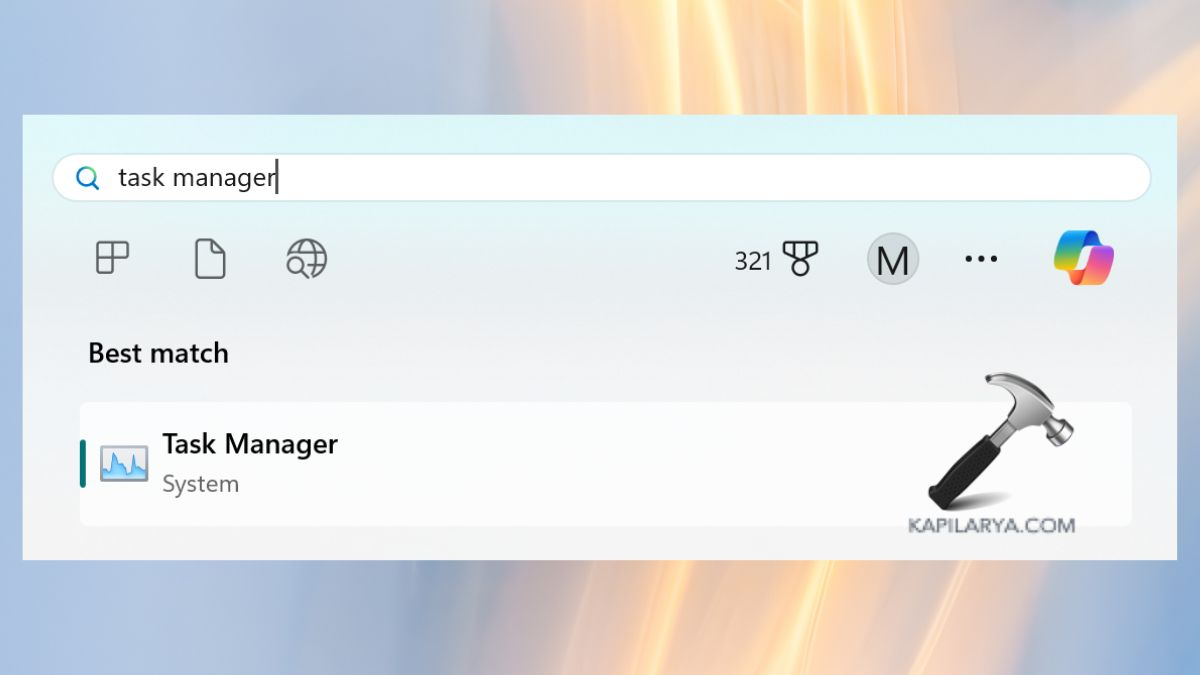
2. Look at whether there are some unknown or suspicious programs running or not. Identify and note down the name.
3. Click the Win + I keys, under the Apps section, choose the category of Installed Apps.
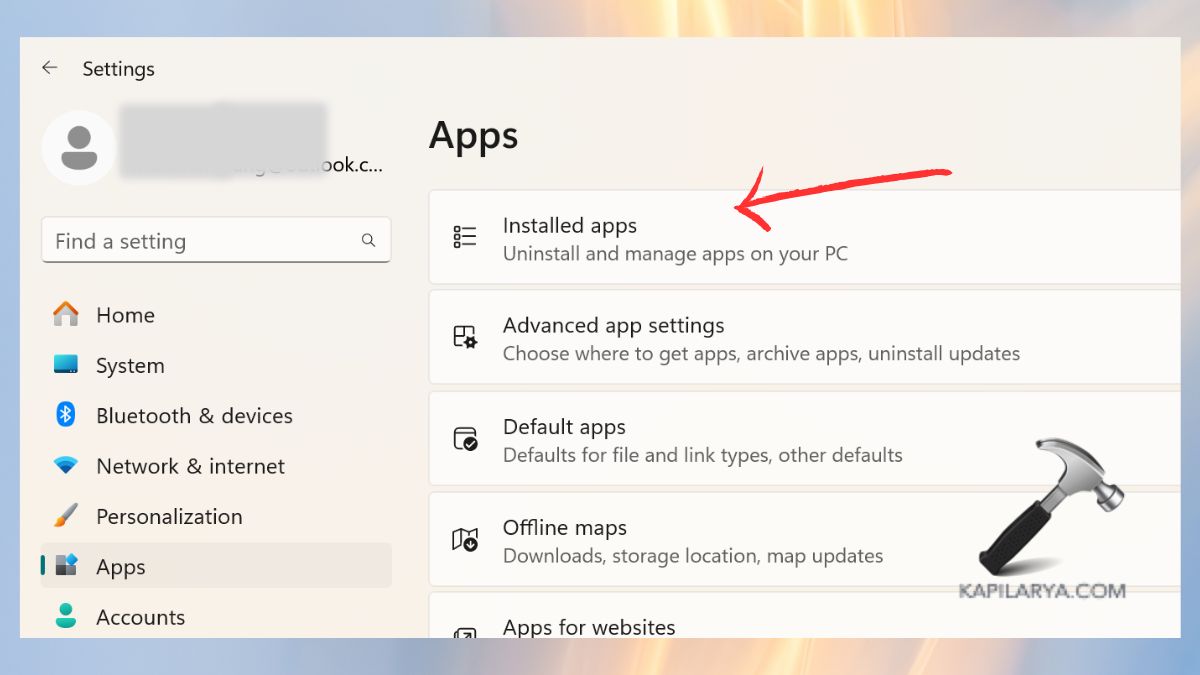
4. Arrange it according to freshly installed apps and delete unwanted or unfamiliar apps.

To make sure that these applications are deleted, restart your PC.
Fix 3: Remove Problematic Registry Entries
In the case of the persistence of the issue related to the blocked module, it may be caused by the corrupt or remnant registry. Thus, it is always advisable to back up the registry before editing it.
1. Again, press the keys Win + R, copy this command, and press Enter.
regedit
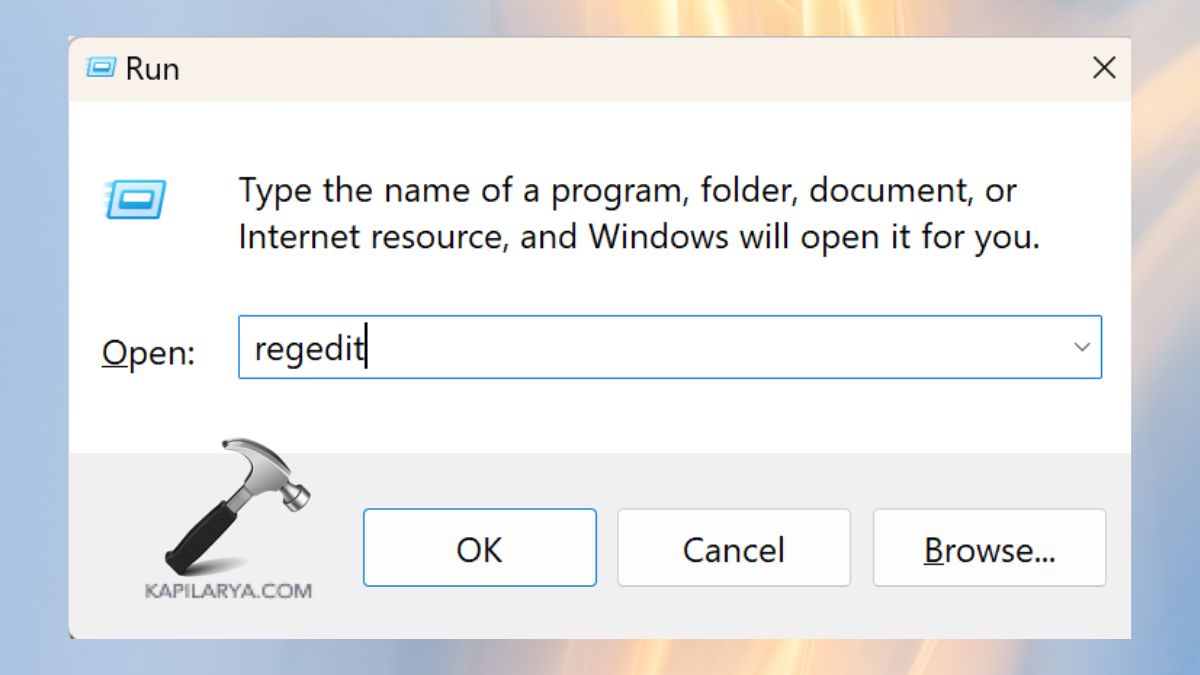
2. Navigate to this path.
HKEY_LOCAL_MACHINE\SYSTEM\CurrentControlSet\Control\Lsa
3. Right pane, find and double-click Security Packages.
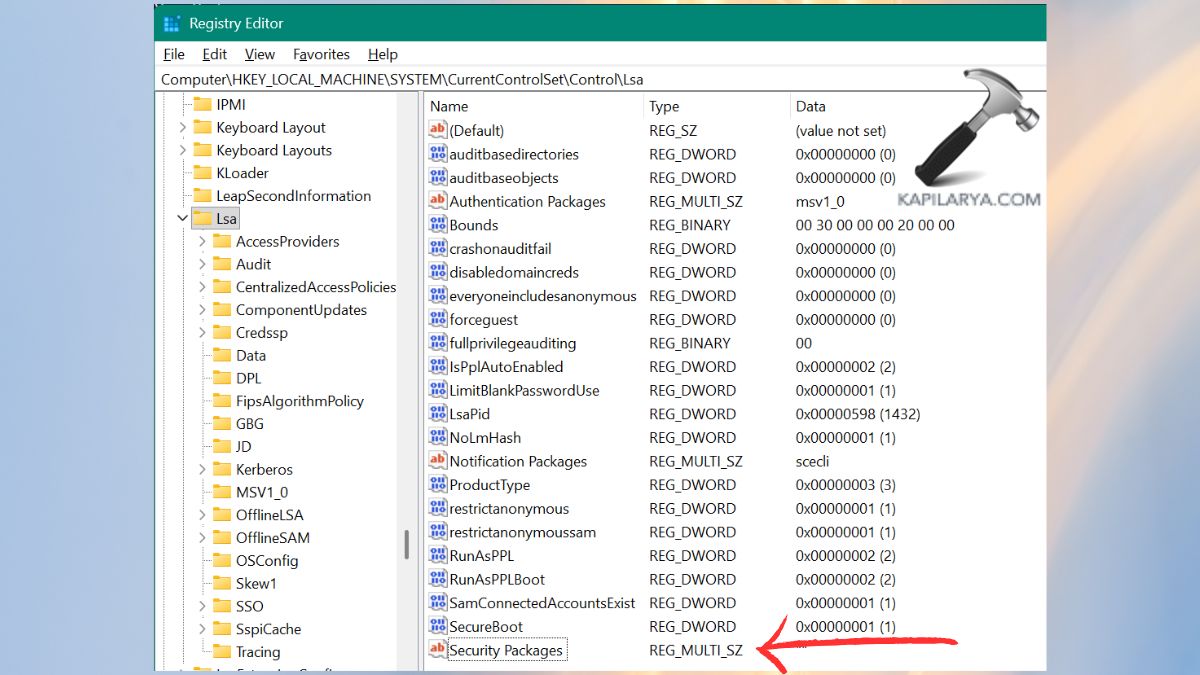
See whether there are any suspicious or non-Microsoft entries listed (such as a random DLL file). Delete them.
4. Hence, close Registry Editor and reboot your PC.
Fix 4: Add DLL Exclusion Using Intune (For IT Admins)
In case you are controlling numerous systems in an enterprise setting through Microsoft Intune, you can add an exemption to the particular DLL.
1. Open Microsoft Intune Admin Center – “https://intune.microsoft.com“.
2. Go to Endpoint security > Attack surface reduction > LSA Protection.

3. Edit or create a policy. Next, add the name of the blocked module (eg, “Bonjour.dll”) in Excluded LSA Protection DLLs.
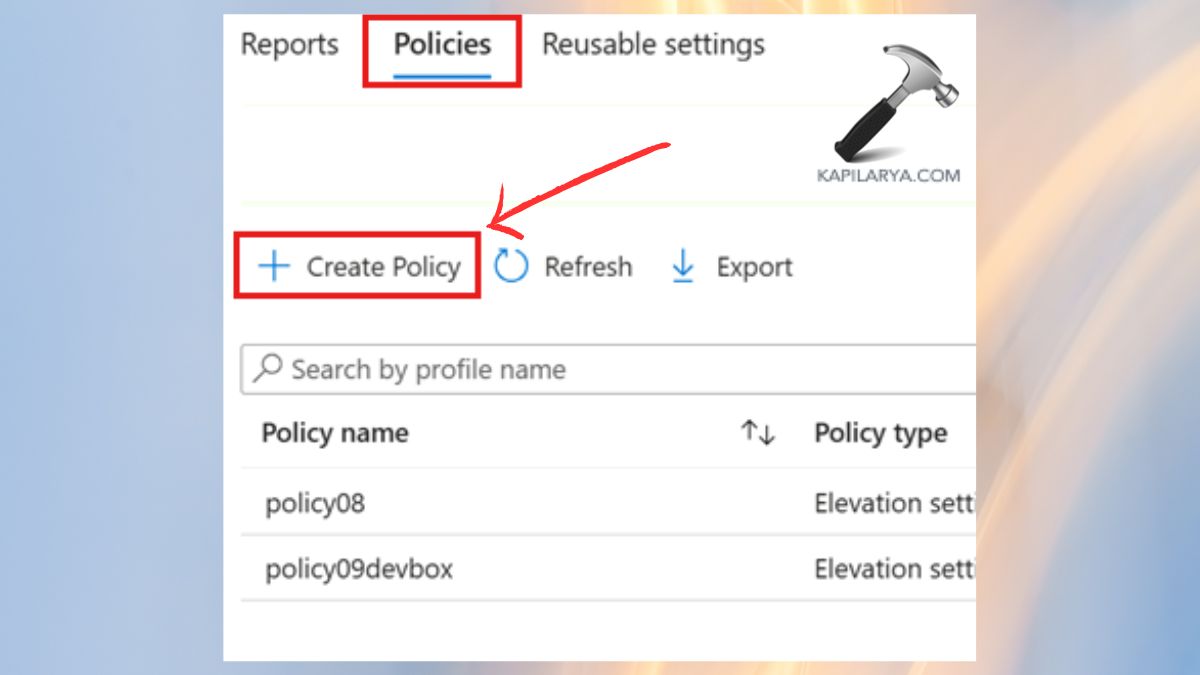
4. Install and deploy the policy in compromised devices. Once the changes are made, you can restart the system in order to have the exclusion become effective.
Fix 5: Manually Add the DLL to LSA Security Packages to Fix Local Security Authority Error
In the case you are sure that the blocked DLL is harmless, you may add it to the LSA Security Packages list manually.
1. First, open Registry Editor once again (regedit) or from the Start menu search.

2. Go to this specified path.
HKEY_LOCAL_MACHINE\SYSTEM\CurrentControlSet\Control\Lsa
Double-click Security Packages to open the value box.
3. At the bottom of the list, click and type the file name of the DLL (e.g., mydll.dll). Go ahead and choose OK. Lastly, shut down the Registry Editor, reboot, and enter your PC.
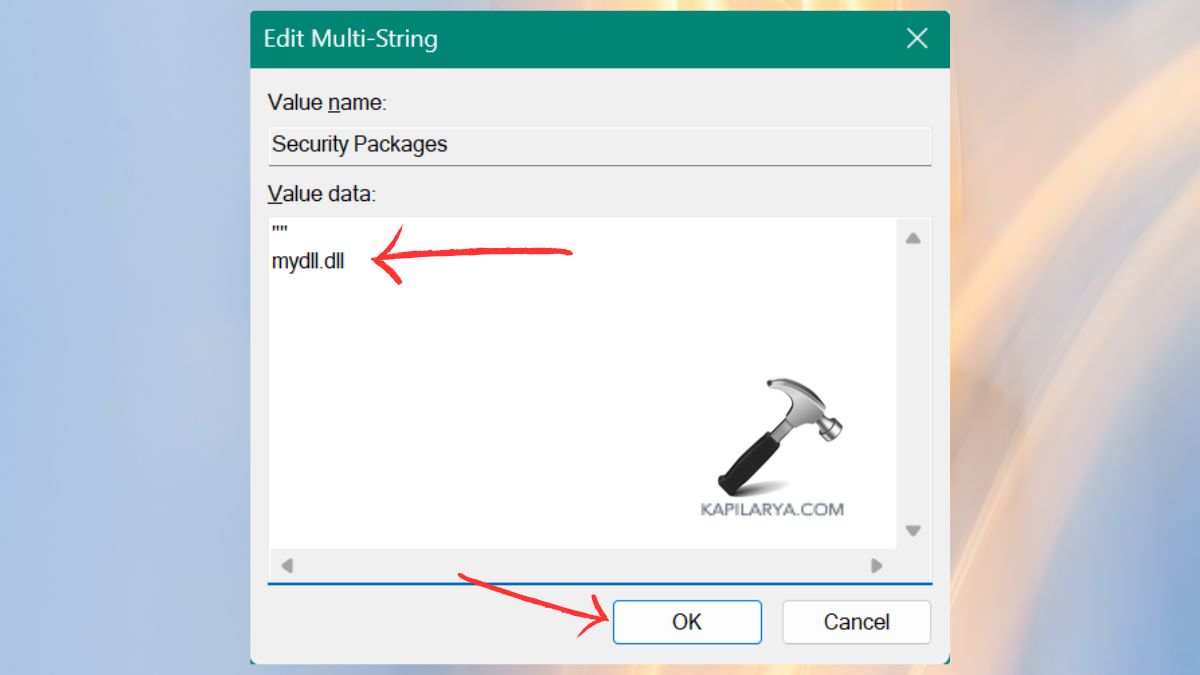
Note: Only add trusted DLLs. The process of adding unknown files may compromise the security of a system.
Frequently Asked Questions (FAQs)
That’s it!