The SecurityHealthSystray.exe file is part of Windows Security that shows the Defender shield icon in your system tray in Windows 11. A Bad Image error (often with status code 0xC000012F) means Windows tried to load this component but couldn’t because a critical supporting file is missing, corrupted, or incompatible.
Page Contents
SecurityHealthSystray.exe – Bad Image: How to fix?
This can happen after a bad update, system file corruption, or a damaged DLL. Here are several reliable ways to fix it. Try each of them one by one.
Method 1: Run System File Checker (SFC) and DISM
Corrupt system files are the most common cause:
1. Open Command Prompt as Administrator.
2. Type:
sfc /scannow
and press Enter.
3. After it finishes, run:
DISM /Online /Cleanup-Image /RestoreHealth
4. Restart your PC.
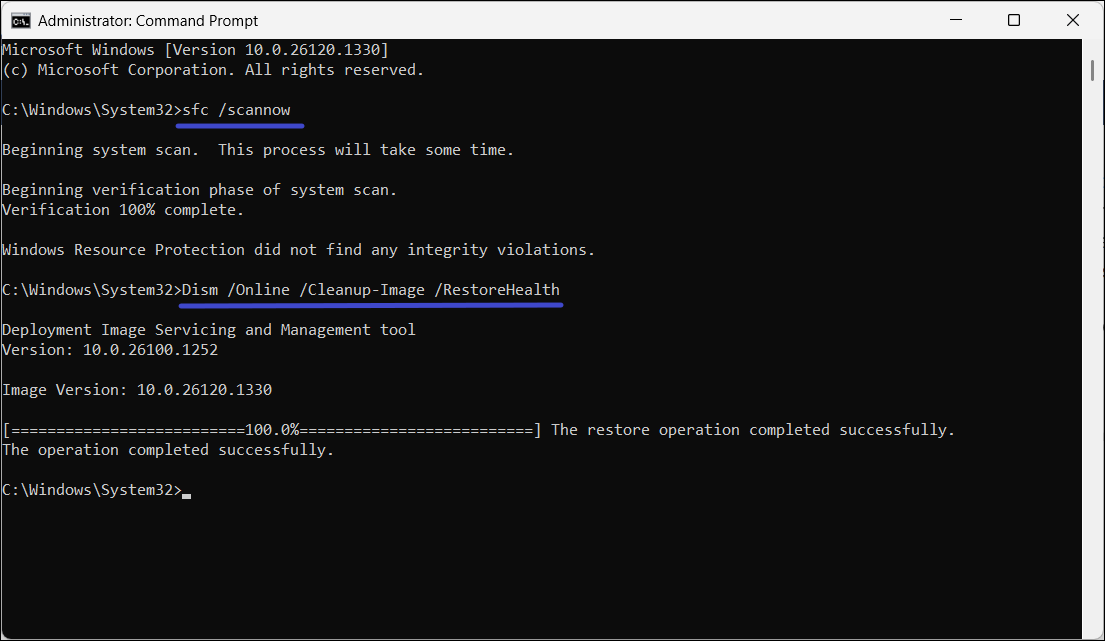
These scans repair missing or damaged Windows files that trigger the bad image error.
Method 2: Re-Register the DLL File
The Bad Image error often points to a related .DLL like SecurityHealthSSO.dll. Re-registering it can fix missing or misregistered components:
1. Open Command Prompt (Admin).
2. Run:
regsvr32 /u SecurityHealthSSO.dll
3. Then:
regsvr32 SecurityHealthSSO.dll
4. After it is done, restart your system.
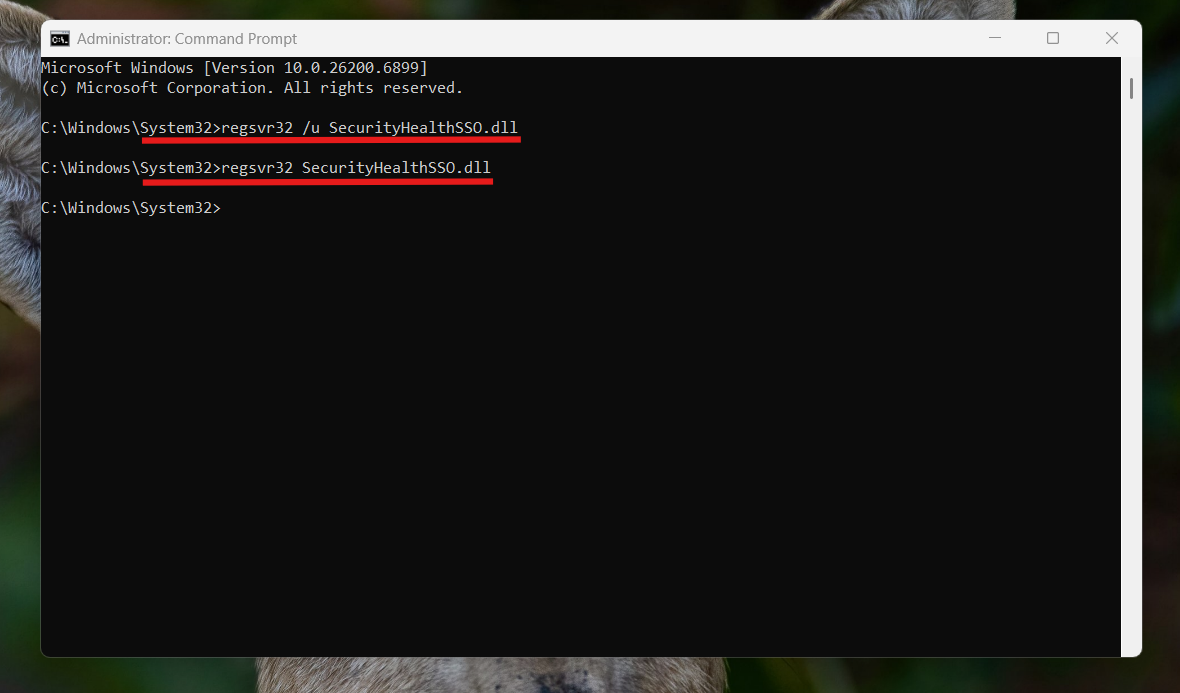
This ensures the DLL is correctly registered with Windows.
Method 3: Reset Windows Security App
Since SecurityHealthSystray is tied to Windows Security, resetting the app can help:
1. Open Windows Terminal (Admin).
2. Enter:
Get-AppxPackage Microsoft.SecHealthUI -AllUsers | Reset-AppxPackage
(Note: If that command returns an error, try Microsoft.Windows.SecHealthUI instead of Microsoft.SecHealthUI)
3. After it is done, restart your PC.
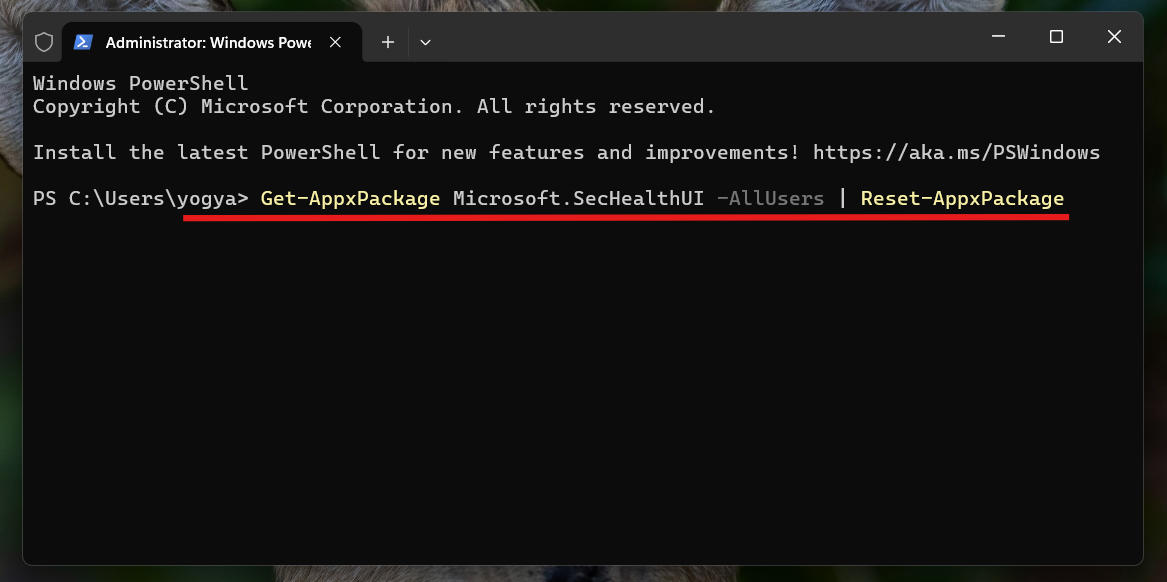
This restores the Windows Security interface to defaults and can clear related errors.
Related: Fix Windows Security not working in Windows 11.
Method 4: Update Windows to fix the SecurityHealthSystray.exe
Faulty Windows updates or outdated components can trigger Bad Image issues:
1. Go to Settings and click on Windows Update.
2. Click Check for updates and install any available patches.
3. Restart your device.
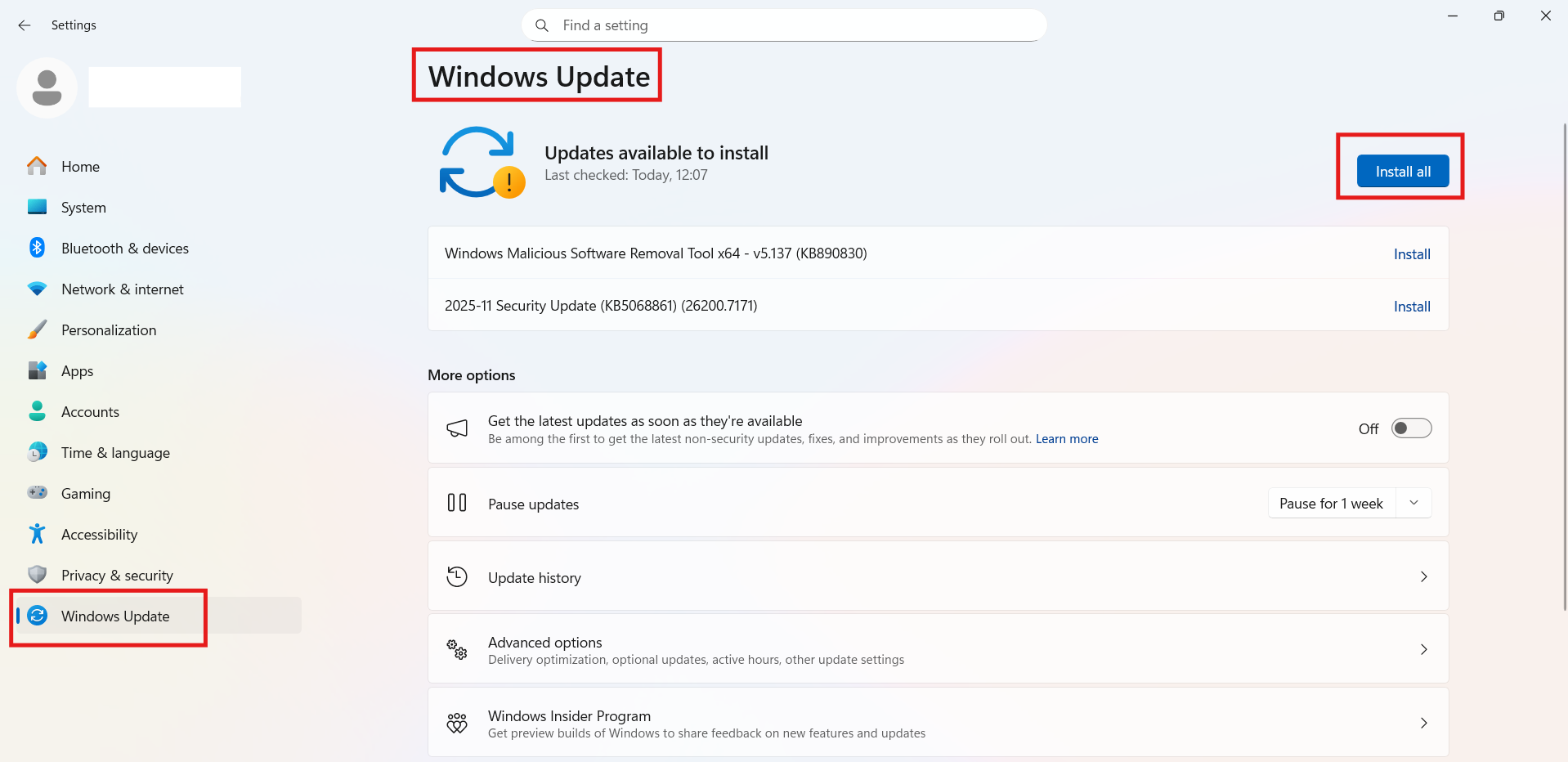
Keeping Windows up to date ensures you have the newest system files and fixes.
Method 5: Use System Restore
If the error started recently:
1. Press Win + R, typerstrui, and press Enter.
2. Choose a restore point from before the problem began.
3. Follow the prompts to revert system files.
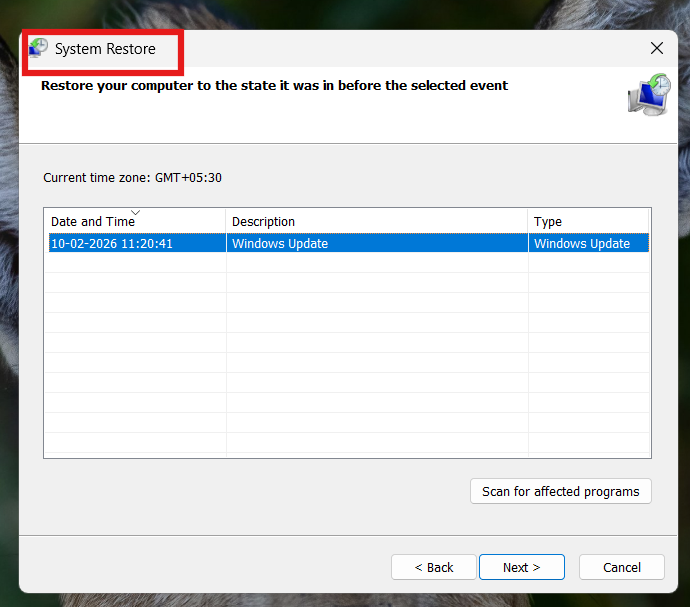
This rolls back any changes that may have corrupted SecurityHealth components.
Quick Tip
Make sure a third-party antivirus doesn’t block Windows Security itself. Sometimes, conflicting software prevents its core files from loading.