The Microsoft Word insufficient memory problem in Windows 11/10 may come in at any point midway through that most crucial task of yours. Then Word suddenly halts and displays the frightening message:

Annoying? Absolutely. Particularly when you are aware that your computer still has much storage and memory. However, this guide will show you 7 tips to fix the Microsoft Word insufficient memory problem. These actions will ensure that your Word documents open, edit, and save as fast as ever before.
Page Contents
Why Microsoft Word Insufficient Memory or Disk Space Occur?
The following are the common culprits of the Microsoft Word insufficient memory problem:-
- Word has an excessive number of background processes open.
- The default template of Word (Normal.Dotm) file becomes corrupt.
- Developed add-ins consume system memory.
- The Safe View does not allow documents to load completely.
- Limited disk space or having a littered registry.
Fix Microsoft Word Insufficient Memory problem
The issue of Microsoft Word insufficient memory may appear complex initially, but it happens that in the majority of cases, it is nothing more than a minor glitch of background actions, or settings corruption. These 7 step-by-step solutions will be able to make Word normal again without technical support or complex software.
Fix 1: Close Unnecessary Programs and Free Up Memory
Freeing up system resources is one of the quickest methods of resolving the inadequate memory error. Several open programs consume memory and slow down Word.
1. Open the Task Manager through the Start menu or use shortcut keys: Ctrl + Shift + Esc.

2. Click on the Processes tab. Open right-clicks on unnecessary apps (Chrome, Excel or Zoom) > click End Task.

3. Open Microsoft Word and redo it.
Fix 2: Disable Problematic Add-ins in Word
Add-ins are wonderful with additional functions; however, not all of them make Word consume additional memory or crash down. Turning them off is frequently enough to clear the mistake immediately.
1. Open Word > Click on file > options add-ins.

2. Select COM Add-ins at the bottom > select the button Go.

3. Uncheck all add-ins > Click OK. Restart Word.
At this point, add-ins are disabled, which is why it is important to re-enable them one at a time to locate the problematic one.
Fix 3: Rename the Normal.dotm File (It Works Like Magic!)
Did you realize that Word is running on a hidden file that is known as”Normal.Dotm” every time you open it? When this file is corrupted, this may lead to memory and startup problems. Even renaming it automatically generates a new one.
1. Close Word completely.
2. You need to press “Windows + R” > then type this command and enter.
%appdata%\Microsoft\Templates

3. Locate the file “Normal.dtom”, right-click, and select rename, then enter the name “normal.old.dotm”.
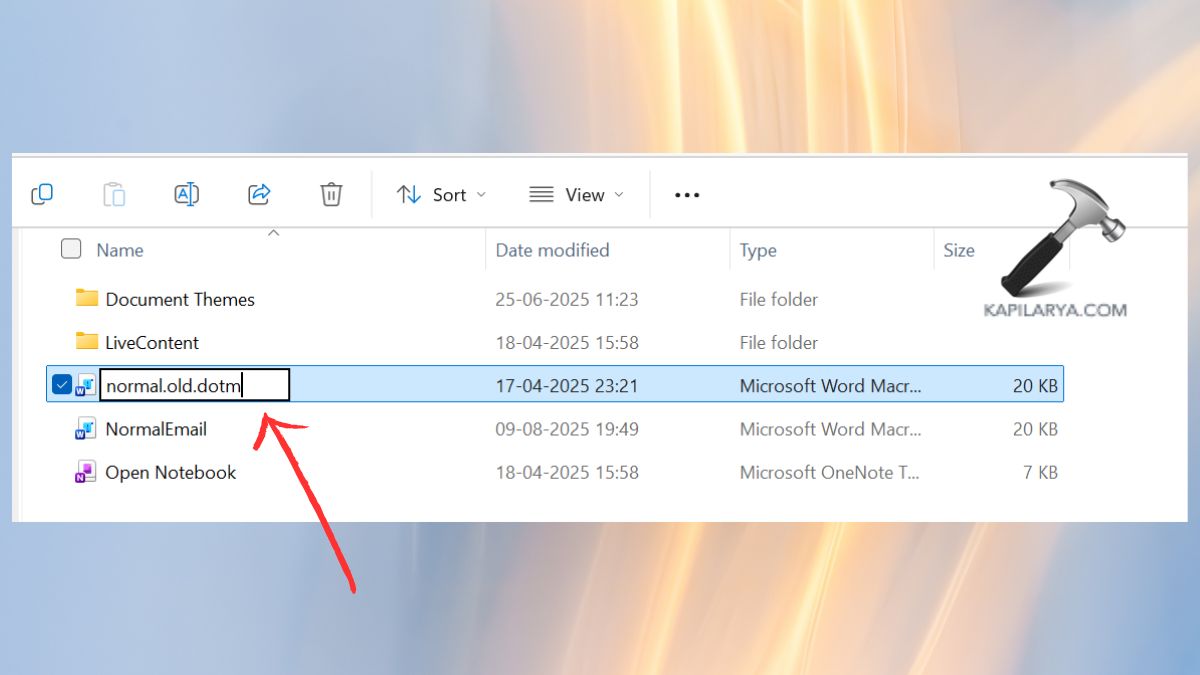
4. Restart Word application and it will be restarted creating a default template.
This is a very basic trick, and this technique gets the majority of Word’s inadequate memory or disk space issues fixed immediately.
Fix 4: Disable Protected View for Trusted Files
Protected View is a program that guards your computer against suspicious files; however, there are occasions when it cannot even open safe files. It can be temporarily turned off.
1. Click on the Word file, then on options, and then on trust center settings.

2. Select Protected View. Uncheck all three boxes.
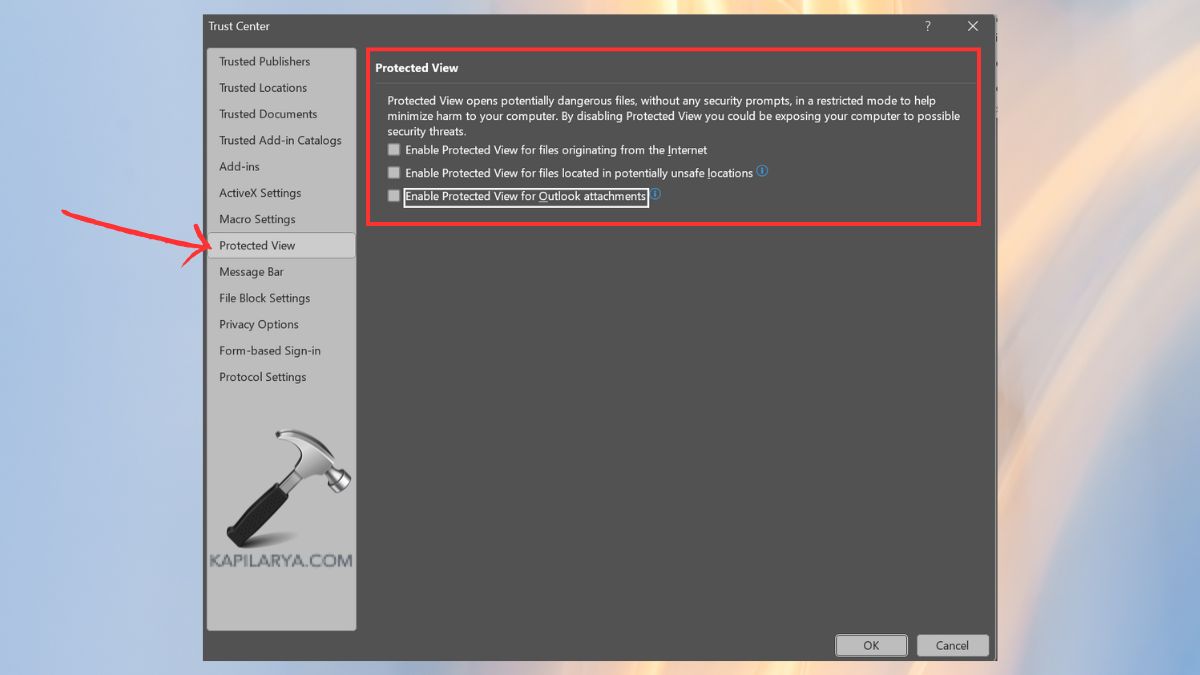
Click on OK, open up your document again.
Fix 5: Check and Free Up Disk Space
Word does not have space to breathe sometimes! The problem of Microsoft Word’s insufficient memory may be precipitated by low storage space since Word requires temporary storage to store recovery files, user cache files, and auto-recovery files.
1. Open Windows Explorer “C: Drive” > Right-Click Properties.
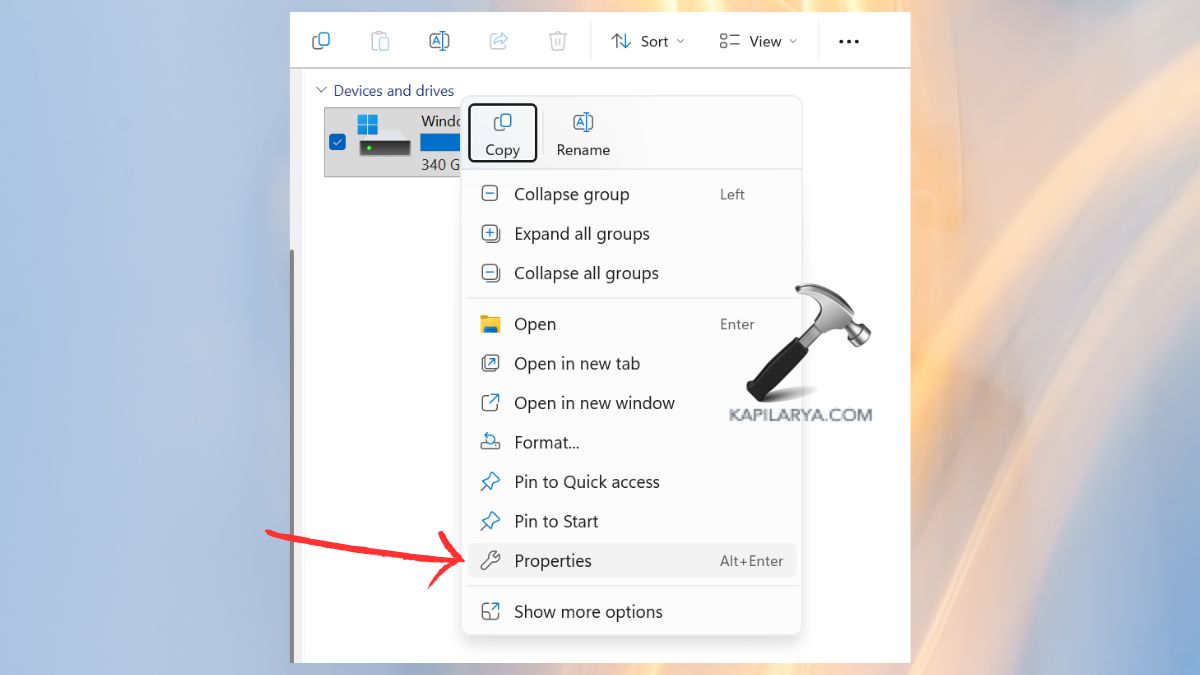
Check your available Free Space.
2. Find and click on Disk Cleanup to delete temporary files, old downloads, or empty the Recycle Bin.

3. Cleanup system files and restart Word.

It is very common to find that not only Word, but your whole system is faster afterward.
Fix 6: Delete the Word “Data” Folder in the Registry
Having assumed that your Word settings are corrupt, a reformat of your Data folder under your registry reinvents everything to default, fixing any hidden memory issues.
These are the steps that should be adhered to because any mistake may hinder the system:
1. Close all Word documents.
2. You have to open Registry Editor in the Start menu.

3. Find Object Locations In Registry Editor: Find this path.
HKEY_CURRENT_USER\Software\Microsoft\Office\x.0\Word\Data
(Where x.0 any number you are using as the version number in Office, e.g. 16.0 by Word 2016/2019.)
4. Right-click on Data > delete.
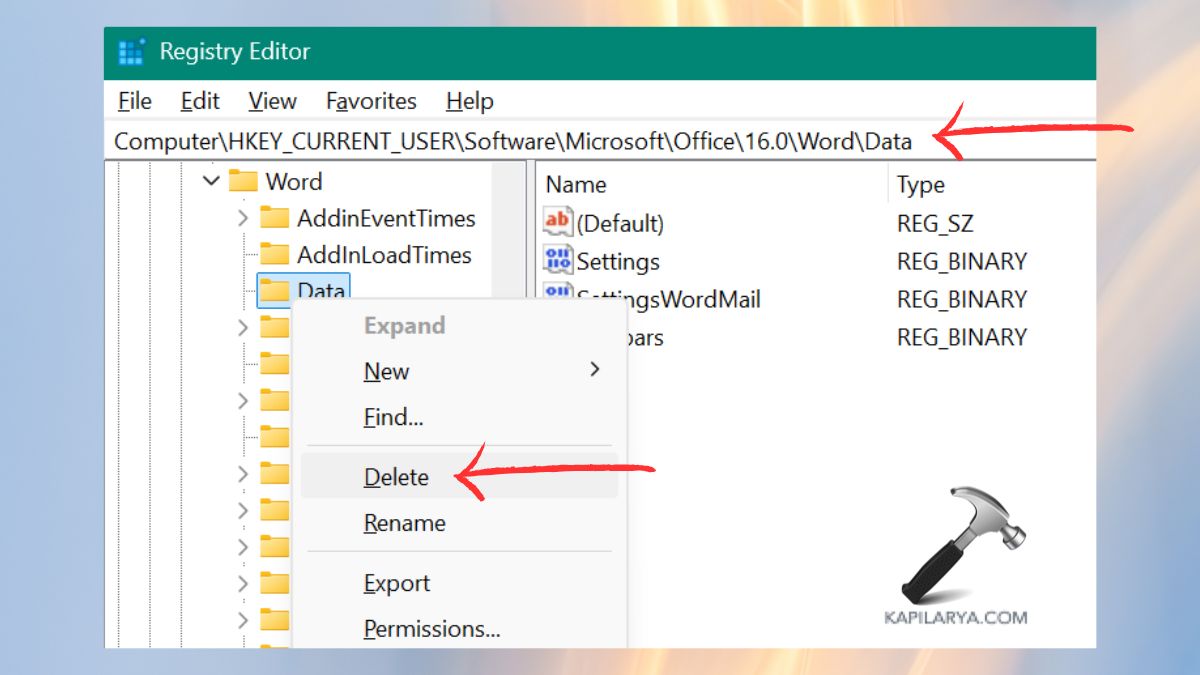
5. Shut down and open Word again. Word will automatically recreate another registry record, and the low memory notification should disappear.
Fix 7: Force-Close and Restart Microsoft Word
The most convenient is the most suitable solution as well. Word can still be executing in the background even after shutting it down.
1. Again, open Task Manager by either searching or clicking Ctrl + Shift + Esc.
2. Find this under Processes “Winword.exe” or “Microsoft Word”. Click End Task.
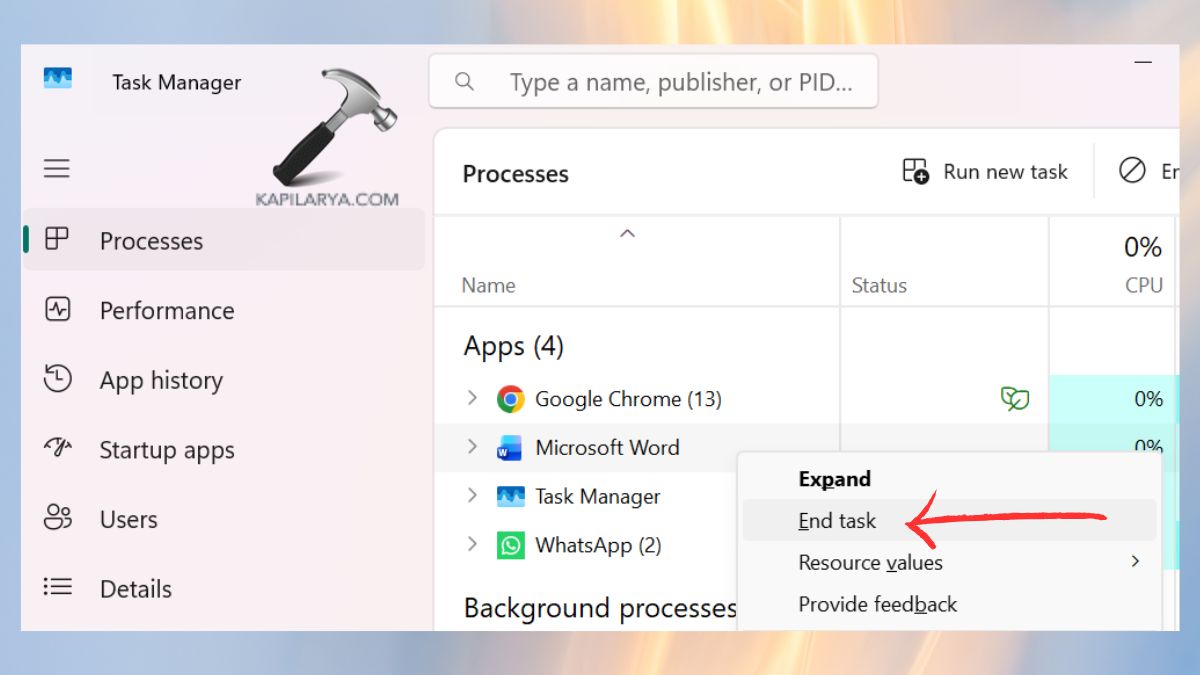
3. Reopen Word. This rejuvenates memory assignment and eliminates temporary glitches instantly.
Bonus Tips to Prevent Future Memory Errors
- Update Microsoft office and Windows.
- Do not have excessive add-ins and toolbars.
- Save massive files in the drive (not in network drives).
- Clear up all the temporary files.
- Once in a while, reboot your PC to get rid of the background memory.
These trifles can save much time of irritation in the future!
Frequently Asked Questions (FAQs)
What causes the “Microsoft Word insufficient memory” problem?
It is usually caused by tainted templates, paucity of hard disk space, or excessively numerous application backgrounds consuming the memory.
Does reinstalling Office fix this issue?
Yes, it can be reinstalled back to the Microsoft Office, provided that the primary files of Word are destroyed. But first, they should make the other fixes so that they are more likely to reduce the problem faster.
Can add-ins cause Microsoft Word insufficient memory problems?
Absolutely! Poor or outdated add-ins can take up memory and be volatile. You will have to keep them up to date or switch off the ones that you do not need.
Will this problem affect other Office apps like Excel or PowerPoint?
Yes, sometimes. And in case you notice the same issues with other Office programs, then maybe it is an issue of memory or storage on a system-wide basis.
That’s it!