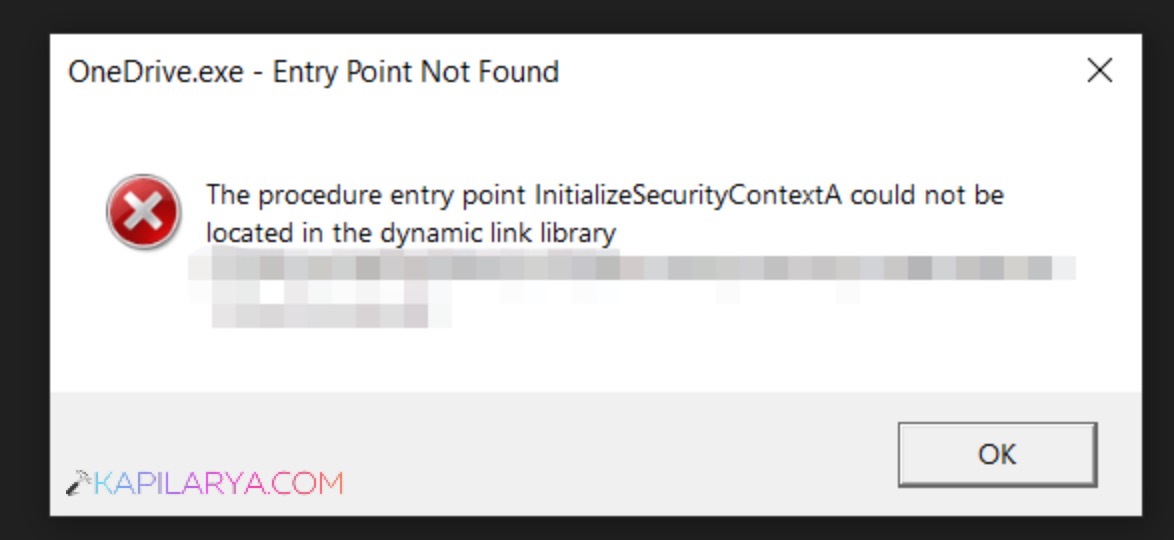
Seeing an error like OneDriveSetup.exe – Entry Point Not Found when trying to install, launch, or update OneDrive means Windows 11 can’t locate a required function inside the app’s files.
Page Contents
Fix OneDriveSetup.exe – Entry Point Not Found in Windows 11
This usually happens when OneDrive tries to call a system component that’s missing or outdated, or when its installation files are corrupt, often after an interrupted update or an out-of-date OS. Here are a few practical ways to fix it.
Fix 1: Update Windows and OneDrive
The main reason this error occurs is that OneDrive is calling a function that older Windows versions don’t have.
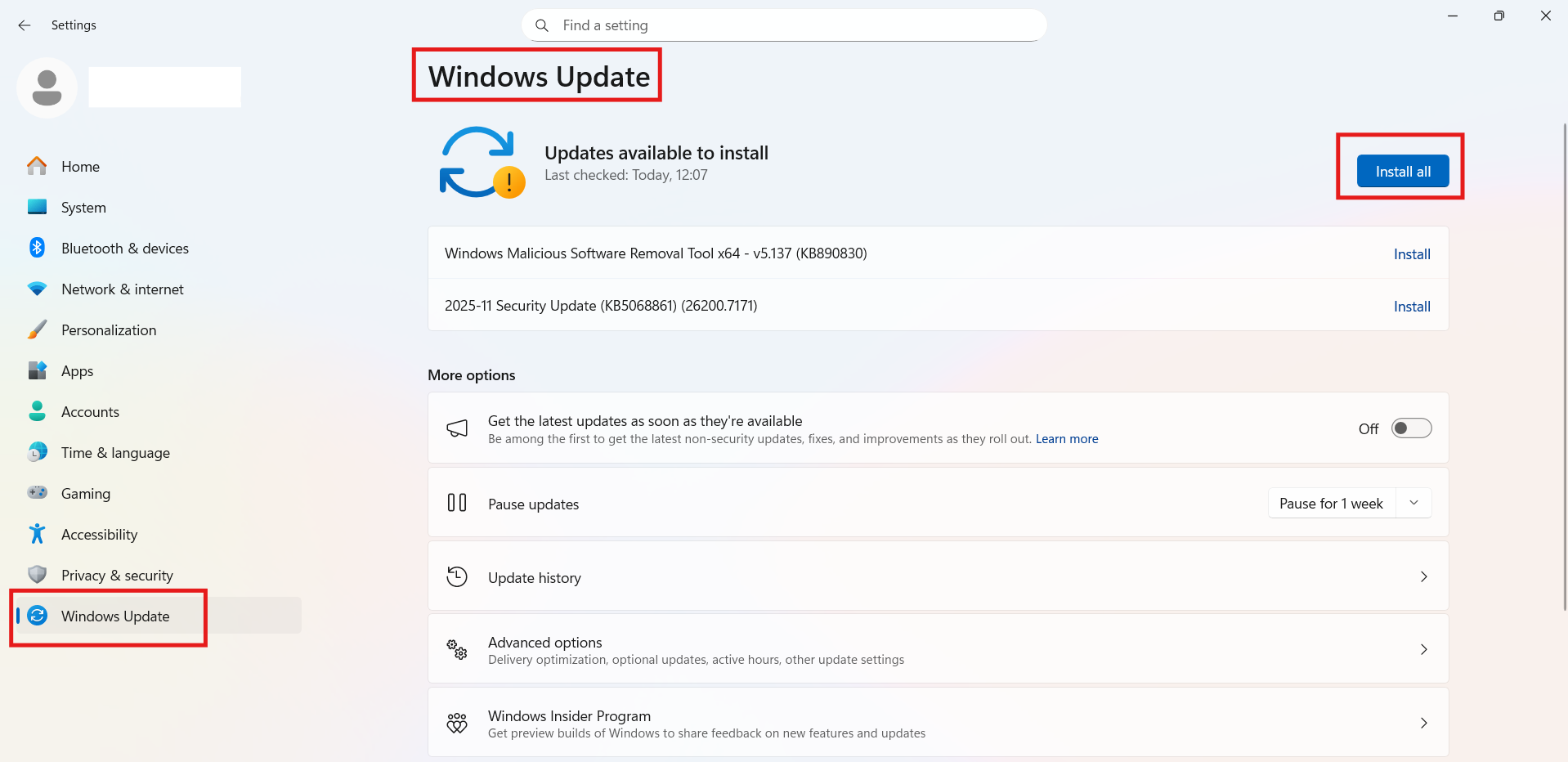
1. Open Settings app and go to Windows Update.
2. Click Check for updates and install everything available.
3. Restart the system and try OneDrive again.
Updating ensures missing system components like GetUserDefaultGeoName are present.
Fix 2: Run System File Checker and DISM
Corrupted system files can prevent OneDrive from running correctly.
1. Open Command Prompt (Admin).
2. Run:
sfc /scannow
3. After it completes, run:
DISM /Online /Cleanup-Image /RestoreHealth
4. Restart your PC and test OneDrive.
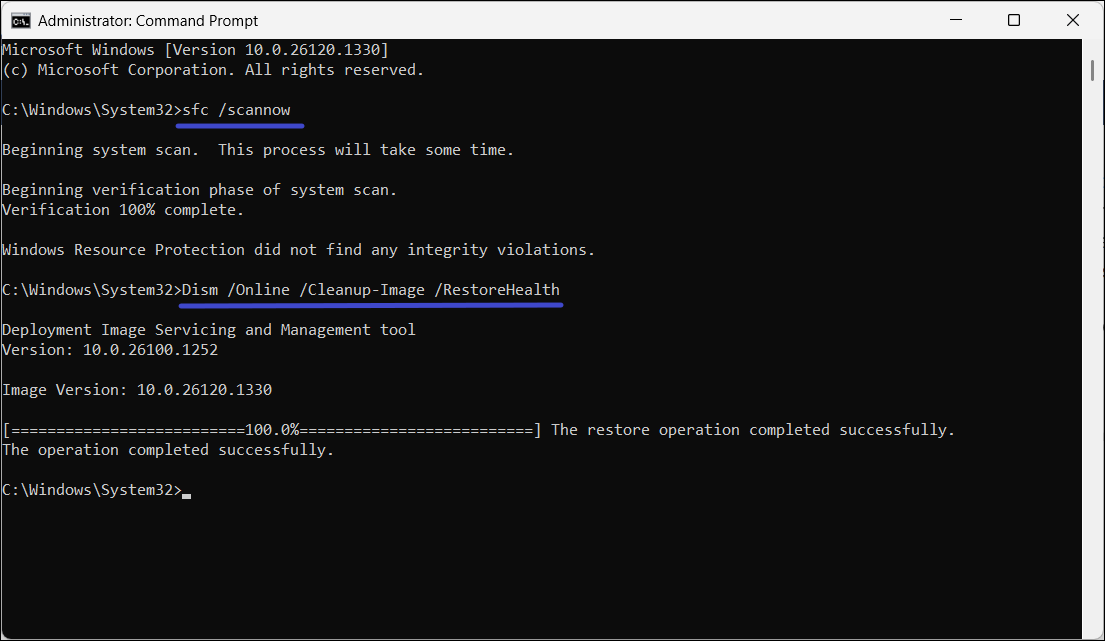
These tools repair damaged Windows files that apps rely on.
Fix 3: Reset OneDrive to default
This refreshes OneDrive’s internal settings without deleting your files:
1. Press Win + R.
2. Enter:
%localappdata%\Microsoft\OneDrive\onedrive.exe /reset
3. Wait a few minutes.
4. If OneDrive doesn’t restart automatically, open it manually from the Start menu.
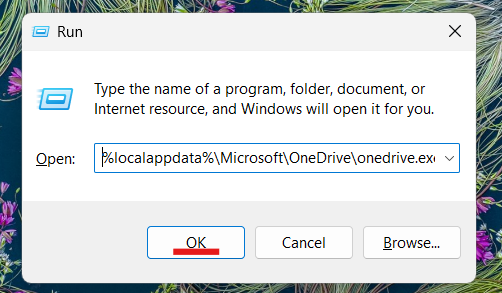
A reset often fixes installation and launch errors by clearing corrupted caches.
Fix 4: Reinstall OneDrive
A broken installation may be the root cause.
1. Open Settings and click on Apps. Then go to Installed apps.
2. Find Microsoft OneDrive and Uninstall it.
3. Reboot the PC.
4. Download the latest OneDrive installer from the Microsoft Store and install it again.
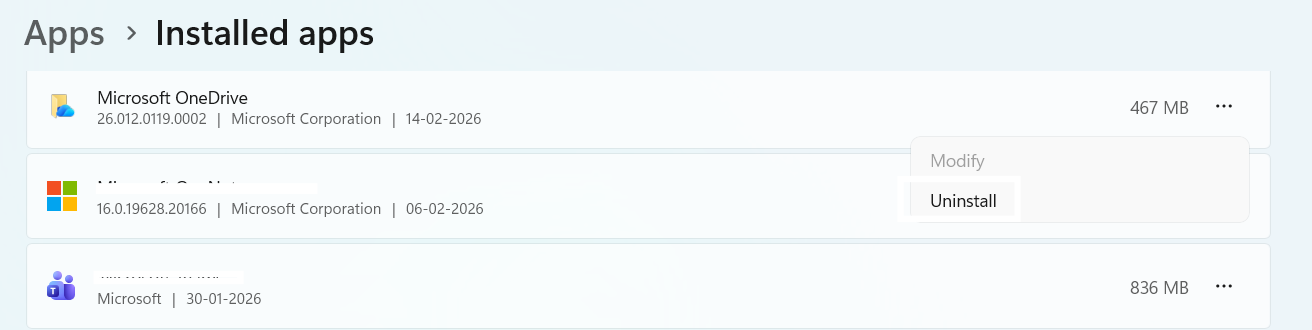
This replaces damaged files with fresh, working ones.
Fix 5: Disable OneDrive Standalone Update Task
On older systems or misconfigured installs, automatic update tasks can conflict:
1. Press Win + R, type taskschd.msc, and press Enter.
2. Navigate to Task Scheduler Library.
3. Right-click OneDrive Standalone Update Task and choose Disable.
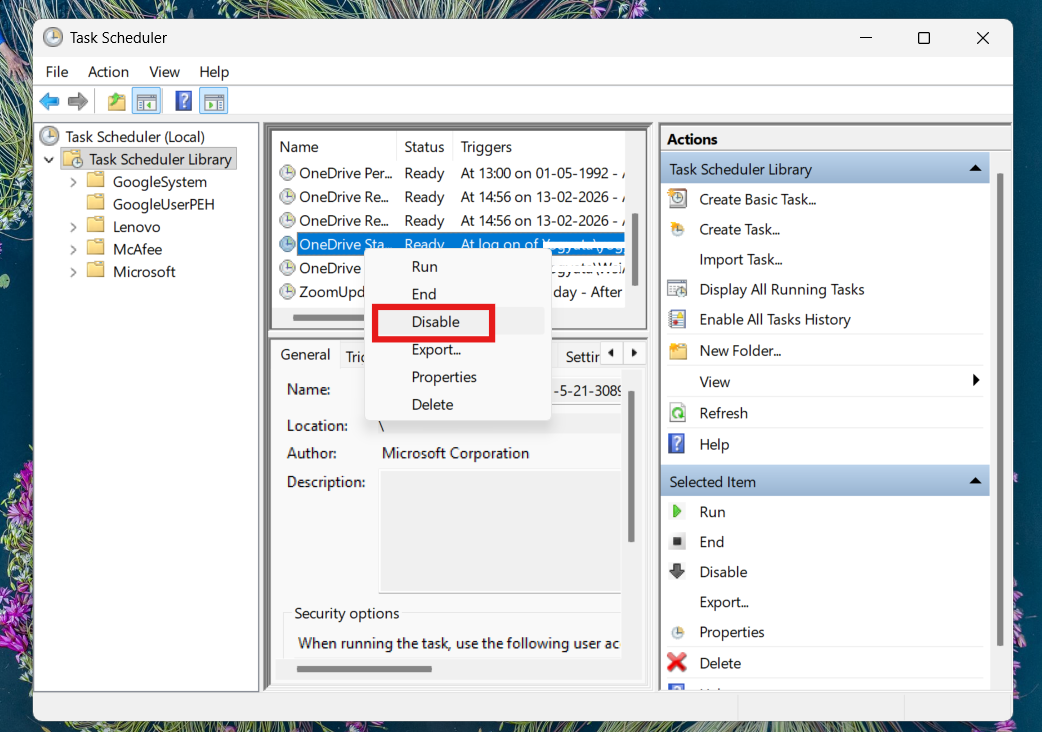
Stopping this task can prevent OneDrive from calling outdated components.
Quick Tip
If none of the above works, check the Microsoft Support fixes and workarounds page for OneDrive issues. They list official guidance for errors you might see.