And as long as you can look at the Microsoft Office error code 0xC0070057 in your Windows 11/10 system, then you need not panic. This is the most frequent problem and may occur when you are running an install, activation, or update of Microsoft office, only to be blocked to use the necessary programs such as Word, Excel, PowerPoint, or Outlook.
The error typically indicates a minor configuration-glitch, or a damaged installation file, or a problem with your Office account. It is for a good reason though since you do not need to be a tech expert to repair it! The process of restoring your Office apps is only a few steps away and with them, you can be back on track.
This tutorial will take you through the reasons the Microsoft Office error code 0xC0070057 happens and will also present you with 7 of the best and tested ways to correct the error on Windows 11 and 10.
Page Contents
Fix: Microsoft Office error code 0xC0070057 on Windows 11/10
Fix 1: Check if Your Device Is Offline or Facing Network Issues
In some cases, such failure is just plain simple since your PC is not connected to the internet, or it has shaky network connectivity. Go ahead with the following steps.
- To be sure, make sure you have Wi-Fi or Ethernet connection capacity. Open any site and prove your connection.
- In case the network appears unstable, restart the router or change the network.
- When your network is connected, you may restart the office and recheck. Office verification and activation require a quality internet connection, and thus, it should be your initial troubleshooting step.
Fix 2: Uninstall Recent Windows Updates That Might Be Causing Conflicts
The Microsoft Office 0xC0070057 error code can also be brought about by a buggy or incomplete Windows update. In case you have just recently made a Windows update, then you should also try removing it.
1. Click Win + I to access Settings. On the Windows update, go to Update history.

2. Tap on Uninstall updates and identify the latest update and click Uninstall.

Restart your PC. After doing that, open Office once again and determine whether the error has vanished.
Fix 3: Re-sign into Microsoft Office with Your Work or School Account
The reason behind the error could be that there is a sign-in conflict in case you are on Microsoft 365 using your organization or school. This can be sorted with a simple log-out and log-in.
1. Open any Microsoft Office program (Word, Excel, and so on).
2. Click on your profile icon at the top-right. Select Sign out.
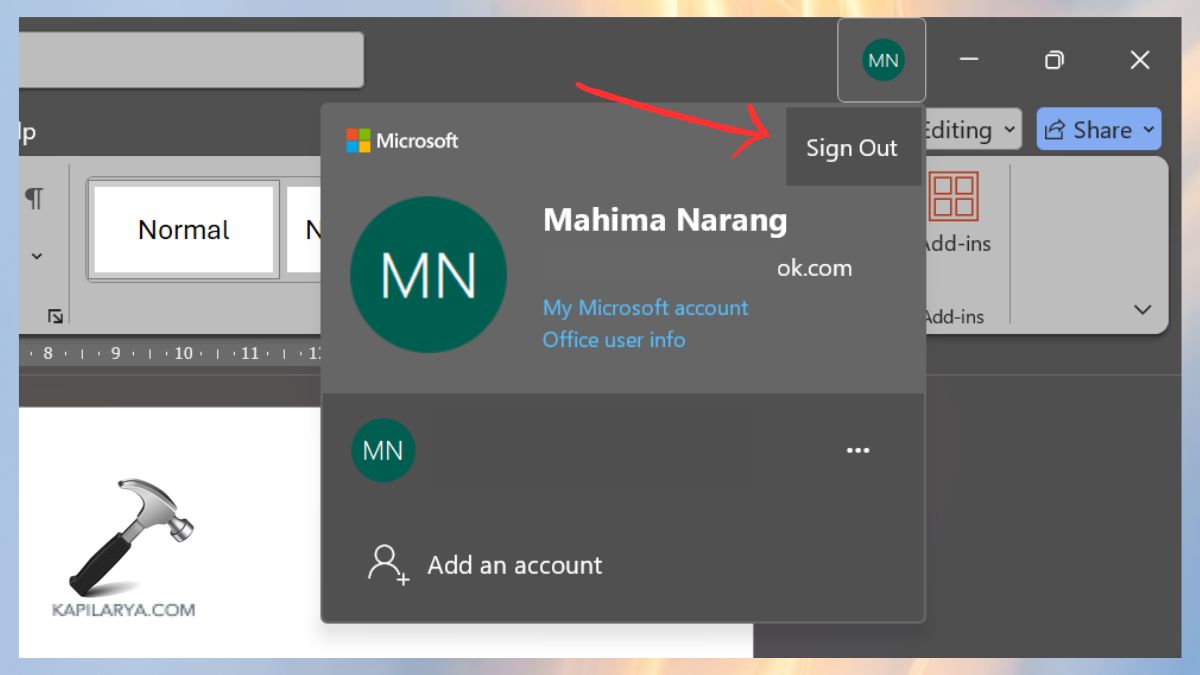
3. Close all Office apps. Restart the application once more and log in with the Work or School account. This updates your account session as well as Office license synchronization.
Fix 4: Disable Two-Step Verification Temporarily
The two-step verification is very useful in security matters, but sometimes it blocks the Office authentication of your account. Disabling it may also be a good temporary solution in case of error code 0xC0070057.
1. Go to the Microsoft Account Security page – “https://account.microsoft.com/security“.
2. Sign in using your Microsoft profile.
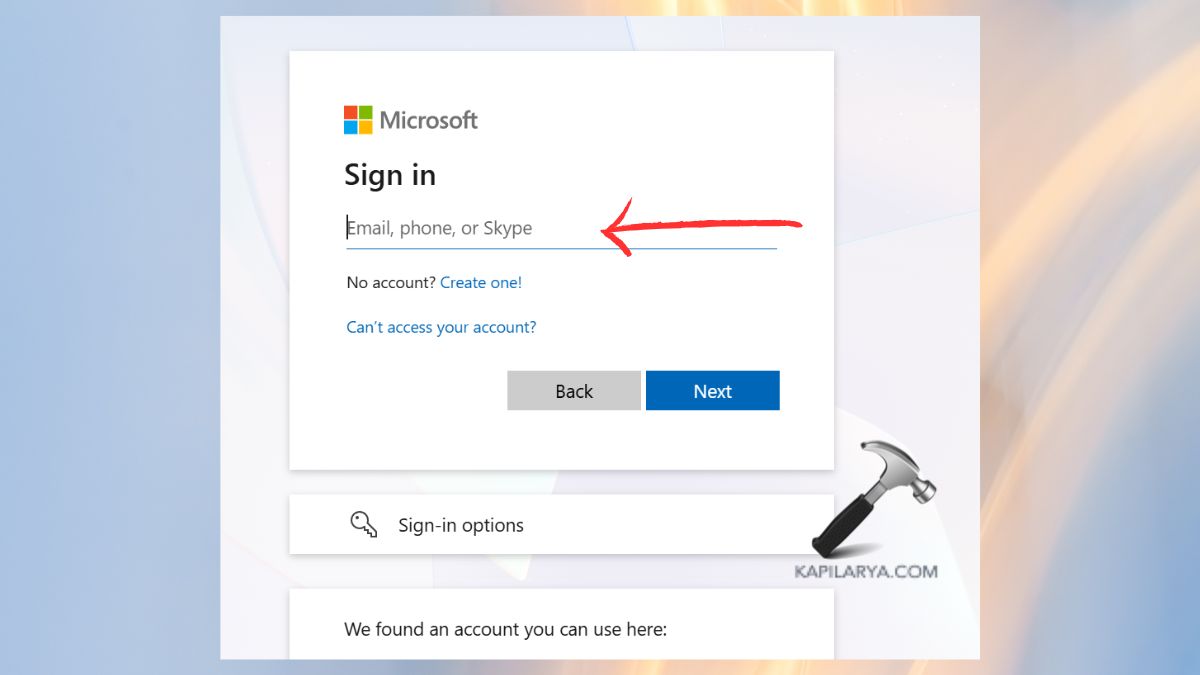
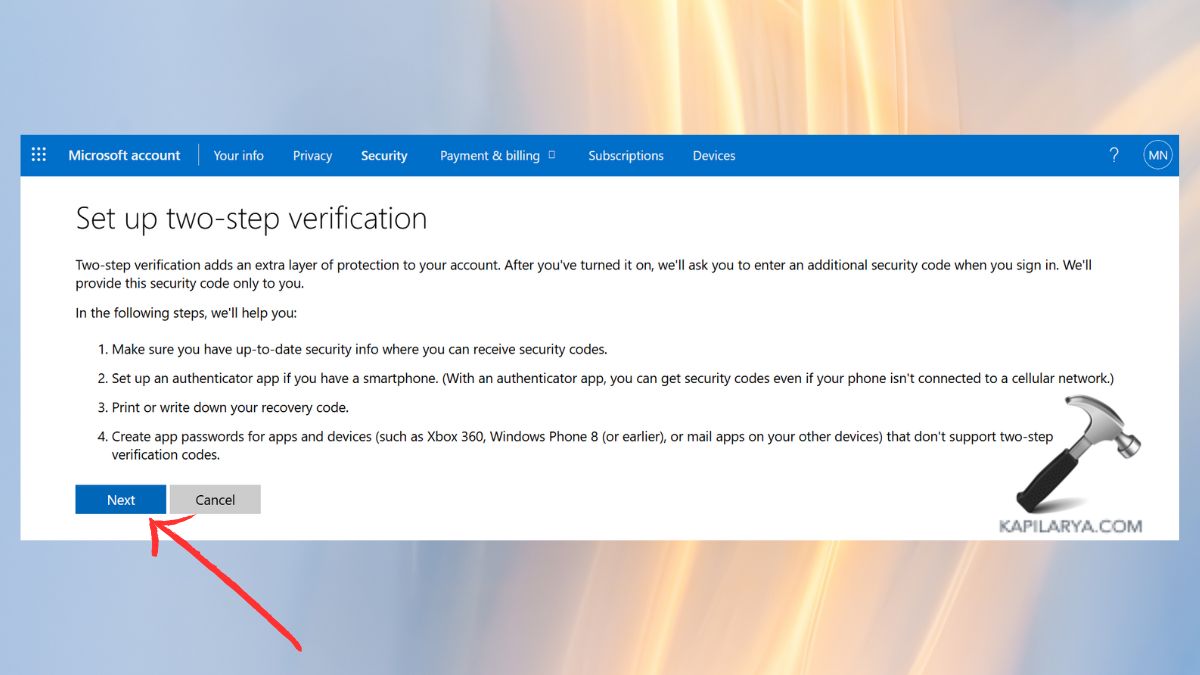
3. With Two-Step Verification, Choose Turn off. Attempt to re-sign into Office.
4. After the problem is fixed, turn on two-step verification again. This makes the process of account activation easier and secure.
Fix 5: Delete Corrupt Account Information Files in AppData Folder
In some cases, the data stored in the accounts may be corrupted and may cause the Office setup or activation failure of 0xC0070057. Deleting the ancient files in the AppData folder facilitates this.
1. Activate Run box with Win + R and enter the following command, then press Enter.
%appdata%\Microsoft
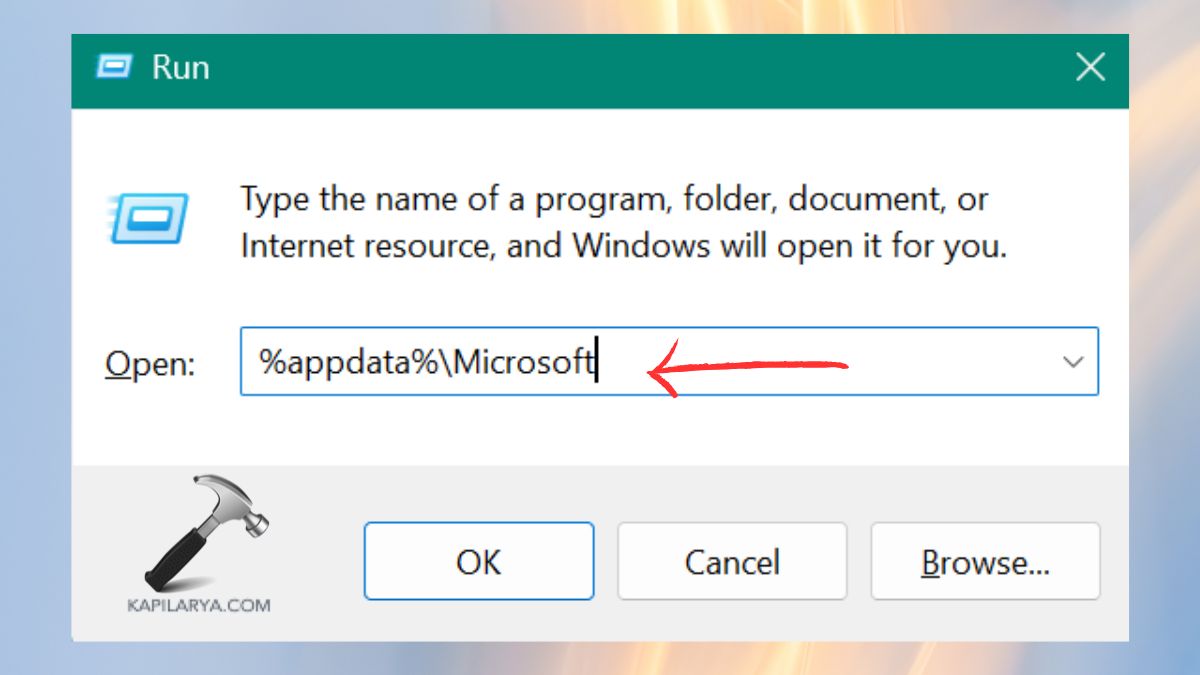
2. Locate the Office folder. Erase the Office Account or the Office Identity subfolders (where possible).

3. Restart your computer. Open Microsoft Office and re-enter your credentials.
This removes out-of-date or incompatible certifications and causes Office to regenerate fresh configuration documents.
Fix 6: Run the /leave Command via Command Prompt
This is occasionally the result of background Office licensing or sync operations. The /leave command can be run to break the stuck old Office sessions.
1. Close all Microsoft Office programs.
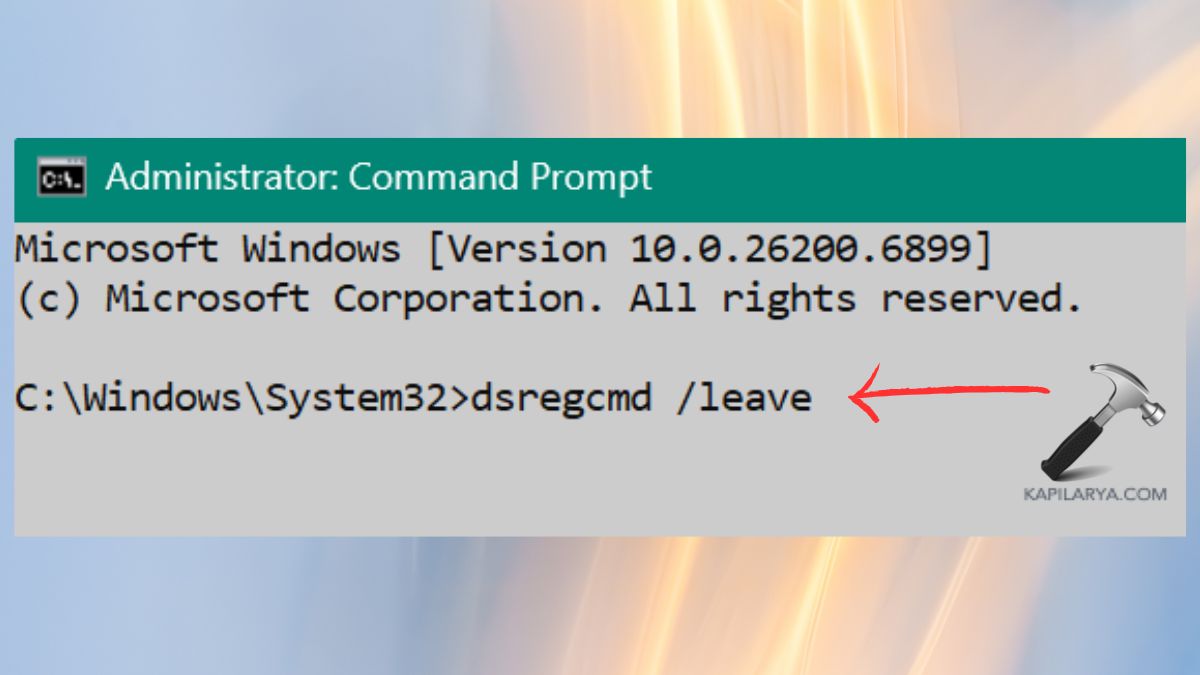
2. Use Win + S Keys, and then type in “cmd” and select Run as administrator.

3. Enter in the Command Prompt window.
dsregcmd /leave
Go in and press Enter.
Fix 7: Repair or Reset Microsoft Office Apps
In case of failure of the above solutions, the files of installation of the office could be corrupted. They are easily repaired with the built-in Repair or Reset option of Windows.
1. Press keys Win + I > Go to Apps > Installed Apps.
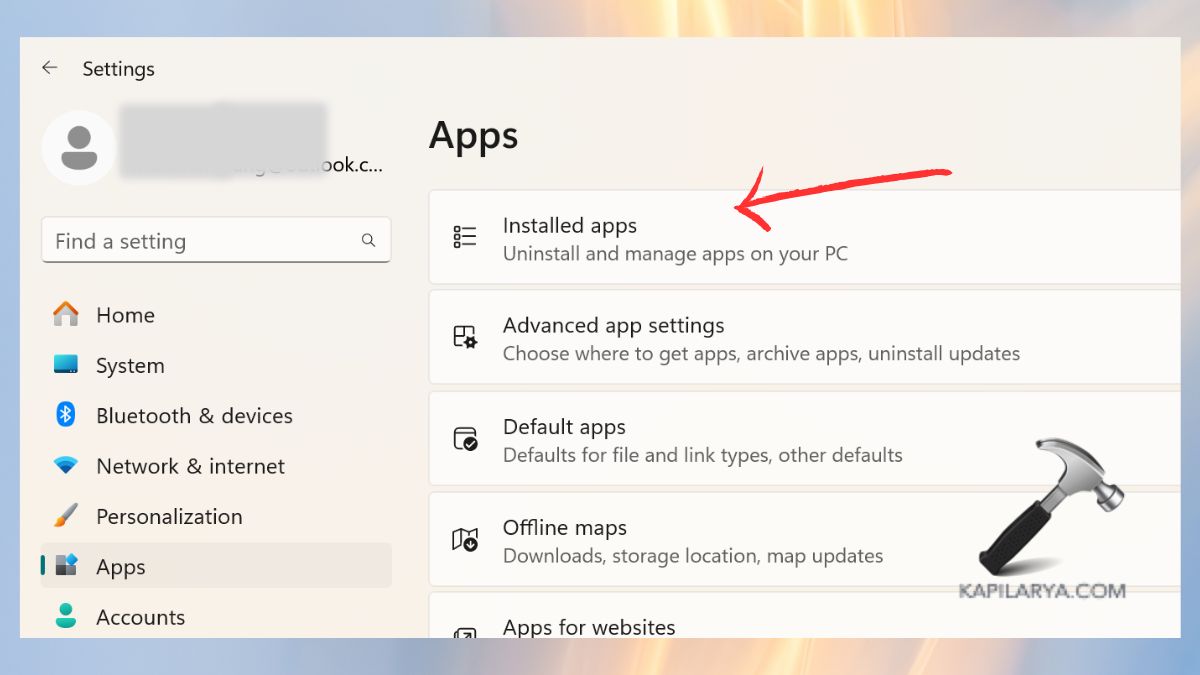
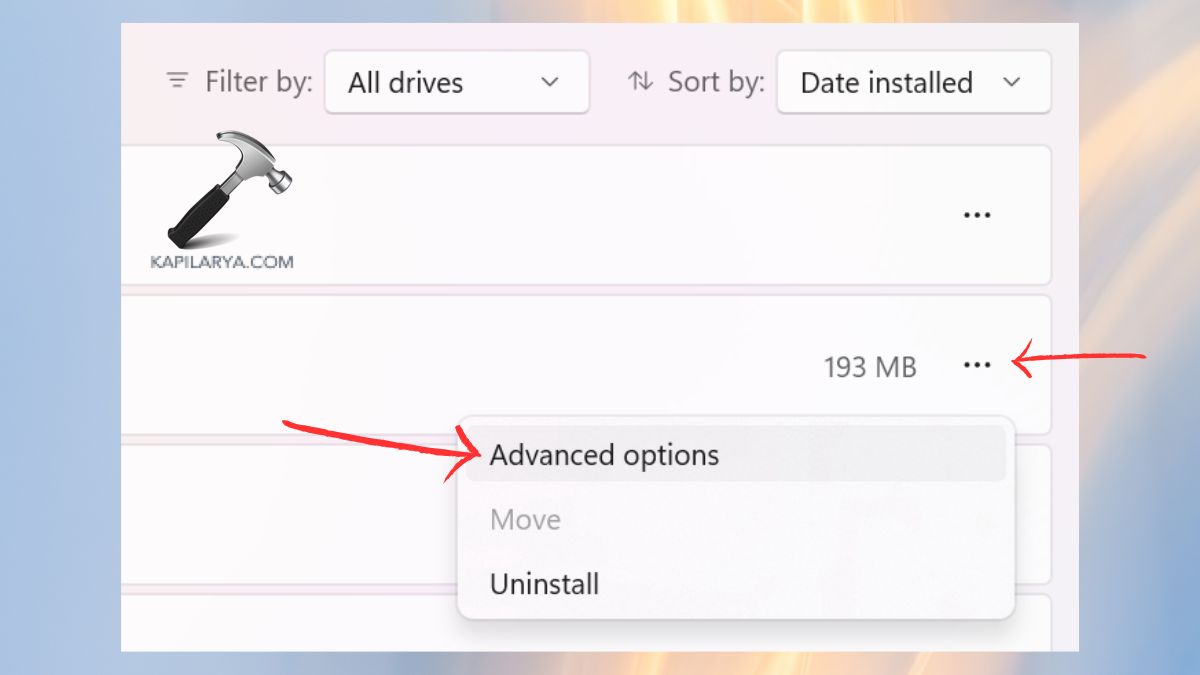
2. Find Microsoft Office in the list. Click on the three-dot icon, then select “Advanced Options” or “Modify”.
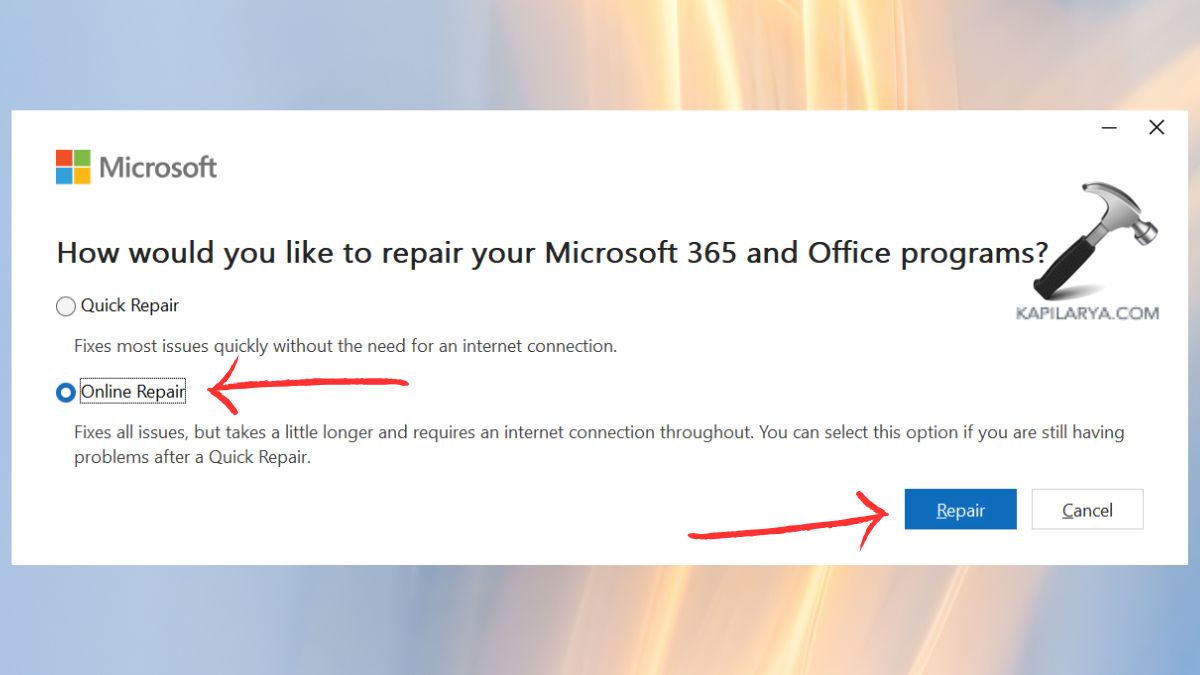
3. Choose “Quick Repair” first.
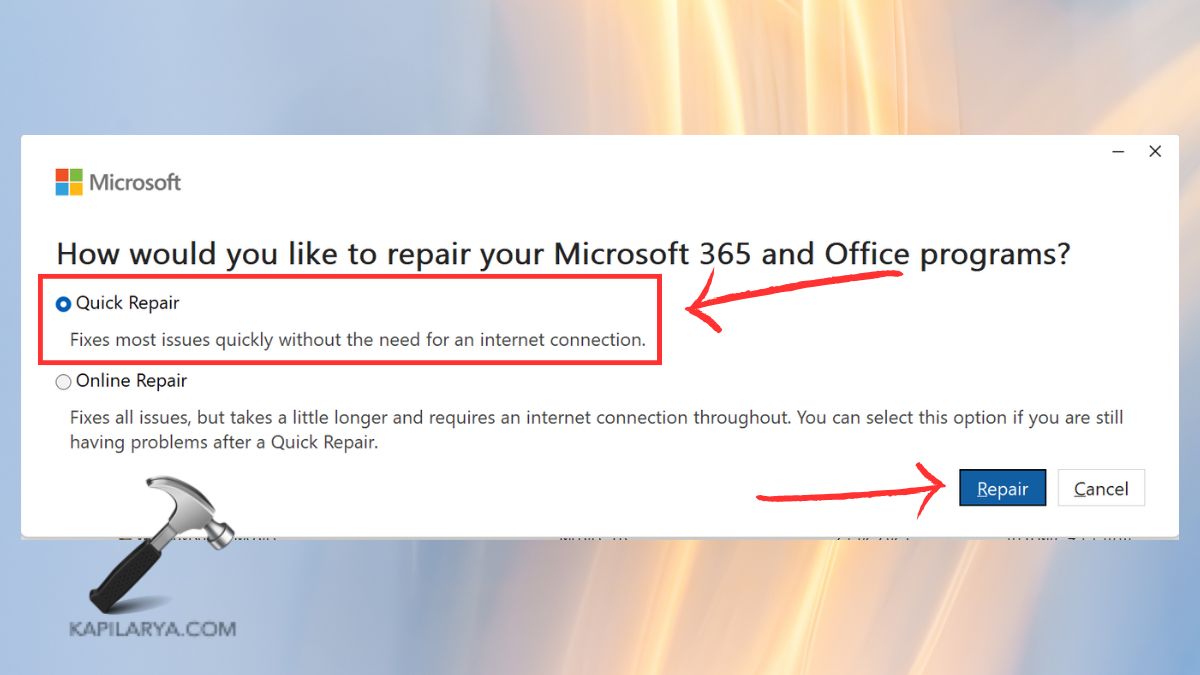
4. In case the problem continues, then make the choice of the “Online Repair” button. This tends to correct serious defects such as 0xC0070057.
Frequently Asked Questions (FAQs)
That’s it!