Set user settings to driver failed error is an annoying problem normally occurs at the time of startup and is associated with the touchpad or pointing device drivers. This may happen with Windows 11/10 running devices. It is usually an associated problem with laptops that use Alps Pointing Device Drivers, particularly when a Windows update is done. In certain instances, the background file is corrupted when small, a service no longer works, the Apoint.exe file is lost, and Windows does not know what to do with it.
Troubleshooting the “Set user settings to driver failed” error does not only eliminate the alert but also enhances the performance of the laptop. This guide contains easy step-by-step solutions to easily correct this frustrating issue.
Page Contents
Causes of the “Set User Settings to Driver Failed” Error
Knowing what makes it is a way to select the appropriate repair, and to stop the problem recurring. Some common causes include:-
- A lot of touchpad manufacturers are using Alps drivers. The system is unable to load the driver in an appropriate manner in case the driver is outdated or corrupted.
- In case of lost or renaming of the executable file where the driver is operated, you might experience this error every time, at each boot up.
- Windows may have projected the pop-up because the Alps service is stagnant in a loop or because the service is not functioning.
- There are times when Windows updates or system optimization may cause touchpad driver settings to get tampered with.
Fix: Set user settings to driver failed in Windows 11/10
The four best solutions are given below. It particularly comes in handy when operating Windows 11 or Windows 10 with an older laptop.
Fix 1: Delete the Alps Pointing Device Driver
The complete removal of all the components of the Alps Pointing Device Driver is one of the best methods by which to resolve the error of the Windows 11/10 Set user settings to driver failed error. The approach also makes sure any altered files or active programs do not come in the way of Windows anymore.
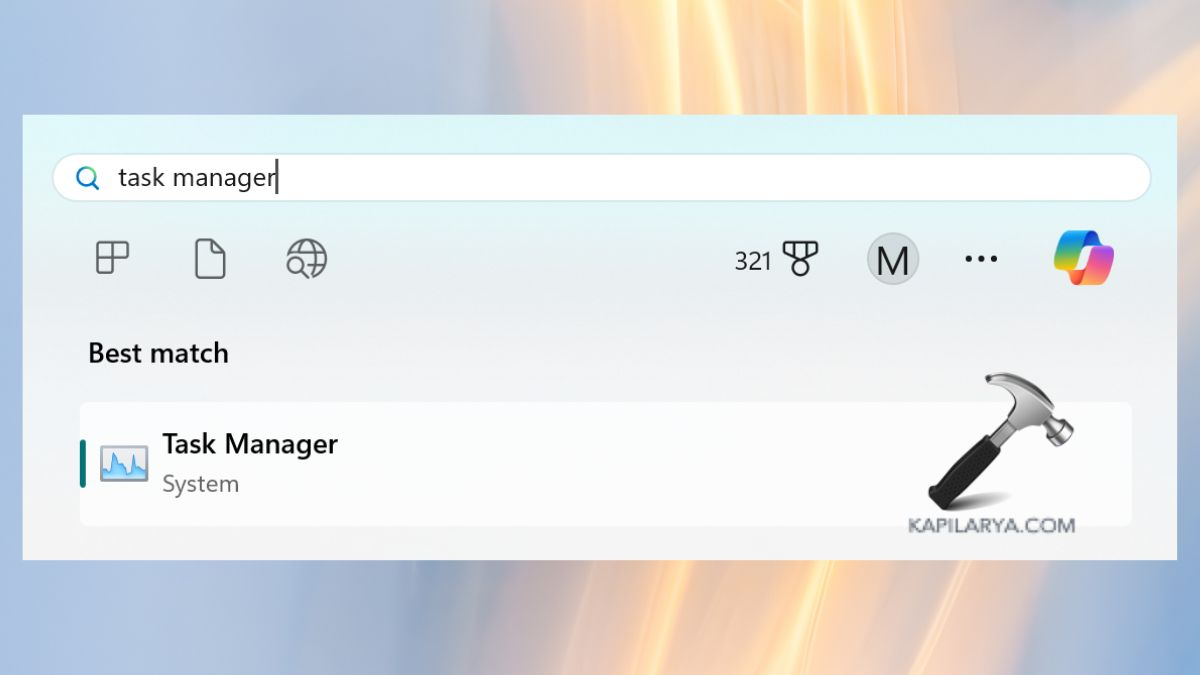
1. It is a good idea to stop all running services before the deletion of driver files to prevent a file-in-use error. Open the Task Manager, press: CTRL Shift Esc. Or simply open it from the menu.
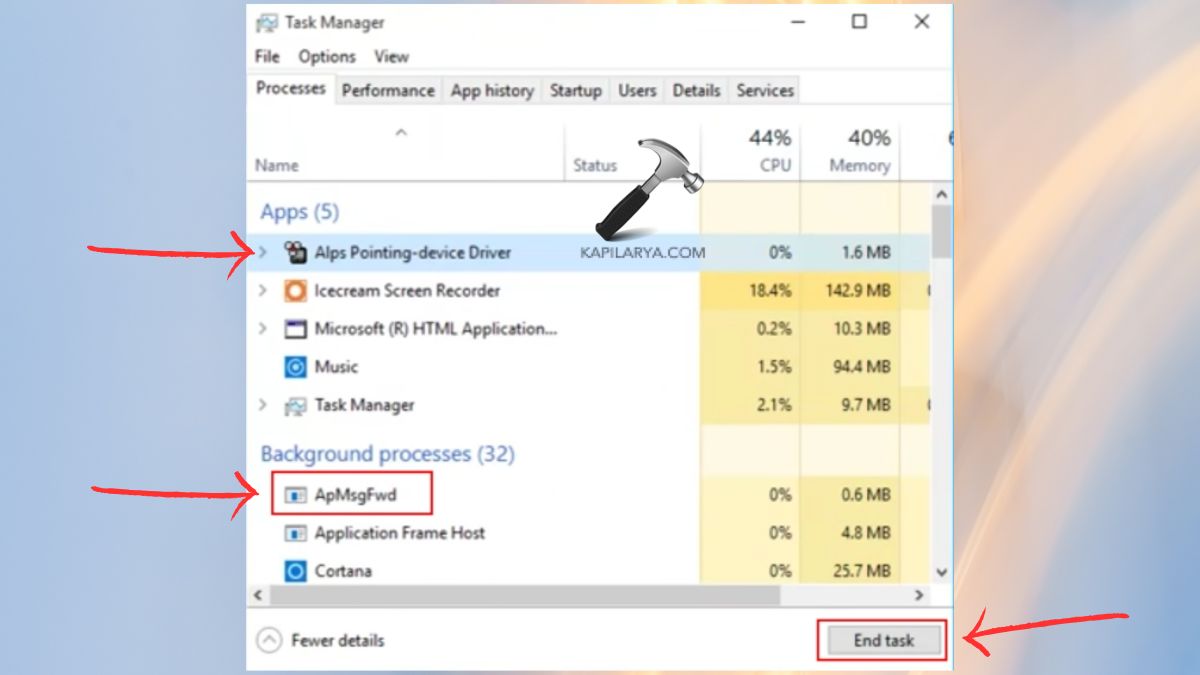
2. Go to the Processes tab. The following processes (provided they are present) can be found:-
- Alps-pointing device Driver
- ApMsgFwd
- HidMonitorSvc.exe
Click on each of them and select End Task. This will make sure the system will not stop the deletion of files.
3. At this point, delete the folder which is holding the problematic driver files. Open File Explorer.

4. Go to “C:\Program Files (x86)”.
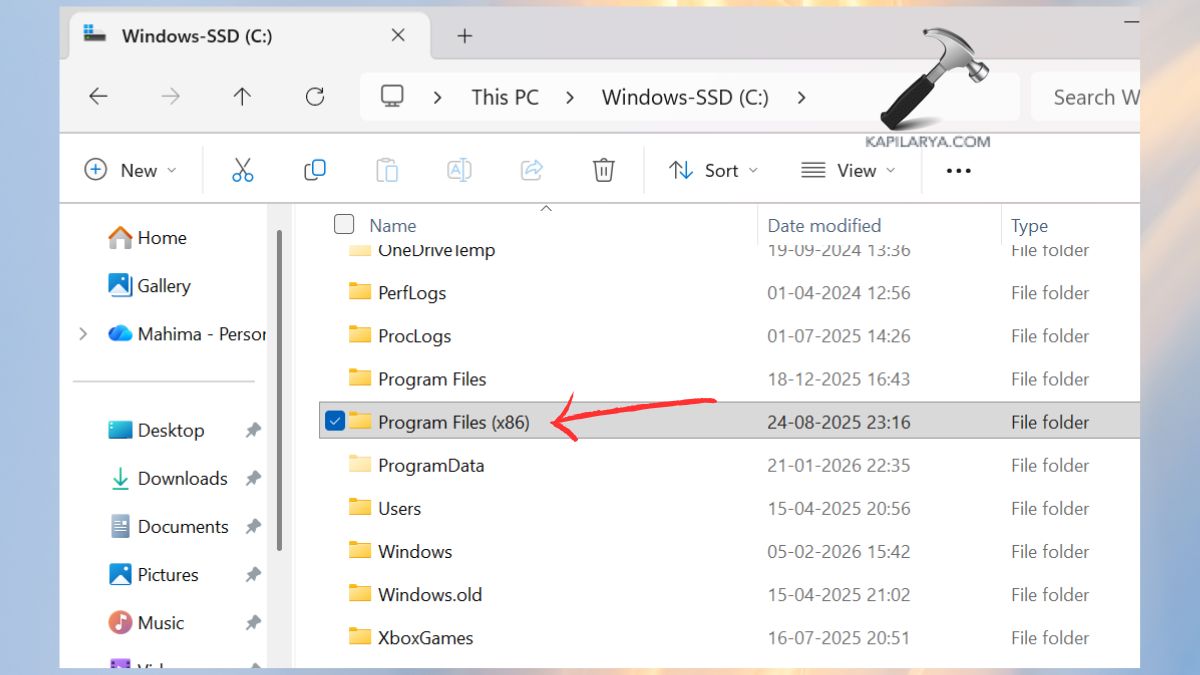
5. Locate the folder undertitled to “Apoint2K”. With the right-click, select Delete. To remove it permanently, remove it by emptying your Recycle Bin.

Reboot to implement changes. Windows will then automatically resort to a generic touchpad driver, which normally does not have any problems.
Fix 2: Rename the Apoint.exe File
In case the pop-up only shows up when starting, then renaming the executable does not allow Windows to start the corrupted file.
1. Click on File Explorer and follow either of this path:-
C:\Program Files\Apoint2K
C:\Program Files (x86)\Apoint2K
2. Look for the file “Apoint.exe”. Right-Click > Rename it to something such as “Apoint old.exe”.
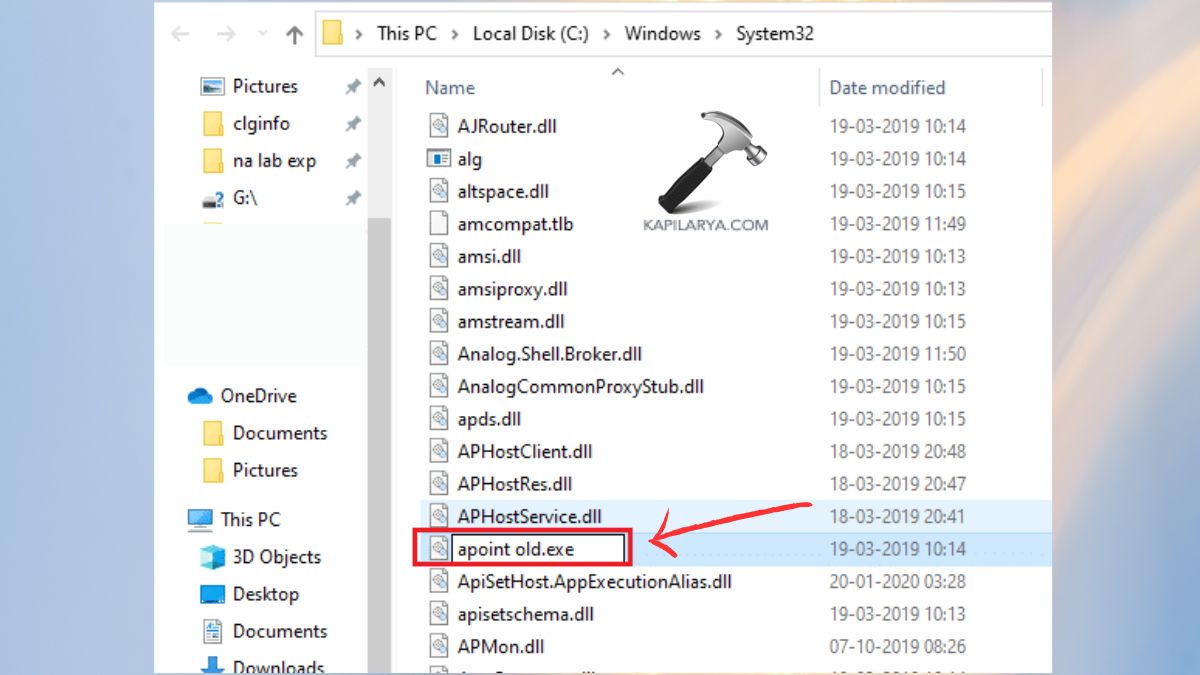
Restart your system. In case this file was the one that caused the error, it is possible to prevent the pop-up by renaming it (you can use the default driver by Microsoft to continue using the touchpad).
Fix 3: Disable the Alps Pointing Device Service
The buggy startup service causes the error to be triggered by the system. This can be turned off to eliminate the notification without having to remove the driver.
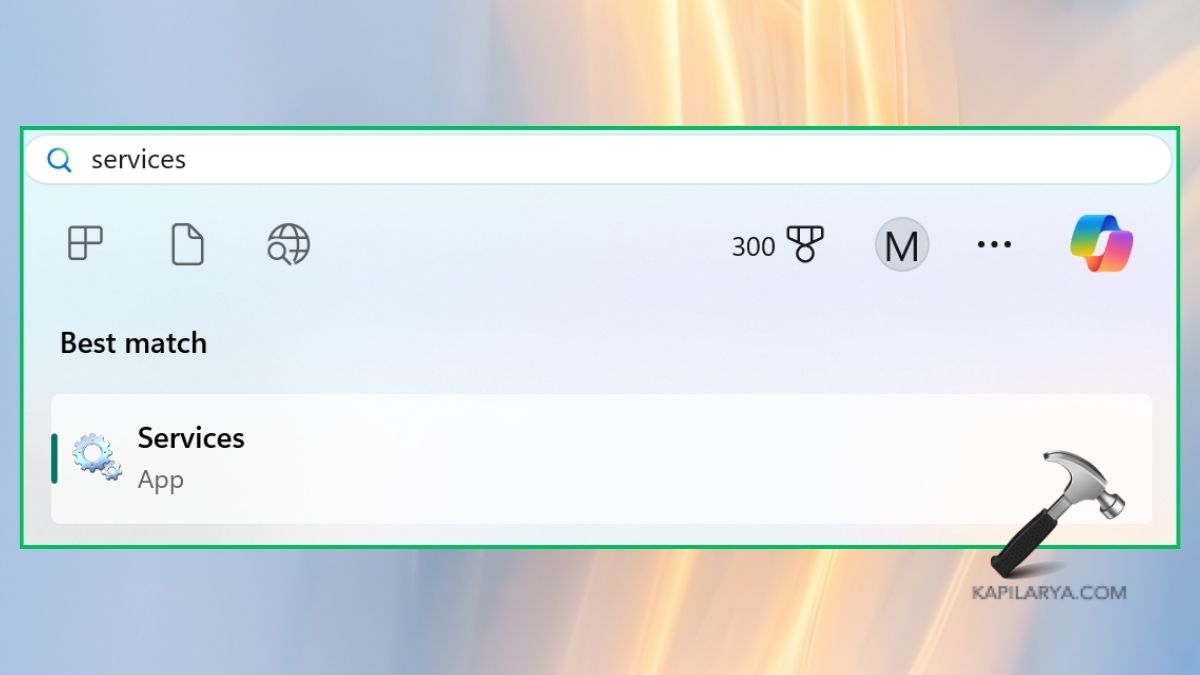
1. Click Windows + S, search Services and open.
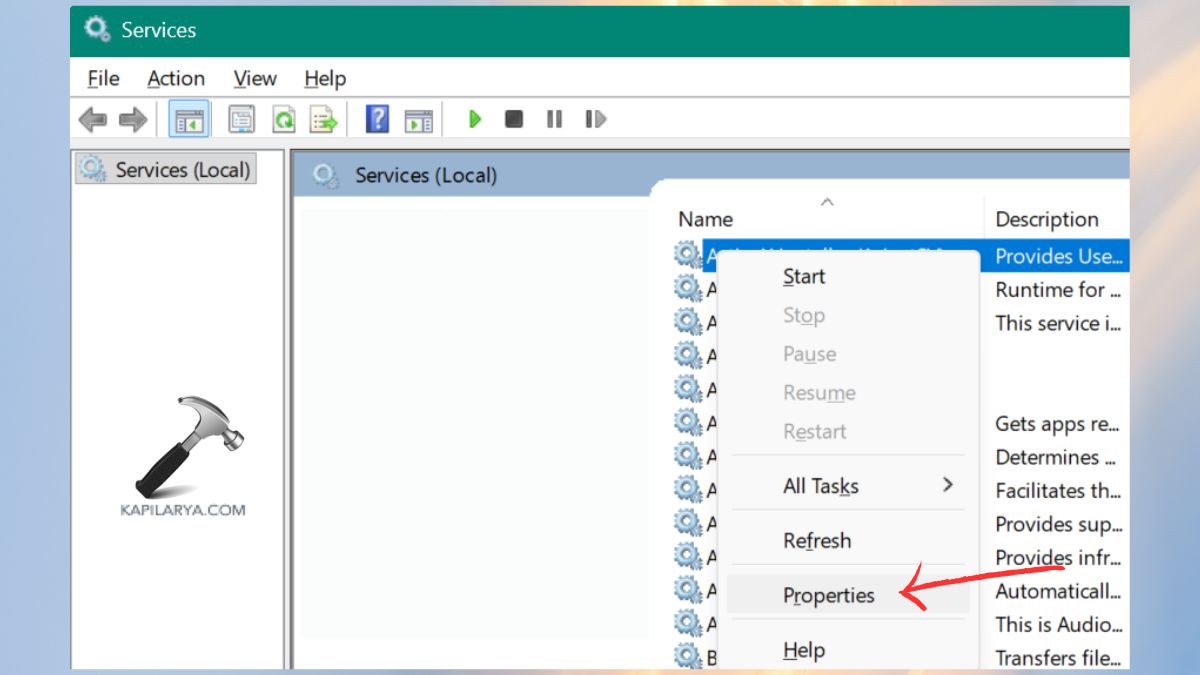
2. Search in the Services window for either Alps SMBus Monitor or ApntEx ALS Service. Right-click > Properties.
3. Startup Change type to Disabled. Click Apply > OK.
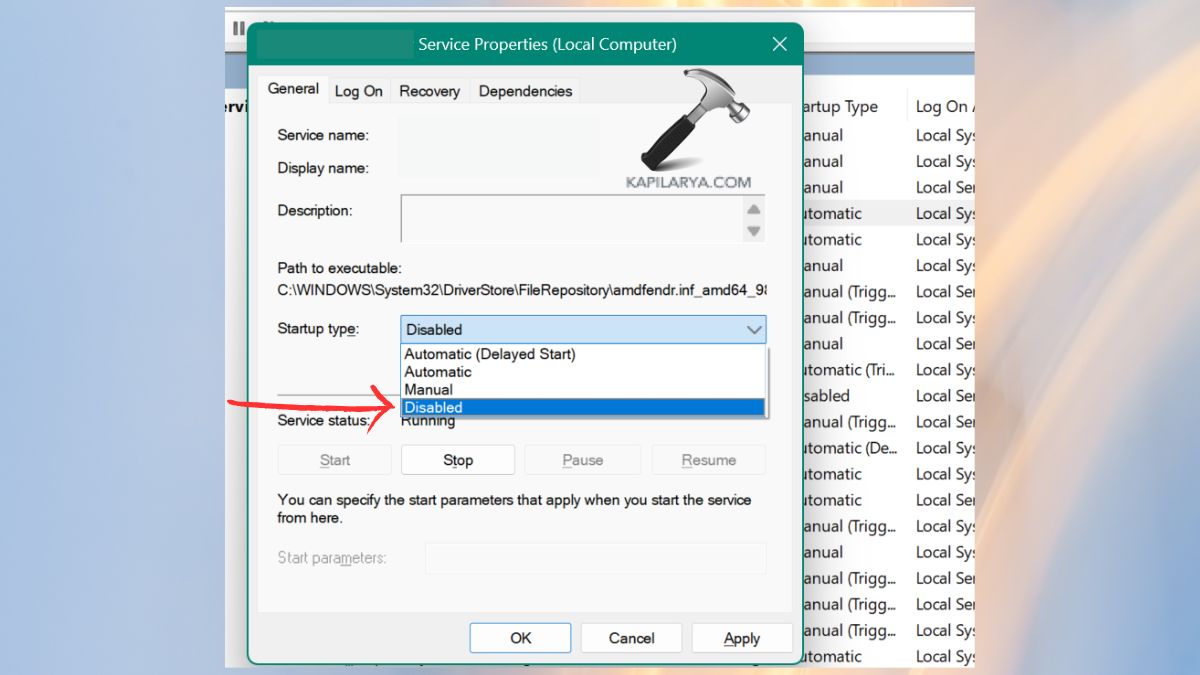
Restart your computer. This will ensure that the service does not start when you boot up the computer, killing the error pop-up.
Fix 4: Reinstall the Driver
The update of drivers corrects 90 percent of touchpad errors.
1. Go to the support of your laptop manufacturer (Dell, HP, Lenovo, etc.).
2. Find your model and get the newest Touchpad / Alps Pointing Device Driver.
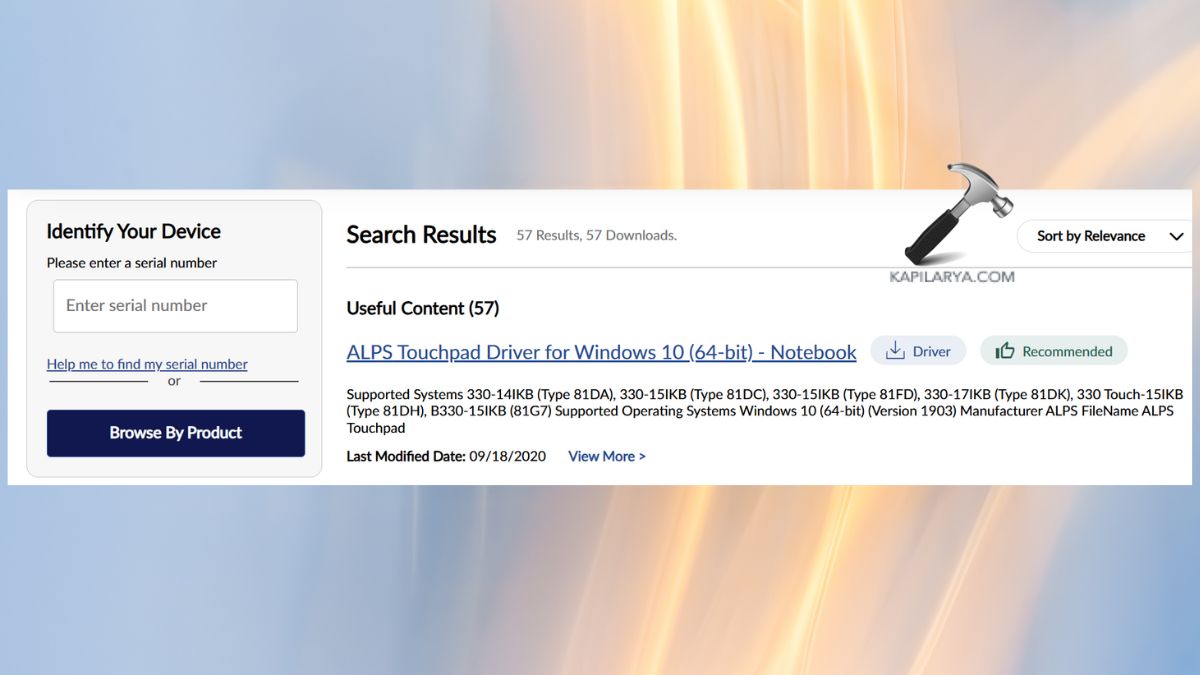
Run the installer and reboot. This fix is permanent in case the problem was caused by a corrupt file or a driver which has been outdated.
Frequently Asked Questions (FAQs)
What causes the “Set user settings to driver failed” error?
The reason is largely due to the corrupted Alps touchpad drivers, busted Apoint.exe files, or broken driver services.
Is it safe to delete or disable the Alps driver?
Windows will be generic touchpad driver. The system is stable, and the advanced gestures might cease working.
Will renaming Apoint.exe affect my touchpad?
Typically, no, the touchpad will continue to work using the built-in Windows driver.
What is the best fix for this error?
The best course of action is the reinstallation of the driver, and upon failing to do so, one can disable the Alps service.
That’s it!