

If you see the netapi32.dll is missing error or “The program can’t start because netapi32.dll is not found” on your Windows 11/10 system, it signals a missing or corrupted network API library file that Windows uses for key operations. This issue can lead to application crashes, network failures, or even system instability. In this guide, we’ll see the different solutions to fix this issue.
Common causes include malware damage, system-file corruption, or recent software installations that altered the file. Below are six effective fixes for this problem. Apply each one, restart your PC after each change, and then check if the issue is resolved.
Page Contents
Fix Netapi32.dll is missing in Windows 11/10
Fix 1: Clean boot your PC
This approach helps you identify if a third-party service or startup item is triggering the netapi32.dll error.
1. Press Windows + R, type msconfig and press Enter.
2. In System Configuration, choose the Services tab, check “Hide all Microsoft services,” then click Disable all.
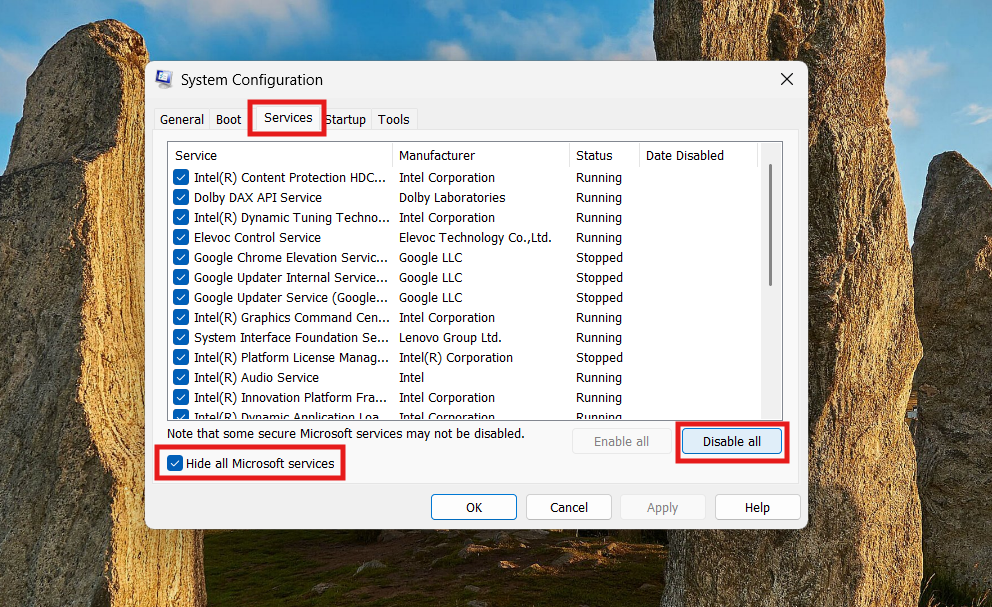
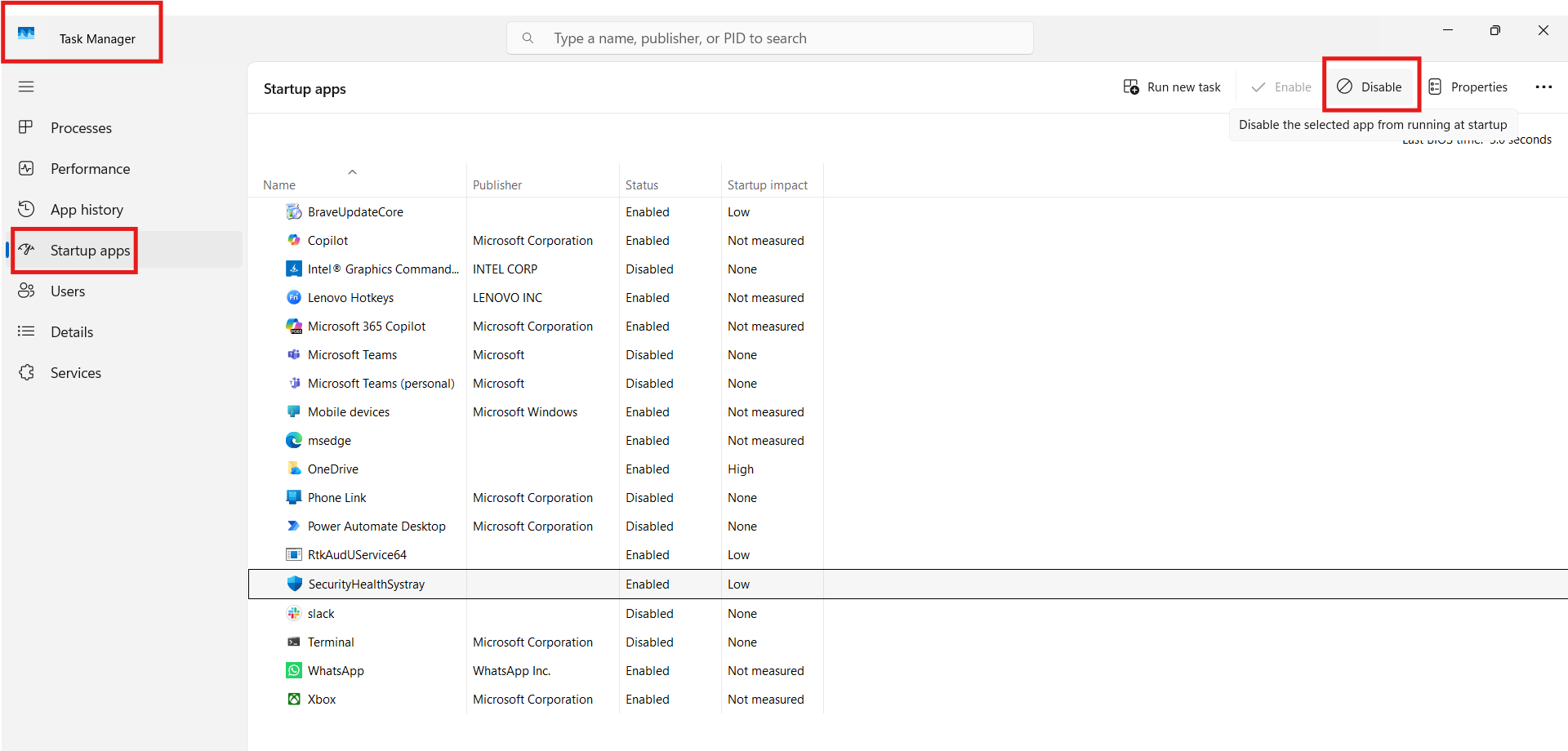
3. Go to the Startup tab and click Open Task Manager.
4. Disable all startup items, close Task Manager and System Configuration, then restart your computer.
Fix 2: Run System File Checker (SFC) and DISM
Corrupted system files often cause missing DLL errors like this one.
1. Open Command Prompt as administrator.
2. Run this command:
sfc /scannow
3. After that finishes, run:
DISM /Online /Cleanup-Image /RestoreHealth
4. Once done, restart your PC and test if the error persists.

Fix 3: Use System Restore to fix Netapi32.dll is missing error
If the error appears after a change or update, restoring your system to a previous state often resolves the issue.
1. Press Windows + R, type rstrui and press Enter.
2. Choose a restore point from before the problem began and follow the prompts.
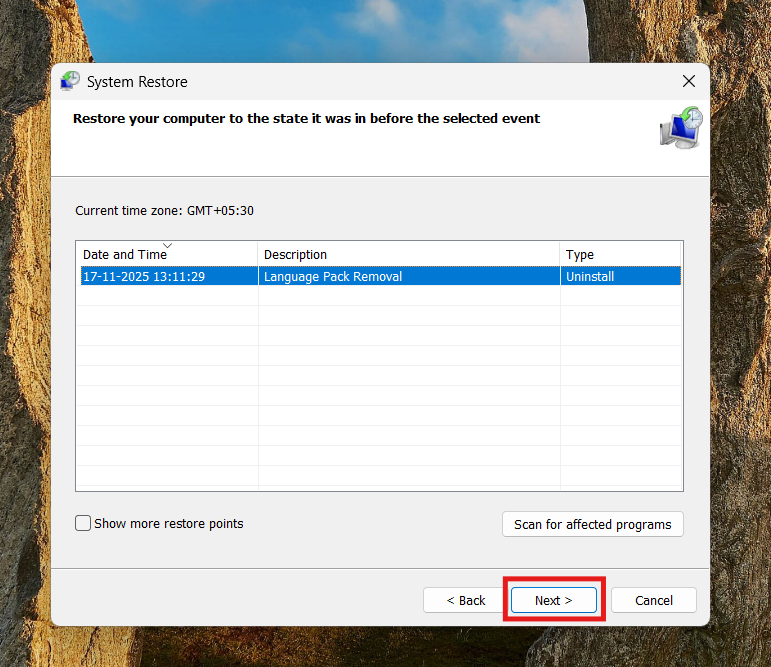
3. After your system restores and reboots, check whether the error is gone.
Fix 4: Update Windows and drivers to fix Netapi32.dll is missing error
An outdated system or driver may cause template-library files like netapi32.dll to break.
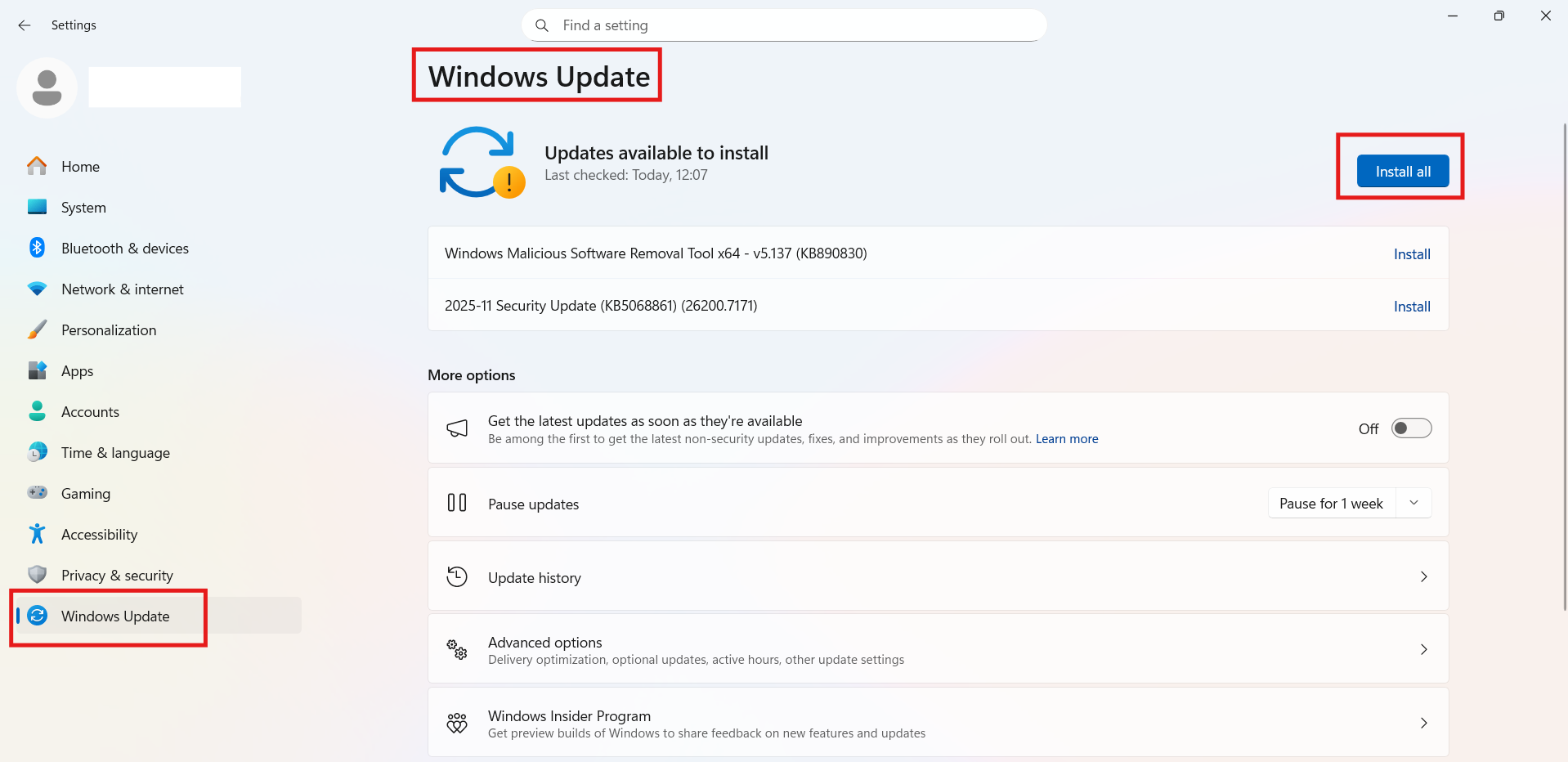
1. Open Settings and go to Windows Update.
2. Click Check for updates, install any available, and then restart your system.
Fix 5: Scan for malware and unwanted software
Malware may delete or corrupt important DLLs, including netapi32.dll.
1. Open Windows Security, go to Virus & threat protection, and run a Full scan.
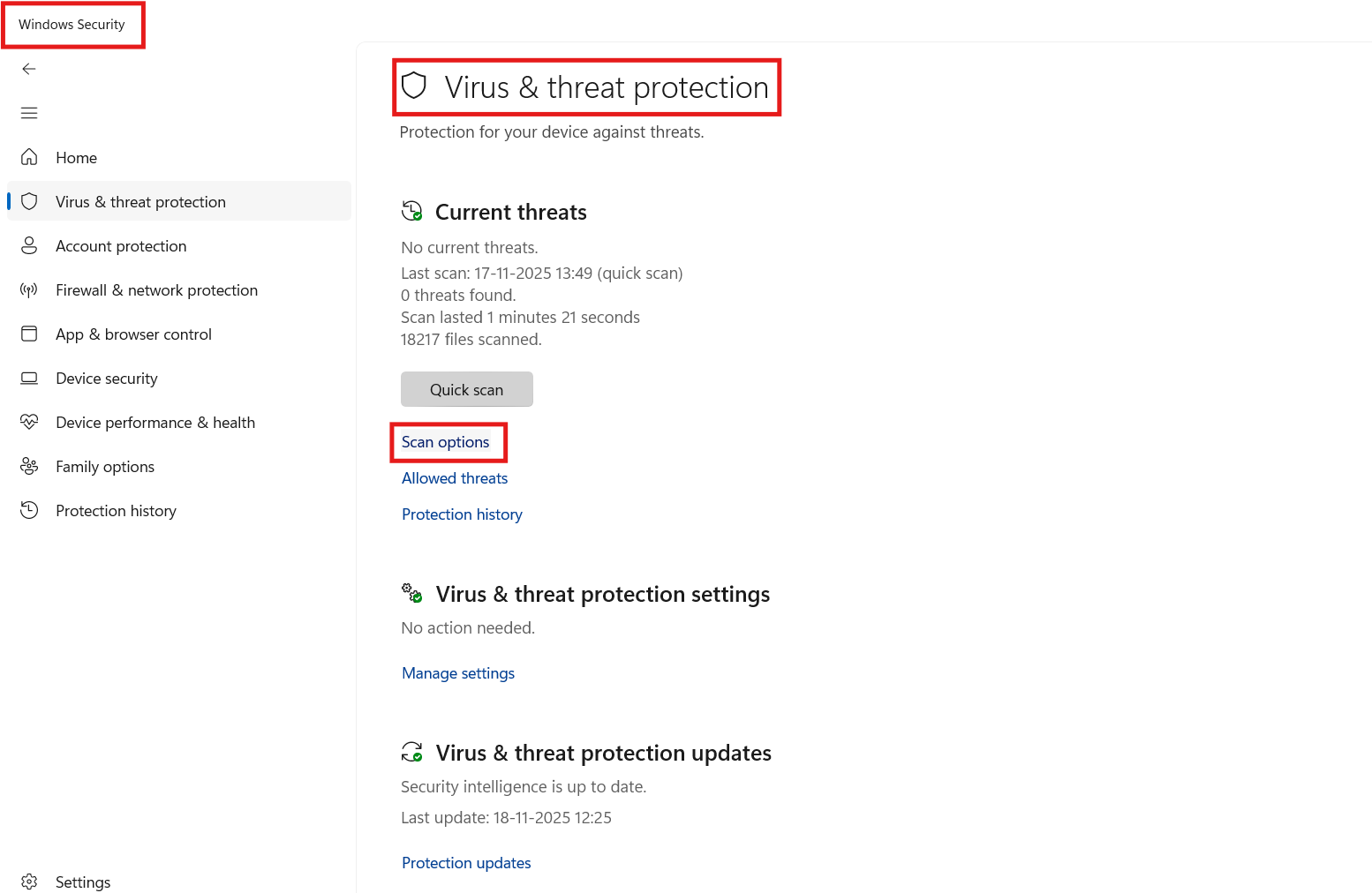
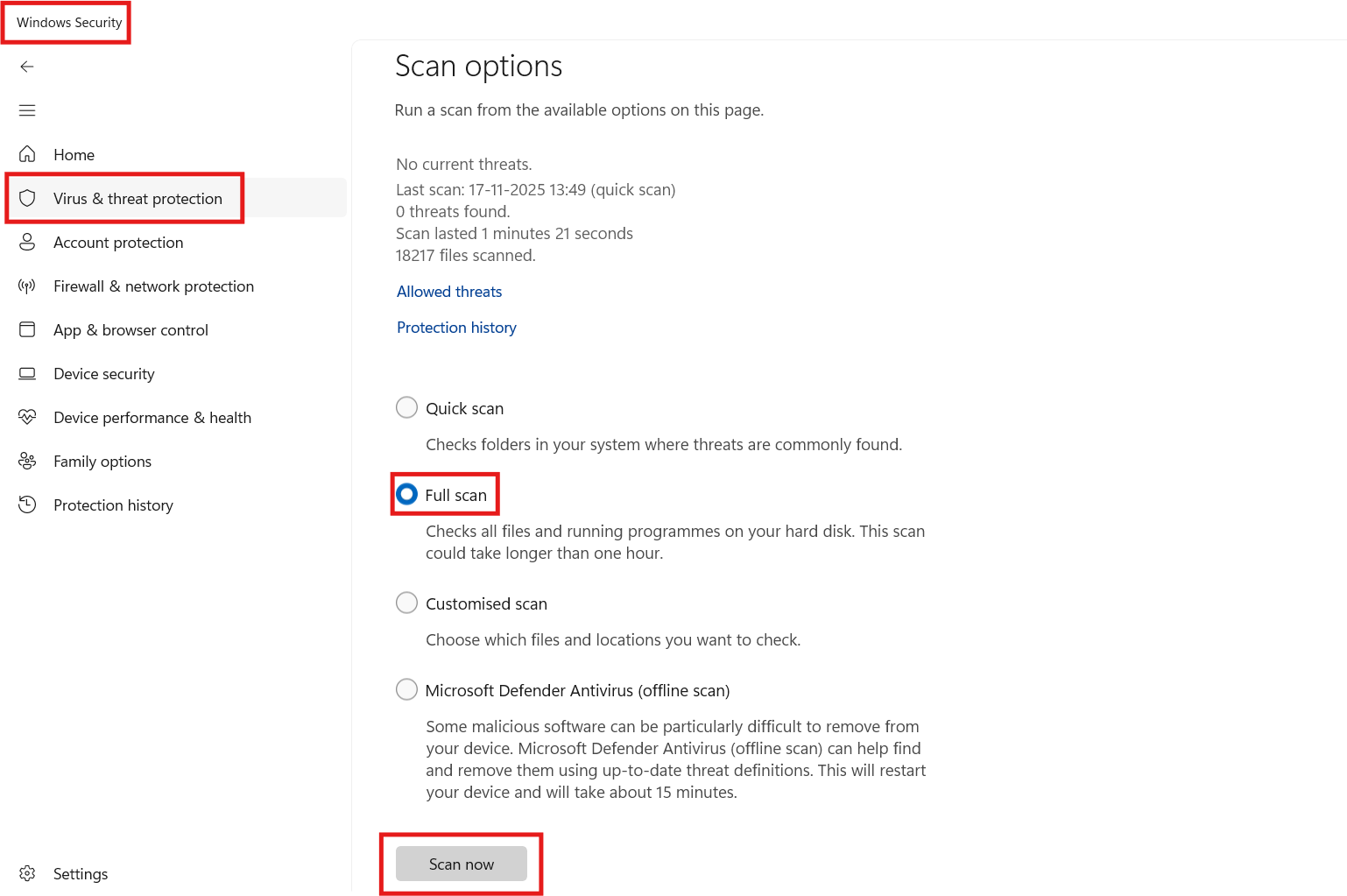
2. Remove any threats found and reboot.
Fix 6: Reinstall the affected application (advanced)
Some programs depend on a specific version of netapi32.dll or may not work correctly with the one already on your system. Reinstalling the app can restore the correct files it needs and often fixes the error.
1. Open Settings, go to Apps, then Installed Apps.
2. Find the application that might have caused the change, choose Uninstall, and then reinstall from the official source.
3. Restart your PC and test the applidlation again.
Quick tips
1. Always backup important files before major changes.
2. Keep Windows updated and drivers current.
3. After applying each fix, restart your PC to allow changes to take effect.


![[FIX] Windows Shell Common DLL Has Stopped Working](https://www.kapilarya.com/assets/Admin-3-768x496.jpg)
![[FIX] The Program Can’t Start Because mfc100u.dll Is Missing From Your Computer](https://www.kapilarya.com/assets/Admin-2-768x581.jpg)
