

If your microphone is not detected or isn’t working on your Windows 11 PC or laptop, this issue usually happens because of incorrect settings, outdated drivers, loose hardware connections, or restricted privacy controls.
Page Contents
Fix Microphone Not Detected in Windows 11
Now, here are all the possible fixes that you can try. From simple toggles to deeper system tweaks, so that the mic starts being recognized and works as expected.
Fix 1: Update or Reinstall Audio Drivers
First, check whether Windows uses the correct driver for the microphone or audio system.
1. Press Win + X and choose Device Manager.
2. Expand Audio inputs and outputs or Sound, video, and game controllers.
3. Then, right-click the mic or audio device and select Update driver.
4. After that, choose Search automatically so Windows tries to find the latest one.
5. If that does not help, uninstall the driver and restart your PC. Windows will reinstall it when you reboot.
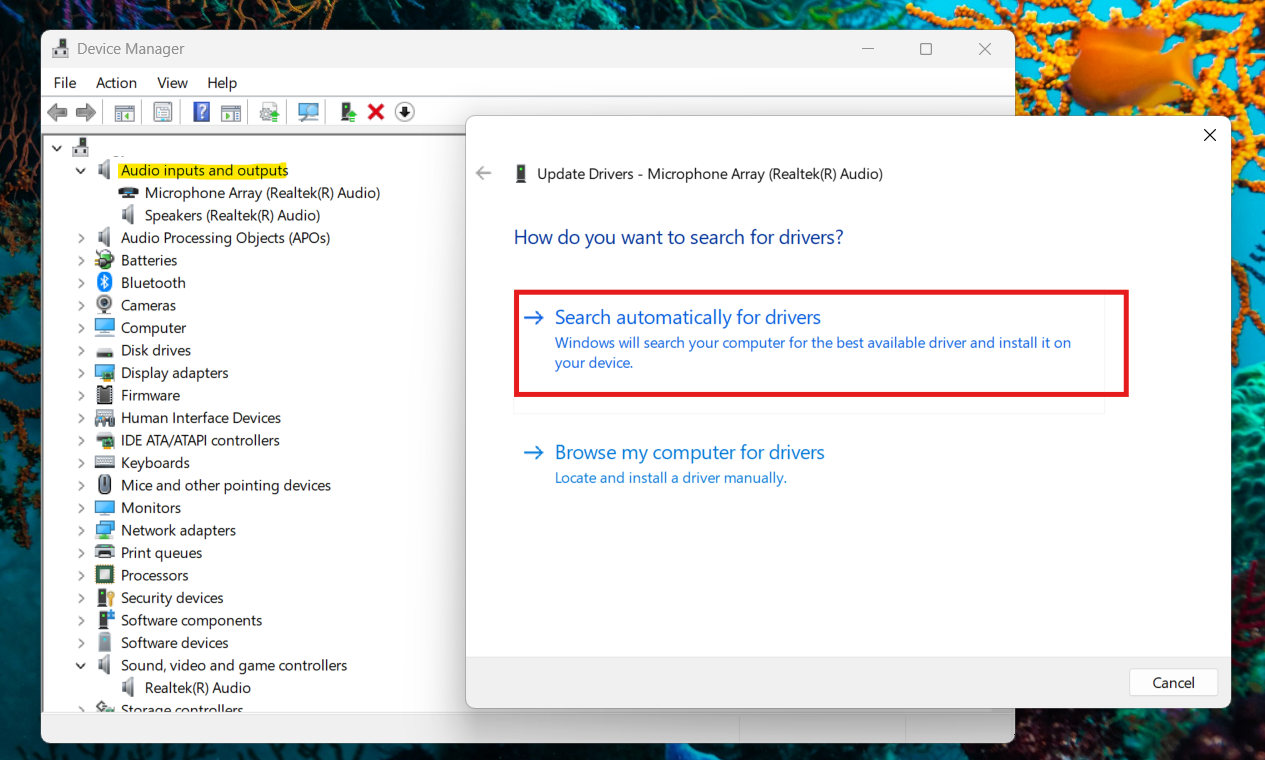
In many cases, this fix resolves detection problems caused by outdated or incompatible drivers.
Fix 2: Make Sure Microphone Access Is Allowed
Sometimes, Windows 11 privacy settings block apps from accessing your microphone.
1. Open Settings, then Privacy & security, and then Microphone.
2. Toggle Microphone access to On.
3. Also, switch on Let apps access your microphone.
4. If you need desktop apps to use it, enable Let desktop apps access your microphone too.
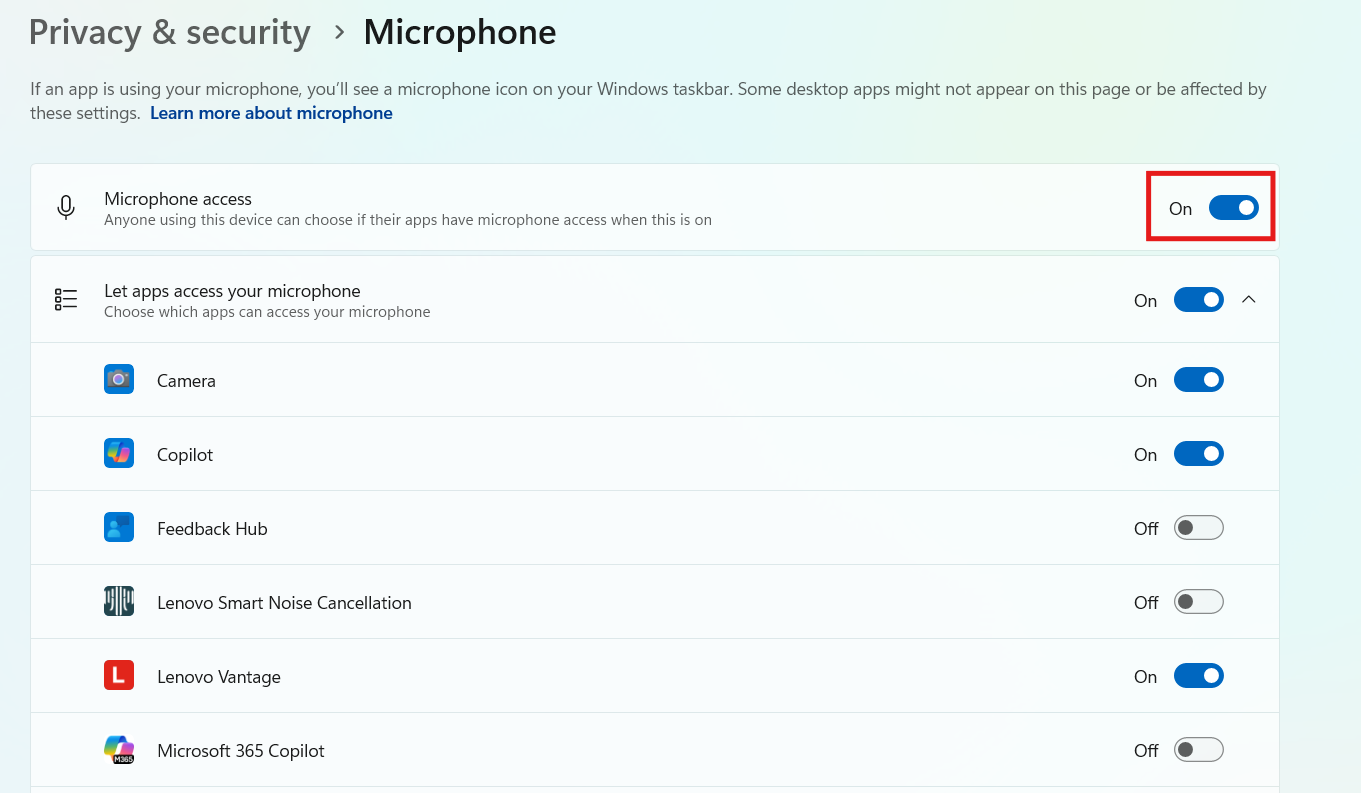
Turning this on allows apps to detect and use the microphone.
Fix 3: Check and Enable the Microphone in Sound Settings
If the hardware is fine but Windows still doesn’t list the mic, Windows may have disabled it.
1. Right-click the sound icon on the taskbar and open Sound settings.
2. Then, under Input, find your microphone and select it.
3. If it’s not listed, click More sound settings, then go to the Recording tab, right-click, and choose Show Disabled Devices.
4. Check the button under the general input device settings to see whether it says “Don’t Allow.” If it does, the mic is already enabled.
If it says “Allow,” the mic is currently disabled at the system level and should be enabled.
5. Additionally, test it by speaking into it so you can see if the volume bar moves.
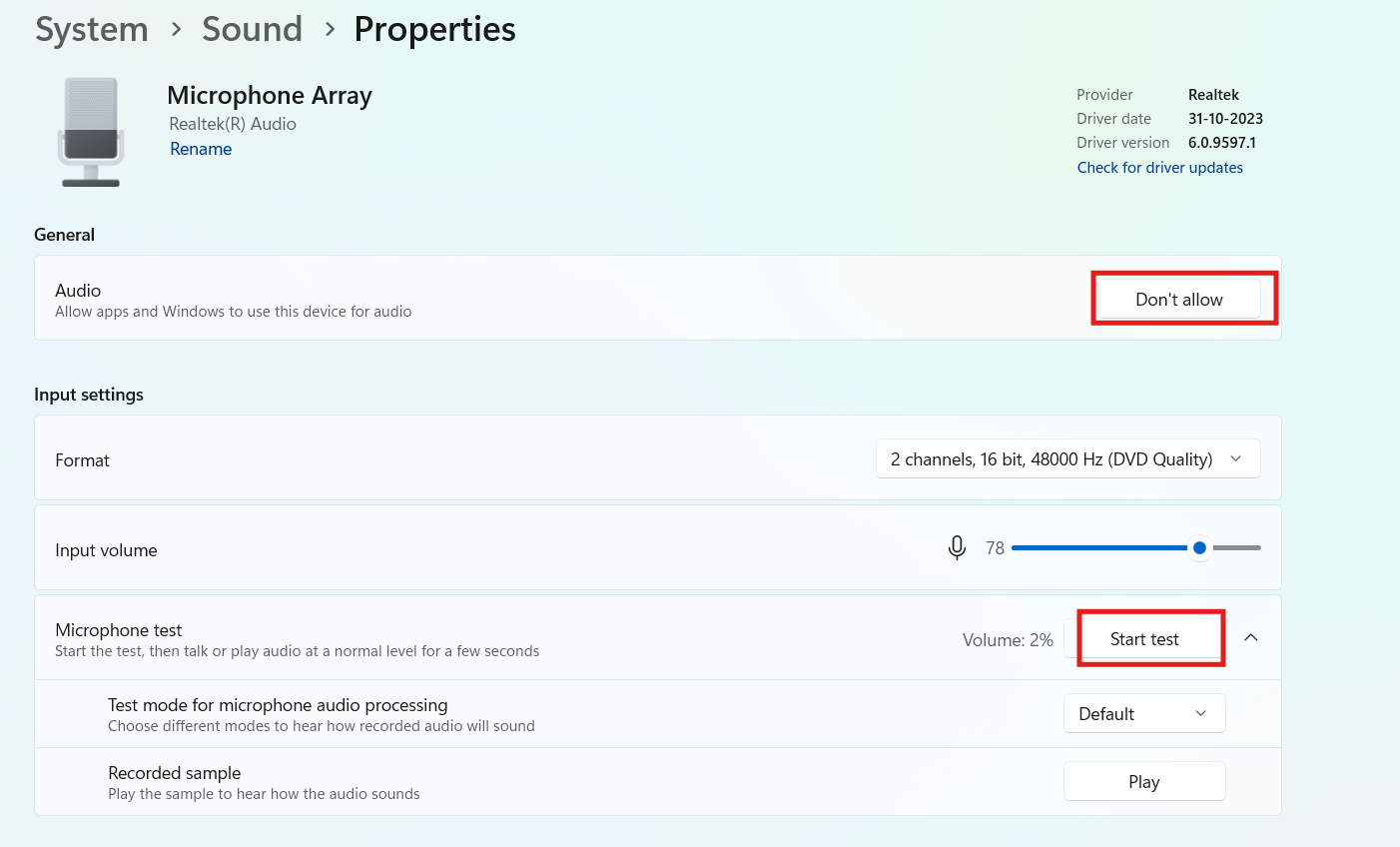
Making it the default recording device helps Windows choose it first.
Fix 4: Disconnect Other Peripherals
Sometimes, other USB devices can interfere with how the microphone is recognized:
1. Unplug any extra peripherals like flash drives, printers, secondary monitors, etc.
2. Leave only the mic connected, and then restart the computer.
In many cases, this eliminates conflict and helps Windows detect the microphone properly.
Fix 5: Use the Built-in Troubleshooter
Thankfully, Windows 11 also includes a dedicated troubleshooter that scans sound devices and fixes common issues.
1. Open Settings and then go to System. Choose Troubleshoot and then click on Other troubleshooters.
2. Look for Audio and then click Run.
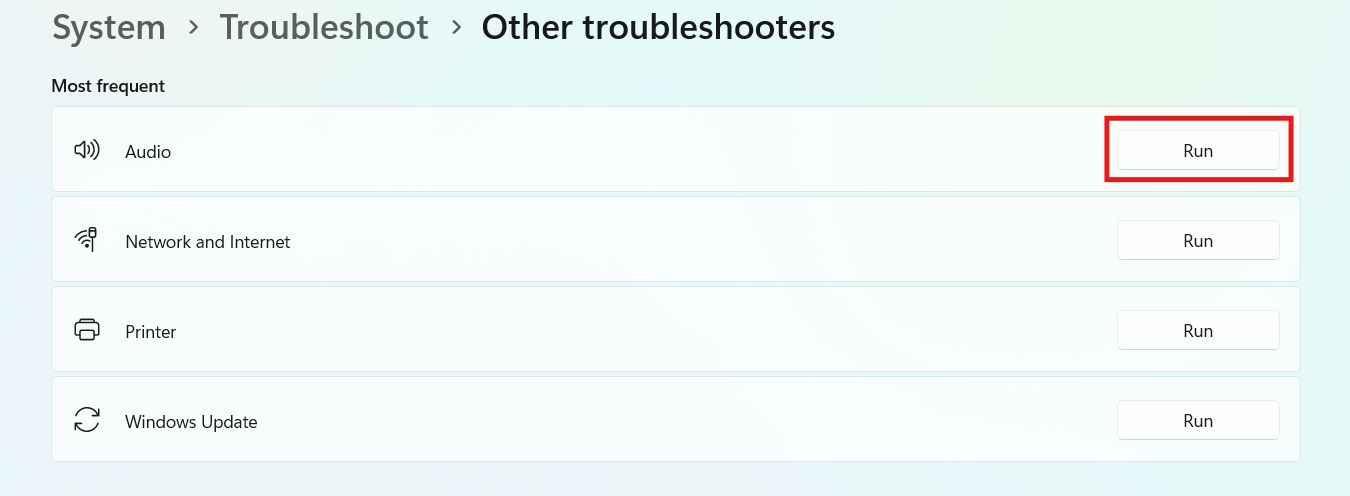
Follow the on-screen steps to let Windows diagnose and repair possible problems.
This tool automates checks for many common failures and is quick to run.
Fix 6: Verify Input Levels and Mute Settings
However, even if the mic is detected, its volume or mute settings can make it seem like it’s not working.
1. From Sound settings, choose your microphone under Input.
2. Then, go into Device properties.
3. Increase the input volume and make sure it’s not muted.
4. Some devices also have a Microphone Boost option, so raise this slightly if available.
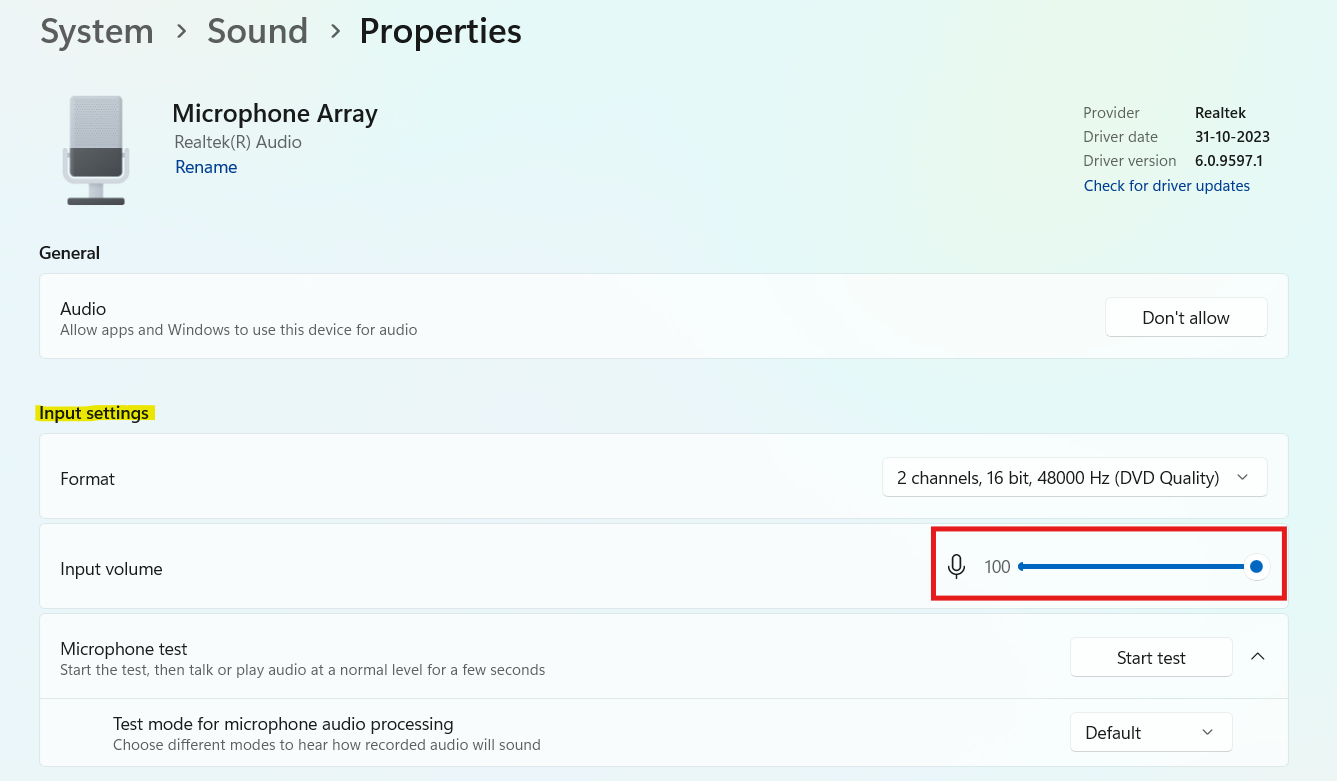
Properly set input levels ensure that Windows can pick up your voice.
Fix 7: Check Physical Connection and Hardware
Finally, before trying advanced fixes, confirm the microphone itself is connected correctly:
1. Make sure the cable or USB connector is fully plugged in.
2. If the mic has its own power source (like a battery or an external adapter), ensure it’s on and charged.
3. If using a headset with a mic, try unplugging and reinserting it into the correct port.
4. Try a different USB port if available.
A loose connection or wrong port can easily prevent Windows from detecting the device.
Common Mistakes to Avoid
1. Assuming the mic must be enabled in every app. Some programs need app-specific settings to be changed.
2. Ignoring privacy permissions. If privacy access is off, apps can never reach the mic.
3. Skipping driver updates. Old audio drivers are one of the most frequent culprits.

![[How To] Allow/Prevent Apps Access To Microphone In Windows 10](https://www.kapilarya.com/assets/microphone_icon_1768315981.jpg)
