

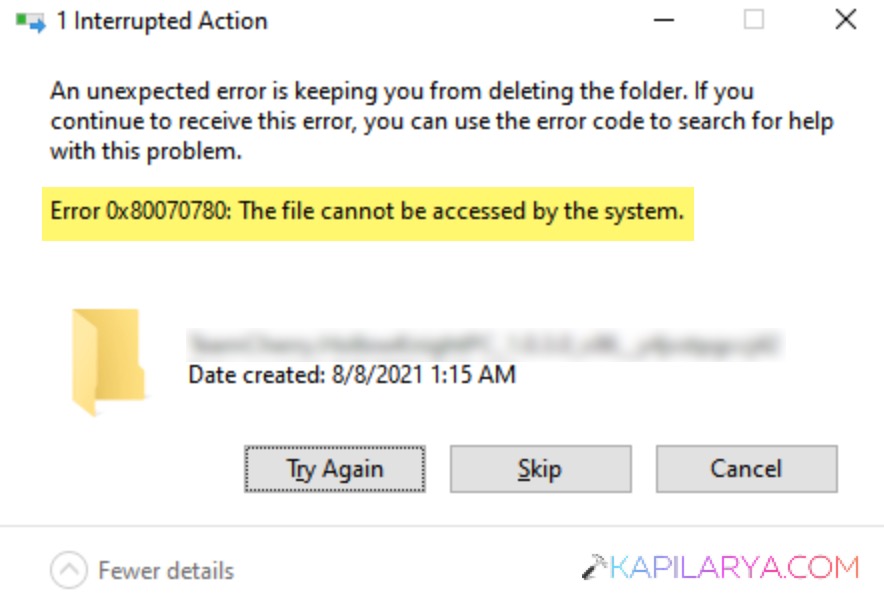
‘The file cannot be accessed by the system’ – You have landed in the right spot in case you are having this error when opening, copying, moving, or deleting a file. This is usually a sign of more underlying problems, such as disk corruption, bad sectors, crashing drives, and disturbed file permissions.
Most of the time, your data is not lost because Windows 11 just cannot read it because there is a small file system error. That is why immediately solving the problem makes the access not only restored but your data is safe, as well as the whole system is healthier. To resolve the error ‘The file cannot be accessed by the system’ in Windows 11, use these six methods in this guide.
Page Contents
What Causes “The file cannot be accessed by the system” Error in Windows 11
It is better to get the reasons of the appearance of the problem and fix it before. Such a mistake can happen on the internal SSDs, the HDD, the external USB drive, SD cards and on the network destinations.
The following are the most frequent causes:-
- Windows has problems accessing the information stored in the hard drive bad or corrupted sectors.
- A damaged directory hierarchy or damaged information does not allow the Windows to find files correctly.
- The OS may not be able to communicate to the hardware of the storage because of driver problems.
- Active files may get corrupted because of the sudden shutdown, power outages, or even forced restarts.
- This error can manifest itself in an occasion when Windows does not allow the user to access a file because of conflicting users on the file ownership or permission.
- Files can be locked or file attributes altered by a third-party application or malware.
Fix ‘The file cannot be accessed by the system’ in Windows 11
Fix 1: Run CHKDSK to Repair Disk Errors
Corruption of the disk is one of the major causes of this error. Luckily enough, the default Windows CHKDSK utility is capable of scanning and repairing bad sectors on the file system automatically and recovering access to the files.
1. Look in the window and press Windows + S. Click in Command Prompt to the right of the window, and this is run as an administrator.

2. The command to use is as below and type it in the cmd window, and press Enter.
chkdsk C: /f /r /x

Switch “C:” with the error-panning drive. On prompt type “Y” to enable the resume of scanning. Restart your PC.
Fix 2: Use Robocopy to Recover or Move Files
In case of failure in copy/pasting, you can use Robocopy (Robust File Copy) to copy or transfer files in destroyed directories or bad drives. It is an effective command-line utility that succeeds where the normal copying fails. This is a built-in command-line utility for Windows operating system.
Robocopy is able to overcome errors and block copying of files. This technique is particularly beneficial when there is no need to start an operating system in order to save your data prior to a disk format or repair.
1. Open Command Prompt as administrator once again.
2. Type the command.
robocopy "source path" "destination path" /R:0 /W:0
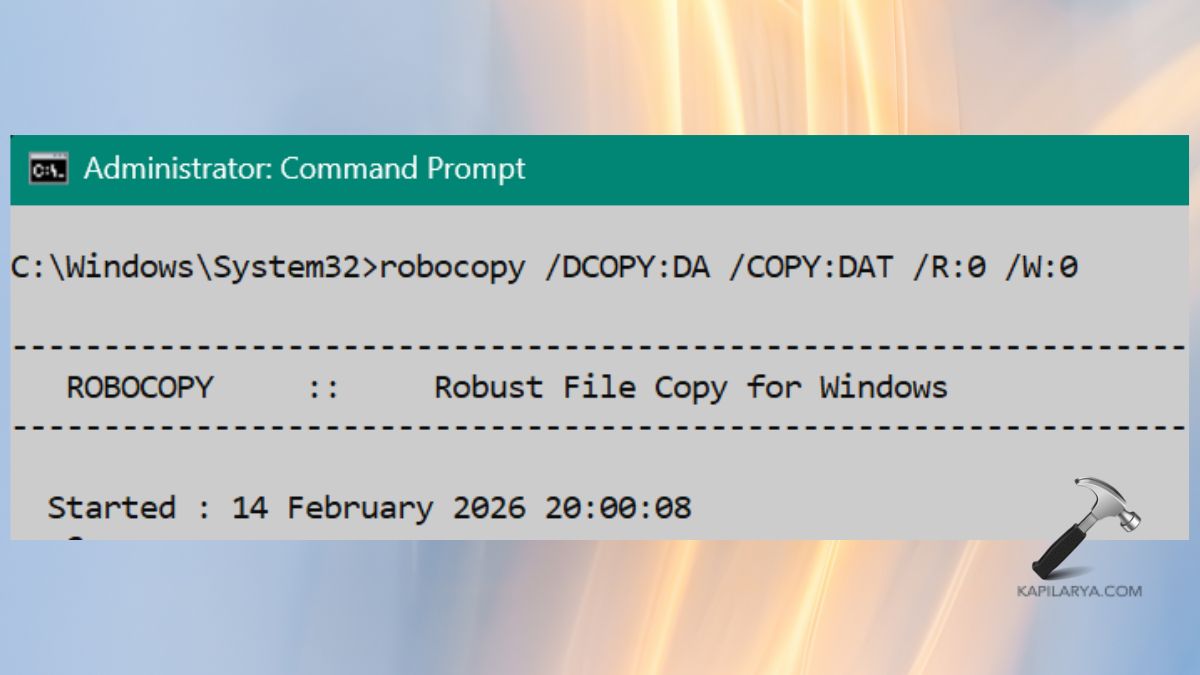
Select your folders instead of the source path and destination path. Press Enter.
Fix 3: Carry Out the File Operation in Safe Mode
This error may be caused by Windows services, antivirus software or the third party programs that may pause the working of files. Safe Mode loads Windows with the bare minimum drivers, thus it is easier to see whether a conflict in the system is the root cause.
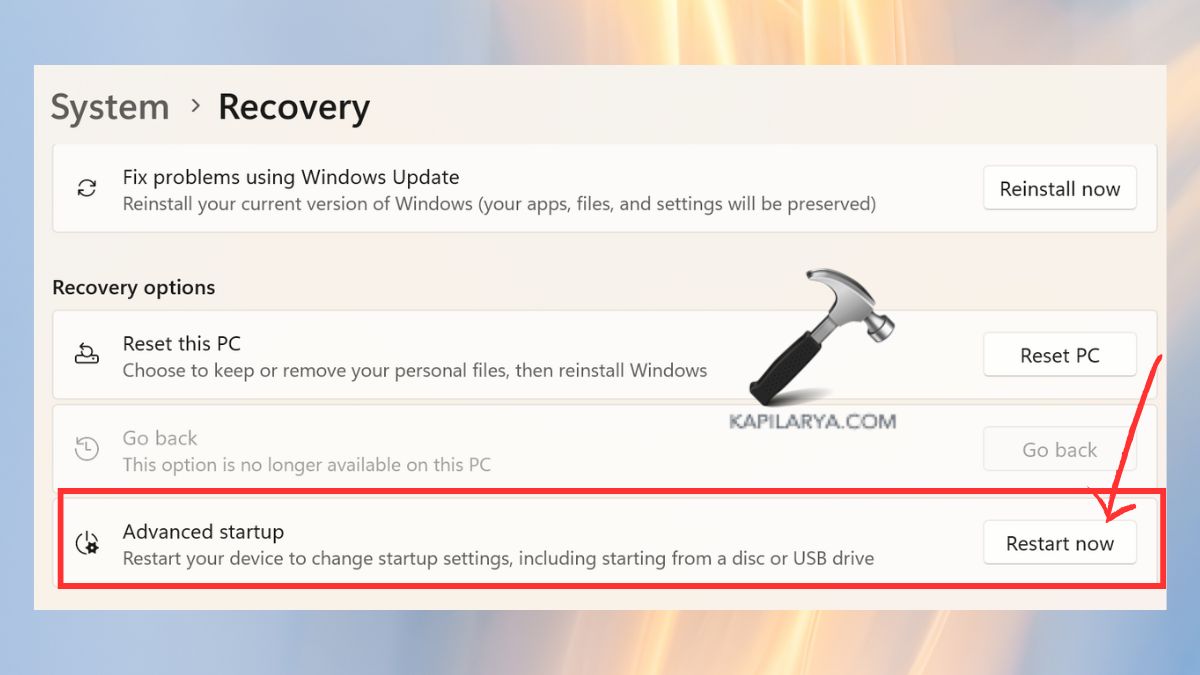
1. Windows is controlled by the keyboard shortcut + I. Go to System > Recovery.

2. In the Advanced startup, you need to select the Restart now option.
3. Go to the following: Troubleshoot > Advanced options > Startup Settings.

4. Click Restart. Press F4 for Safe Mode.
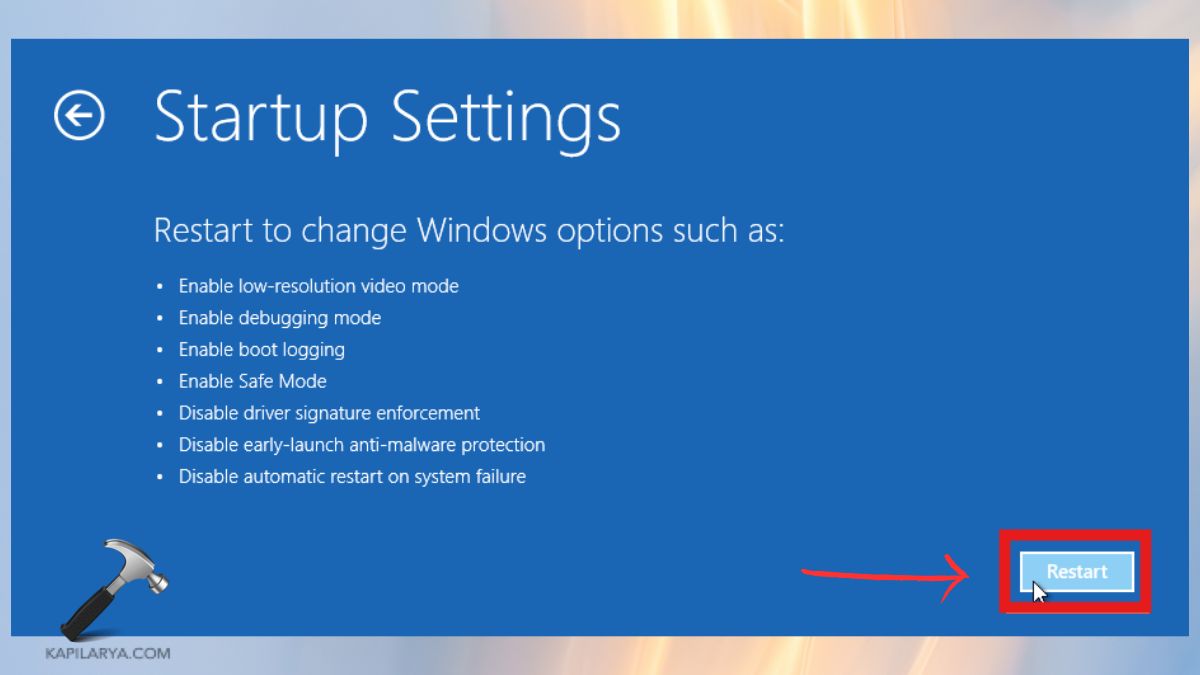
At this point, repeat the copying/moving/opening of the file. In the event that it does, a clashing service or app is the cause of the problem. After completion, just boot up the PC.
Fix 4: Reinstall the Disk Driver
In other cases, Windows 11 just inexplicably does not coincide with the storage device thanks to a broken or an old driver. To check that the device is well recognized and operating, it is always advisable to reinstall the driver.
1. Right-Click Start > Device Manager.

2. Expand Disk drives. Select your troublesome disk through a right click > Uninstall device. Confirm the action.
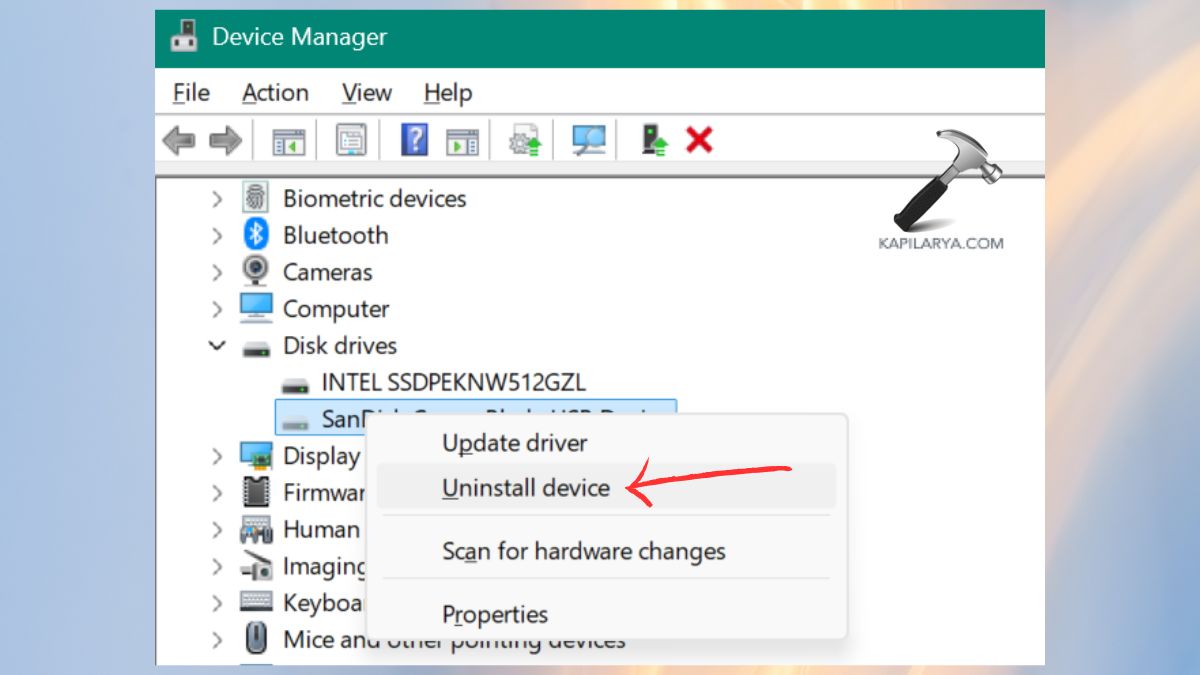
Reboot the system and Windows will just reinstall the right drivers on booting up.
Fix 5: Run Windows File and Folder Troubleshooter
Not very popular, Windows have a Troubleshooter File and Folder tool. That is how it is possible to resolve the Missing file/folder errors, Permission issues, Corrupted folder settings and Incorrect directory configurations using it.
1. Obtain the official tool on the support site of Microsoft (https://support.microsoft.com/en-us/windows/automatically-diagnose-and-repair-windows-file-and-folder-problems-8ca2261a-eb4b-bda1-232c-d88b972438cd).
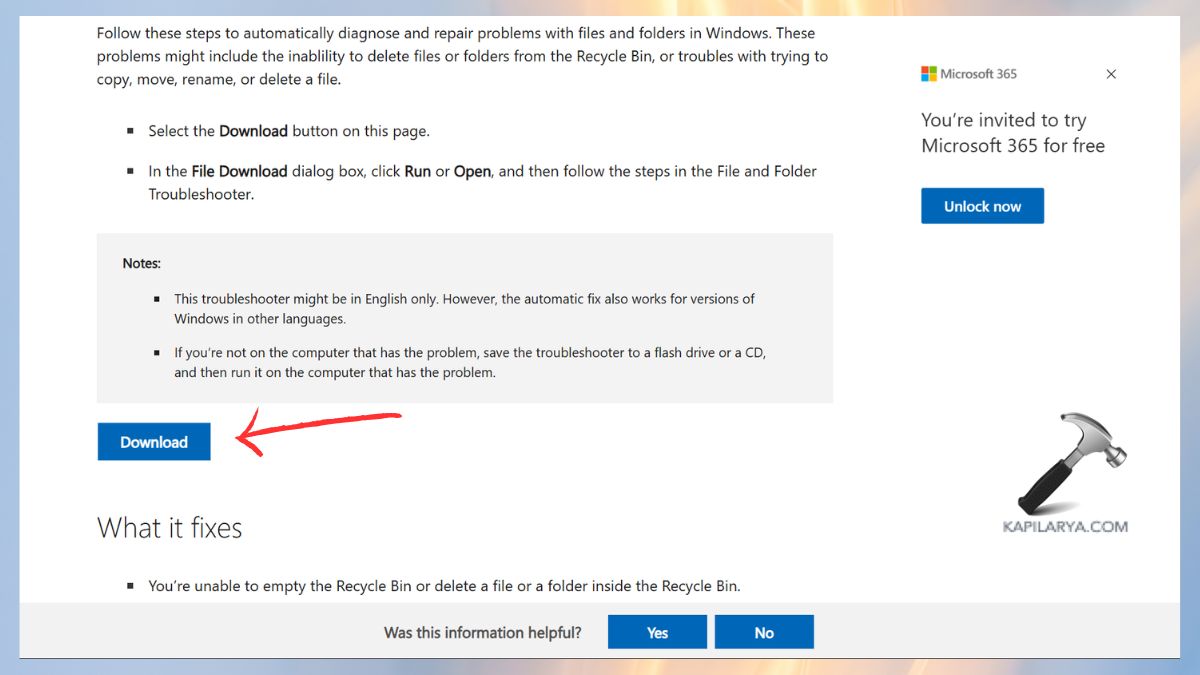
2. Run the troubleshooter. Choose the relevant issue:-
- “I cannot access files or folders”
- “Files or folders appear to be missing”
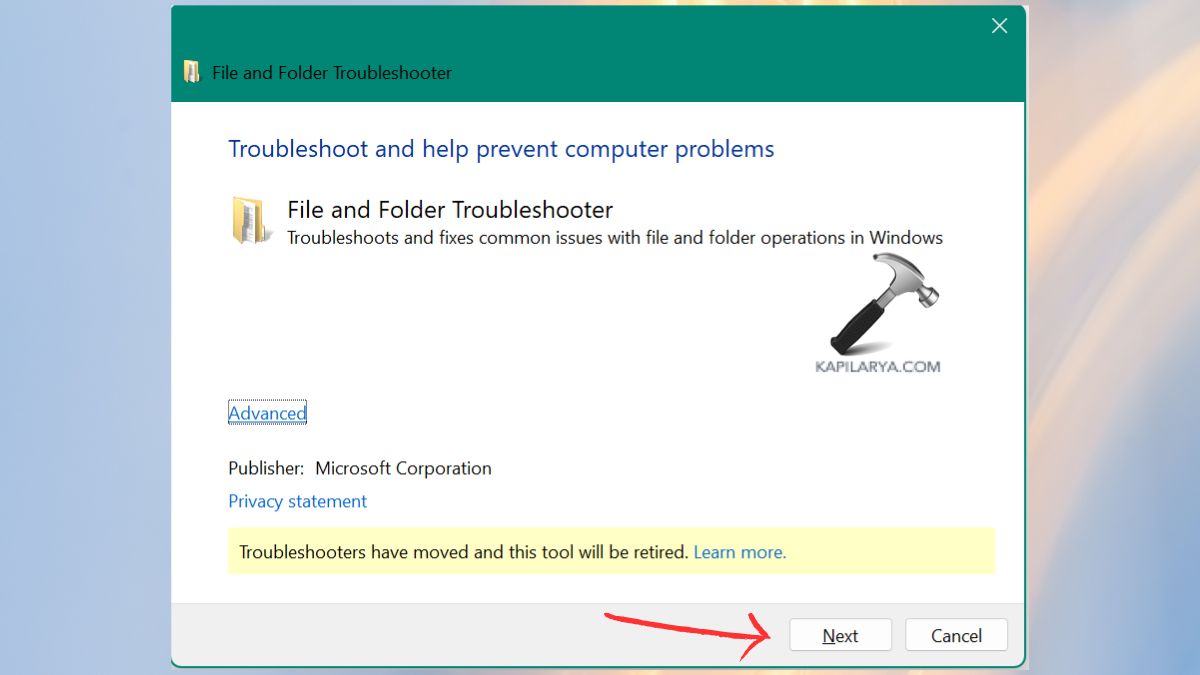
Automate the process of discovering and repairing problems in the tool. The utility is very handy when the non-technical user needs a fix within a hurry.
Fix 6: Backup Your Data and Format the Drive
When all the above fail to produce results, then your drive is seriously corrupted, and the last option is formatting. This inducts a new file system to the drive and removes deep-rooted corruption.
Important to note: Back up your Data before You Format. Store important files using Robocopy, OneDrive or any other external storage.
1. Launch File Explorer by clicking Windows + E. Right-click the drive > Format.
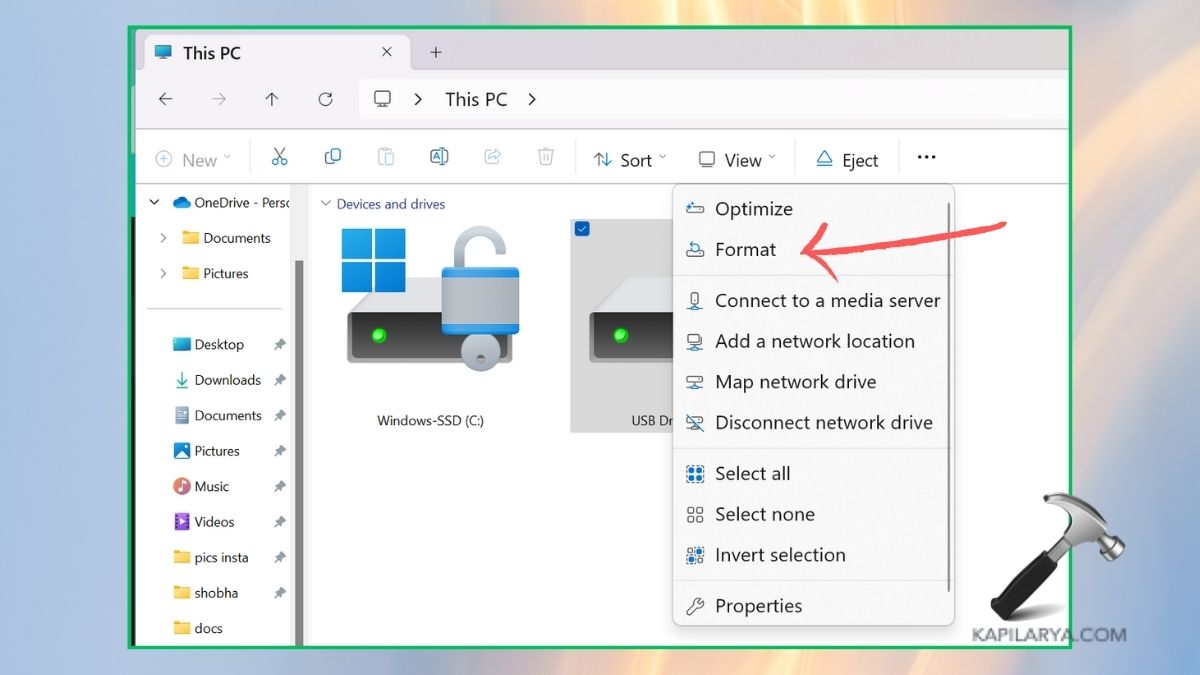
2. Select these settings:-
- File System: NTFS (suggested)
- Manager: The size of an allocation unit is the default.
Click “Start”. Allow the process to take place.

Frequently Asked Questions (FAQs)
Why does Windows 11 say “The file cannot be accessed by the system”?
This error is observed when there is a disk corruption, defective sectors, permission problems, old drivers or corrupted directories. It may also occur on external storage media.
Is CHKDSK safe to run on my drive?
Yes, CHKDSK is a reliable in-built windows utility that searches and corrects disk errors. It is one of the best and safest methods to correct this mistake.
Can I recover files before fixing the error?
Yes, Copy files using tools such as Robocopy or simply use recovery software to save your files prior to any form of repairs.
What if none of the methods work?
When everything you try to fix fails, it is possible that the drive is physically damaged. In this case, you may need:
- Data recovery services for professionals.
- Drive replacement.
Have you done everything yet and are still facing the error? Post a comment with your version of Windows, type of drives (HDD/SSD/USB) and when this error occurs so that we can troubleshoot the error with you personally!
That’s it!



![Quick Access Crashes File Explorer in Windows 11 [6 Fixes]](https://www.kapilarya.com/assets/File-Explorer-1-768x552.png)
