BSOD or Blue Screen of Death in Windows 11 can be mistakenly interpreted as an ordinary crash. But, a frequent process of wdf01000.sys BSOD can be one of the initial indications of underlying system problems. This is a Windows driver framework file that is important in ensuring that there is a good interaction between your hardware and the system.
Once corrupted, or unable to communicate with, or otherwise interfered with by malfunctioning software or drivers, it frequently will leave the Blue Screen of Death, or failure to restart at all and a crash of the system.
Page Contents
wdf01000.sys BSOD on Windows 11
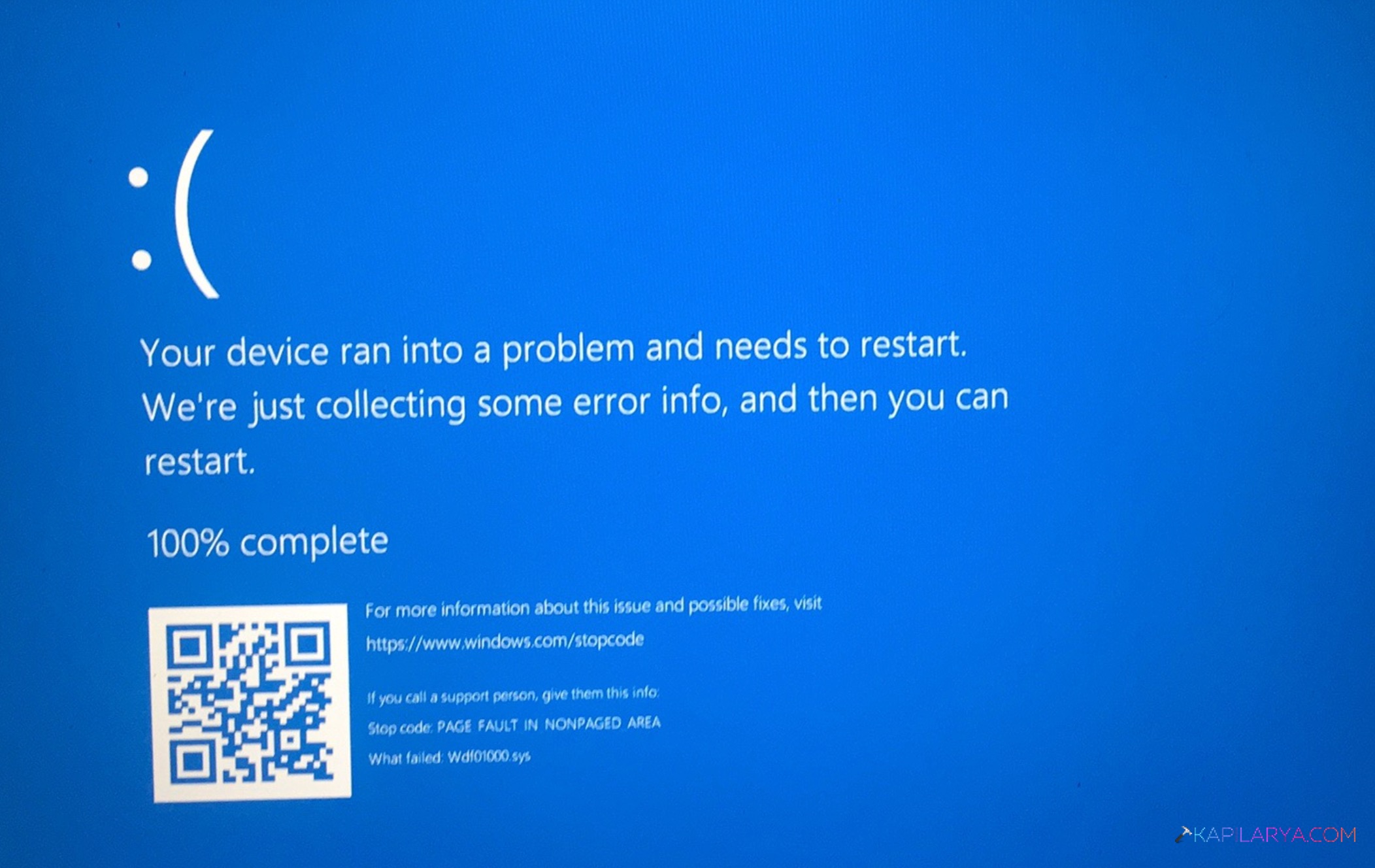
You have come to the right place in case you are fed up with seeing blue screens, occasional system freezes, or worst still, the crash loop. In this comprehensive tutorial, we are going to give you step-by-step problem-solving techniques that have corrected the wdf01000.sys BSOD on Windows 11 on several thousand users permanently.
The most frequent triggers of this error are:
- Bad Windows system files.
- Broken or old school device drivers.
- New incompatible drivers installed recently.
- Bad Windows system image.
- Hard drive errors.
- Software conflicts.
- New faulty third-party tools.
At this point, we will discuss the most efficient ways of resolving the problem.
Fix Bonus: Windows in a Safe Boot
Here is an added bonus repair prior to the solutions. Should the BSOD make it impossible to access Windows in its usual state, then the Safe Mode should allow you to do scans and uninstall bad drivers.
1. Hold Shift > Click Restart.
2. Click on Troubleshoot > Advanced options > Startup Settings.

3. Click Restart.
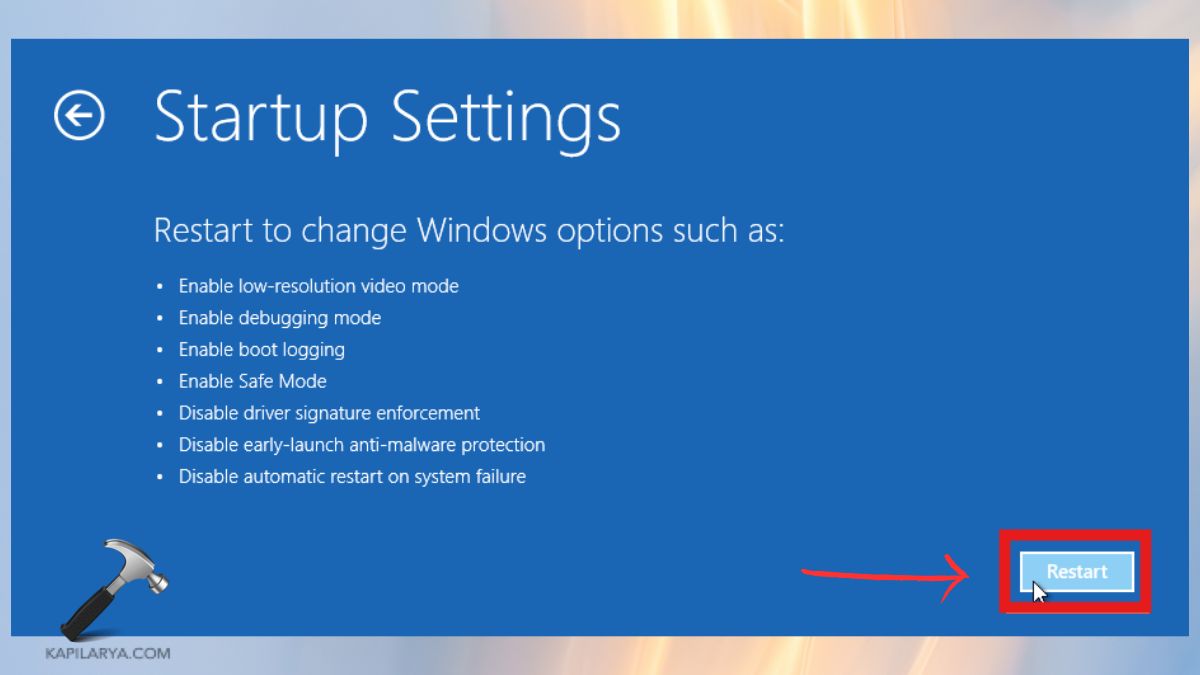
4. Press 4 for Safe Mode. It is now possible to safely run CHKDSK, DISM or uninstall drivers.
Methods to Fix wdf01000.sys BSOD on Windows 11
Being in the situation where wdf01000.sys BSOD would occur on Windows 11 can be very intense in case it affects your work or gaming. Fortunately, the error can be sorted out with the step-by-step solutions provided below that will result in restoring the stability of the system.
Fix 1: Run CHKDSK Scan to Fix Disk Errors
The wdf01000.sys error may occur due to a damaged disk sector or a corrupted hard drive file. Windows has its tool CHKDSK, which detects and fixes these problems.
1. Press Windows + S, type cmd. Right-click Command Prompt > choose Run as an administrator.

2. Enter the command. Enter press then type “Y” at the time and date of scan.
chkdsk C: /f /r
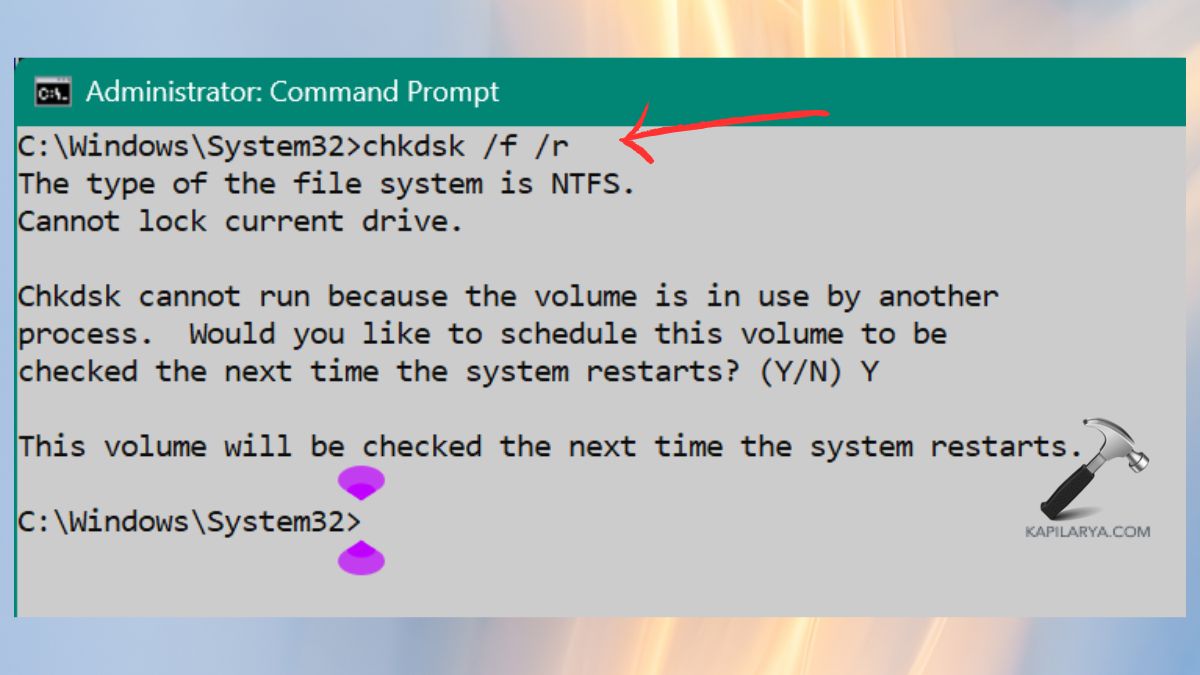
Reboot the personal computer and leave the CHKDSK utility to do its job.
Fix 2: Update or Uninstall Problematic Drivers
One of the most common reasons of wdf01000.sys BSOD is faulty drivers. In case of a recent update on a driver, there may be an incompatibility of the new update. On the same note, the crashes can also be a result of old drivers.
1. Right-click on Start > enter into the machine of device manager.

2. Expand the categories such as Display adapters, Network adapters, Sound and so on.
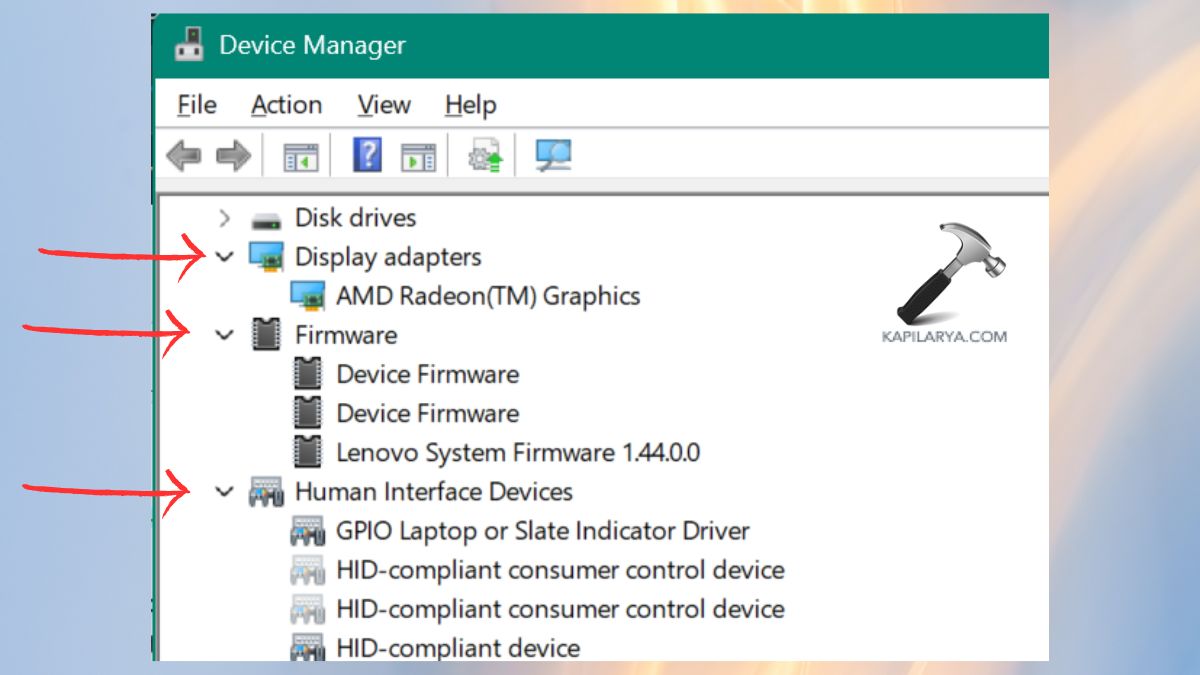
3. Click on the device with the right hand side of the mouse > Select Update driver > Search automatically.
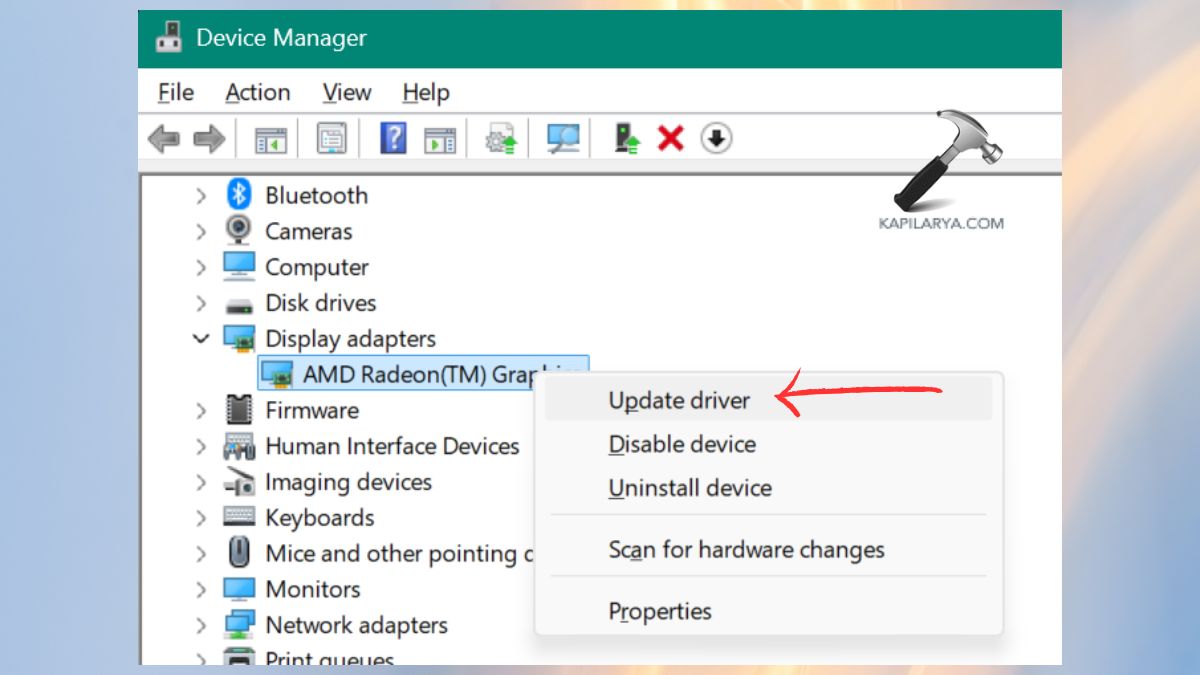
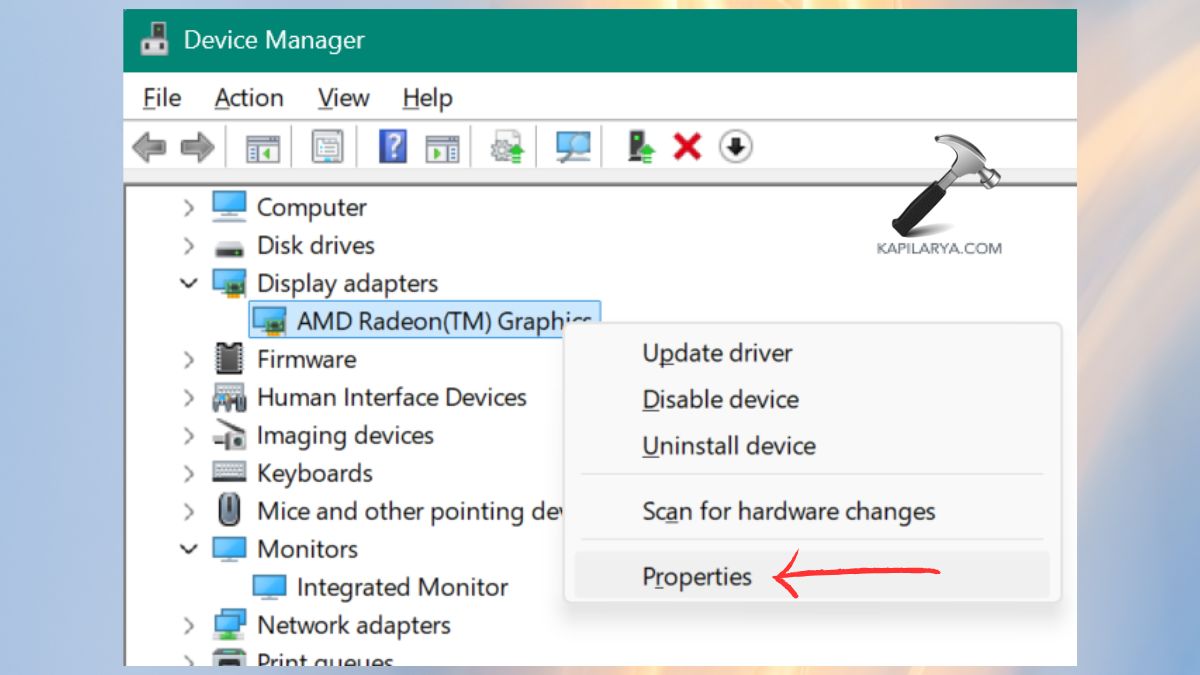
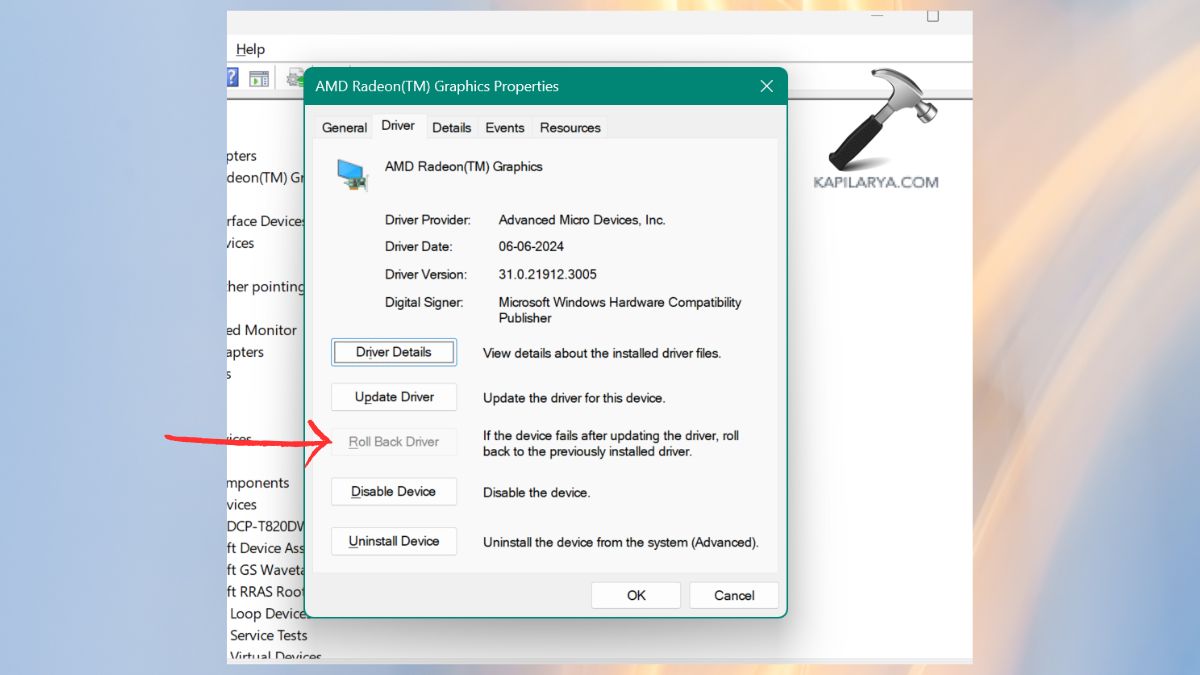
4. In case the Problem has begun following a Driver Update, a Rollback. Right-click the device on Device Manager. Choose Properties > Driver tab.
5. Click Rollback Driver.
6. In order to Uninstall a Buggy Driver, right-click the device > choose Uninstall device.
Reboot Windows and auto-install a stable version.

Fix 3: Run DISM to Repair Windows System Image
One of the best-suited tools to overcome the problem of corrupted image in Windows system, which frequently leads to BSOD, is DISM (Deployment Image Servicing and Management).
1. Open Command Prompt (Admin).
2. Run these commands one by one:-
DISM /Online /Cleanup-Image /CheckHealth
DISM /Online /Cleanup-Image /ScanHealth
DISM /Online /Cleanup-Image /RestoreHealth
When the repair is done restart the system.

Fix 4: Remove Recently Installed Problematic Software
Third-party software in some cases, such as antivirus anger, system tune-ups or hardware-monitoring software, interfere with system drivers and cause the wdf01000.sys BSOD.
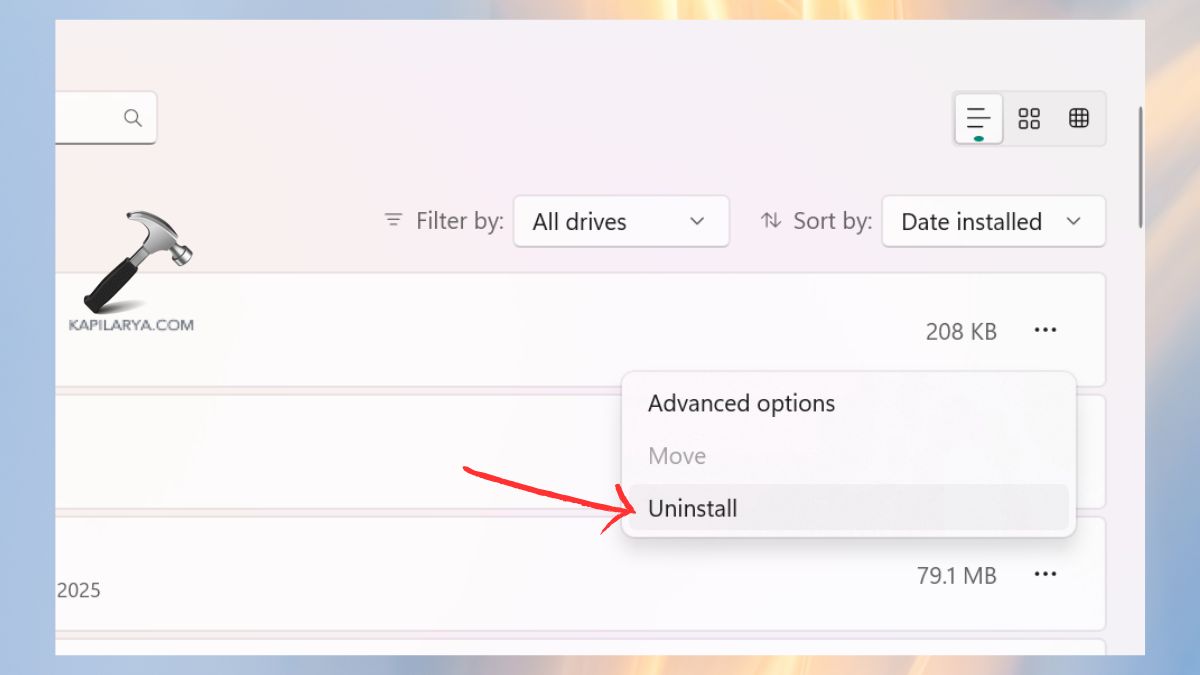
1. Open Settings > Apps > Installed apps.
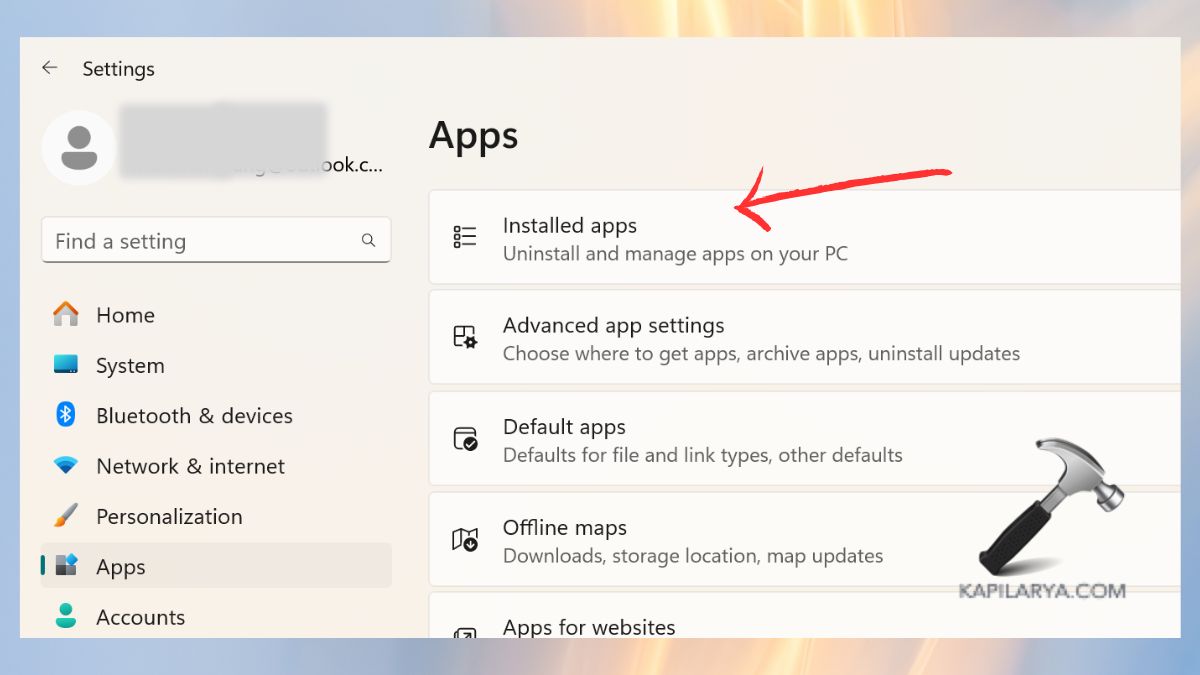
2. Sort by “Recently Installed”.
3. Detect the suspicious or untraceable programs. Click “Yes” to Uninstall and restart your laptop or PC.
Fix 5: Run System File Checker at Boot Time
SFC at Boot (Offline SFC Scan) is much more active than the standard running of SFC since it is used to fix files before the Windows loads.
1. Press Shift + Restart > select Troubleshoot.

2. Click on Advanced options > Command Prompt.

3. Enter the command:-
sfc /scannow

Wait till corrupted files are automatically repaired. Restart your PC normally.
Fix 6: Use the Blue Screen Troubleshooter
Windows 11 has troubleshooting mechanisms that detect and solve problems of system crashes automatically.
1. Run the Settings app and go to System > Troubleshoot.
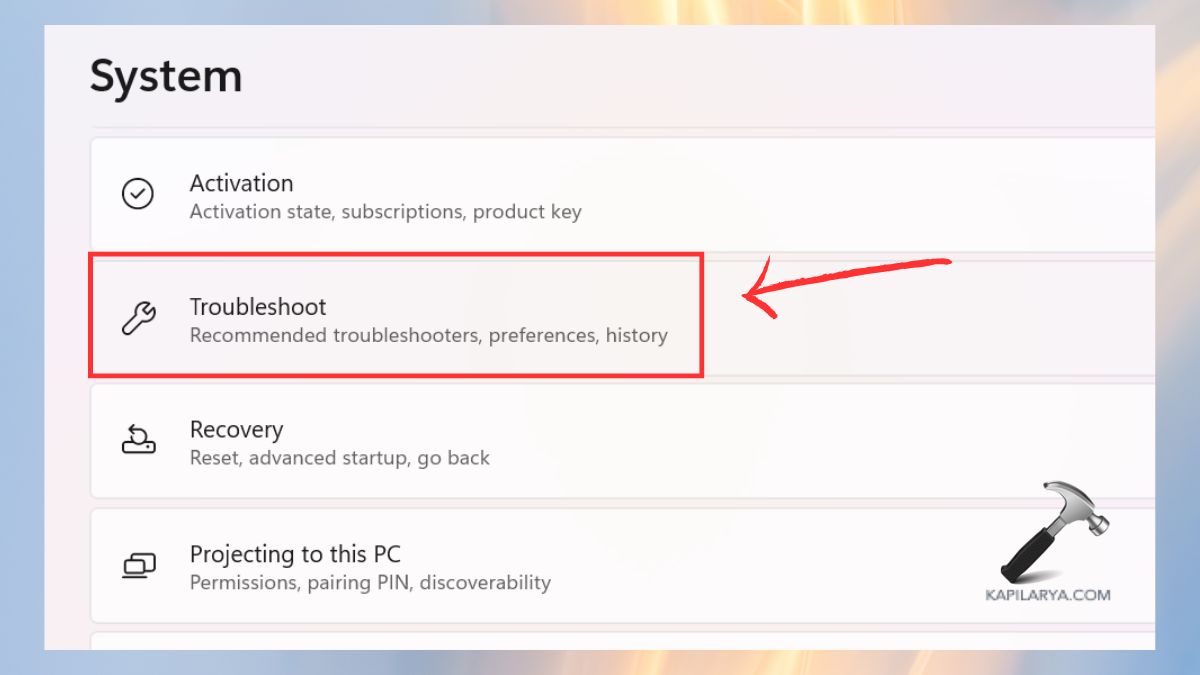
2. Choose Other Troubleshooters option.
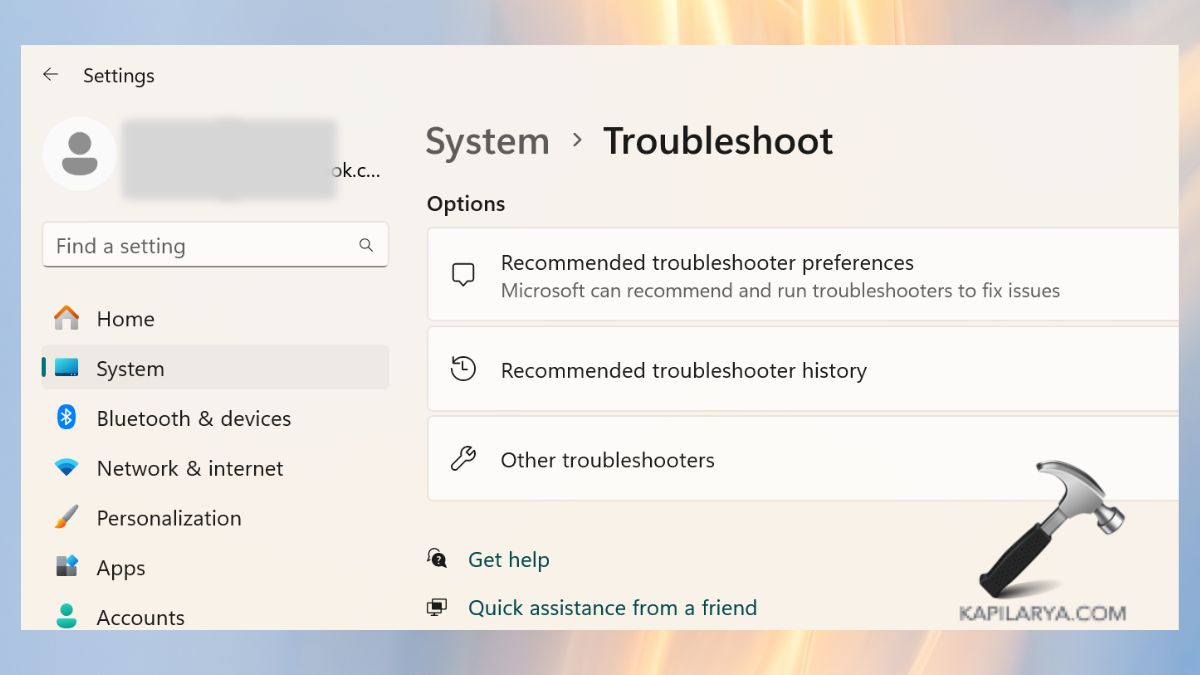
3. Locate Troubleshooter Program Compatibility. Boot it and implement the recommended improvements. The tool comes in handy in identifying wdf01000.sys crashes based on misconfiguration or conflict.

Fix 7: Re-register the wdf01000.sys File
In case wdf01000.sys file is not registered or the registration to it is wrongly associated internally, re-registration will resolve the BSOD.
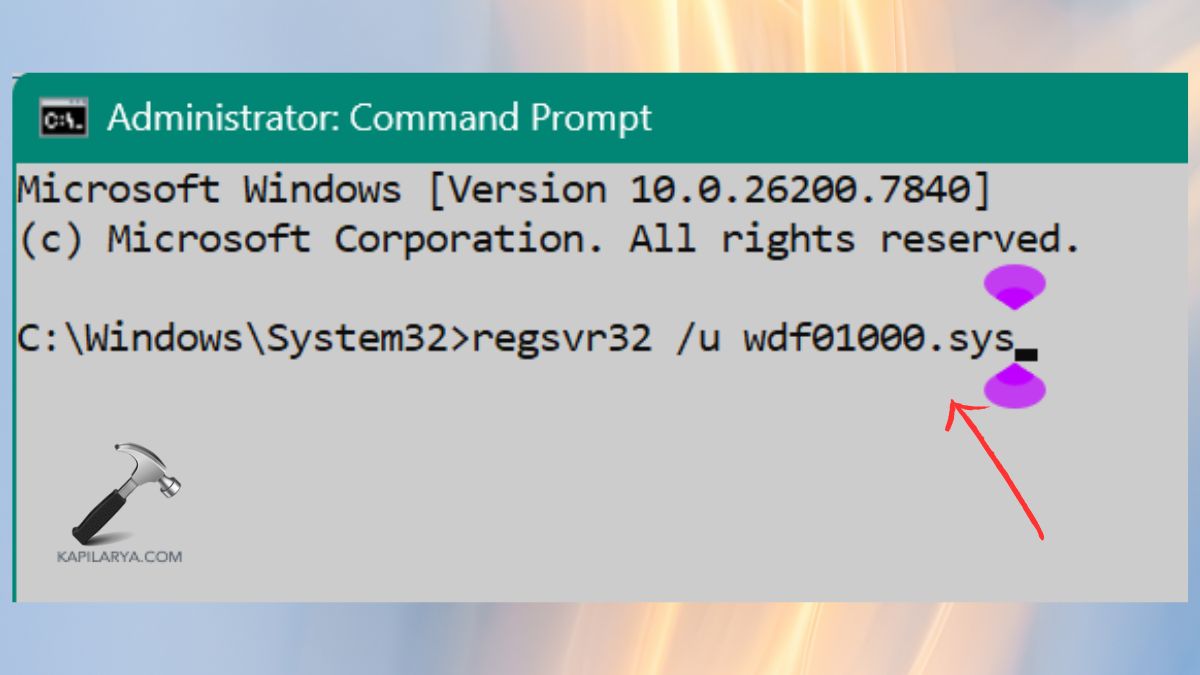
1. Upon rebooting, again, open Command Prompt (Admin).
2. Run these commands one by one:-
regsvr32 /u wdf01000.sys
regsvr32 wdf01000.sys
Restart the PC again.
Fix 8: Run Driver Verifier Manager Tool
Driver Verifier checks all the third party drivers to verify whether they have flawed issues and serial killer of the wdf01000.sys issue.
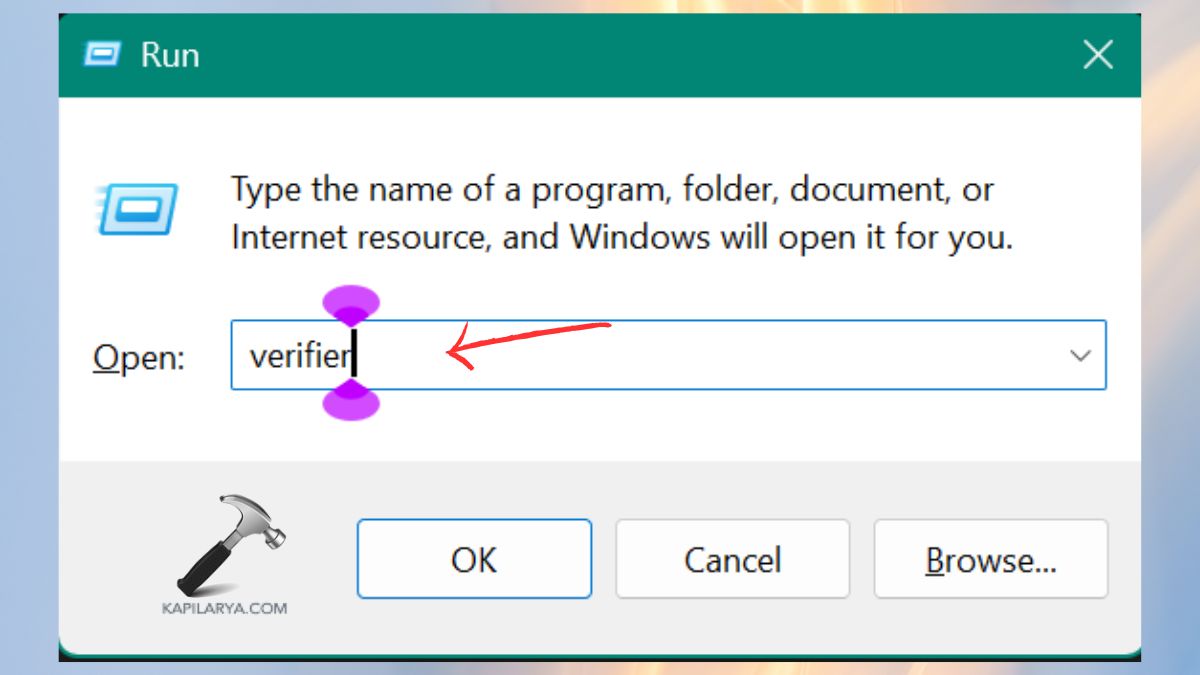
1. Type the following run command Windows + R.
verifier
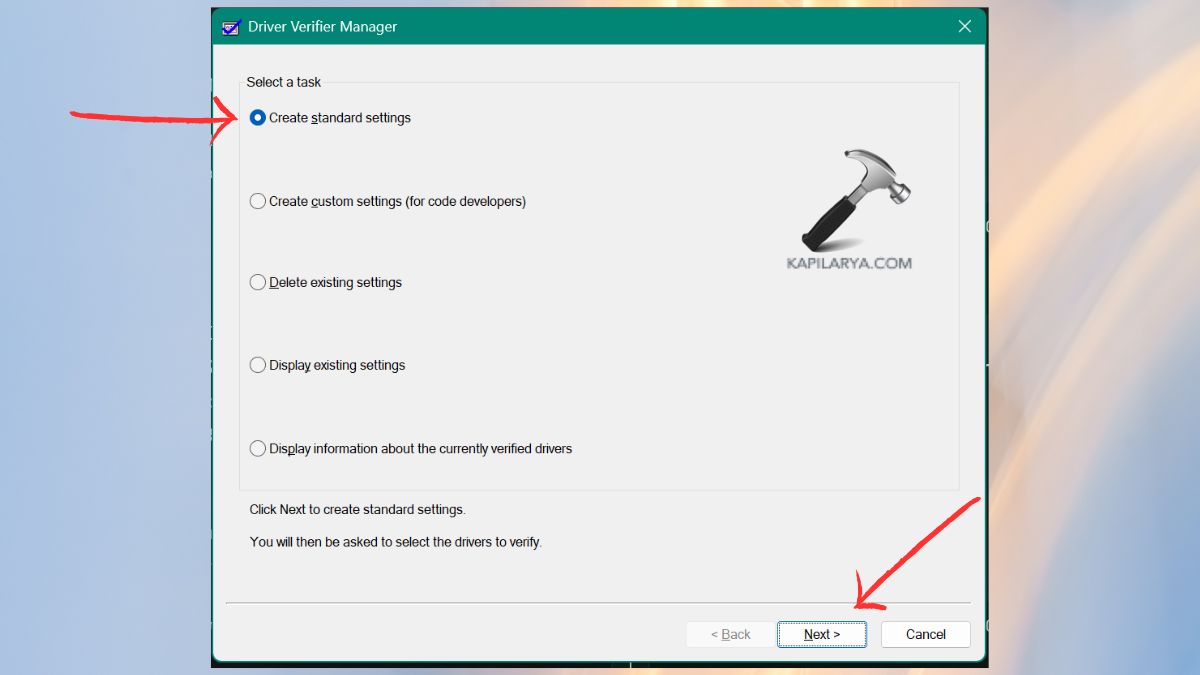
2. Select Create standard settings. Click on “Next”.
3. Choose automatically to install signed drivers or select all drivers installed on this computer.
Select the next button and adhere to instructions.
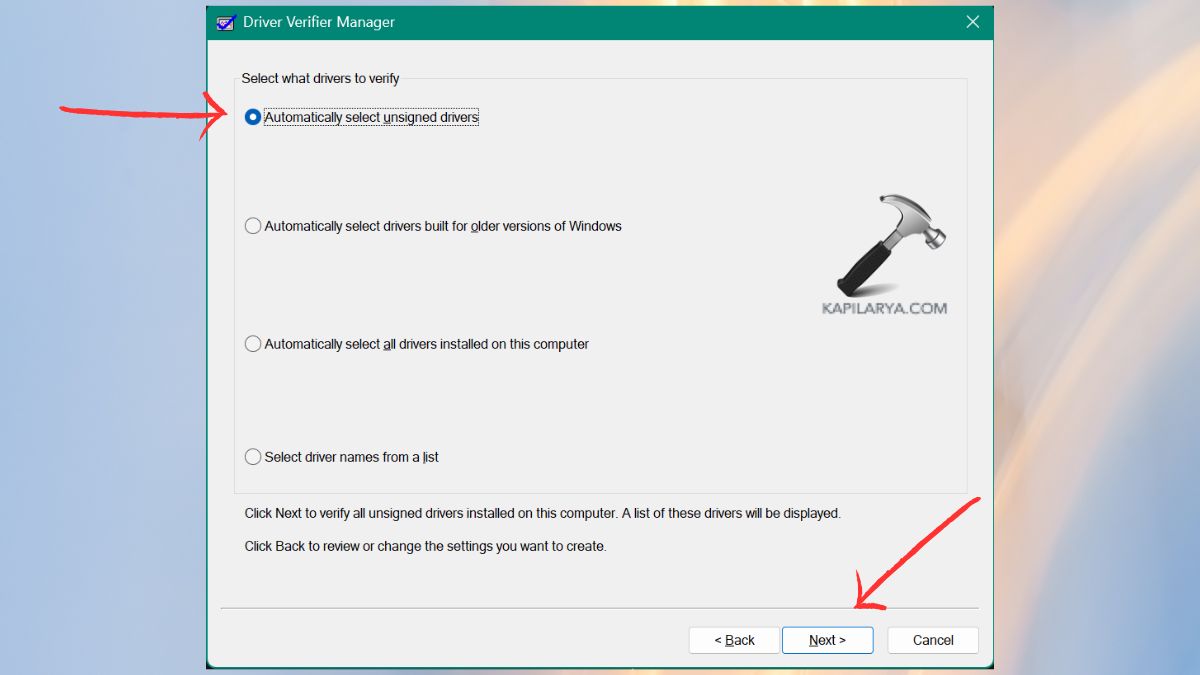
In the event that the system crashes once more, the BSOD display will indicate the driver that is malfunctioning.
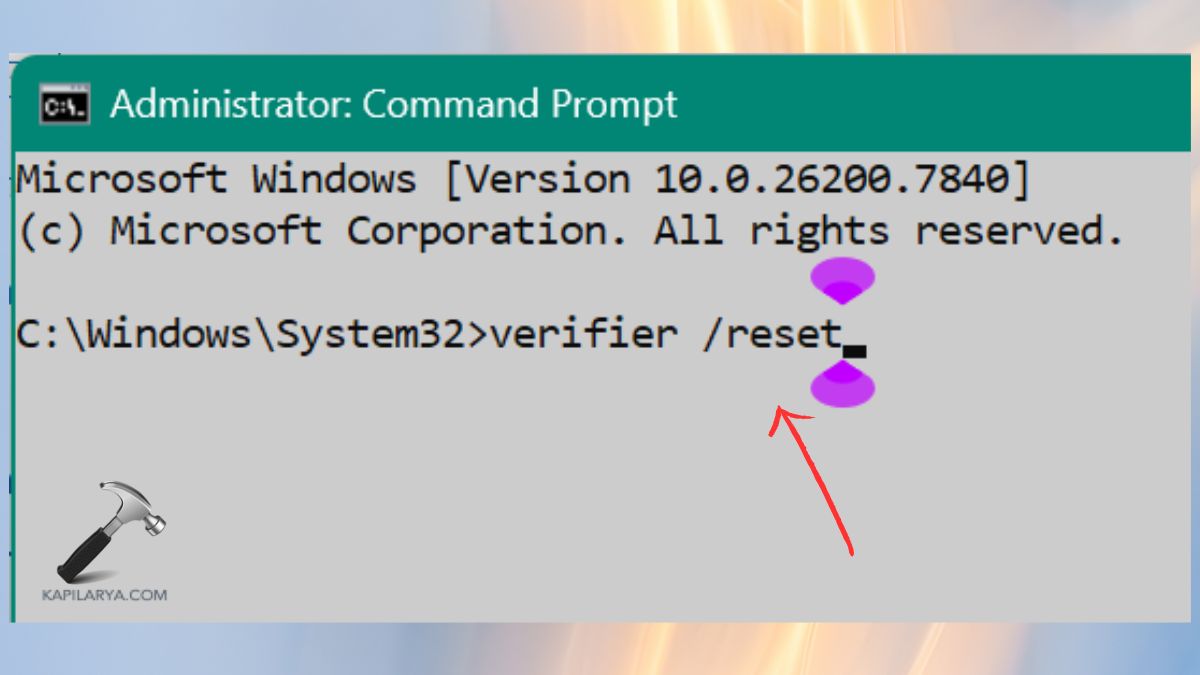
4. Critical: Once testing has been done, switch off Driver Verifier using this command in Command Prompt(Admin).
verifier /reset
Pro Tips to Prevent BSOD Errors in the Future
- Reboot your PC after every 2-3 days in order to clear temporary memory errors or avoid Memory Integrity BSOD issues.
- Turn on automatic upgrades of Windows Update.
- Do not install more than one antivirus software.
- Clean up tools such as Storage Sense and Disk Cleanup.
- Ten minutes provided before crucial updates make a restore point.
Frequently Asked Questions (FAQs)
What causes wdf01000.sys BSOD on Windows 11?
This failure usually comes as a result of corrupted drivers, bad software, Windows system corruption, disk failures or hardware driver conflict with system procedures.
Is wdf01000.sys a virus?
No. wdf01000.sys is a genuine Windows driver framework file. Nonetheless, in some cases, malware may masquerade with similar names. Hence, it is important to run the virus scan.
How do I fix wdf01000.sys BSOD quickly?
The easiest solution is the update/uninstall of the bad drivers, scans with DISM and SFC, and uninstallation of the recently installed programs.
Can outdated drivers cause this BSOD?
Yes. One of the major causes of the wdf01000.sys associated crashes is due to outdated or incompatible drivers.
In case of a crash with wdf01000.sys?
You can post your precise problem in the comments or contact support for your issue! The less you do keep to yourself, the more precise the solution is.
That’s it!