“The server configuration prevents you from synchronizing Outlook” – You had just logged into Outlook during a hectic working day, only to be greeted with this horrible message. Outlook is used by many professionals, remote workers and business owners on a daily basis, and this sync error occurs at the least anticipated time.
Emails no longer show up, meetings fail to show up in your calendar and the rest of your workflow halts. You will come to know in this article the reason why this error of Outlook sync can happen, and how to resolve it with these six methods performed in Windows 11.
Page Contents
Why This Server Configuration Outlook Sync Error Happens
Failure of Outlook to communicate effectively with the email server leads to a disruption in the synchronization process. This can happen due to:
- Inaccurate email server configurations.
- Corrupted email profile.
- Heavy installation of the office.
- Faulty updates or patches.
- System-level conflicts.
Fix The server configuration prevents you from synchronizing Outlook Error
When you do the right steps, it becomes easy to fix the server configuration prevents you from synchronizing Outlook error. By using the solutions mentioned in this guide, you will be able to fix your email syncing, reconfigure your Outlook environment, and avoid problems later.
Method 1: Check Email Server Configuration
The most frequent cause of Outlook sync errors is a misconfigured settings of the email server The server configuration prevents you from synchronizing Outlook.
1. Open Outlook and click File. Through Account Settings, go to Account Settings.

2. Select your email account and tap on “Change”.
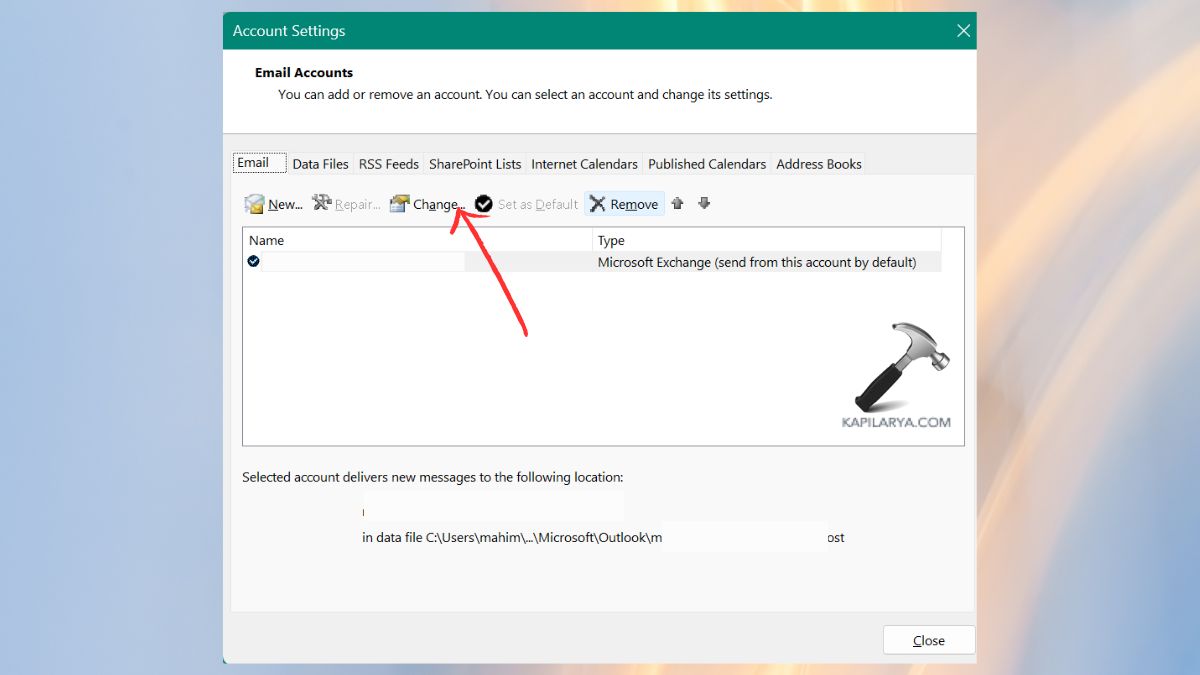
3. Verify the following:-
- Incoming Mail Server (IMAP/POP)
- Outgoing Mail Server (SMTP)
- Encryption type (SSL/TLS)
- Port numbers (Common: IMAP 993/SSL, SMTP 587/TLS)
In case you are not certain about the server information, visit the websites of your provider (Gmail, Yahoo, business hosting, Microsoft 365, etc.). Confirm port numbers and you can click on “Test Account Settings”. Click Next > there will be a test of configuration in my Outlook.

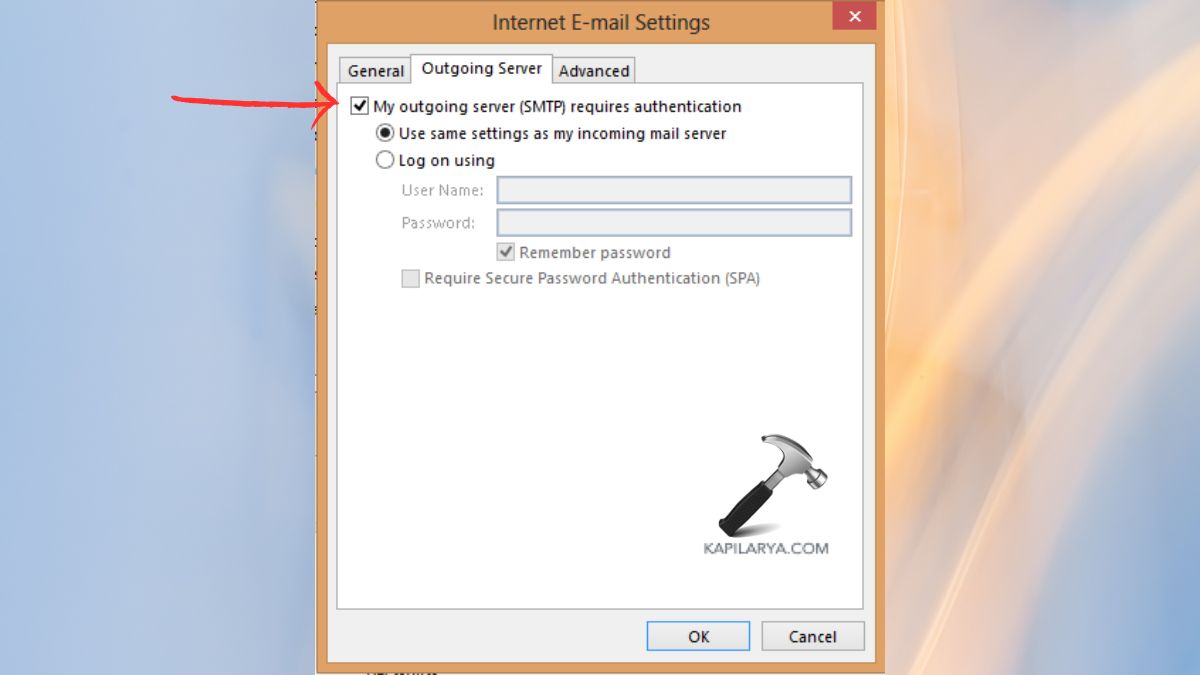
4. Click More Settings > Outgoing Server. Select “Check My outgoing server requires authentication.”
Method 2: Repair Your Outlook Account
Outlook will not totally sync even with correct server settings in case your email profile is partially corrupted.
1. Open Outlook > File. Go to Account Settings.
2. Select your email account. And, tap on “Repair” option.
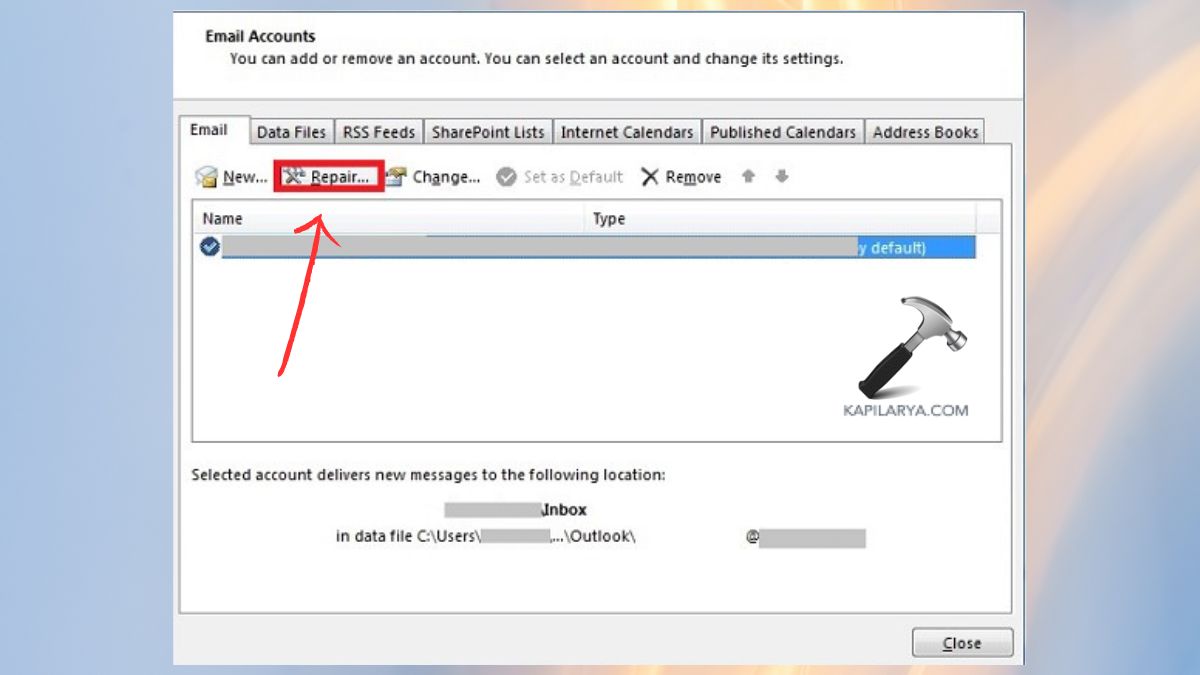
There are instructions on the screen that you should follow in order to repair it. Then, restart Outlook step by step and see whether the synchronization is resumed.
Method 3: Repair Microsoft Office
When the core files of Outlook are damaged, it can fix the errors with syncing, crashing and connection errors by repairing the Office.
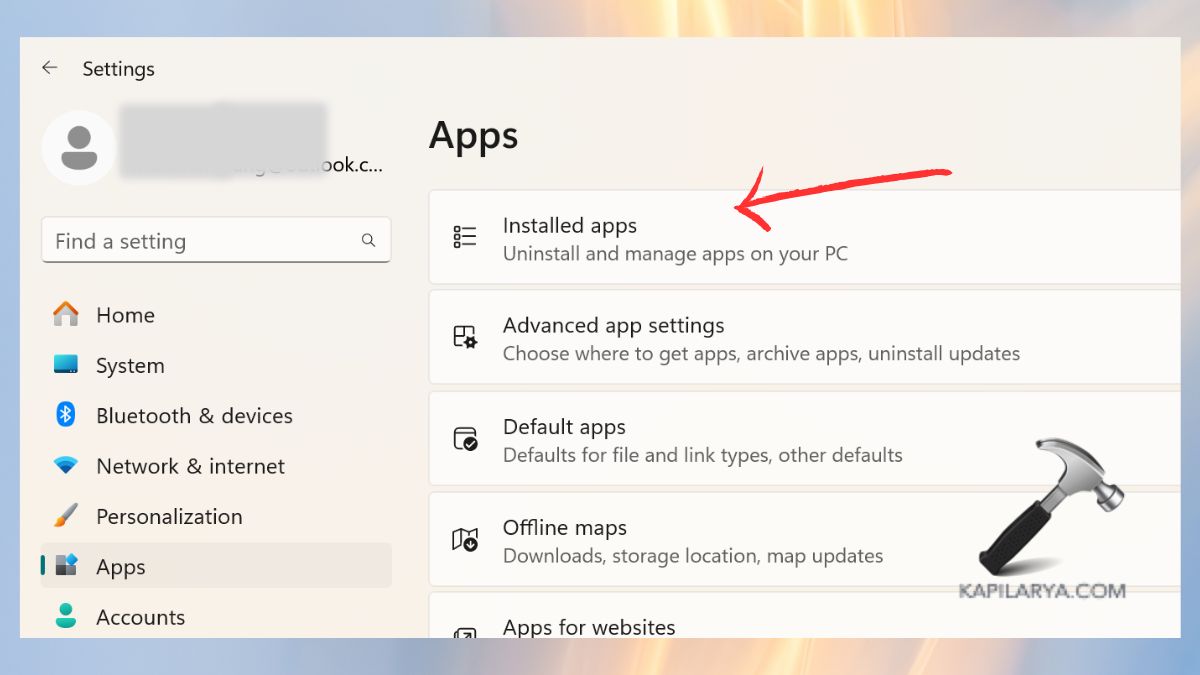
1. Click Windows + I to have Settings. Go to Apps > Installed Apps.
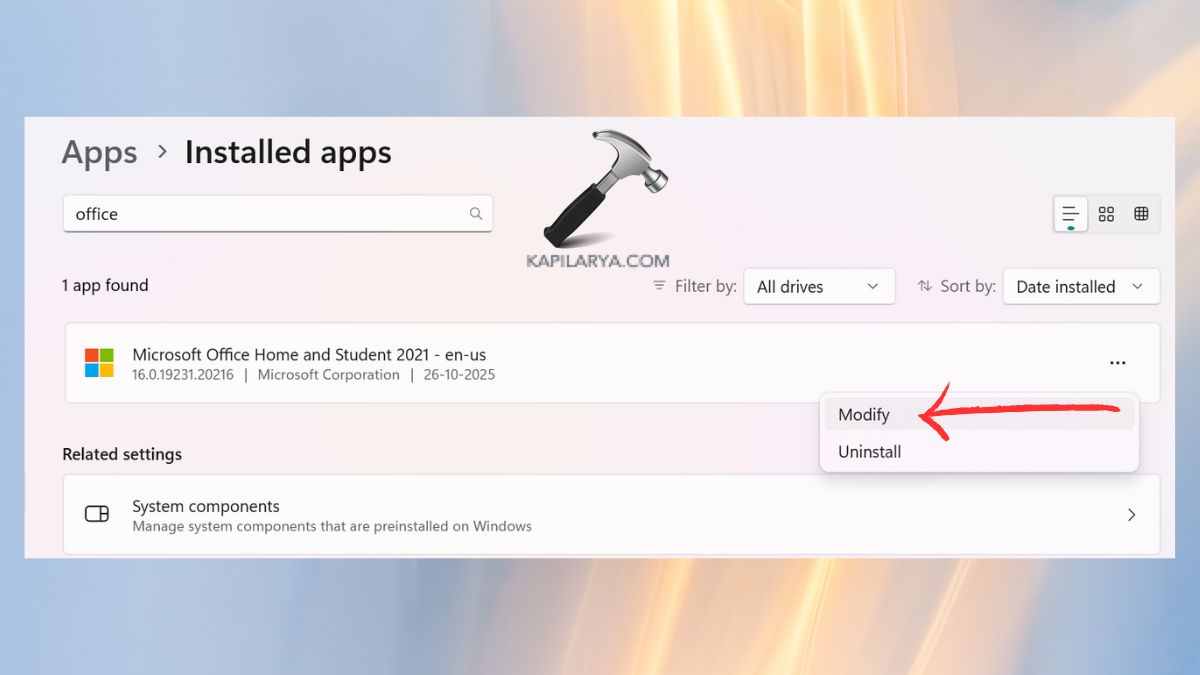
2. Locate Microsoft Office or Microsoft 365. Click Modify.
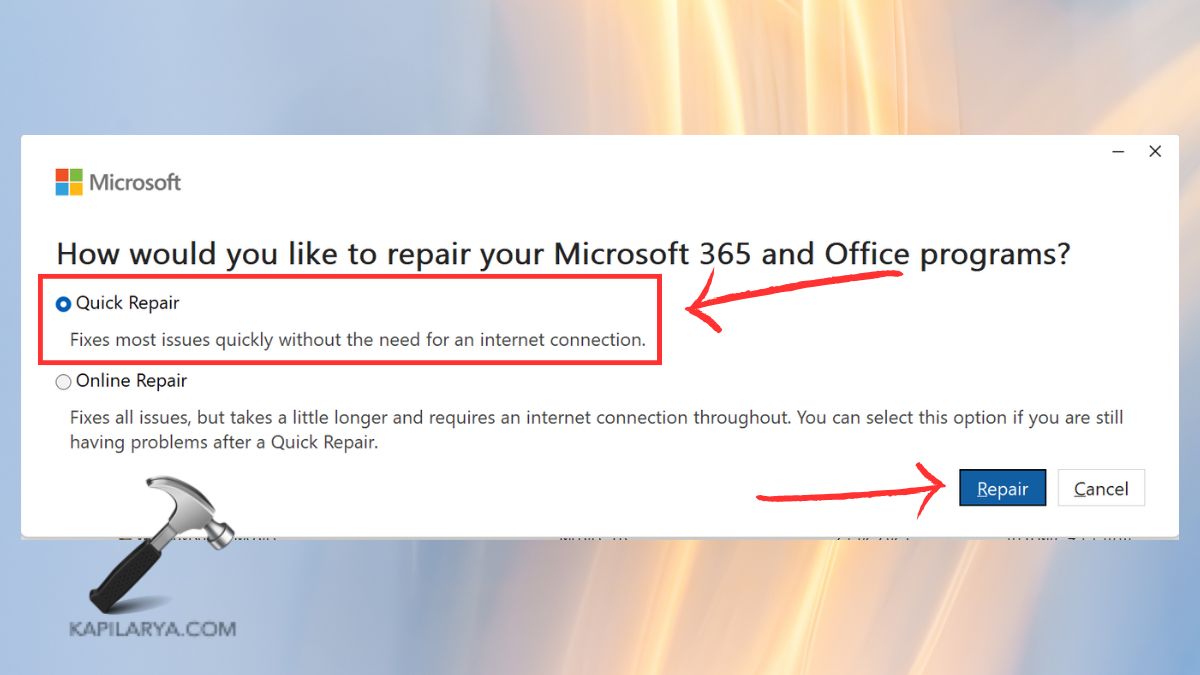
3. Choose one.
- Quick Repair – Quick and solves small problems.
- Online Repair – Deep repair, needs the internet.
Let the process finish. When it is complete, restart your PC and open up Outlook.
Method 4: Reinstall Microsoft Office to Fix Error Server Configuration Synchronizing Outlook
Without repairing the error, one of the potent solutions to the unresolved Outlook sync is going to be the reinstatement of Office.
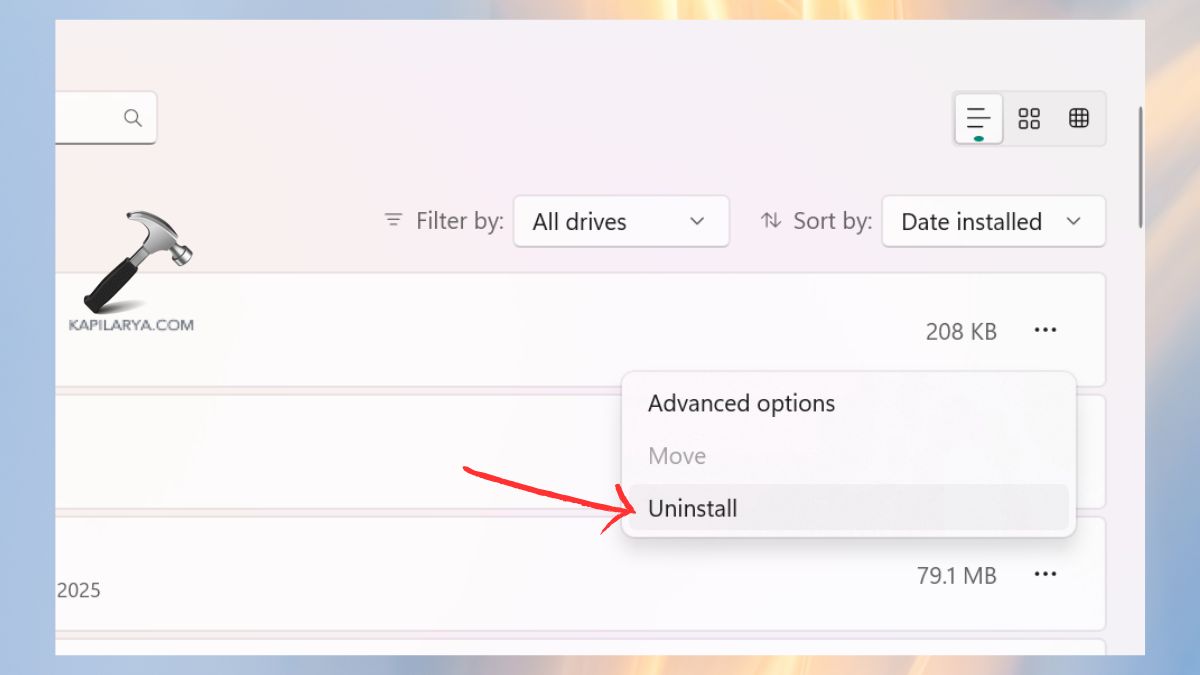
1. In the settings, more specifically, going to Apps > Installed Apps.
2. Select Microsoft Office. Click “Uninstall” > Adhere to the instructions.
3. Restart the PC. Then, Sign in at “office.com“.
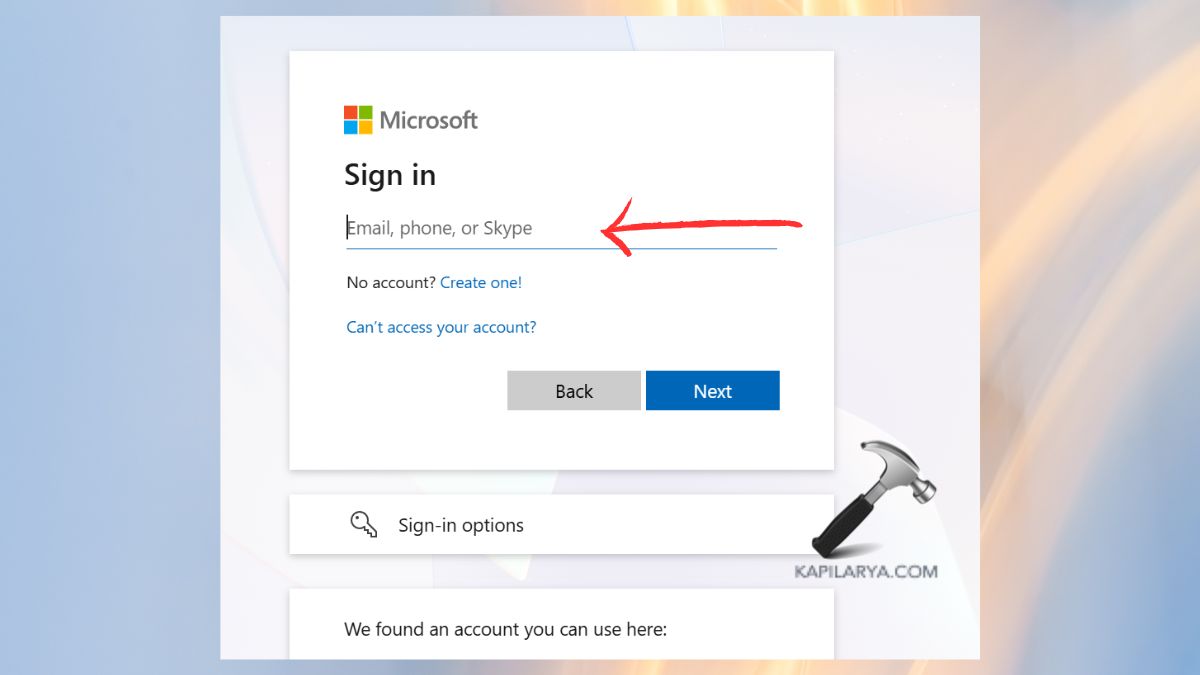
Re-install your apps with Office. Install Outlook and verify the syncing. This syncs everything in the Outlook and removes file corruption.
Method 5: Uninstall Recent Windows Updates
In some instances, this happens when there is a problem in synchronisation in Outlook following a malfunctioning or incompatible Windows update.
1. Go to Windows Update in the Settings. Click “Update History”.
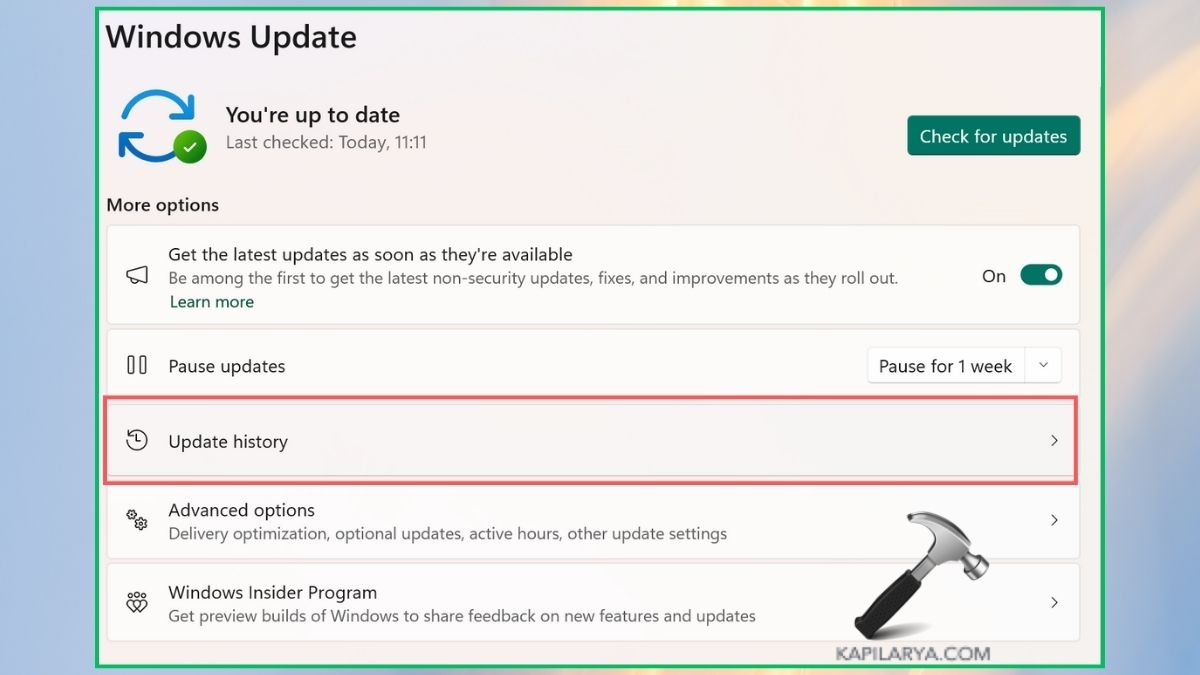
2. Select “Uninstall Updates”. Select the latest update that had been installed prior to the error occurrence. Confirm by clicking “Uninstall”.

After restarting, verify whether the Outlook sync would resume working normally.
Method 6: Perform a System Restore for System-Level Problems
In case all the above solutions fail, then the problem with your Windows system could be in a deeper configuration. The System Restore allows the PC to be rolled back to a reliable working condition without damaging your personal files.
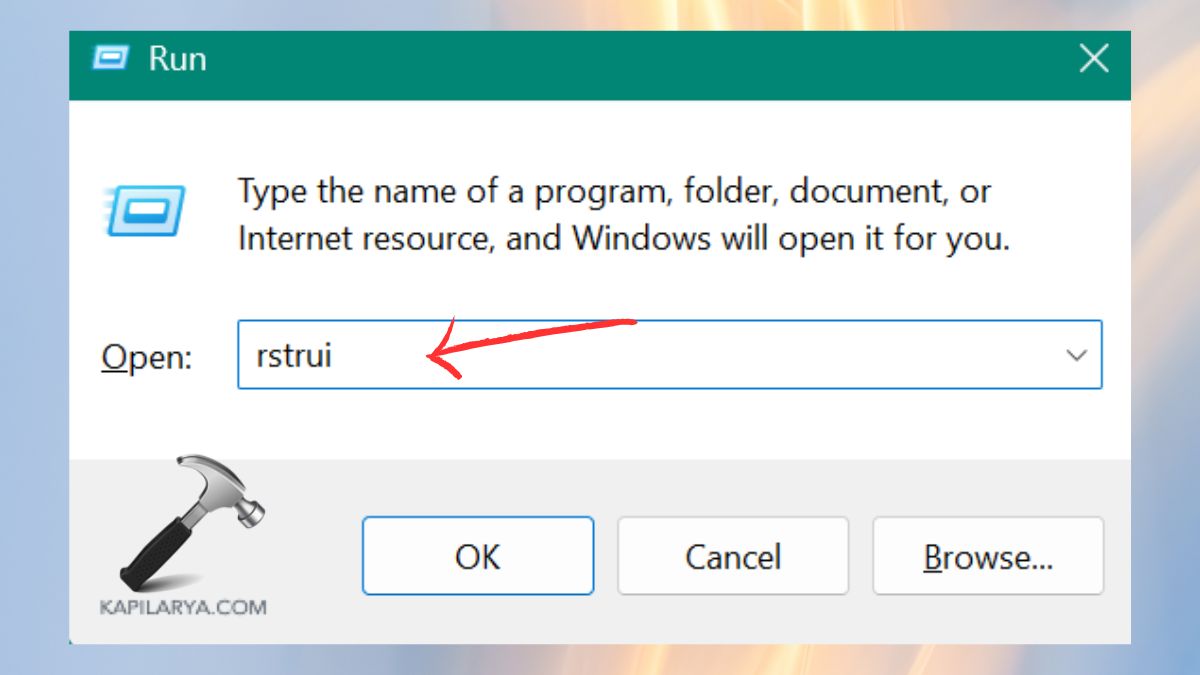
1. Click Windows+R and type this, followed by the Enter button.
rstrui
2. System Restore window will open and tap on “Next”.

3. Select Choose another restore point.
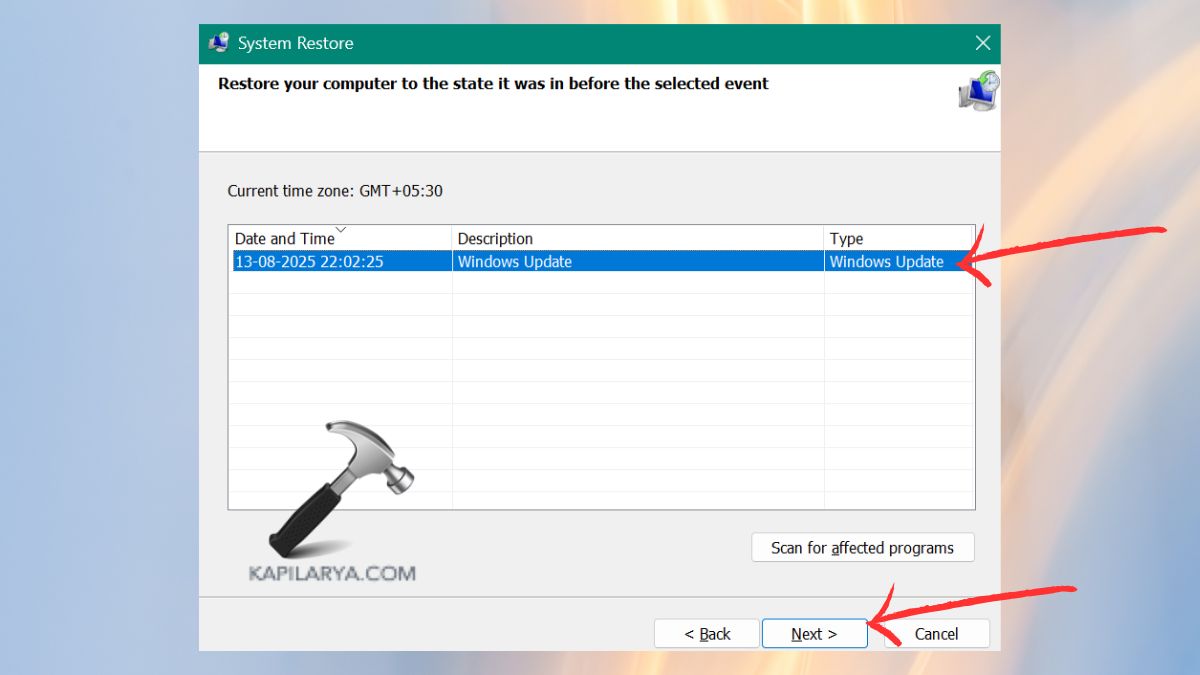
4. Click Next > Finish. Let your PC restart. After the restoration, open Outlook and make sure that it is synchronized.
Frequently Asked Questions (FAQs)
Why does Outlook say “The server configuration prevents you from synchronizing Outlook”?
It occurs as a result of improper settings of the server, corrupted Outlook profile, broken Office installation, or broken Windows update that inhibits the process of synchronization.
Will reinstalling Office delete my emails?
No. Emails are not compromised when your account is either IMAP or Exchange. In case of POP accounts, make sure that you save your PST file.
How do I know which server settings are correct?
Incorrect IMAP, POP and correct SMTP settings are available in the documentation or housing control panel of your email provider.
My Outlook still won’t sync, what else can I try to fix server configuration Outlook error?
Clear Outlook cache, delete and add email account, or put the email account in Safe Mode.
That’s it!