‘The remote device or resource won’t accept the connection’: Does this error message also appear to you in Windows 11? What is more frustrating is that the message does not explicitly clarify the reason as to why Windows 11 is blocking the connections, which is not clear, and what can be done to rectify the situation. The problem normally suggests that your network settings, including proxy configurations, browser data, firewall rules, or IP settings, are blocking your computer in accessing the site or server you are attempting to connect with.
With this guide, we will unfold the veritable reasons why the remote device or resource fails to receive a connection and give the step-by-step solutions, which can work in all Windows 11 users.
Page Contents
Why Does Windows Say “The Remote Device or Resource Won’t Accept the Connection”?
Consider your PC as a congested airport. The sites you visit are like airplanes that you are attempting to board. However, there are cases when Windows denies your request due to the following reasons.
- Your proxy settings are some sort of fake address.
- Your firewall is more of an over-defensive security guard.
- Corrupted data is saved in your browser.
- Board differentiation, such as wrong boarding passes.
- Outdated policies cause confusion in the system.
Fix ‘The remote device or resource won’t accept the connection’ in Windows 11
Fixing “The remote device or resource won’t accept the connection” in Windows 11 is simple once you understand what’s causing it. By following the methods below, you can quickly restore your internet connection.
Method 1: Reset the IP Address
A corrupted IP configuration is one of the most common causes of this Windows 11 connectivity error. This resets your network adapter settings, DNS cache, and IP details, removing corrupted or outdated configurations.
1. Open Command Prompt from the Menu. Click on Command Prompt > select Run as administrator.

2. Type the following commands one by one and press Enter after each.
ipconfig /release
ipconfig /flushdns
ipconfig /renew
netsh winsock reset
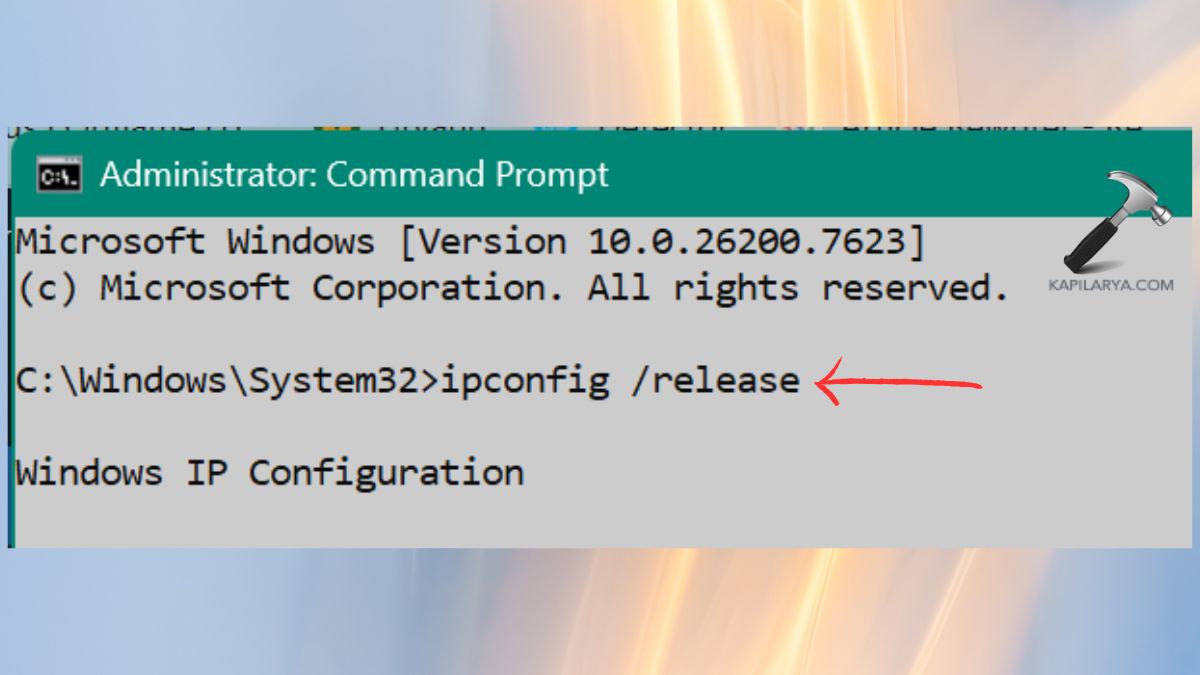
Restart your PC after completing the commands.
Method 2: Force Update the Group Policies
Outdated or broken group policies can block network access on Windows 11. It refreshes Windows rules that control network authorization, proxy behavior, and firewall handling.
1. Again, open Command Prompt as administrator.
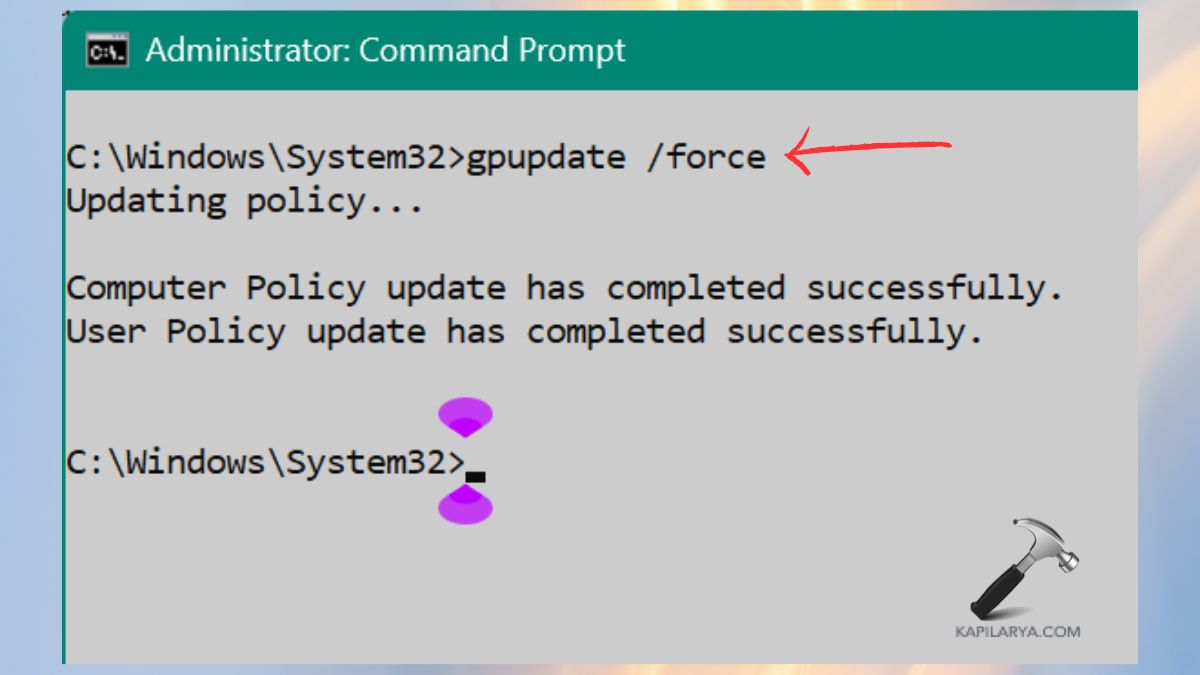
2. Enter this command. Wait for the update to complete. Restart your computer.
gpupdate /force
Method 3: Turn Off the Proxy Server
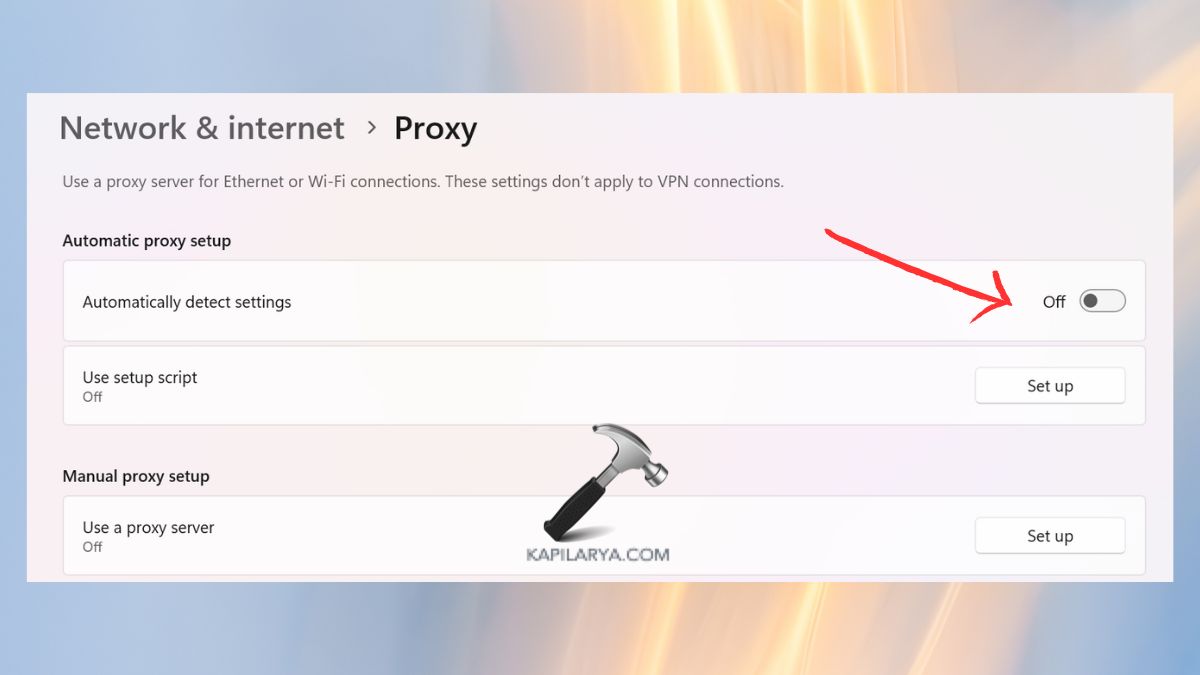
Incorrect proxy settings can prevent browsers from reaching websites. Proxies route traffic differently. If misconfigured, Windows displays “remote device won’t accept the connection.”
1. Open Settings > Network & Internet. Select Proxy.
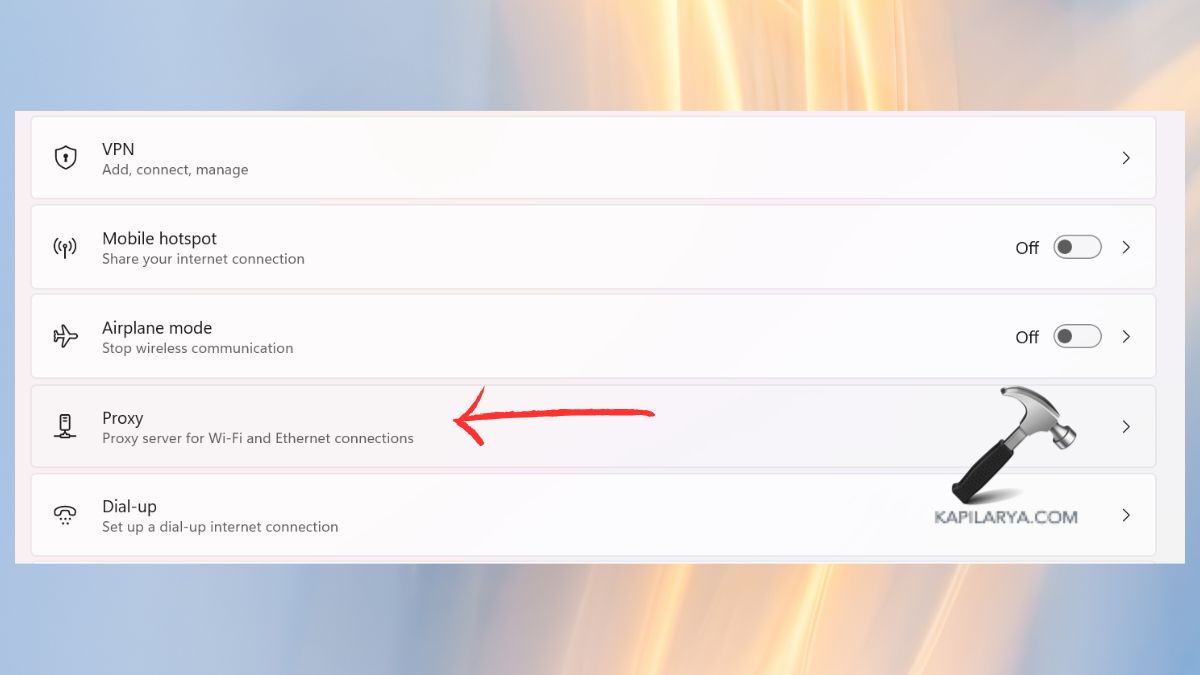
2. Turn off the toggle under both Automatic proxy setup and Manual proxy setup. Restart your computer.
Method 4: Reset Your Web Browser for Remote Device or Resource Connection
The message may be caused by browser-specific errors even in a case when your internet is working all right. It will delete invalid browser extensions, broken configurations, or cache information that impedes network requests.
1. Open Chrome/Edge/Firefox > click 3 dots. On the settings, choose Reset settings.

2. Select the Restore settings back to default. Confirm the reset.

Method 5: Disable Antivirus & Firewall Temporarily
The network connections are sometimes blocked by security tools incorrectly. It can assist you in establishing whether or not your network requests are being blocked by security tools.
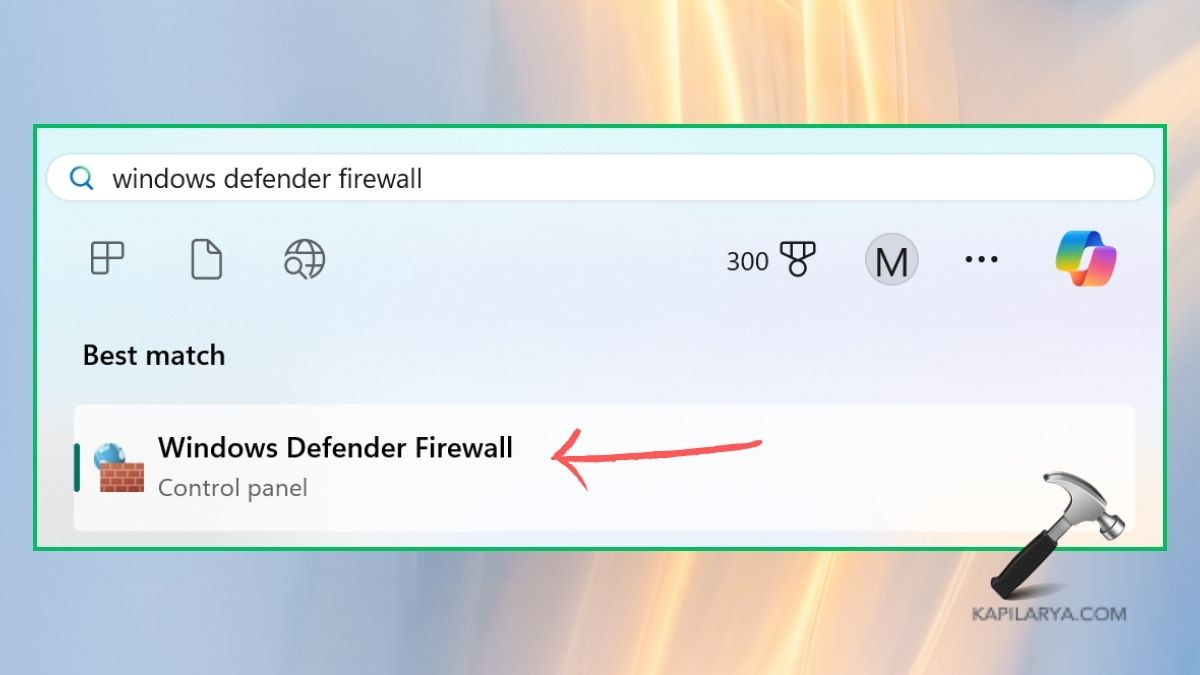
1. Find Windows Defender Firewall.
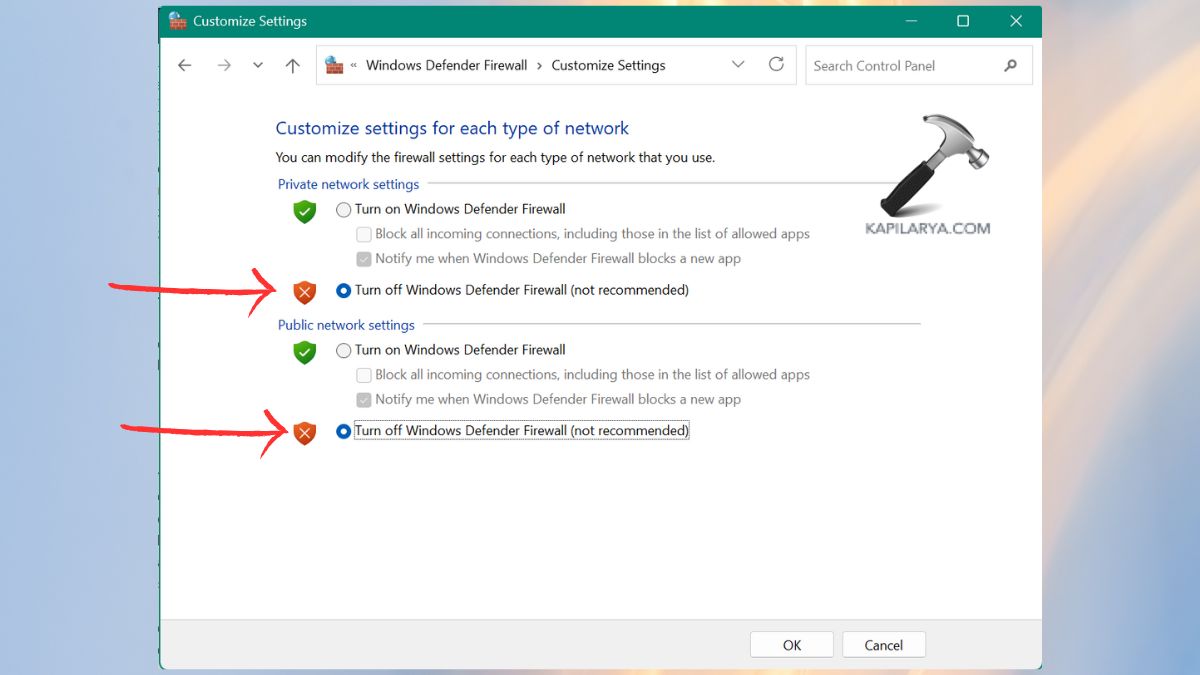
2. In Windows Defender Firewall, click on Turn Windows Defender Firewall on or off. All switches, both Public and Private networks off temporarily.
3. Open your antivirus panel with Windows Security > Virus & threat Protection > Manage Settings.
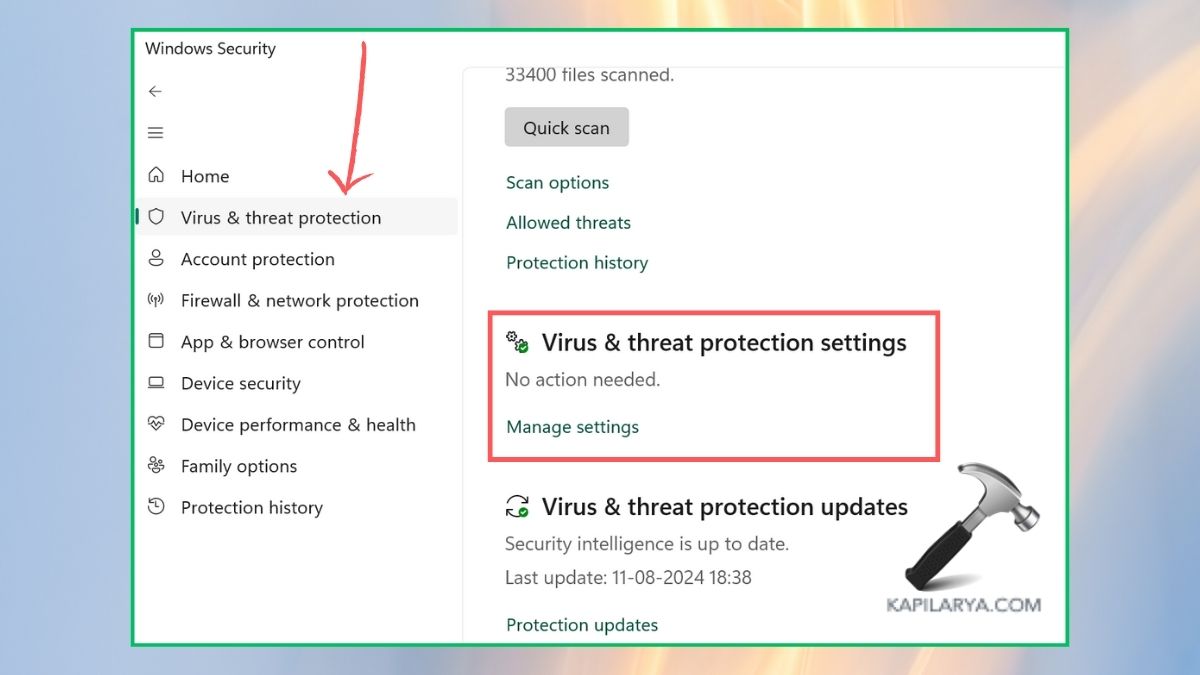
4. Switch off the temporary “Real-time protection” or Network protection.
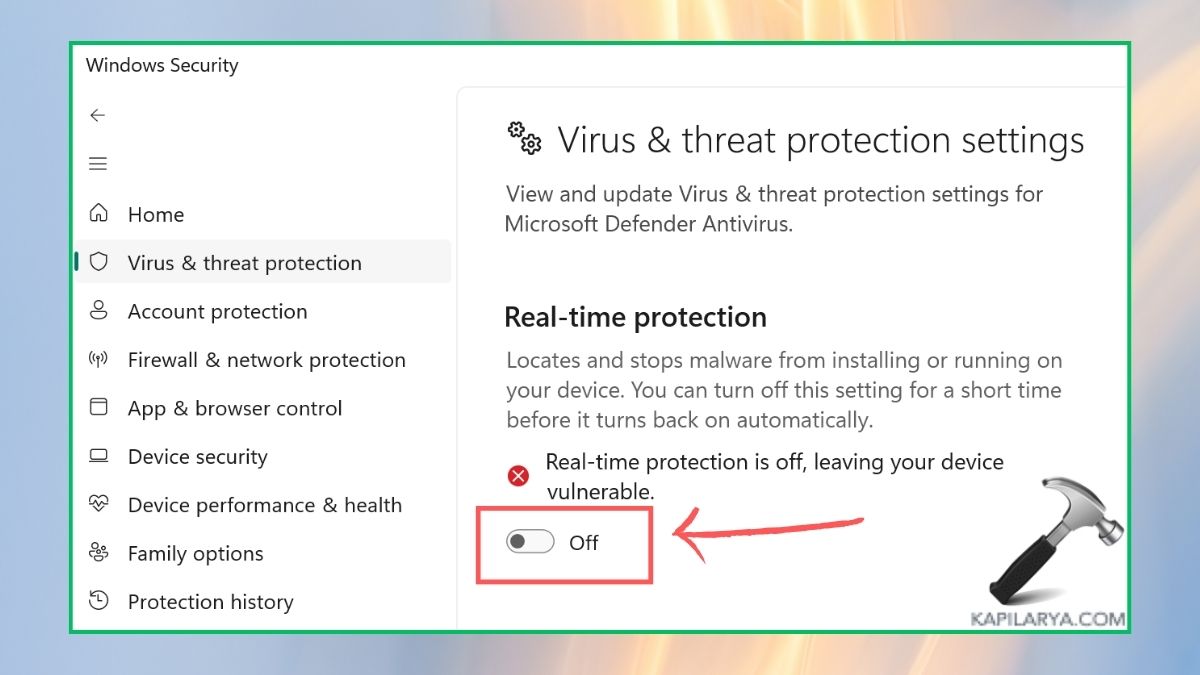
Notice: Do not forget to turn them back on.
Frequently Asked Questions (FAQs)
Why does Windows show “The remote device or resource won’t accept the connection”?
This is caused by your network, proxy, browser, or firewall settings (disallowing access or blocking the request to be made to the internet, website, or server that you are attempting to access).
Does disabling the proxy really fix this network error?
Yes. One of the most widespread causes of this error in Windows 11 is the wrong setting of a proxy.
Should I reset my browser or my entire network?
First, start with a Restart. Assuming that the error persists, then do a network/IP reset.
Is this error related to malware?
Occasionally, a virus or malware modifies your proxy or your firewall settings. It is recommended to run a complete security scan.
That’s it!
![Remote Desktop Keeps Freezing or Disconnecting [6 Fixes]](https://www.kapilarya.com/assets/remote_dekstop_icon_1781340032.jpg)