Running Claude Code locally with Ollama lets you use an AI coding assistant without relying on cloud APIs on Windows 11, macOS, or Linux. This means better privacy, no API costs, and offline capability.

Page Contents
Run Claude Code Locally with Ollama
Thanks to Ollama’s compatibility with the Anthropic API, you can connect Claude Code to local models and run everything directly on your machine.
Step 1: Install Ollama
Ollama is the engine that runs AI models locally.
1. Download it from the official website or install via terminal (for windows):
irm https://claude.ai/install.ps1 | iex
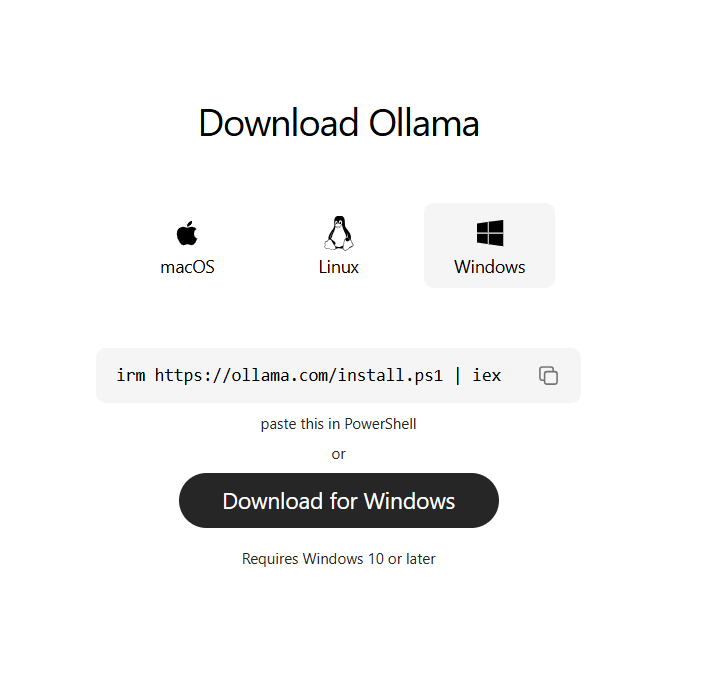
2. After installation, verify it’s running by visiting:
http://localhost:11434
Ollama runs in the background and serves models locally.
Step 2: Download a Local Model to Run Claude Code Locally
Next, you need an AI model to power Claude Code.
Example:
ollama pull glm-4.7-flash
You can also try:
qwen3-coder
gemma
gpt-oss
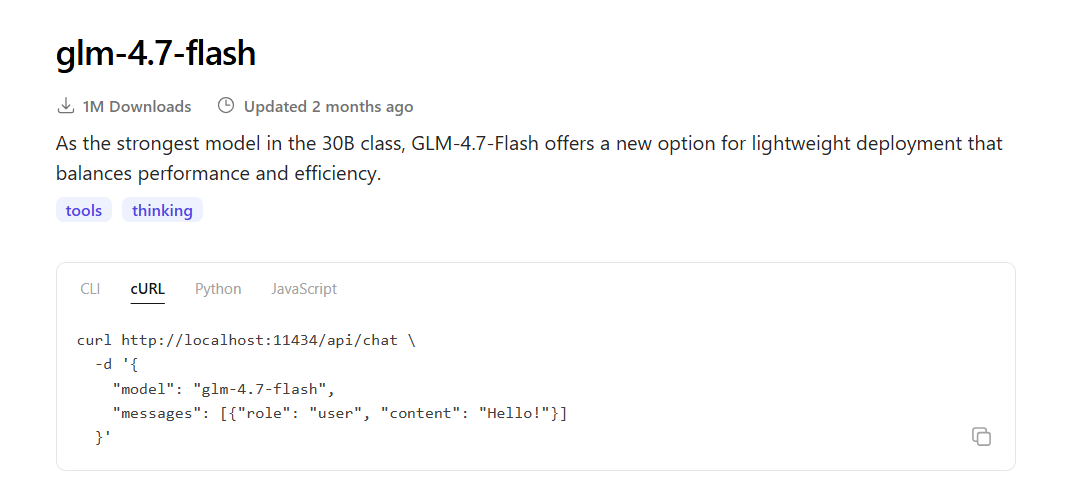
Choose based on your system RAM (larger models need more memory).
Step 3: Install Claude Code
Claude Code is a terminal-based AI coding assistant.
Install it using:
npm install -g @anthropic-ai/claude-code
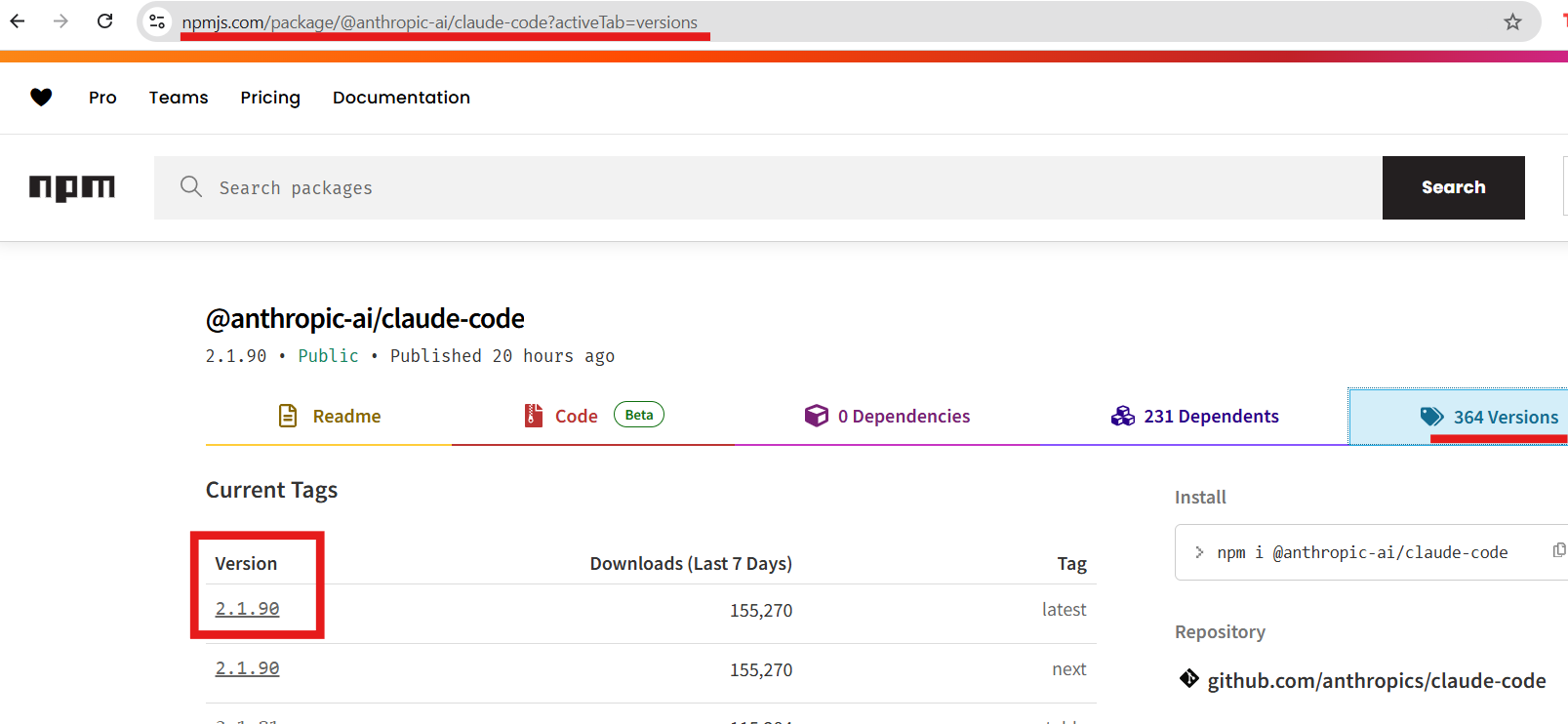
This tool lets you write, edit, and debug code using natural language.
Step 4: Connect Claude Code to Ollama to Run Claude Code Locally
Now link Claude Code to your local Ollama server.
Add these environment variables through your terminal:
export ANTHROPIC_BASE_URL="http://localhost:11434"
export ANTHROPIC_AUTH_TOKEN="ollama"
export ANTHROPIC_API_KEY=""
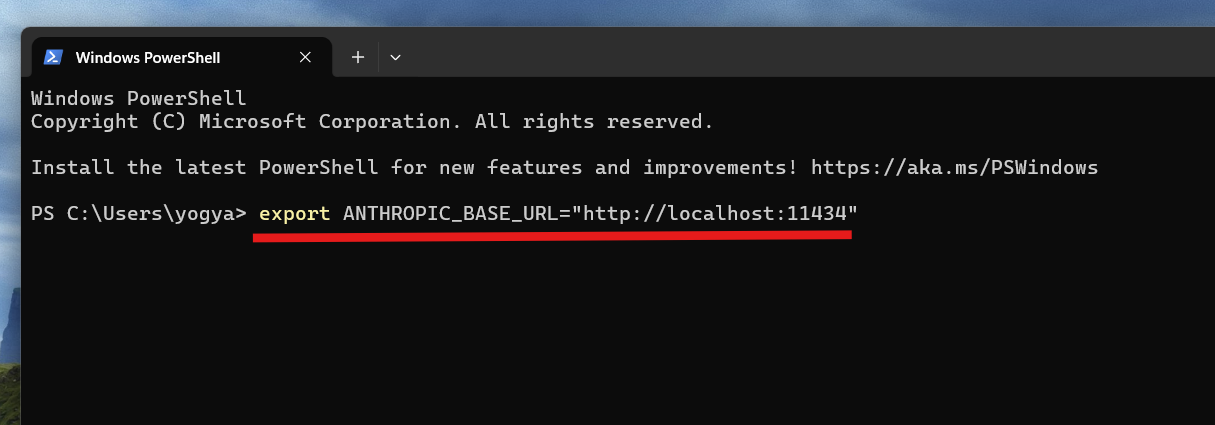
Then, reload your terminal:
source ~/.bashrc
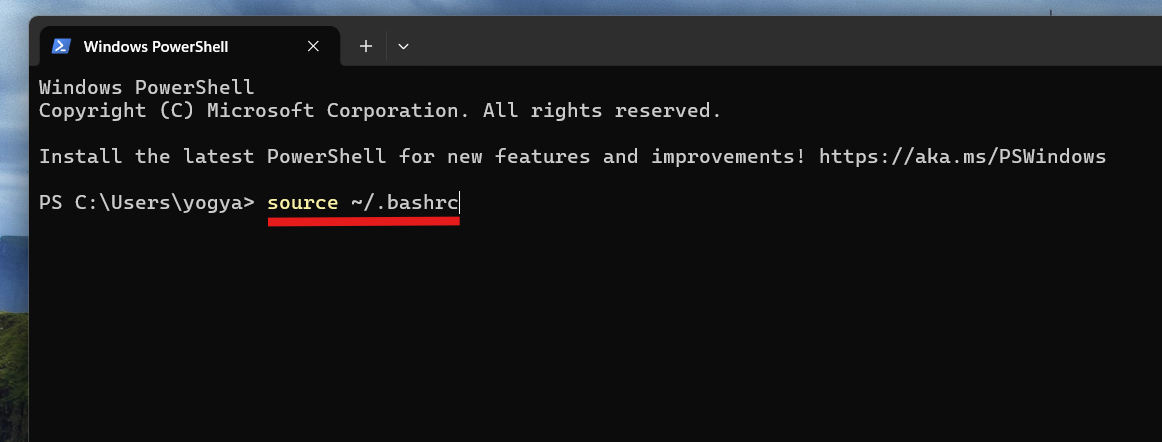
This tells Claude Code to use your local AI instead of the cloud.
Step 5: Launch Claude Code Locally
Now you can run Claude Code using your local model:
ollama launch claude --model glm-4.7-flash
Or:
claude --model glm-4.7-flash
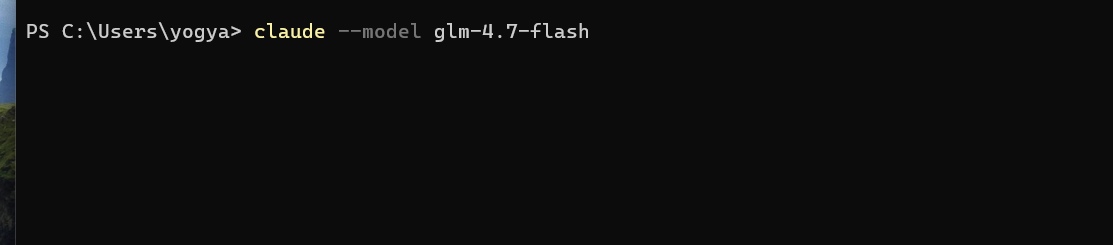
You’ll now see Claude Code running directly in your terminal, powered by your local model.
Step 6: Start Coding with AI
Once running, you can:
- Ask it to write code.
- Debug errors.
- Refactor files.
- Automate development tasks.
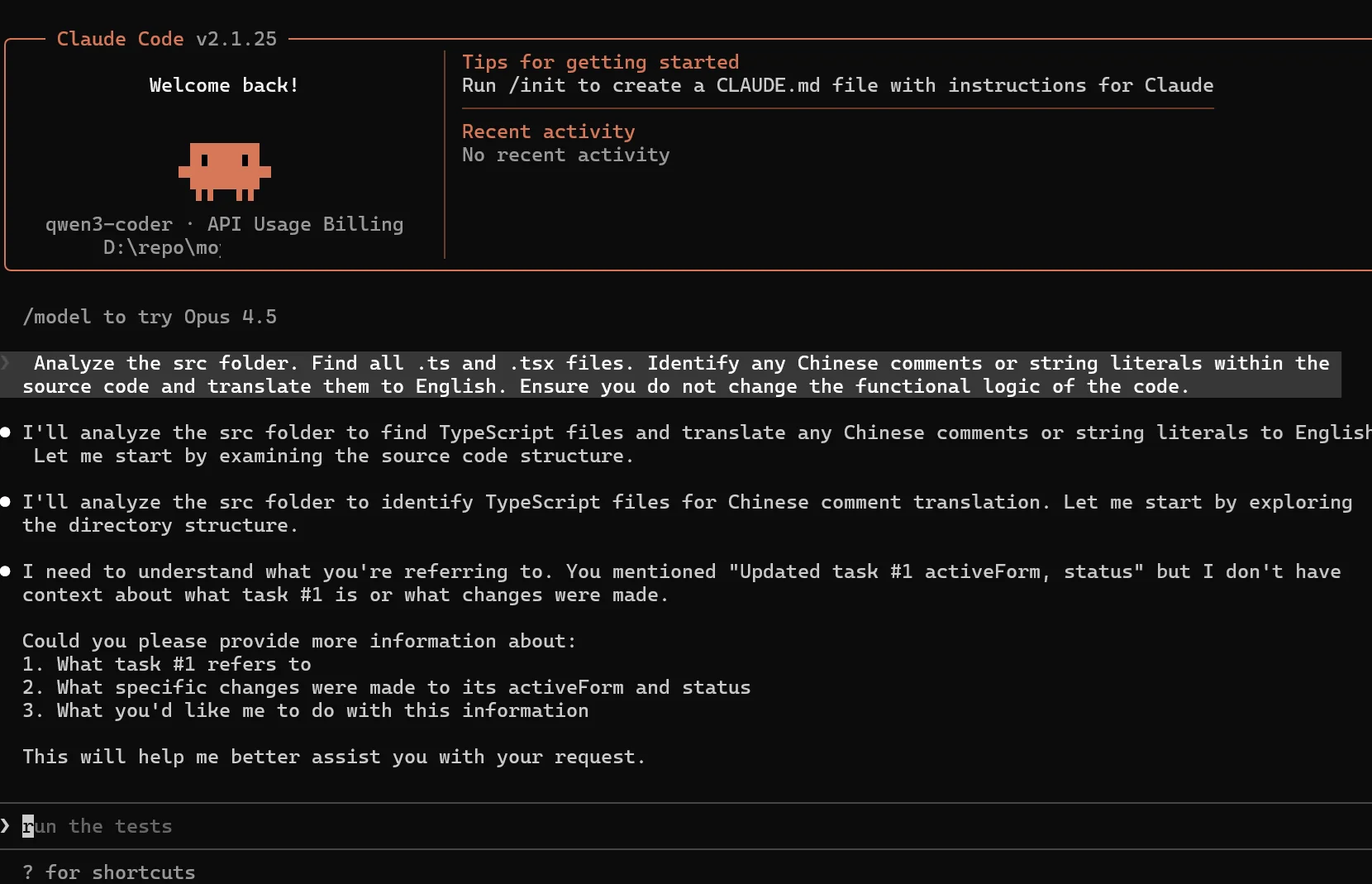
Claude Code can read and modify files in your working directory, acting like a real coding assistant.
System Requirements
- Minimum 8–16GB RAM (32GB recommended for large models).
- GPU improves performance significantly.
- Works on Windows, macOS, and Linux.
Summary
With Ollama, you can run Claude Code entirely on your local machine using open-source models. The setup is simple: install Ollama, download a model, connect Claude Code, and launch it. This gives you a fully private, free, and powerful AI coding assistant without relying on external services.