The Media Creation Tool (MCT) is one of the most reliable ways to upgrade to Windows 11, especially when the update isn’t available via Windows Update. While originally popular for Windows 10, the same concept applies to Windows 11, letting you upgrade your current PC, create bootable media, or perform a clean install.
Page Contents
Upgrade Windows 11 Using Media Creation Tool
Below are the 5 most important methods to upgrade Windows 11 using the Media Creation Tool.
Fix 1: Upgrade This PC Directly (In-Place Upgrade)
This is the easiest method if you want to upgrade without losing files.
1. Download the Media Creation Tool.
2. Run MediaCreationTool.exe as administrator.
3. Accept the license terms.
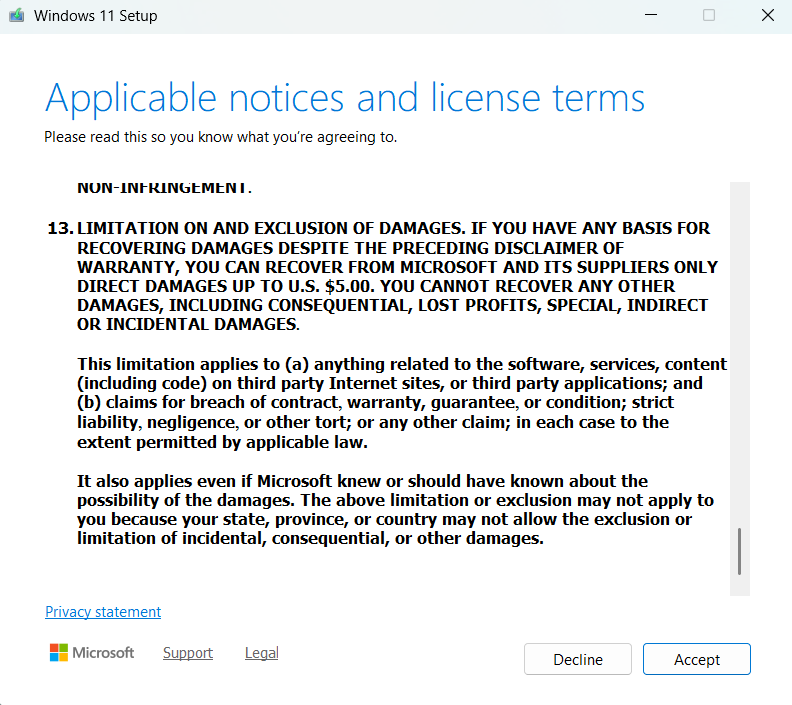
5. Follow the setup instructions.
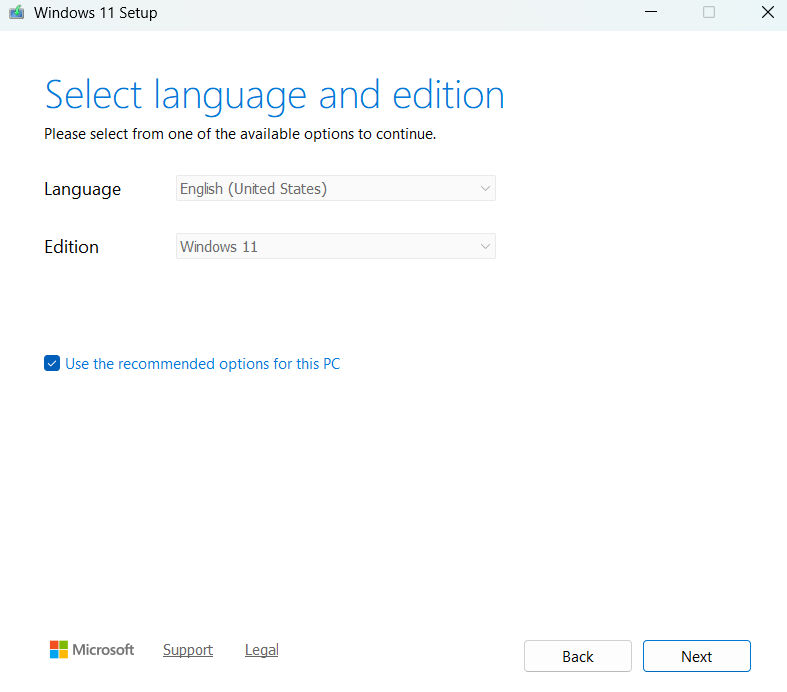
This installs Windows 11 while keeping your apps, files, and settings intact.
Fix 2: Create Bootable USB and Upgrade
If direct upgrade fails, use a USB method.
1. Plug in a USB driver and run the Media Creation Tool.
2. Select Create installation media.
3. Choose USB flash drive (8GB+).
4. Let the tool create bootable media.
5. Open USB and run setup.exe.
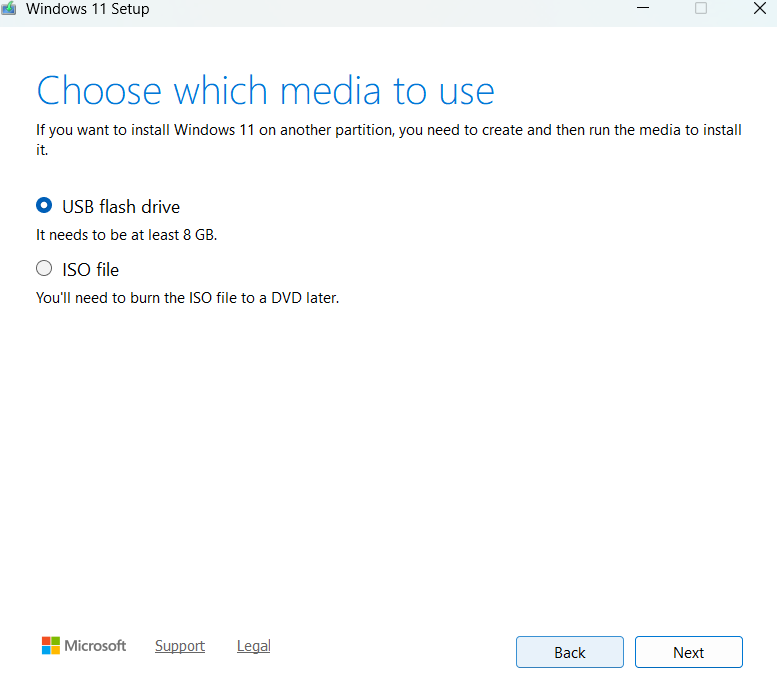
This method upgrades your system using external media and is more reliable for problematic PCs.
Fix 3: Upgrade Using ISO File
You can also upgrade without USB using an ISO file.
1. Use Media Creation Tool to download ISO file.
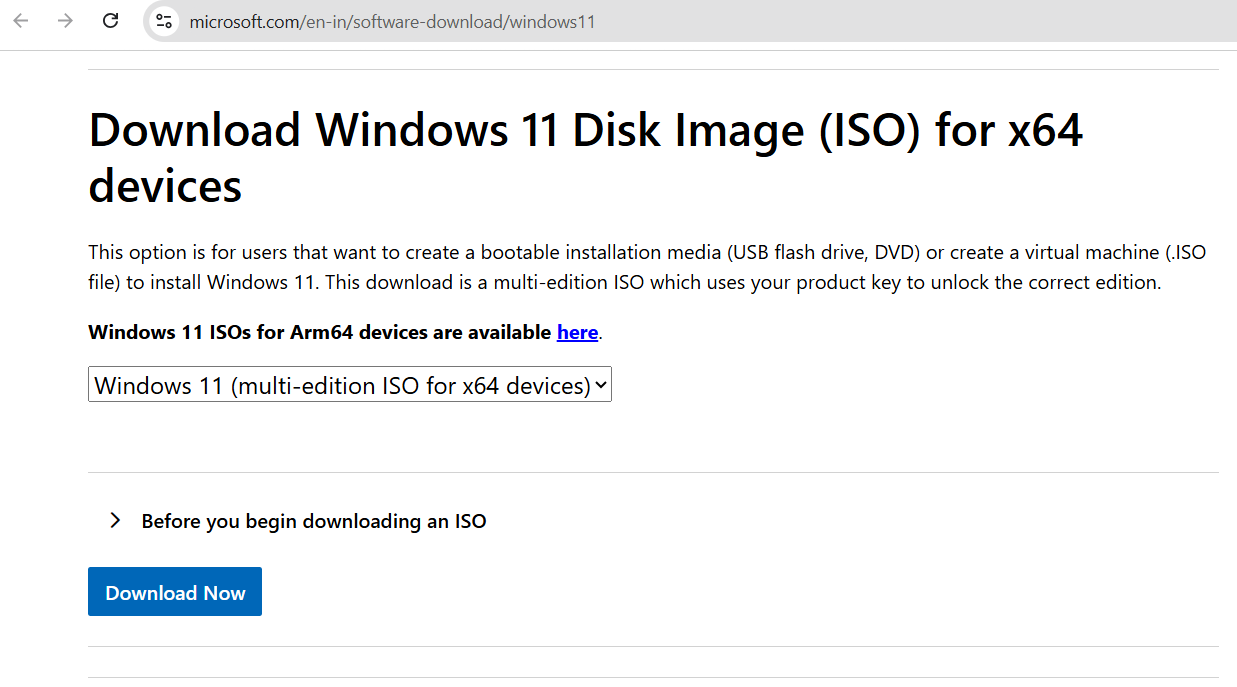
2. Right-click and select Mount.
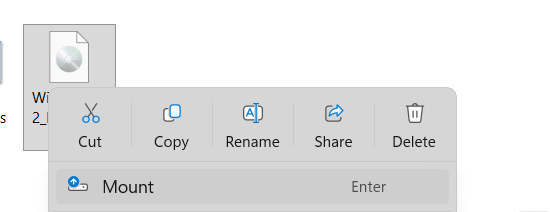
3. Open the drive and run setup.exe.
4. Choose Keep personal files and apps.
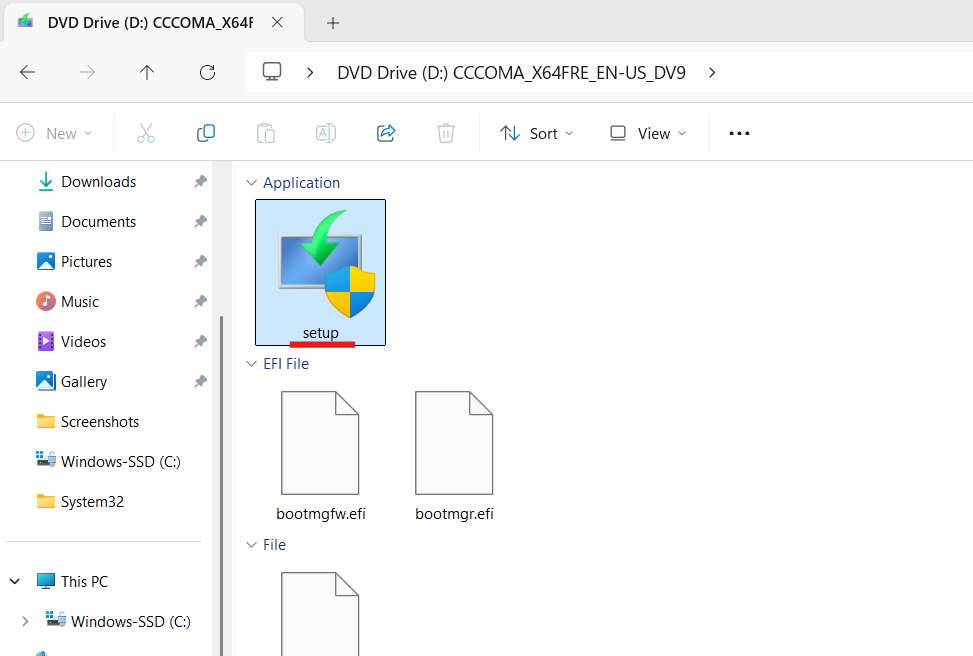
This is useful if you prefer upgrading directly from your system without external devices.
Fix 4: Clean Install (Advanced Method) to upgrade Windows 11 using Media Creation Tool
If your system has errors, a clean install may be required.
1. Create bootable USB using MCT.
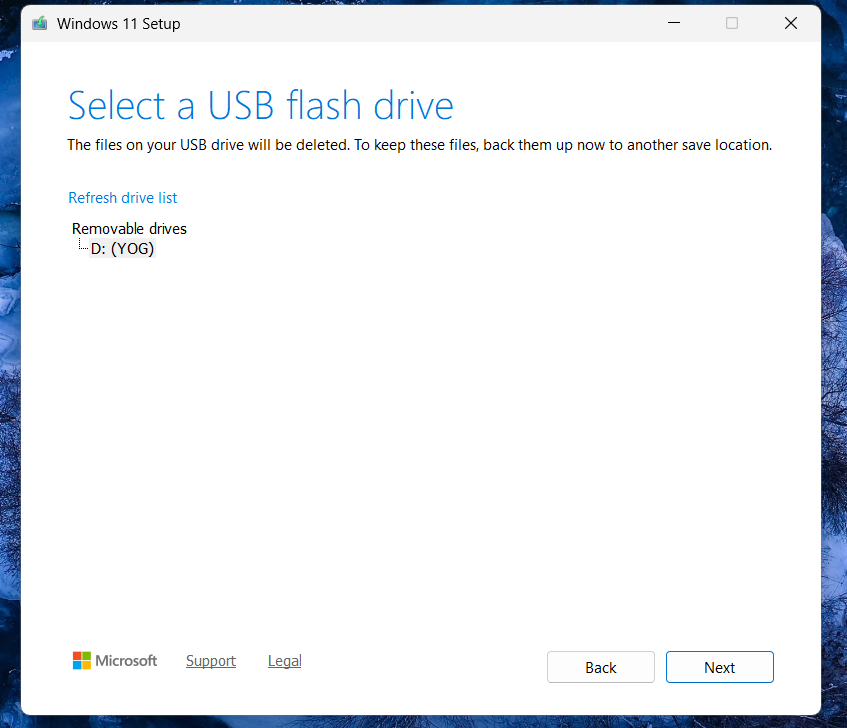
2. Restart PC and boot from USB.
3. Select Install Windows 11.
4. Choose Custom install.
5. Format drive and proceed.
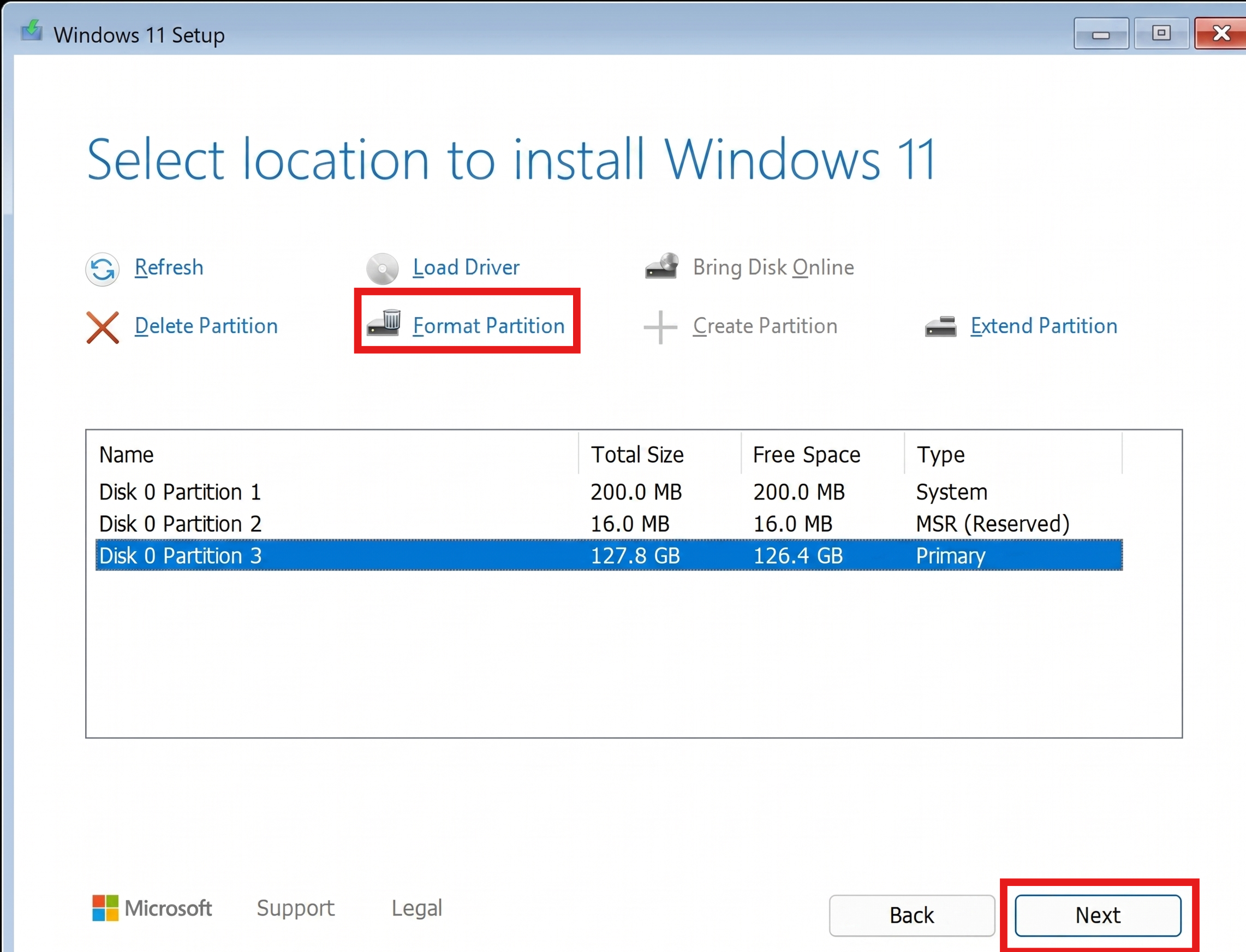
This deletes all data, so take a backup first.
Fix 5: Check Requirements Before Upgrading
Before using MCT, ensure your PC is compatible:
- TPM 2.0 enabled.
- Secure Boot enabled.
- Minimum 4GB RAM and 64GB storage.
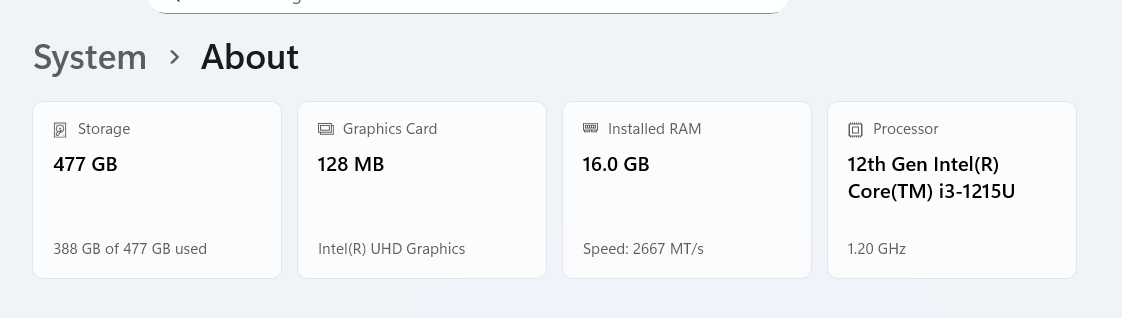
You can use the PC Health Check app to confirm compatibility.
Important Tips
- Always backup your data before upgrading.
- Use a stable internet connection.
- Keep your device plugged in during installation.