

Windows 8 brought us the concept of signing into our computer using our email accounts, we all know this. For this to make possible, you need to switch your traditional local account to Microsoft account, in case you created a local account first just after installing Windows. Switching to Microsoft account is simple, just go to your account section in Settings app, and connect your system to your Microsoft email ID. Here is the step-by-step guide to switch to Microsoft account.
How to switch to Microsoft Account from local account and revert back
Using Microsoft account has various advantages too, like you can easily browse and download apps from Store, sync your files and apps across devices etc. etc. Well, sometimes due to technical issues or missing of required services, you may face trouble while switching to Microsoft account. Recently, we came around one such error:
Page Contents
Switch to a Microsoft account on this PC
Sorry, we couldn’t connect to Microsoft services right now. If this problem persists, search for network problems on the Start Screen.

This kind of error you’re likely to receive under intermittent network connectivity, while switching to disabled or non existing Microsoft account etc.
See : How to fix intermittent network connectivity in Windows
Here are the two fixes you can try under this scenario:
FIX : Can’t Switch To Microsoft Account In Windows 10/8.1/8
FIX 1 – Using Services Snap-in
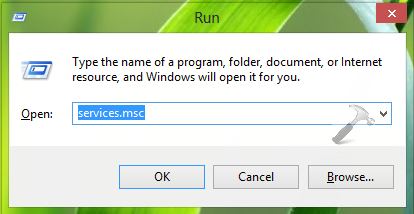
1. Press  + R and put services.msc in Run dialog box. Click OK to open Services.
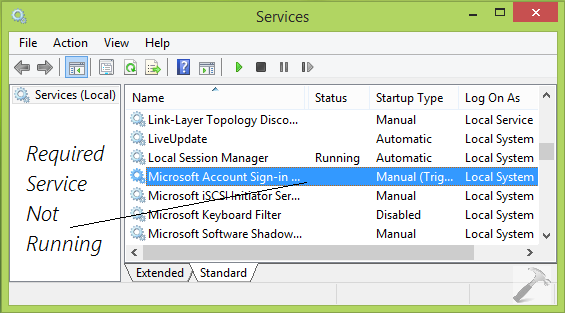
2. In the Services window, scroll down and look for the Microsoft Account Sign-in Assistant service. Since you’re facing this issue, this service may not be running. Double click on same service.
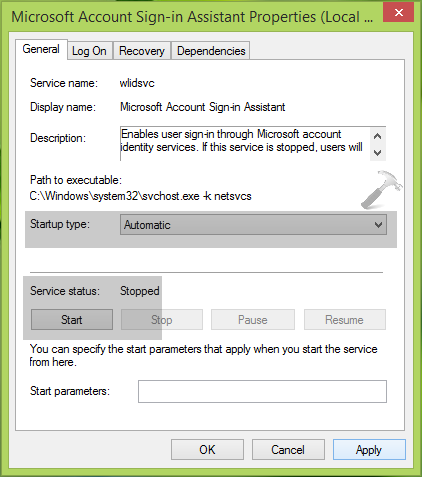
3. In the Properties window for Microsoft Account Sign-in Assistant service, at General tab, set the Startup type to Automatic or Manual. If the service status is Stopped in your case, click Start button there. Click Apply followed by OK.
You can now close the Services window and reboot the machine to check if the problem is resolved. In case if the issue still persists, you can try the additional steps mentioned below:
FIX 2 – Using Troubleshooter
1. Download Microsoft Accounts troubleshooter.
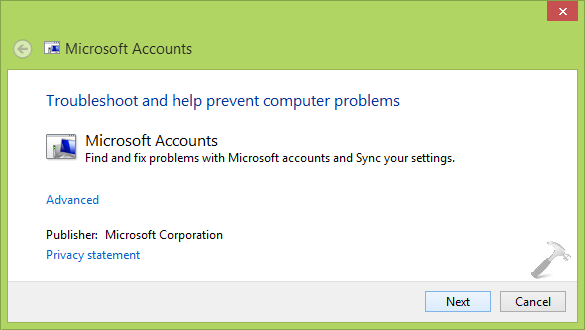
2. Run the troubleshooter wizard, Microsoft has so designed this troubleshooter that it automatically detect invalid settings. So you just need to click Next option in below shown window, and wait till troubleshooting is completed,
Once troubleshooter fixed issues, you can reboot the machine and then try switching to Microsoft account.
Hope this helps!
Related: ‘Oops, something went wrong’ error while switching to Microsoft account.





in my case the service is running by default. And i tried troubleshooter it fixed problem. Thanks.
Hi, i tryed both solutions, but neither worked for me…
Still stucked @ “sorry couldn’t connect to Microsoft Services”
I installed Win 10, then rollbacked, disconnected MS account and then i was trying to reconnect it.
^^ Let us know what troubleshooter reported you back?
I’m having the exact same issue as Rik after the win 10 rollback. The troubleshooter tells me I need a Microsoft account to sync settings but I already know that.
cant switch to Microsoft account in windows 10 ..
every time it shows your microsft account sign in with is different from ur paswrd but I made a lot of microft account but still the same error
^^ Please do let me share the exact error message you’re receiving, I’ll help further :)
I tried the solutions you suggested and still have the identical problem. I have Internet access, I use Internet Explorer and sign into my Microsoft account, but when I try to switch the user account on my Microsoft Surface from local to Microsoft account, I get the message “Sorry, we couldn’t connect to Microsoft services…” What is really frustrating is that when I run the Microsoft Account Troubleshooter to figure out why I can’t connect to my Microsoft account, it tells me “You need a Microsoft account to sync your settings”. That one makes my head hurt.
^^ It would be better if you can create another account which is local one. Once it created, start using it and exit from existing one :)
still i get the same issue
still the issue dont works i tried both methods this the error “Sorry, we couldn’t connect to Microsoft services right now. If this problem persists, search for network problems on the Start Screen.”
^^ Did running Microsoft accounts troubleshooter found and fixed something?
Same problem here…cannot create other account neither switch to microsoft accout :( used both troubleshooter, “You need a Microsoft account to sync your settings”. “there is a problem, retry etc.
not able to click sign in with Microsoft ACCOUNT AND have applied both methods
I’ve just tried both these methods, after getting the vague message ‘Something went wrong’ when trying to sign in to my Microsoft account on Windows 10.
The sign in service had stopped, so I was temporarily filled with joy when I started it back up again and rebooted…but the problem still remained.
So I went out using the troubleshooter, and that didn’t get far at all, because it told ‘you need a Microsoft account to sync settings’. I have a Microsoft account! THAT IS WHAT IM TRYING TO FIX!!
I’ve been at this for 3 days now, and I’ve had just about enough of yet, tempted to just roll back to 7.
Has anyone found a solution yet? Pleeeeeeeease.
Same issue here. Pretty annoying…. If someone has a solution
I installed Windows 10 yesterday, upgrading from Windows 7. When I go under Account Settings and click “Sign in with a Microsoft account instead” nothing happens. No error message, no action, only nothing. I tried both steps above and no luck. Any one ever encounter this?
First One Drive wasn’t working claiming “we can’t connect to the service you need right now. Check your network connection or try this again later” . However my internet connection was working fine.
I figured this would probably be related to the fact Windows told me to “verify” my account (under Windows 8.1 account settings). Trying to do so by pressing the verify link wouldn’t work again because of the same error.
After that I disconnected the Microsoft account I was told to verify and switched to a local account (probably not needed afterwards but I was still troubleshooting at the time). After that I tried to switch back to my Microsoft account only to get the same error again.
However I found out what was wrong in my case. It seems setting up / verifying the Microsoft account makes use of Internet Explorer to do so. In my case somehow my internet explorer was using a non existing local proxy server 127.0.0.1:8887 set up in Connections -> LAN settings -> Proxy Server so it couldn’t connect to the internet. Normally I do not use Internet Explorer so I had no idea this had been the case and since how long.
Removing the proxy server solved my problem and I could switch to my Microsoft account again.
Bottomline: check your Internet Explorer configuration and installation.
Hopefully this helps out some other people facing the same problem.
^^ Thanks a lot for your inputs, hope this helps others too :D
Had the same problem and there was no proxy server. I’ve tried all methods mentioned above. When I tried to access login.live.com via Chrome there was no problem. Edge also worked. Using IE I didn’t get the login page. Finally I have reset ALL IE settings (via Internet options -> Advanced) and rebooted. After the reboot I could switch to a microsoft account.
It all started with changed a Microsoft account to a local account. I couldn’t go back to microsoft account!
first things first, I’ve got the original version windows 8.1 pro, there when system has been installed, istallation ased about sign in to microsoft account, so i did it. Then i updated to windows 10 (still on microsoft account) and then I switched to a local account and couldn’t go back :/ So I installed Windows 8.1 Pro again and what? There was no option about signing into microsoft account at all! Then updated to windows 10 again and no options to do so too… On windows 10’s settings > accounts > my account > “instead of, log in using a microsoft account” i click it and white small window appears with blue loading and then nothing happens. Then this window closes and I’m stuck. Can’t login to windows store, onedrive… ;/ Can login on page. What the hell?
In brief I have no way at all to choose to log in to any account Microsoft as if my PC has been banned but my motherboard IS on my microsoft account. Previously deleted, now back on.
Please help.
^^ Create another user account and perform switching operation then. Since you’ve done all the operations on single account till now, there is strong possibility that it has became malfunctioned.
On my system service is running yet i hv same problem what should i do . Helppp!
I tired creating a new account….won’t let me switch. I ran the diagnostic and it didn’t help. said I needed to re-input password…
I tried both fixes but still I cannot switch from Local to Microsoft Account. After running the second fix I get this message.
Trouble shooter has completed
The trouble shooter made some changes………..
Problems found
Can’t connect to sync services Detected Exclamation sign
Root cuases found and created logs Detected Exclamation sign
Hi Kapil, when I click “sign in to my microsoft account instead”, there is no something to show up. And the “ok” button of “default app” dialog box also don’t active. Please I need your help. thankyou
i have the same exact problem as told by all these people above and i’ve tried every single fix mentioned on this page and more but nuthing seems to work i cannot switch or log in with my microsoft account on my pc. please help!! i use windows 8.1
Nothing is working. I did the Microsoft Account tool and it didn’t go through after. I did it again and then rebooted the system after and it still doesn’t work. I have a Surface PT and a working Microsoft account. Please help!
hi sir
sir i m handicapped please help me this problem Switch to a Microsoft account on this PC
Sorry, we couldn’t connect to Microsoft services right now. If this problem persists, search for network problems on the Start Screen.
^^ Have you tried above mentioned fix?