

Previously, we shared you the fix for limited or no access from WiFi networks which you can read here:
Limited WiFi Connection In Windows 8 Or Later
Many of readers reported that even after trying that fix, they are still facing issues limited WiFi problem. In such a scenario, even the wrong network adapter settings may be culprit for this problem. So to make sure that there is nothing wrong with your network adapter settings, run the network troubleshooting wizard inside Windows. To do this follow these steps:
1. Press  + Q, type troubleshooting and pick same from results.
2. In Troubleshooting window, click View all.
3. Next in the All Categories window, click Network Adapter and start wizard. When troubleshooting is completed, you’ll reach here:
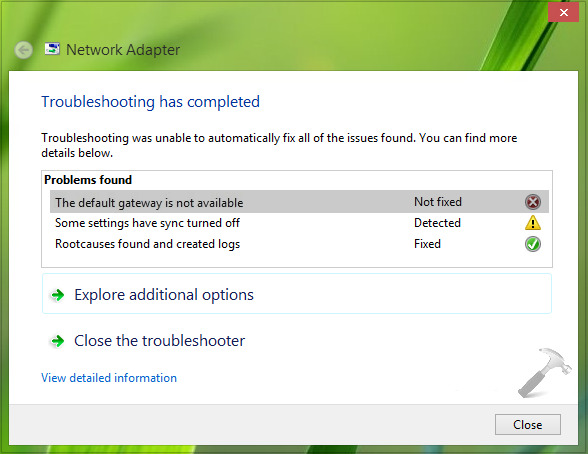
In the above shown image you can see that the troubleshooting wizard was unable to solve following error:
Page Contents
The default gateway is not available
And thus due to this, you may continue to face limited WiFi hitch.
Recommended : Network Connection Lost When Windows Goes To Sleep
Actually, this problem can be fixed by switching your network adapter driver from Broadcom 802.11n Network Adapter to Broadcom 802.11a Network Adapter. By default, the system uses Broadcom 802.11n Network Adapter. Here is how to do this:
FIX : Error “The Default Gateway Is Not Available” In Windows 10/8.1/8/7
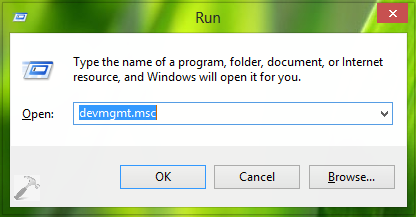
1. Press + R and put devmgmt.msc in Run dialog box and hit Enter to open Device Manager.
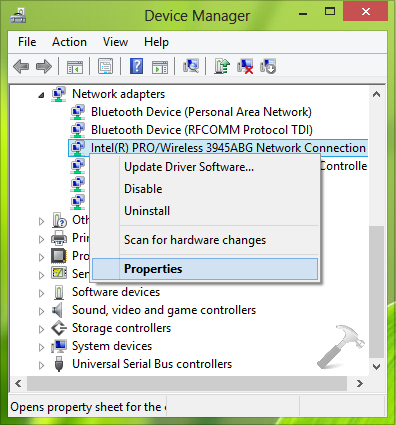
2. In the Device Manager window, expand Network Adapters and right click on your WiFi network adapter, select Properties.
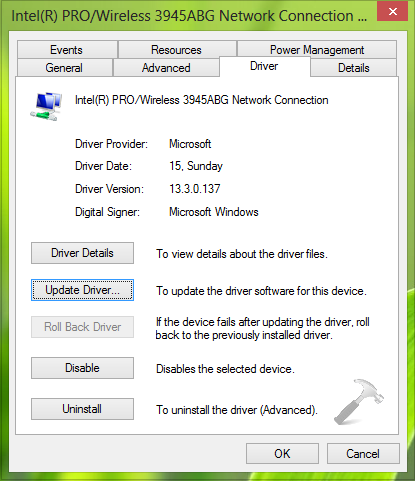
3. In the next window so open, switch to Driver tab and click Update Driver.
4. Next, click Browse my computer for driver software.
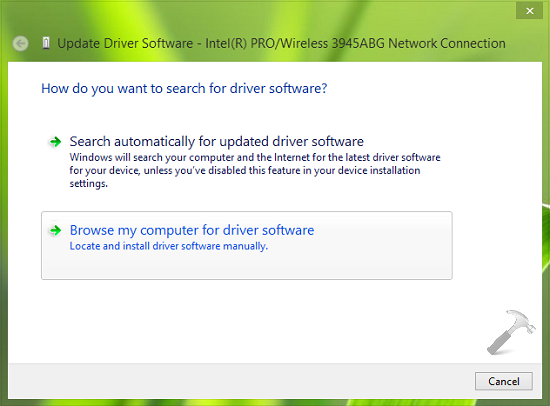
5. Moving on, click Let me pick from a list of device drivers on my computer in below shown window.
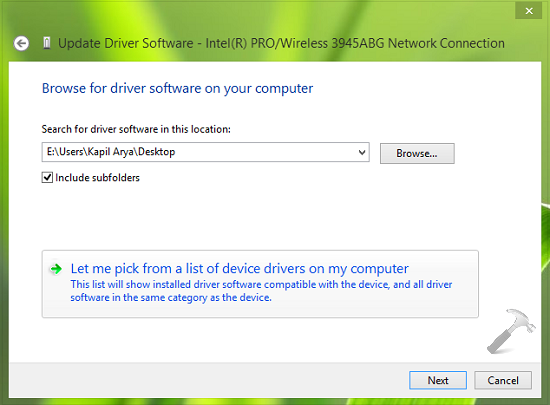
6. Now you’ll reach Select Network Adapter section, where uncheck Show compatible hardware option.
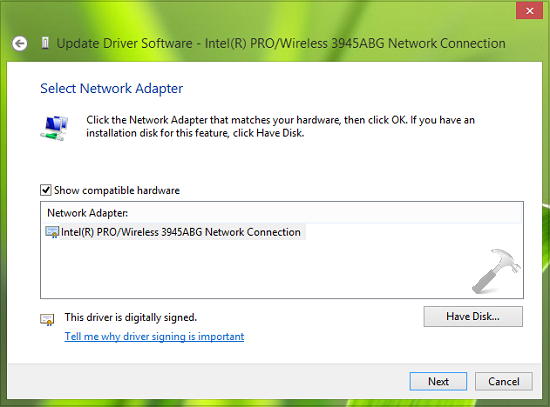
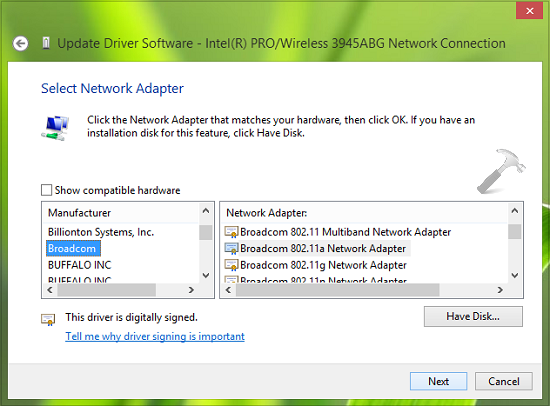
7. Last step will result enlisting of available network adapters. From the Manufacturer section, pick Broadcom and from Network Adapter section, pick Broadcom 802.11a Network Adapter. Click Next.
8. Finally, click Yes in following prompt:
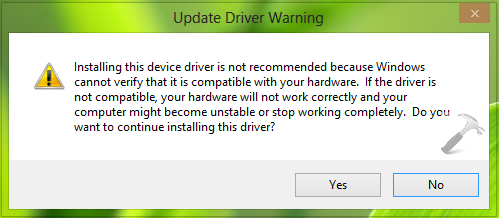
Thus in this way your system is updated to Broadcom 802.11a Network Adapter setting. You should reboot the machine to make changes effective. After restarting, your problem should be fixed. Let us know if you still have issues.
Check out the illustration of above steps on Windows 10 in this video:
Hope this helps!






First real solution to my problem thanks for help dear
Thanks for the fix
Didn’t work. I now have, “the broadcom 802.11a network adapter adapter is experiencing driver or hardware related problems”
^^ In that case, restore the original driver and get an updated version of same from manufacturer’s website.
Thanks it really worked for me .
^^ Glad we could help :)
This worked for me as well… Altough I am not quite sure it’s a safe solution. But I have tried all kind of drivers already and nothing worked.
^^ Thanks for feedback :)
Hi Kapil Arya
It’s saying that the computer will stop working completly
^^ Continue with Yes option.
Thank you sooooo much! I was close to get bananas trying to fix this problem on my laptop….you save me! Thanks! ;)
Mine is not intel r pro wireless it is ralinkRT3290 802.11bgn Wi-Fi adapter.
It’s work. Thank you very much
when i try to do this i get an error –
“windows encounterd a problem installing the driver software” “this device cannot start. (code 10)
any idea’s?
^^ Seems like there is a hardware issue, suggest you to visit nearest computer repair shop to confirm about it.
hey kapil ,
thx for the quick reply , i dont think there is a hardware issue since when i open a portable hotspot from my Galaxy Note 3 the internet works fine.
any further idea’s?
the network adapter currently is Intel(R) Dual Band Wireless-AC 7260
and the notebook model is dell xps 15.6 ,
i’ve tried everything i could fined and any additional help would be amazing
^^ This is clearly a workaround and not an straightforward fix, since different drivers may not be compitable. Although another thing I can recommend you atm is this article : http://www.kapilarya.com/limited-wifi-problem-in-windows-8. See if it helps :)
Thanks for these instructions. Very clear.
^^ Cool :)
Thanks worked perfectly
Amazing! Worked a charm. Thanks a lot.
^^ Glad it helped! :)
Thanks for the info. This problem was there for me since 9 months, no site had proper solution but yours :)
One small change. In mycase, I uninstalled the microsoft driver “Intel centrino advanced N 6230 (microsoft)” and installed the intel driver “Intel centrino advanced N 6230 (intel).
^^ Thanks for feedback!
Thank you man.
Thank you so much!!!! Its working!
^^ Awesome :D
Thanks a lot sir! Made my day :)
^^ Glad you find it useful!
Pheww… Finally a working solution. Very much thank you
^^ Glad it worked! :)
i am facing similar problem. but i have RALINK RA3290 802.11bgn wifi adapter. what should i do? i have recently upgraded to windows 10.
^^ You can try these steps and see if that helps, but remember to create a System Restore point first.
It’s work. Thank you very much
^^ Amazing :)
You are @ great man!
^^ :)
This method can cause your computer to crash, and not start up.
Fair warning, this solution should not be a go-to. I spent a few hours just doing system recovery by hand, and the problem is nowhere near fixed.
Thanks.
^^ It has already solved the issue for many folks here :D
Very usefull… Almost change my laptop, wkwkwkwk… Thx very much mr Kapil
^^ Glad to see it worked :)
As many have said, I too have the Ralink RT3290 adapter and nothing seems to work for it. For the above fix, when it comes to the full list of drivers there are so many. Which should I choose?
^^ It’s clearly mentioned in step 7 :)
Hmm. Well, there are several versions of the driver, all of which I’ve tried. I tried all of the available drivers that matched “RT3290 802.11bgn” but none worked. I get a “Can’t connect to this network” message. When I run the Windows Network Diagnostic troubleshooter, it says “Investigate router of access point issues” but all my Apple products are fine. When I run the HP network troubleshooter, it says: “No network was detected”, “A response was not received from the access point” and “Windows could not connect to [my network].”
Any ideas?
^^ Please try resetting the router and see if that helps. Also try checking the Show compatible hardware option in step 7, may be that helps you to find the suitable driver.
When you say “reset” the router, do you just mean turn it on and off? The router is set up by the IT department in my condo block and to completely reset it, they’d have to do a callout. I got them out before and they tested the router and told me it was all fine and that Win 10 was the problem. As noted, all my Apple products work fine.
I tried all the drivers with the “Show compatible hardware” option in step 7 and none worked — they all have the error message “Cannot connect to this network.” Some say “Secured, no Internet”. Not sure if that helps?
Latest error after I did a bunch of stuff:” “Wifi” doesn’t have a valid IP configuration.”
^^ Seems like something is wrong with your machine’s hardware configuration :( For this error, refer: http://www.kapilarya.com/wifi-ethernet-doesnt-have-a-valid-ip-configuration-windows-10. But still, I suggest you to check hardware configuration and make a clean install.
When you say “check hardware configuration,” how do I do this? Also pls note that the PC worked fine (including wifi) with the Win 8.1 it came with and also that Ethernet works fine now (hence I am able to post this). In fact, wifi worked fine with Win 10 until one of the updates way, way before 1511, when I started to get the “limited connectivity’ error. And the last clean install I did was exactly seven days ago. I can’t see that doing another one will get me any further.
I read somewhere else that what you do with the install process can affect it. Like if you update immediately, etc. Can you shed any light on this? Is it better to download an ISO or do it directly online? What can I do to have a fully functioning PC?
I may try one more time this weekend then go with a Mac. I was a PC and Mac person up until Win XP after which I went totally Mac. Sadly, Win 10 is such a mess I may have to go back. I had such high hopes for it. What a dud.
^^ Okay, if things were working perfectly, you can try downgrading to previous build (i.e. Build 10240 in your case): http://www.kapilarya.com/how-to-downgrade-windows-10-to-earlier-windows-edition. Thank you for your patience!
Hmmm. That option is not available to me on that menu. That is, there is no button to click to “Go back to an earlier build.”
As of now I did a System Restore back to my clean install. And suddenly I have working wifi with an old driver that I’ve tried before but didn’t work then. I have no idea why it suddenly started working.
Any ideas in case it stops again?
I am now re-installing all my apps one by one: Chrome, Freemake Video Converter, Office 365, then iTunes (with Bonjour disabled).
I used to use Avast antivirus but am wary of it now. Can you recommend any good third-party antivirus software that is Win 10 wifi friendly?
Also, let me know why you think this has worked when previous clean installs didn’t? Could it be that I used your fixes and somehow they remained after the System Restore and thus it works now?
BTW, I have turned “Defer Upgrades” on. Perhaps this has stopped the system from updating with an update that screwed the wifi before?
^^ Suggest you to avoid third-party antivirus programs and stay with Windows Defender. In that way, you can fully enjoy Windows 10 like me! :)
OK, I will stick with it. Any idea why I’ve suddenly got working wifi? This has happened before, then I’ve lost it. It would be good to know why it’s suddenly OK with this old driver and settings as per the last good clean reinstall (after which it wasn’t working, funnily enough).
Well, that was short-lived. Lost wifi again after a restart. This may be the last straw…
Now I’m getting “The default gateway is not available” again. I have changed nothing at all in the settings since the wifi was good 30 mins ago. I can’t tell you how frustrating this is.
At last. A good solution to my problem. Thank you.
^^ Thanks for your feedback too!
Thnx .It worked for me in windows 10 too!!Thnx a lot!!
^^ Happy to help!
Don’t set your wifi to another incompatible hardware because it will stop functioning of your computer and win will be crashed .How people are commenting worked i don’t know.Its a worst full idea . I have faced the problem. So dont try to set to incompatible no one recommends this.
Totally useless so called fix, not every network adapter manufactured is a broadcom. Even a person with minimal intelligence would know that. Something is wrong with my network adapter and I have tried every so-called solution out there and nothing has worked. And I’m really tired of the try this try that method of fixing it. What would you do if you had a heart problem, and your heart surgeon said, hey lets “try” this surgery to fix it? Its amazing how many “experts” out there will screw up your computer having you try this and try that to fix it. I had a person with a degree in computer science fix my problem on the first attempt because he KNEW what he was doing, he did’nt have to “try” anything. He just fixed it. Unfortunately he passed away so I can no longer utilize his knowledge
thnks sir its realy shortcut way…..n again thanks for recommandation for us..
^^ Very cool :)
Could I try to update my network adapter instead?
^^ You may give a try but the procedure mentioned here is different than that.
This step work so well, thanks Mr Kapil :) keep it up
^^ Awesome, thank you for feedback!
I have a Realtek PCIe GBE Family Controller and I connect using ethernet through powerline. I have tried rolling back drivers, resetting TCP/IP, looking for other drivers, and downloading from manufacturer. Nothing has worked permanently, and it is now to late to go back to windows 7. Please help
Thank you kapil. . Tried lot of solutions finally it worked. It would be better if you let us know why we have to change driver ,that too an incompatible one.
I installed his and now don’t know what to do from here. It still won’t let me get on the Internet. How do I reinstall my original software?
Thanks Kapil Arya.Worked like a charm..Struggling to get over this problem for 3 months..Your’e awesome..My laptop connects to WiFi network…But just doesnt connect to WiFi hotspot set up over mobile phone..This solved my problem
^^ Glad I could help 😎
I used hp pavilion G6 laptop…i am faced the default gateway is not available problem… I will follow your steps but still problem occur what to do….
^^ If on Windows 10, try resetting network and see if it helps you: https://www.kapilarya.com/how-to-reset-network-settings-to-default-in-windows-10
I wish I didn’t follow these steps. Now I don’t know what to do at all…
Hi Kapil,
This message i got when i switching to microsoft account (sorry,we couldn’t connect to microsoft services right now. if this problem persists, search for “network problems” on the start screen.)
I tried all your suggestions but nothing work same problem persists.
Give me any alternate suggestion.
^^ Please refer: https://www.kapilarya.com/cant-switch-to-microsoft-account-in-windows
Hello Kapil
i was having this issue since i installed Windows 10 Pro. tries alot of things.
mine adapter is Broadcom 802.11n network adapter. and having issues frequently with no internet at all when i try to fix with troubleshooter its always says “default gateways is not available and troubleshooter always fix that for a little time.
now i change the driver to Broadcom 802.11a network adapter. lets see if problem still exist or not. i will update shortly.
following to my last comment. my problem is fixed now. thanks buddy
^^ Glad the issue is sorted now!
It’s asking me to plug a Ethernet cable into this computer. Help?
No it didn’t work and now I have a second problem “The connection between your access point, router or cable modem and the Internet is broken”
Its worked for me as well……Thanks a lot
^^ Glad to help Deepak 😎
Your tips solved my ethernet cable disconnection problem! Apparently I had to downgrade the drivers to stop the ethernet cable from randomly disconnected. Thanks, much appreciated!
^^ Happy to help!
Hi.
That didn’t work for me, I have the following controller:
Realtek RTL8192CU Wireless LAN 1n USB 2.0 Network adapter
Actually I have tried the following steps:
• Reinstalling driver
• Changing the Power Management settings
• Checking the system with antivirus software to make sure it wasn’t infected by a virus
• Changing the frequency of your Wireless Router
• Resting network: netsh int ip reset
• Disable the Firewall software – don’t use any other than Defender
• flushdns, custom DNS settings, adapter restart, router restart,
• change the router frequency from automatic to 6, 9, or 11
• Device Manager -> Network Adapters -> Whatever device makes the problem -> Properties -> Power Management -> uncheck Allow the computer to turn off this device…
I’d appreciate your help
^^ Try making clean install: https://www.kapilarya.com/how-to-make-clean-install-of-windows-10.
I only had problems with Ethernet in Windows 10 where the internet would suddenly drop and changing the driver from Broadcom NetLink Gigabit Ethernet to Broadcom NetLink FE-A solved the problem.
Finally, thank you for sharing your knowledge with us
^^ Glad to help!