

To maintain our system regularity and stability, we should often check for Windows Updates and install – when new updates are available. By keeping our system installed with latest updates, we can reduce chances of breaking system integrity, and injection of vulnerabilities to very less. However, sometimes you may not able to complete installation of Windows Updates.
Recently, while installing newer updates, I came around following message:
Page Contents
Failure configuring Windows Updates. Reverting changes. Do not turn off your computer.
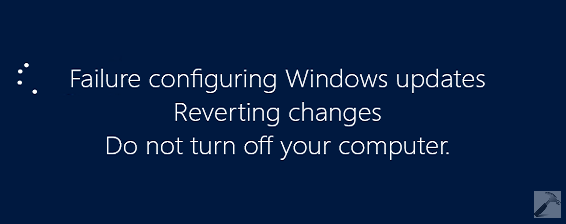
Such kind of error came into light when you’re installing more than one updates, the one of them is causing issue. In such scenarios, many fixes may applicable since the root cause may vary system to system, server to server. Although there are some most common solutions exists, that may help you to overcome this issue very easily.
So without wasting your time anymore, let us check out how to deal with this issue:
FIX : Failure Configuring Windows Updates. Reverting Changes.
1. First of all, you need to run System Readiness Tool (aka CheckSUR tool). In order to use this tool, open administrative Command Prompt and run these DISM commands one-by-one and press Enter after each:
Dism /Online /Cleanup-Image /CheckHealth
Dism /Online /Cleanup-Image /ScanHealth
Dism /Online /Cleanup-Image /RestoreHealth
The execution of these commands may take up to some minutes, so keep patience. You can read about this commands in detail, here:
Repair Your Windows 8 Using DISM Commands
2. Next, clear the transactional log by running following command in administrative Command Prompt.
fsutil resource setautoreset true C:
Substitute C: with your system root drive.
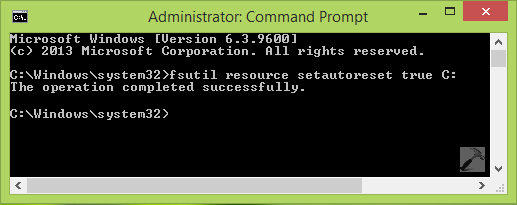
3. Moving on, check for the additional issues by running Windows Update Automated Troubleshooter:
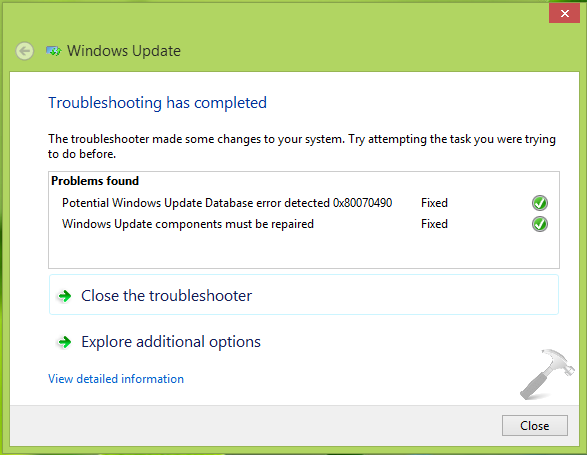
Now since all the problems are fixed, you can try installing updates. Here I suggest you select a single update and check if it installs and takes you to this screen:
Configuring Windows Updates. <progress percentage> complete. Do not turn off your computer.
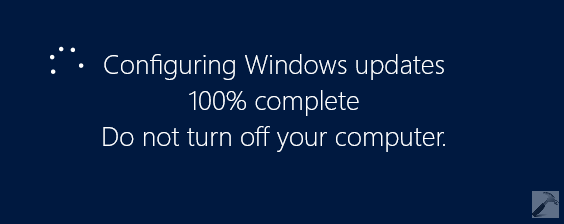
When you came around this screen for a unit update, try selecting rest updates then and install all at once. In this way, the error can be resolved.
If problem still persists, try out the individual fixes mentioned in following links and see if they helps:
1. [FIX] Windows Update Ran Into A Problem.
2. [FIX] “Windows Could Not Search For New Updates” In Windows 8 Or Later
3. [FIX] Windows Update Encountered An Unknown Error
4. [FIX] 0xc8000247 – Windows Update Standalone Installer Encountered Error
5. [FIX] Manually Reset Windows Update Components In Windows 7, 8
Hope something helps, Good luck!






hi After a power outage my PC stuck in “We couldnt complete the updates Undoing Changes Dont Turn Off Your Computer Screen”, how do I get into Safe Mode form this? F8/Shift F8 doesnt work, it makes my PC beeps. Can I try this way?
^^ Sure, go ahead :)
hello Kapil I need your help. At step 3, the window at my screen shows only one error fixed not other. What should I do now?
^^ Try installing updates now and see if works :)
Very simple and straightforward soln. Thanks man!
Hi i have tried all of the above fix and many other fixes online, but i haven’t had any luck, my windows always will end up with failure to configure windows update. I really don’t know what to do and I really want to update my windows 8.1 to the latest to get the free Windows 10 update thing. What else can i do? most of the online solution are very similar. I couldn’t find any error code either.
Oh yes also in step 3, although my windows is in my C drive, I had to type E: instead if not i get a message like this
“The specified directory does not contain a resource manager”
^^ Please let me know what Windows Update Automated Troubleshooter reported you back? Did It find any errors or fixed them?
This are the 2 error i got when i ran the windows update automated troubleshooter.
Service registration is missing or corrupt Fixed
Windows Update error 0x8007000D(2015-06021-T-12_12_4SP) Fixed
^^ I have only seen this error recently
My most recent update was performed on 14/4/2014
This is the update: KB 2919355
^^ Try resetting the Windows Update components manually, refer link no. 5 at the end of article.
It still doesn’t works for me. All the other updates registered as failed when i check update history.
^^ It worked fine here. Since you’ve tried all possible options, unfortunately, you’ve reinstall the OS to get it fixed :(
I am afraid i might have to do that. I read somewhere that since i upgraded my windows 7 using a windows 8 pro upgrade disc, i should use it for refreshing the pc, but the computer has detected it as not the correct disc. I think i might need a whole new solution for this :( But thank you a lot for your prompt replies :)
^^ :)