

Previously we have seen that how to calculate Windows Experience Index (WEI) on Windows 8.1 using WEI Tool. Although Microsoft has removed the UI to find WEI, since this feature was rarely used by users. But the WEI engine is still continued in Windows 8.1 and now in Windows 10 too. So the good thing is that still you can find ratings for your machine by utilizing WEI engine. Obviously, you can use WEI Tool we have previously shared but if you’re looking for a way to calculate the machine ratings natively without using any tool, this post is for you.
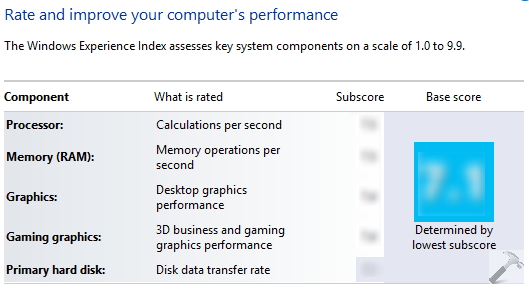
You can calculate WEI for your Windows 10 using two simple commands which I’m gonna tell you ahead. So before proceeding to use those commands, make sure your system is plugged to voltage source and not running on battery power. Here is how to determine WEI on Windows 10 using PowerShell:
How To Find Windows Experience Index On Windows 10
1. Open administrative Command Prompt and then type following command and hit Enter key:
winsat formal -v
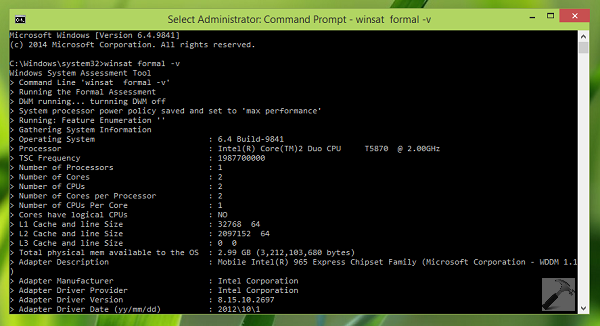
The command execution may take few moments, so wait for finishing execution. Once completed, you can close Command Prompt.
2. Next, open administrative Windows PowerShell and type following command followed by Enter key:
Get-WmiObject -Class Win32_WinSAT
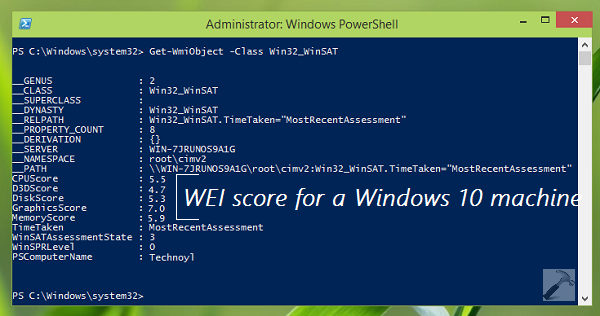
This will immediately list the ratings which is actually calculated at previous step (via Command Prompt). For your understanding, you can compare the scores listed with ones provided in UI. Here:
Processor score = CPUScore
Memory (RAM) score = MemoryScore
Graphics score = GraphicsScore
Gaming graphics score = D3DScore
Primary hard disk score = DiskScore
Hence, you can calculate your machine’s performance ratings very easily by following this method.
Hope you find the tip useful!







Excellent tip! I got my score 6.5 :)
nice find Kapil thanks for sharing it!
Thanks. Comparing scores with Windows 7 assessment has helped in custom tuning my GPU drivers for Windows 10. See: Windows Experience Index tool was useful for something other than making people run out and acquire better hardware for their machines…. lol
Thanks again. :)
Thanks Kapil! Also used a number of other tips on your site – thanks!
^^ Glad you find it useful!
I am trying to change the path of java in the system environmen i windows 10, but it won’t allow me to do it, it won’t give me the option to edit. the system variables. can you help me.
^^ Refer: https://www.kapilarya.com/change-user-and-system-environment-variables-windows-10.