

We’ve earlier shared you the step-by-step guide to Reset your Windows 10, when it is not working as per your expectation:
How to completely Reset Windows 10
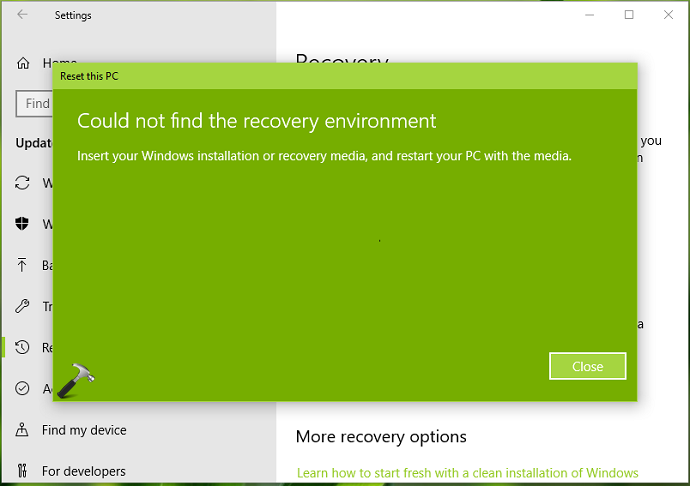
While you’re working with Reset feature, it is mandatory that Windows Recovery Environment (RE) is enabled on your system. If Windows RE is disabled on your system, you’ll not able to go ahead with Reset feature, as following error occurs while you opt for it:
Page Contents
Could not find the recovery environment
Insert your Windows installation or recovery media, and restart your PC with the media.
If you’re also facing this problem on your Windows 10, below mentioned fix will help you to solve this.
FIX: Could Not Find The Recovery Environment In Windows 10
Well, the root cause for this problem is that Windows RE is disabled on your system. As per Microsoft, “Windows RE is also a starting point for several tools for manual system recovery.” On a Windows 10 installation, usually Windows RE is enabled by default. But if you installed some third-party software or faulty updates, it might get disabled and cause this issue.
So our main goal here is to enable Windows RE, which should hopefully get rid of this problem. Try these steps:
1. Right click Start Button or press  + X keys and select Command Prompt (Admin) to open Command Prompt as administrator.
![[FIX] The Selected GPT Formatted Disk Contains A Partition Which Is Not Of Type 'PARTITION_BASIC_DATA_GUID'](https://htse.kapilarya.com/FIX-The-Selected-GPT-Formatted-Disk-Contains-A-Partition-Which-Is-Not-Of-Type-PARTITION-BASIC-DATA-GUID-Windows-10-1.png)
2. In administrative or elevated Command Prompt window, type reagentc /info and press Enter key.
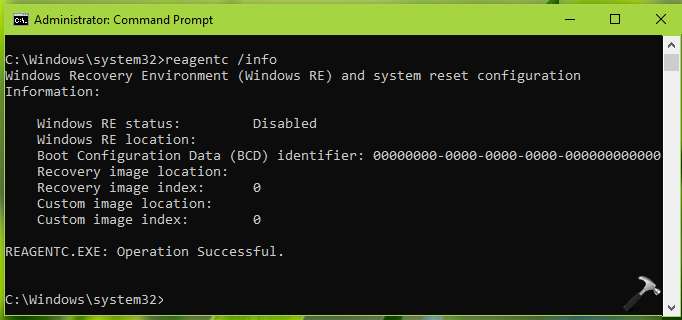
3. As you’re the victim of this issue, you’ll see the Windows RE status: Disabled in the resulting output. So now type reagentc /enable and press Enter key.
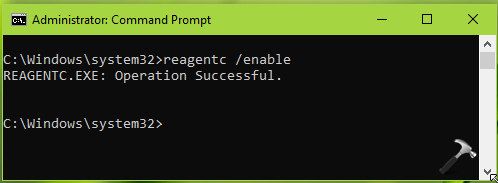
You’ll see Operation Successful as return message, which means Windows RE is now enabled on your system.
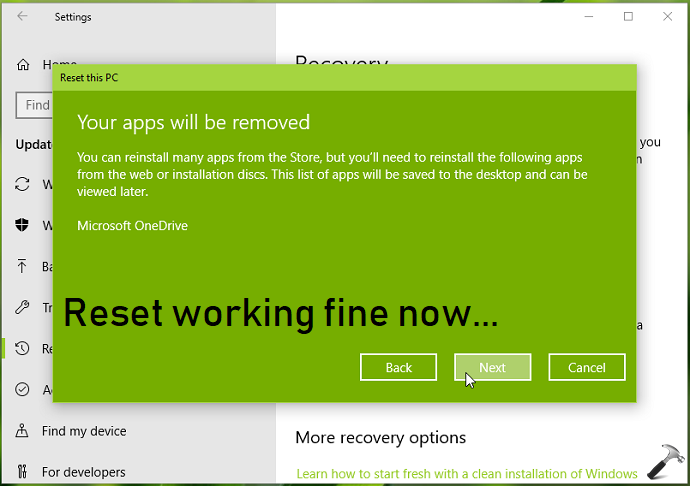
Close Command Prompt and try to perform Reset then. You’ll find that the Reset wizard is working fine now.
Check this video for illustration of this method:
Hope this helps!




Hi, I tried “regaentc \info” but it says ‘regagentc’ is not recognized as an internal or external command, operable program or batch file.
First of all I want you to know that I’m doing this reset to factory settings because there is virus on my pc and all my files are infected by extension file “puma”. That’s why I just want to reset to factory settings and delete all files and apps that are installed in my computer. What will I do now?
^^ You’re not using correct command. You need to run reagentc /info command not regaentc \info.
THANK YOU THANK YOU THANK YOU. LIFESAVER
^^ Glad to help!
REAGENTC.EXE: Unable to update Boot Configuration Data. Not able not to enable the ‘reagentc /info’. Getting the mentioned error, how can I solve this? Any idea.
^^ Follow steps 1-3 of this fix: https://www.kapilarya.com/fix-copy-the-recovery-partition-from-the-pc-to-the-recovery-drive-disabled-windows-10 and then retry.
Thanks, Arya. Now the system starts resetting the PC but after 2% shows another error ‘There was a problem resetting your PC No changes were made’. Should I have to go with fresh installation instead of resetting the PC? I am also attaching the disk partition management snapshot for better guide and support. ibb.co/znLWrLT
Tried multiple things but not able to reset the Dell Inspiron 3542 laptop 💻. Suppose If I want to go with a fresh windows installation there will be any activation issue because I don’t have the key laptop comes with a actived windows. While the system protection is corrupted and unable to restore.
^^ Check if you’ve OEM license: https://www.kapilarya.com/how-to-check-type-of-windows-10-license-installed. If yes, you can go ahead with clean install, your system will be automatically activated, as the license is tied to motherboard.
When I do the enable, it says that “The Windows RE image was not found”