

Recently, we have shared you the guide to install Windows 10 on a virtual machine which you can read here:
How To Install Windows 10 On Mac Using Virtual Machine
In that guide, we have preferred the automatically allotted settings to create virtual machine, by the virtualization software. However, even after using the recommended settings, when you try to boot with the ISO file to install Windows 10, you may not able to proceed. In some scenarios, you can receive following error:
Recovery
Your PC/Device needs to be repaired
This operating system uses the Physical Address Extension feature to support systems with more than 4 GB of RAM. You’ll need to use a PC with a compatible processor to run the operating system.
Page Contents
Error code: 0xc0000260
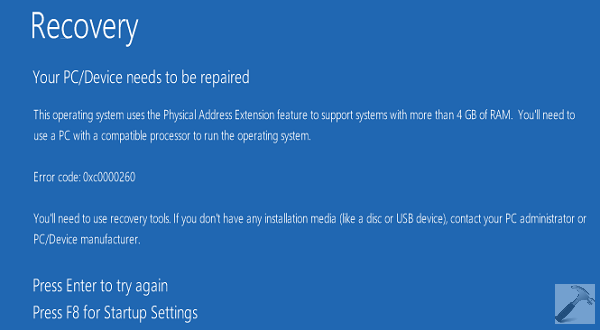
While in some other cases, users are likely to receive another error which advocates to reboot the virtual machine, which is meaningless. Here the message received is:
Your PC needs to restart.
Please hold the power button.
Error Code: 0x0000005C
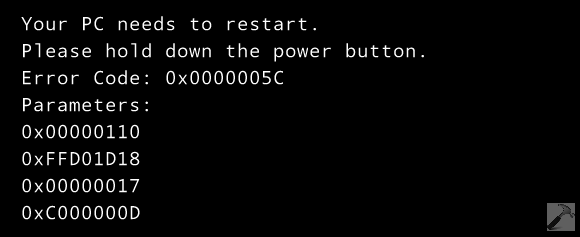
So whichever the error message you’ve received, the point is that you can’t proceed with the installation at all. Here is how to fix this issue very easily:
FIX : Error 0x0000005C While Installing Windows 10 Using Virtualization
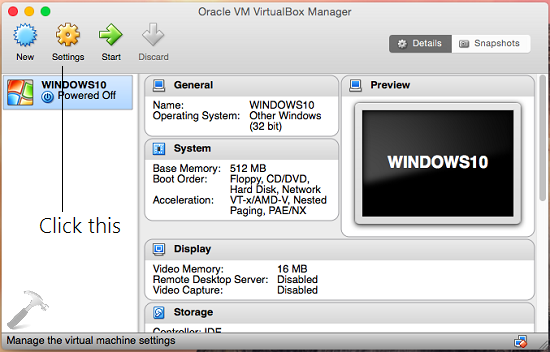
1. Open the VirtualBox Manager and locate the Windows 10 virtual machine, click Settings then.
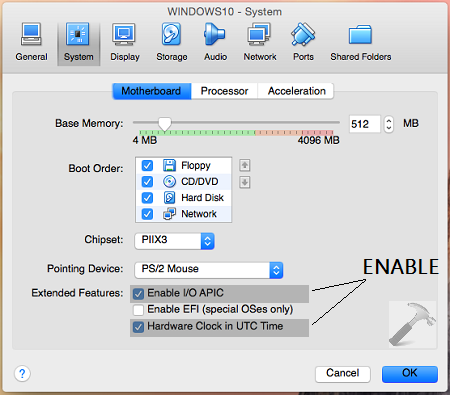
2. Next, in the settings window, switch to System section which will take you to Motherboard tab. For the Extended Features section, you need to enable following options:
Enable I/O APIC
Hardware Clock in UTC Time
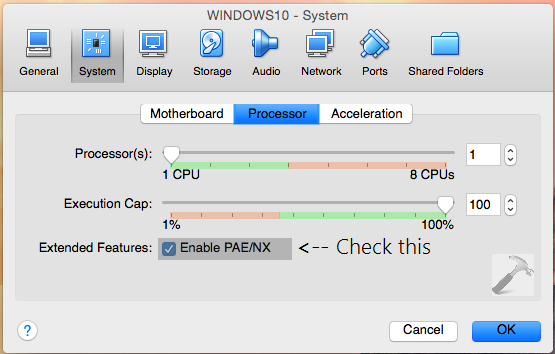
3. Moving on, switch to Processor tab in the same window as of previous step, and check the Enable PAE/NX option. Click OK.
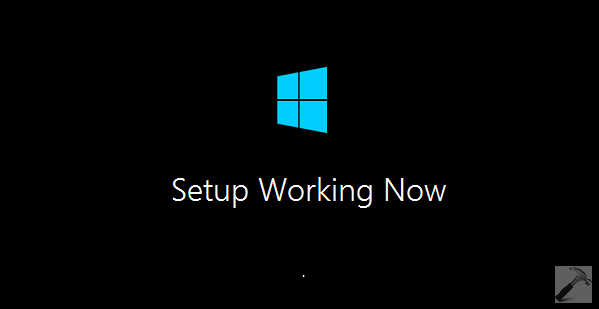
4. Finally, restart the the Windows 10 virtual machine, and this time you can easily proceed with setup.
Hope this helps!
Additional Reads:
1. [FIX] “Something Happened And The Windows 8.1 Couldn’t Be Installed. Error Code: 0x80071a91”
2. [FIX] “Something Happened And The Windows 8.1 Couldn’t Be Installed. Error Code: 0xc1900104”







Thank you, now I can install windows 10, I do it and it is working now
Error: 0x0000605
File :\ win.sys32.boot.winload.exe
A component of the Oper. Sys. has expired
Restart not here in this blue screen so I can’t 😞 hold power button…
And the previous Windows I can’t open it !
My Device is Dell 15 3537
^^ Please check: https://www.kapilarya.com/fix-a-component-of-the-operating-system-has-expired