Earlier, we’ve seen how to backup using File History in Windows 10. For File History backup, you can either use network drive or external drive. There are options available for drive selection, however use of external/network drive is the most recommended thing.
The File History feature regularly backup files from user account folder libraries. The default libraries such as Documents, Music, Videos, Desktop etc. are included in File History backup. The regular backup is possible via NTFS file system feature named, change journal. It keeps the track of files changes and whenever there is an update to files, the backup is updated. By this way, you reach a point where you different version of files restored in backup. You can explicitly select the version to restore.
Since you’re taking File History backup on external or network drive, sometimes trouble with these drives may prevent you from using this feature. One of those common issues is your drive may not be recognized by File History and you’ll see this message:
Page Contents
File History doesn’t recognize this drive.
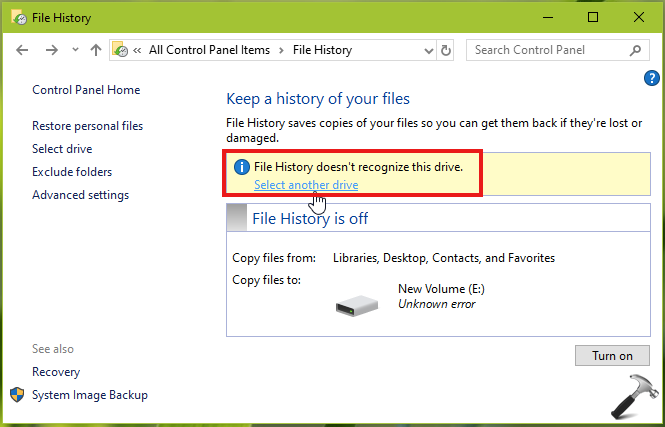
If you’re also facing this issue, and you don’t want to use another drive, you can refer below mentioned fix and see if it helps you:
FIX: File History Does Not Recognize This Drive
FIX 1 – General Suggestions
1. Temporarily disable Windows Defender Firewall or the third-party firewall software you’re using.
2. Temporarily turn off real-time protection in Windows Security/Defender or uninstall third-party AV software, if installed on your system.
3. Make sure network is working correctly on your system, in case if you’re using network drive for backup. You can run Network Adapter troubleshooter to detect and fix network issues automatically.
4. If you’re using external USB drive for backup, run Windows USB troubleshooter to fix issues with drive.
5. Press  + X and select Device Manager, right click on the drive which is not recognized, select Uninstall. Click Action > Scan for hardware changes.
6. You may also want to check with drive manufacturer, if they’ve issued any update to drivers for the drive. Installing those updates may help you to fix this problem.
FIX 2 – Via File Explorer
1. Press + E to open File Explorer.
2. In View tab, check Hidden items.
3. Assuming Windows is installed on C: drive, using File Explorer, go to following location:
C:\Users\<USERNAME>\AppData\Local\Microsoft\Windows\FileHistory\Configuration\Config
4. Try backup with File History and the error should disappear now.
If issue still persists, go ahead and reset File History feature.
Checkout following video to more information:
Hope this helps!