

Since the release of Windows 8.1 and Windows Server 2012 R2, users have came around a weird Desktop watermark in both of these operating systems. As we all know that Microsoft adds a watermark to their operating system, removal method of whose is shared here. Well, this time with Windows 8.1, we have observed the different lines mentioned in watermark. It says:
Page Contents
SecureBoot isn’t configured correctly
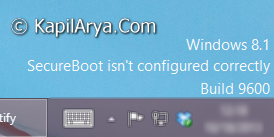
First of all we should try to find out what SecureBoot is and how it can be configured correctly. Actually, using the measured boot, Windows can further validate the boot process beyond SecuredBoot. So the SecureBoot ensures that the start-up processes are now signed, protected, and measured. The new Windows operated machines are now came with SecureBoot feature having in-built with them. SecureBoot can be enabled or disabled in machine’s BIOS settings. Following are the key highlights of SecureBoot:
- SecuredBoot stops malware in its tracks and makes Windows 8 significantly more resistant to attacks. In the worst case if virus has already made it into your PC, Windows 8 will block its spread and actions until the operating system is loaded, and antivirus takes guard.
- If at any moment during boot, Windows finds un-trusted applications trying to load, Windows will block its actions. It uses Early-Launch Anti-Malware (ELAM) technology.
- Windows 8 allows antivirus and firewalls to load up early during boot time so as to assure protection up-front.
- And finally Windows 8, if it detects any registry errors or driver errors, it will fix it automatically.
Well, lets stick to the topic now. I’ve seen that many users facing the issue tried enabling SecureBoot in BIOS settings but that doesn’t helped them. So here are the two ways to solve this issue:
FIX : Remove “SecureBoot Isn’t Configured Correctly” Watermark In Windows 8.1
FIX 1 – Using Registry Editor
Registry Disclaimer: The further steps will involve registry manipulation. Making mistakes while manipulating registry could affect your system adversely. So be careful while editing registry entries and create a System Restore point first.
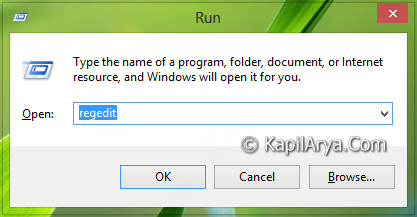
1. Press  + R and put regedit in Run dialog box to open Registry Editor (if you’re not familiar with Registry Editor, then click here). Click OK.
2. Navigate here:
HKEY_LOCAL_MACHINE\SOFTWARE\Microsoft\Windows\CurrentVersion\Policies\System
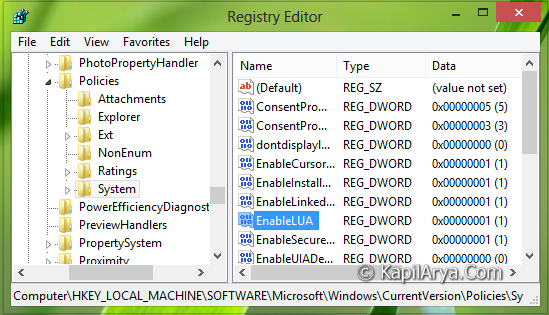
3. In the right pane of this location, look for the DWORD named EnableLUA, it must having the Value data as 1; as you’re facing the issue. So double click on the same DWORD to modify its Value data:
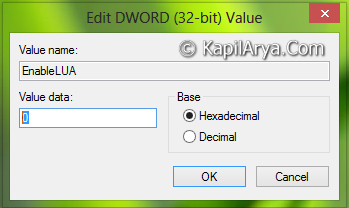
4. In the above shown box, replace the Value data from 1 to 0. Click OK. You may now close the Registry Editor and reboot to get results.
FIX 2 – Via Windows Update
For November 2013 updates of Windows RT 8.1, Windows 8.1, and Windows Server 2012 R2, Microsoft has accepted that this is a known issue now and thus they have provided the update packages to solve this. Download the package from appropriate link and apply:
All supported x86-based versions of Windows 8.1 – DOWNLOAD UPDATE PACKAGE
All supported x64-based versions of Windows 8.1 – DOWNLOAD UPDATE PACKAGE
All supported x64-based versions of Windows Server 2012 R2 – DOWNLOAD UPDATE PACKAGE
Hope you find the article useful!



Thankxxxxxxxxxxxxx :) ;)
Thanx a lot
^^ Glad, we could help :)