Sometimes, when you connect your Android phone to a Windows 11 PC using a USB cable, nothing shows up in File Explorer, your phone just charges, or doesn’t appear at all.
Page Contents
Fix Windows 11 Cannot Recognize Android Phone
This usually happens because the phone is still set to Charging only, the USB cable or port is faulty, Windows lacks the correct driver, or the phone isn’t configured properly to allow data transfer.
Fix 1: Select the Correct USB Connection Mode
When you plug in your Android device, it may default to charging only, which means Windows won’t see it as a storage device.
1. Connect the phone to your PC with a USB cable.
2. Swipe down the notification shade on your phone.
3. Tap the USB connection options and choose File Transfer or MTP (Media Transfer Protocol).
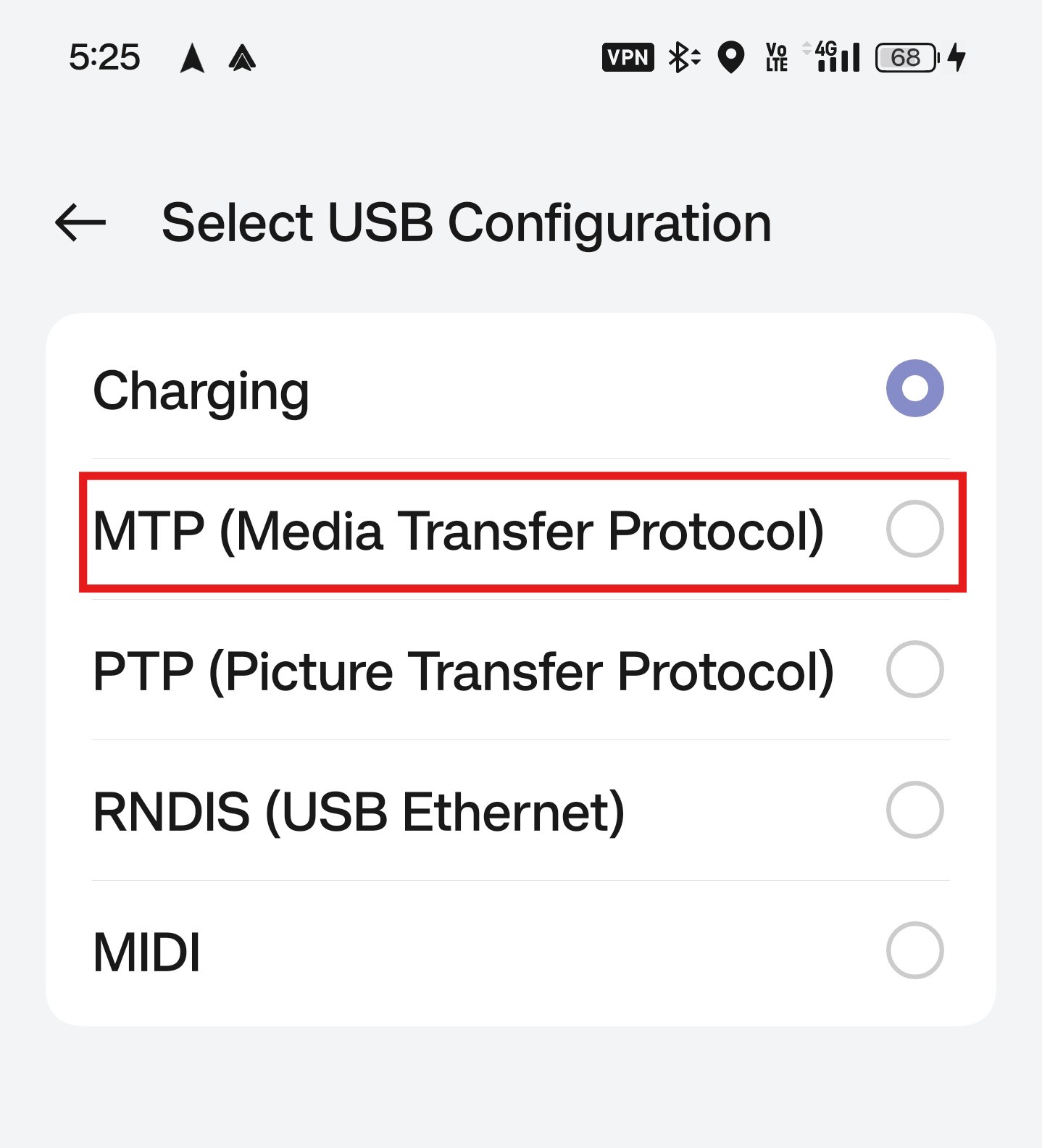
Once switched, your phone should appear in File Explorer, allowing you to browse files.
Fix 2: Enable USB Debugging on Your Phone
USB Debugging sometimes helps Windows communicate more fully with your device:
1. On your phone, go to Settings, then About phone.
2. Tap Build number multiple times until Developer Options is enabled.
3. Back in Settings, open Developer options and turn on USB Debugging.
4. Reconnect the phone to your PC.

This setting gives Windows more access and can fix connection issues.
Fix 3: Change the USB Cable or Port
Not all USB cables support data transfer; some are designed for charging only.
1. Try a different data-capable USB cable.
2. Plug the phone into a different USB port on your Windows 11 device.
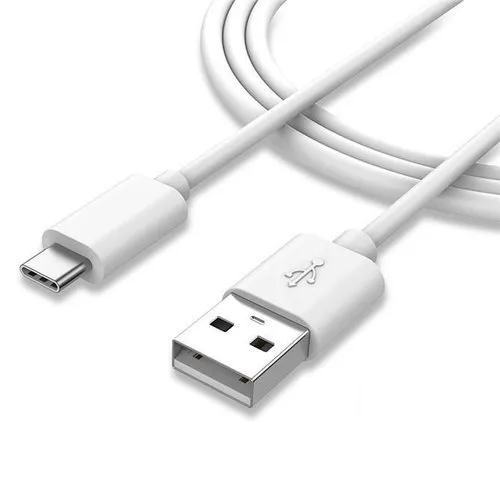
If another cable or port works, your original cable or port was likely preventing the connection.
Fix 4: Uninstall and Reinstall the Phone Driver
Windows needs the right driver to recognize your phone:
1. Press Win + X and choose Device Manager.
2. Look under Portable Devices or USB Controllers for your phone.
3. Right-click it and select Uninstall device, then disconnect the phone.
4. Reboot your PC, reconnect your phone, and let Windows reinstall the driver.
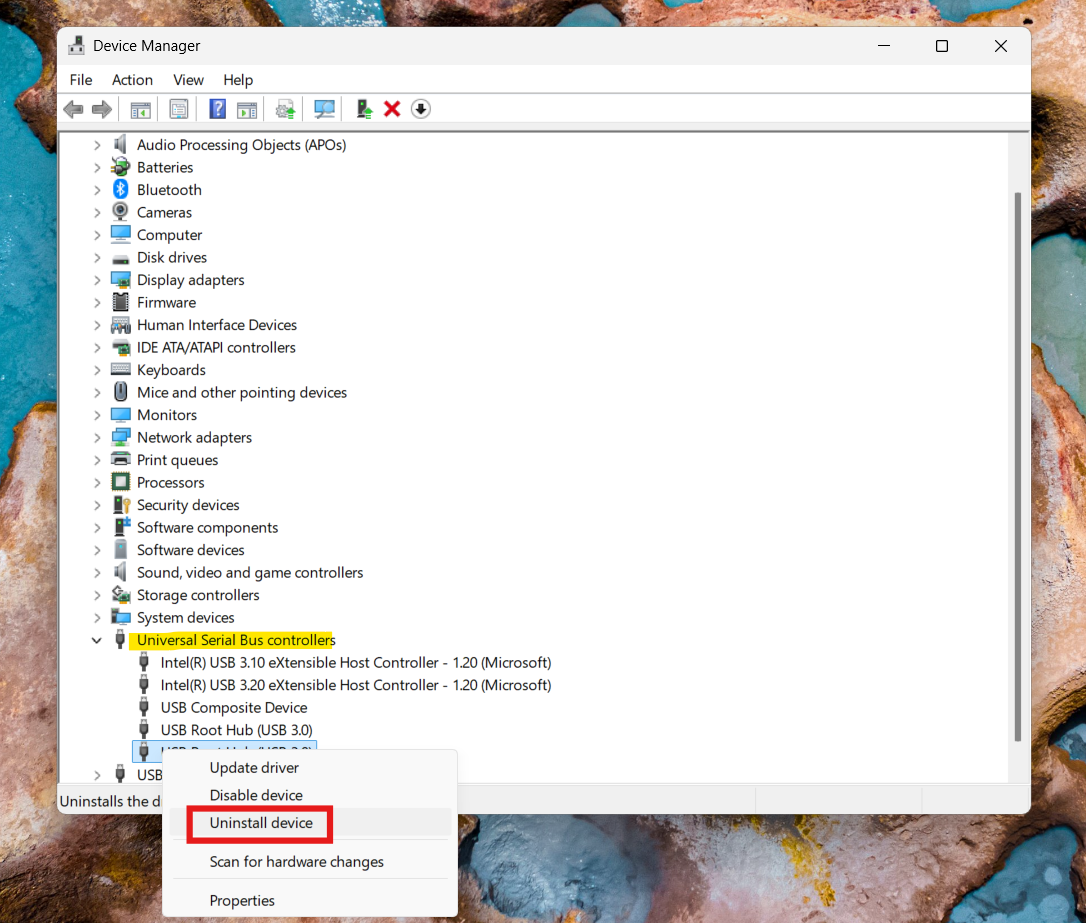
This refreshes the driver and often fixes detection glitches.
Fix 5: Clean USB Ports and Restart Both Devices
Hardware can also cause problems:
1. Use compressed air or a small brush to clean the USB ports on your phone and PC.
2. Restart both your phone and your Windows 11 PC before connecting again.
Debris or a temporary software hang can otherwise block a proper connection.
Fix 6: Try a Different Computer
If none of the above helps, connect your Android phone to another PC using the same cable.
And if another computer recognizes it, the issue is likely with your Windows 11 system.
But, if the phone still isn’t seen, the fault may lie with the phone’s USB port or internal settings.
[Optional] Use Wireless Transfer
If USB file transfer remains stubborn, consider using wireless tools like apps that sync files over Wi-Fi, Bluetooth, or apps provided by your phone maker, though these work differently than a direct USB connection.
Wrapping Up
Windows 11 not recognizing an Android phone is usually due to issues with the default USB mode, cable/port problems, or driver conflicts. By switching to File Transfer mode, using the correct cable, enabling USB debugging, and updating the driver, most users can resolve the issue and access their phone’s storage.