We’ve earlier shared you about how to enable dark theme in Windows 10. With Windows 10 V1809, Microsoft has made the dark theme compatible for File Explorer as well.
Now with recently released build 18282 (under 19H1/Redstone 6 development branch) for Windows Insiders, Microsoft has introduced Windows Light theme. Since Microsoft seems done with dark theme, its high time Windows users looking for light theme and Microsoft has finally included it in Windows 10.
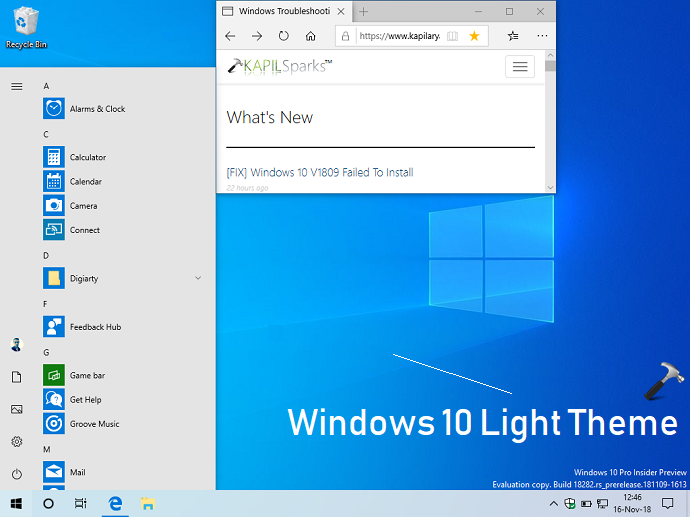
Note, that theme is initially introduced in build 18282 and is expected to undergo changes, before final stable release of 19H1. Well, the theme looks quite good in first impressions. In comparison to dark theme, light theme gives you more positivity on the screen.
If you’re on Windows 10 build 18282 or later, here’s how to enable light theme:
Page Contents
How To Enable And Use Light Theme In Windows 10
Method 1 – Using Settings App
1. Right click Start Button or press  + X keys and select Settings.
2. In the Settings app, navigate to Personalization > Themes.
3. Now in right pane of Themes section, double click on Windows Light theme to apply it.
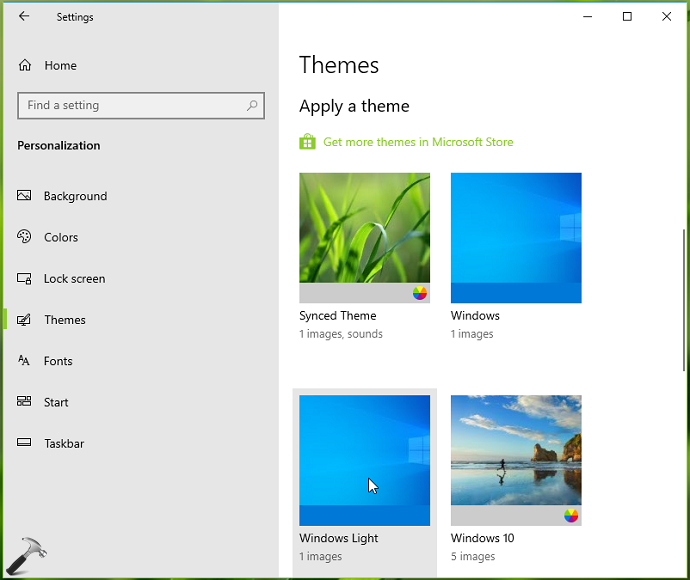
In this way, you can enable light theme in Windows 10.
An alternative approach to enable light theme is mentioned in Method 2 below.
Method 2 – Via File Explorer/Windows Theme File
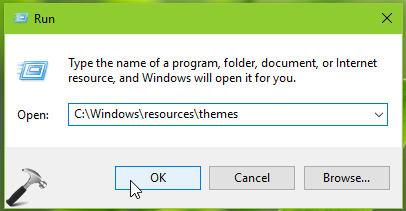
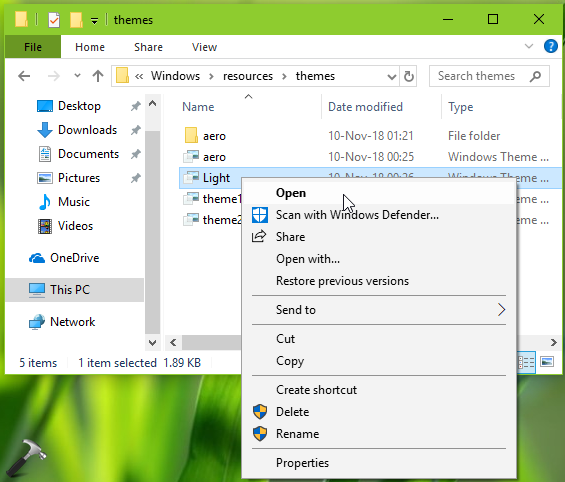
1. Assuming Windows is installed on C: drive, press + R and type C:\Windows\resources\themes in Run dialog box, click OK.
2. In themes folder so open, right click Light named Windows Theme File and select Open.
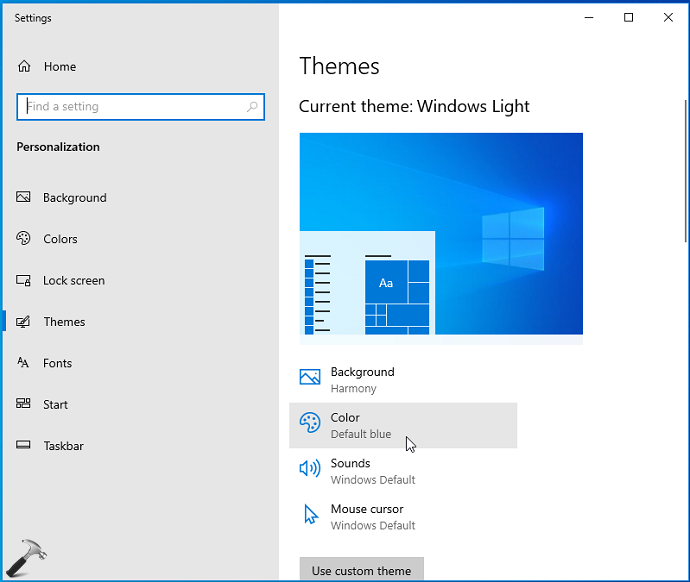
3. This will immediately apply Windows Light theme and open below shown page in Settings app. Click on Colors.
4. Finally, to have best experience with Windows Light theme, under Choose your color, choose Custom. Now select your Windows and app mode between Light or Dark as per your convenience. We recommend you to keep both modes set to Light.
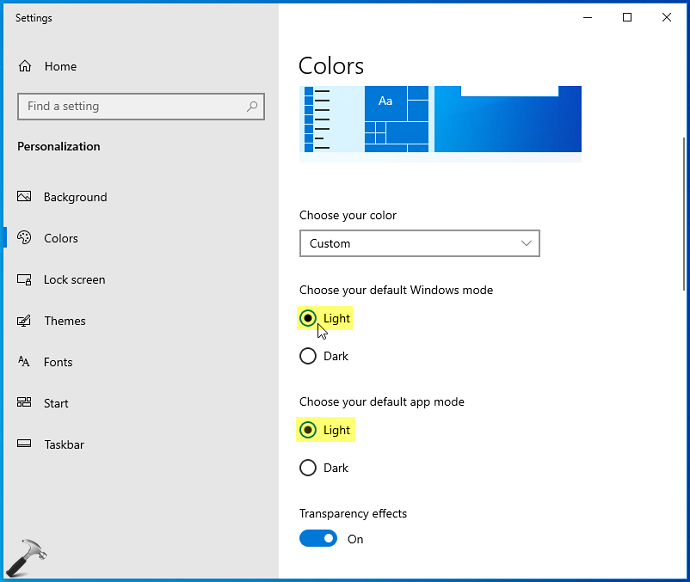
So this is how you can enable and use Windows Light theme in Windows 10.
That’s it!