[How To] Refresh Windows 8.1

3. After clicking Next, you’ll see the Preparing window: 4. There might be a possibility that Windows will ask you to insert the installation disc (in cas

Kapil Arya
11x Microsoft MVP · Admin
4 min read
Add as a preferred
source on Google

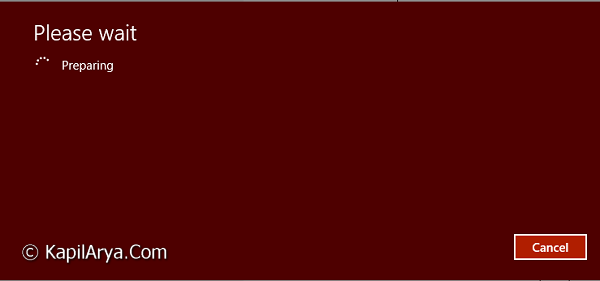
3. After clicking Next, you’ll see the Preparing window:
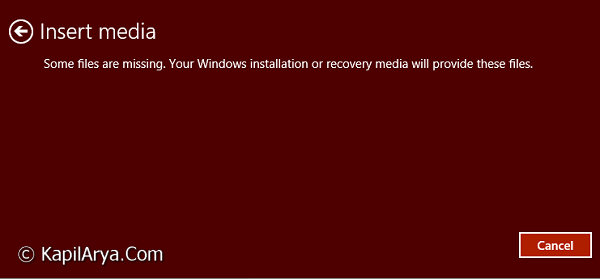
4. There might be a possibility that Windows will ask you to insert the installation disc (in case you’re not running Windows 8 that came pre-installed by OEM), you can try the method of this article to skip it:

See : Some files are missing. Your Windows installation or recovery media will provide these files.
5. When everything is ready, Windows will provide the option to do Refresh:
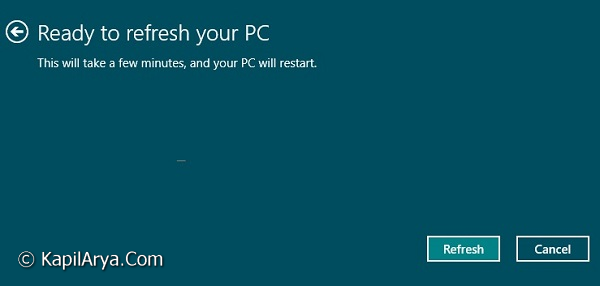
After clicking Refresh in above screen, Windows will start refreshing and you can log back to refreshed Windows after finishing. That’s it!

Refresh Windows 8.1 At Boot

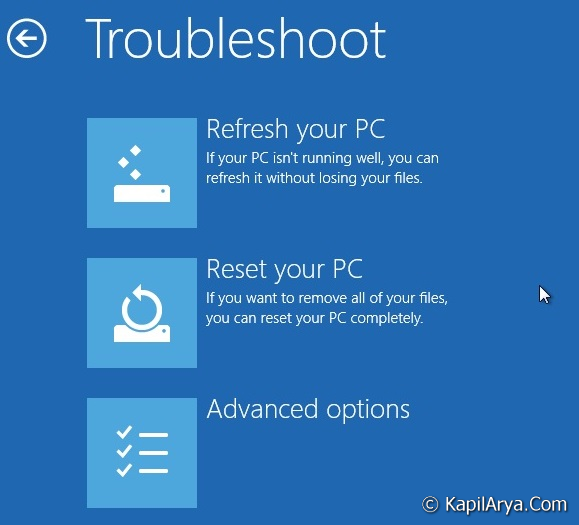
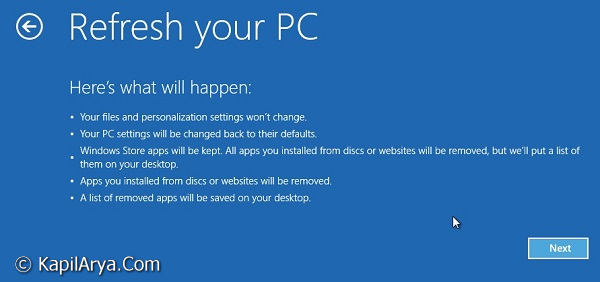
1. Boot to the System Recovery Options using your Windows 8 or 8.1 installation DVD or USB thumb drive, or ISO file if in a virtual machine, and click on the Refresh your PC option (for dual boot, at boot menu, press F8 to get Advanced Options, then pick Troubleshoot) :
2. Click on Next:

Share this article
https://www.kapilarya.com/how-to-refresh-windows-8-1

Shareable URL

Article by

Kapil Arya
11x Microsoft MVP · Admin

Kapil holds Microsoft MVP title in Windows IT Pro expertise, 11-times in a row (2014-2025). He is 8-times Windows Insider MVP as well, and author of 'Windows Group Policy Troubleshooting' book. In 2015, Microsoft India accomplished him as 'Windows 10 Champion'. Being passionate Windows blogger, he loves to help others on fixing their system issues. Kapil has worked with official Microsoft Community Engagement Team (CET) on several community projects. You can subscribe him for news/updates and fixes for Windows.