

Windows 10 comes with some default apps pre-installed. Additionally, if you create a new user account on your Windows 10, that account also have same pre-installed apps. One of these pre-installed apps is Mail app, which you can use to check mail from different providers. Worth to mention here that Calendar app, is also integrated in the Mail app package and both are usually referred as ‘communication apps’.
In case, if you’re a system administrator and wants to prevent your clients from using Mail app, this guide will show how to do it. Since Mail app is not a ‘system app’, so it is not integrated into the operating system, like Microsoft Edge or Cortana app. Hence it is possible to remove Mail app using user interface or by using Remove-AppxPackage cmdlet. Both the methods are mentioned below to remove Mail app from your Windows 10.
Page Contents
How To Remove Mail App From Windows 10
Method 1 – Via Settings Apps
1. Right click Start Button or press  + X keys and select Settings.
2. In the Settings app, navigate to Apps > Apps & features.
3. Under Apps & features, scroll down and click on Mail and Calendar app and then click Uninstall button.
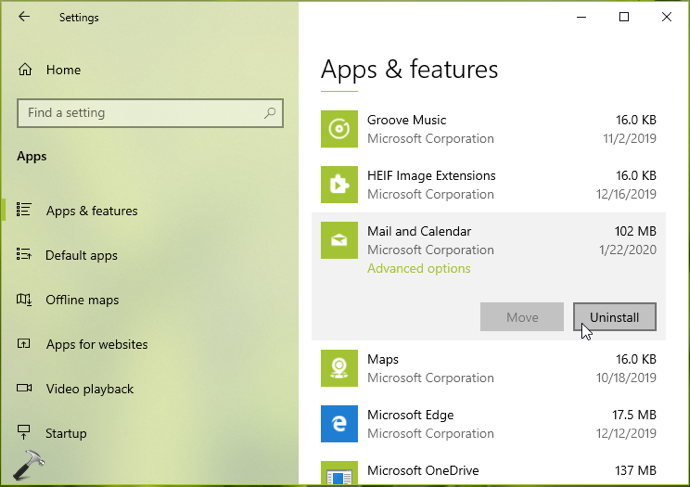
4. Mail app should be uninstalled within few seconds. Close Settings app and return to Desktop, if you like.
Method 2 – Via Windows PowerShell
1. Right click Start Button or press + X keys and select Windows PowerShell (Admin).
2. In administrative Windows PowerShell window, paste following and press Enter key:
Get-AppxPackage Microsoft.windowscommunicationsapps | Remove-AppxPackage
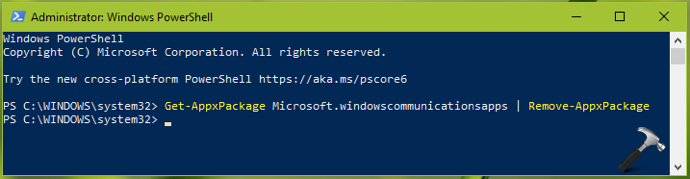
3. The code execution should take few moments and Mail app will no longer be part of your system. You can close Windows PowerShell and successful command execution.
So this is how you can remove Mail app from your Windows 10. To reinstall Mail app later, go to Microsoft Store and get it from there.
That’s it!



![[How To] Allow/Prevent Apps To Access Email In Windows 10](https://www.kapilarya.com/assets/email_icon_1783831350.jpg)
