We all know that we’ve to first activate Windows with a proper license, so that we can use it. Activation authenticate us to use Windows without any restriction. If we don’t activate Windows, some feature won’t be available to us.
For activation, one needs a proper license. The license could be retail, OEM or volume license. You need to selectively choose the correct license depending on your needs. If you’ve bought retail license, it posses transfer rights. This means you can uninstall the product key from one system and then use it to activate other system. In this article, we’ll show you how to uninstall the product key from your system.
How To Uninstall Product Key In Windows 10
First of all, you should backup your installed product key. Once it is uninstalled, you may find it trouble to locate it on your system. To find your product key outside Windows, you can also refer this article.
After ensuring that you’ve your product key, you can follow these steps to uninstall it from your system:
1. Right click Start Button or press  + X keys and select Command Prompt (Admin).
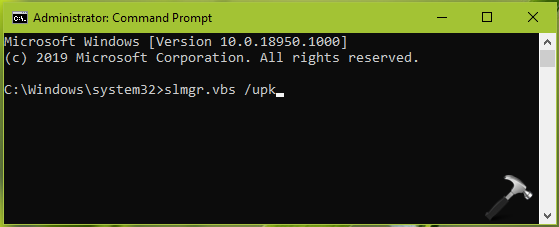
2. In the Command Prompt window, type following command and press Enter key:
slmgr.vbs /upk
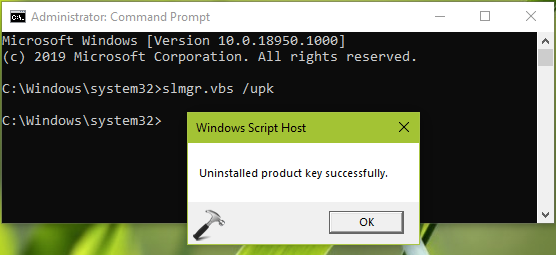
3. Next, you should receive the confirmation saying Uninstalled product key successfully. However, your product key is still intact in the registry database.
4. To remove your product key from registry database as well, type following command and hit Enter key:
slmgr.vbs /cpky
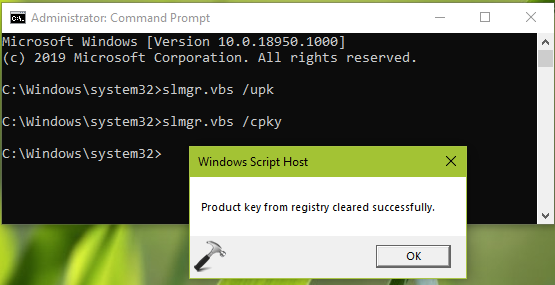
5. You should now get confirmation that Product key from registry cleared successfully. Close Command Prompt.
In this way, product key from your system is uninstalled and Windows is deactivated. To confirm this, check the Activation status at Settings app > Update & Security > Activation. This also means Windows activation is reset on your system.
To activate your another system with uninstalled product key, refer steps to activate in this guide.
Hope you find the article useful!