

We all know that Windows Updates are essential to keep smoothly running our Windows machine. But sometime Windows Updates may fail to either download or install on your system. In such cases, users look for the way to download and install updates manually. This article is dedicated to all those users and will share the steps to manually download and install updates in Windows 10.
Well, manual installation of updates goes via Microsoft Update Catalog site. This site offers offline update files/packages in .msu format. You just need to download those update package and let them install via Windows Update Standalone Installer. This alternatively gives you the way for installing specific updates of your choice. However, you can also install specific updates using Windows PowerShell.
Step-by-step instruction to manually download and install updates are mentioned below.
How To Manually Download And Install Windows Updates In Windows 10/8/7
1. Follow this guide to view update history. It’ll show you failed updates as well. Copy the name of those updates which are failed and you want to install them manually.
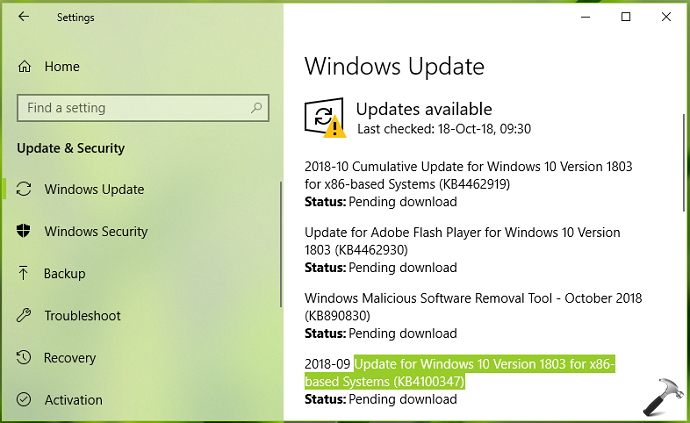
2. Open your favorite browser and click this link to open Microsoft Update Catalog site. In the search box, paste the name of update you want to download and install manually and click Search.
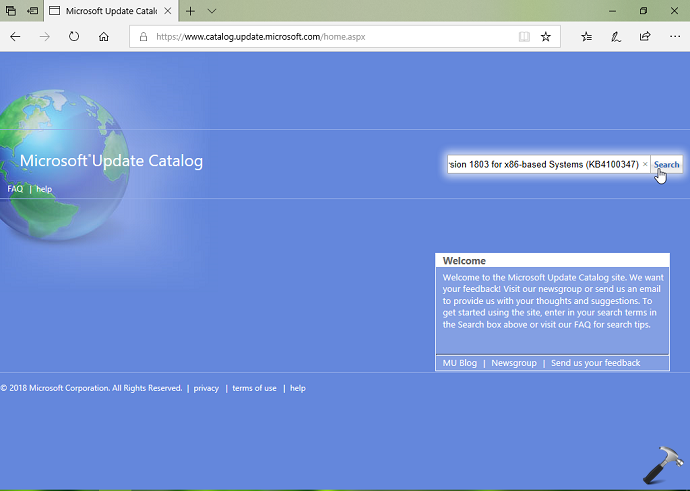
3. Then from search results, click on Download button.
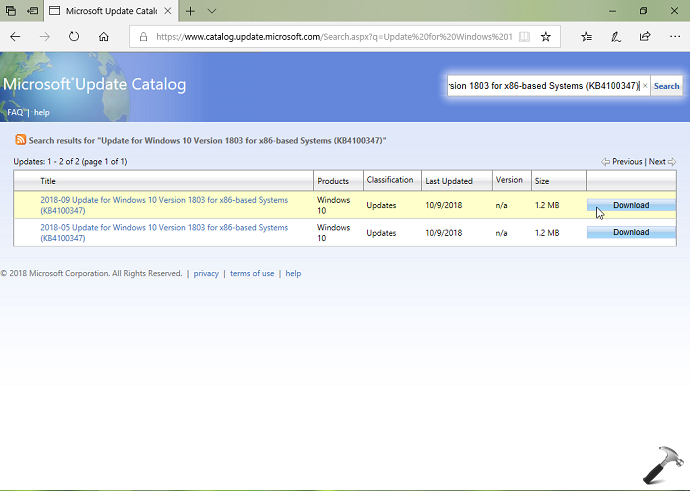
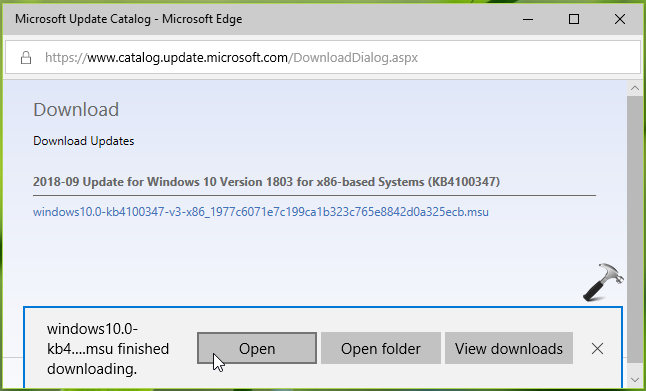
4. Now in Download Updates section, click on update’s .msu file. Now opt for downloading the update in browser prompt.
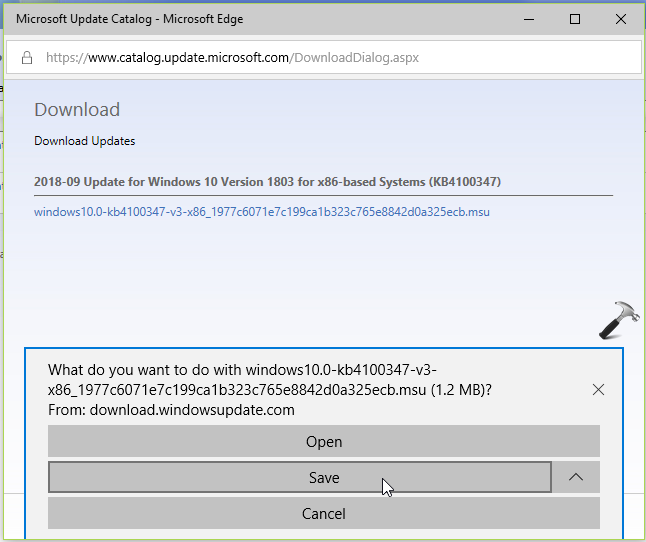
5. Once the update is downloaded, click on Open or simply double click downloaded .msu update file.
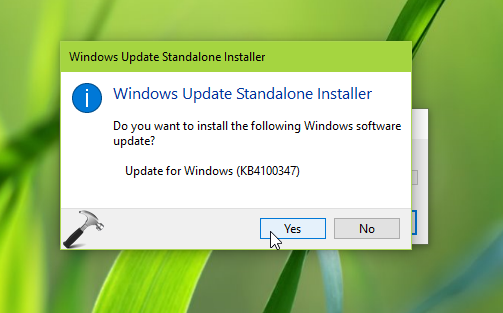
6. Moving on, in Windows Update Standalone Installer prompt, select Yes to install updates.
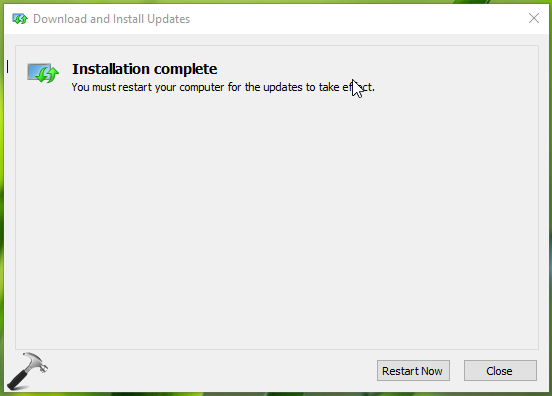
7. Then wait till updates installed and you’re prompted for reboot. Click Restart Now button.
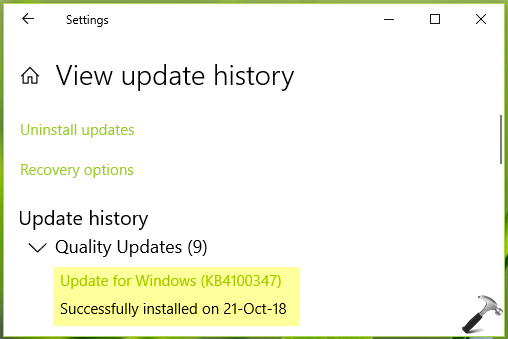
8. After restarting your system and completely installing the update, you’ll be able to locate manually installed update in your system’s update history.
So this is how you can download and install Windows Updates manually.
Check out this video for illustration:
Hope you find the guide useful!





Hi Kapil,
The above given solution is not worked for this update
2018-10 Cumulative Update for Windows 10 Version 1709 for x64-based Systems (KB4462918)
I followed above solution again it failed. The problem with this update is downloading update after 100% completion undoing changes taking more than 25 minutes. After unable to update going to Error but the biggest problem is it is keep on downloading and failing. It’s really irritating after disable service still it is triggering.
^^ I suggest you to first upgrade to V1809, the latest version. If you want to stay on V1709, refer this link: https://www.kapilarya.com/fix-windows-10-keeps-installing-same-update
Thanks so much.
^^ Glad it helped 😎
I tried your way,,and it said that some updates were not installed,,,,,mine is 2018-12 Cumulative Update for Windows 10 Version 1803 for x86-based Systems (KB4483234)
^^ Please run Windows Update troubleshooter from Settings app > Update & security > Troubleshoot. Let me know what it reports back.
Hello Kapil, I’m also trying to update to version 1809 but not able to thru Settings> Windows Update. I have also followed the steps in your above mentioned guide and I’m not sure if I downloaded the correct files. I received a notification that read “Window Update Standalone Installer – The update is not applicable to your computer.
The files I downloaded and ran:
– 2018-11 Cumulative Update for Windows 10 Version 1809 for x64-based Systems (KB4469342)
– 2018-10 Update for Windows 10 Version 1809 for x64-based Systems (KB4465065)
Also ran the Troubleshooter and the issue found were shown to be fixed.
^^ Forgot Windows Update and perform upgrade via V1809 ISO file: https://www.kapilarya.com/how-to-upgrade-to-windows-10-using-iso-file. I am sure it will work just fine 😊
THANK YOU! This worked like a charm. I have been wrestling with this update for a while now and this fixed/installed it.
^^ Happy to help Jerry 😊
What if it didn’t work? I’ve been trying thousands of things to get my audio and microphone to work on my PC and this update fails everytime.
^^ Which update you’re installing?
None of it worked. I didnt try the iso cause thats just silly. (KB4511553) will not install.
^^ What error you exactly get while installing KB4511553? Have you tried installing KB4512534 manually? The ISO method will directly take you to V1903, if you try.
My computer continues to attempt to download and install “Feature update to Windows 10, version 20H2”, even though it was installed on 11/14/2020. It appears this error will not allow the download and install of “2021-01 Update for Windows 10 Version 1803 for x64-based Systems (KB4023057) “
I just download KB5003637 update manually and i install it. after installation i check my update history, in update history, it shows that KB5003637 Successfully installed on 18-06-2021. After that i checked check for updates and it shows that “2021-06 Cumulative Update for Windows 10 Version 21H1 for x64-based Systems (KB5003637)” pending download. the update got stuck at 100% download.
if my KB5003637 update is successfully installed than why it show on (check for updates) pending download.
After 100% download of KB5003637 update (on windows update), the download stuck at 100% and using my all bandwidth.
that’s why i am unable to download and install the further updates.
please help.
^^ Try resetting Update database. Open administrative Command Prompt and type following commands one-by-one followed by Enter key.
net stop wuauserv
net stop cryptSvc
net stop bits
net stop msiserver
Ren C:\Windows\SoftwareDistribution SoftwareDistribution.old
Ren C:\Windows\System32\catroot2 Catroot2.old
net start wuauserv
net start cryptSvc
net start bits
net start msiserver
Close Command Prompt and see if Windows Updates works then.
I have a new Dell PC w Win 10 and the latest Office apps. But there were/are issues with activating them. To maintain office productivity I install an extra licensed copy of Office 2003 along with the extensive VBA code attached to some of the office applications.
The result: WinUpdate does all the usual Win 10 updates, but it fails to install the ‘Update for Office 2003 KB907417’). It does the download but fails. So I manually download the KB cab file , extracted from it file: OTKLOADR.msp. Now what do I do? Can you advise via an email to me, please. TY. (*Email removed for privacy*).
2021-11 Cumulative Update for Windows 10 Version 21H1 for x64-based Systems (KB5007186)
I have the same problem above that I cannot update the above, how can I solve the problem?
I follow your instruction to update (KB5007186), but the result is as follows:-
The following updates were not installed.
Security Update for Windows (KB5007186)
^^ Michael, I recommend you to upgrade to Version 21H2 directly using ISO file:
https://www.kapilarya.com/how-to-upgrade-to-windows-10-using-iso-file.
Bonjour Kapil,
je n’arrive pas à installer cette mise à jour. Et déjà plusieurs fonctionnalités de mon pc ne marchent plus.
Il s’agit de cette mise à jour 2022-06 Mise à jour cumulative pour .NET Framework 3.5 pour et 4.8 pour Windows 10 Version 21H2 pour les systèmes x64 (KB5013887)
Peux-tu m’aider à le résoudre?