

There exists two conditions when you’re expected to receive the error mentioned in title of this post. Firstly, when you’re running out of space on your system hard drive and secondly, when a feature of Microsoft Office is causing this issue. In the latter case, where the problem is not actually related to memory space, but still you’re receiving the following error message which directly indicates the low disk space condition:
Page Contents
Microsoft Excel cannot open or save any more documents because there is not enough available memory or disk space.
To make more memory available, close workbooks or programs you no longer need.
To free disk space, delete files you no longer need from the disk you are saving to.
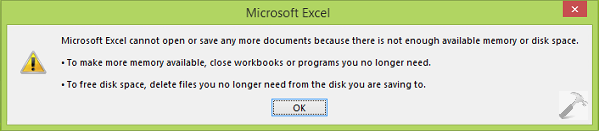
We faced this problem with a Excel spreadsheet downloaded from Google Docs. The spreadsheet size was less than 1MB and we have GBs of free space on the disk where this spreadsheet was saved. Also we’ve another spreadsheets saved on same location and created by Excel on local computer, which we can open without this error. So this clearly shows that this is not a memory related issue at all, plus the problem persists with spreadsheets downloaded from the Internet only.
Read : How to prevent Internet usage in Office 2013?
After a bit of research on this, we summarize that the Protected View feature of Office 2013 / Excel 2013 is root cause in generating the hiccup, so here is how to fix it:
FIX : Microsoft Excel Cannot Open Or Save Any More Documents Because There Is Not Enough Available Memory Or Disk Space
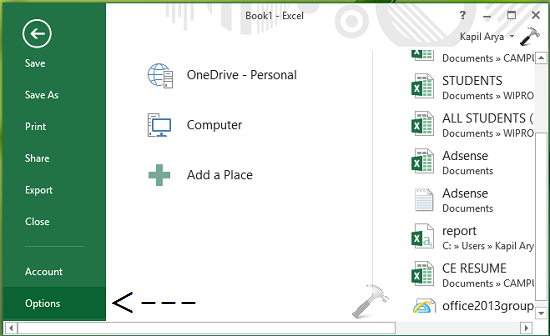
1. Open any new document in Excel, and click FILE -> Options.
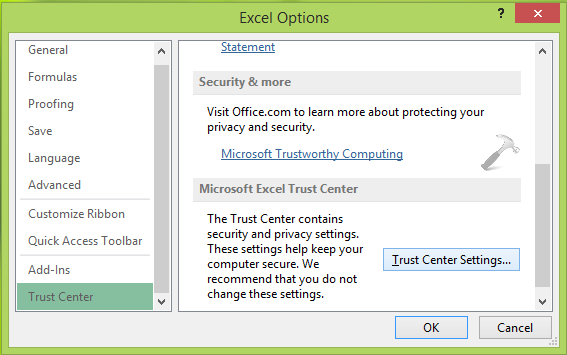
2. Next, in the left pane of Excel Options window shown below, select Trust Center. Now in corresponding right pane click on Trust Center Settings button:
3. Moving on, in the Trust Center settings window, select Protected View from the left pane. Finally, uncheck/disable all options in right pane there, which are:
- Enable Protected View for files originating from the Internet
- Enable Protected View for files located in potentially unsafe locations
- Enable Protected View for Outlook attachments
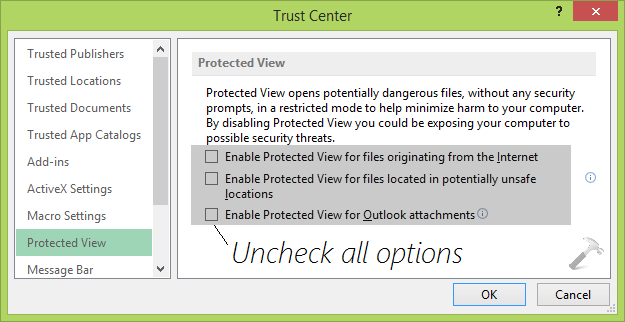
Click OK, OK and then restart your system. After rebooting the machine, try to open the spreadsheet with which you’re getting error, you’ll find that this time it opens as expected.
That’s it! Checkout how to make files password protected in Office 2013.


This did not work for me. Ive been trying to find a fix for this for days now and nothing works. Even the boxes when selecting don’t match up sometimes. What is ther about 20 different versions of office and windows 10? I just dont get it.
^^ Then you need to make sure, you’ve enough space on the harddisk :)
Solved my problem. Thank you.
^^ Glad we could help :)
Thank you! This solved my problem with Excel 2016.
^^ Happy to help!
Thank you! solved my problem.
^^ Thanks for feedback!
Thanks man, you made my day ! What a piece of crap ! Especially the error message that had nothing to do with it whatsoever !
^^ Great to see it worked!
Finally solved my issue! Thanks!!
worked for me thanks using Office 2013 on a surface Pro 3
^^ Cool :)
problem resolved……..thanks…
^^ Glad it helped! :)
tankyou for data
very nice
Resolved, thanks for help
^^ Awesome 😊
thanks man :)
Many thanks, got me out of a hole.
^^ Nice ☺️
Thank you Kapil Arya
I have 700 gb available – still getting this error. I have MS Excel for Mac 2016. There is no Trust Center or Protected View settings that I can find. Any advice?
^^ The settings should be there. By the way which edition of Office you’re using?
thanks a lot you solve my problem
^^ Perfect 😎
Thank you!!! I was going nuts, but your solution worked. Yay!
^^ Thanks for your feedback!
problem showing same i have remove all protected view options but problem same in office 2016
^^ No idea why it didn’t worked for you! Anyway, try repairing Office and see if it helps: https://www.kapilarya.com/how-to-repair-office-2013-offline
Thanks problem got solved,…..
^^ Great!
Thanks for your help
^^ :)
This was AWESOME! Totally fixed the problem I was having. Thank You!
^^ Very nice!
this worked for me:
file–>options–> Trust center –> trust center settings –> File Block Settings –> activa la opción Open selected file types in protected view and allow editing
^^ Thanks for adding this!
Thank you !!!! It works perfect
^^ Excellent 😊
Trust center settings did not work. This did work:
youtube.com/watch?v=3ugck2ml_WE
I had to change the registry file to point to C:\windows\temp
thkz bro..!you made it easy.
Great JOb.
^^ 😎
Tks, guys
^^ Very cool!
Thanks a lot !! It worked :-
^^ Welcome!
dear team,
Thanks for the solution.
^^ Nice!
Thanks a Lot !
Solved my long time issue…
Appreciated!
^^ Happy to hear that!
solved my issue thanks
^^ 👍
this works!!!!
Thank you so much its really working..
^^ Thanks a lot for your feedback!
Thank You for posting this awesome fix! This fixed for our Office 2016 and 2013 users. I cannot seem to figure out how those settings were turned on. Might have been an update to the Office Suite? Thanks again.
thanks problem has been resolve.
This fix worked for me only on “existing Excel files”.
I am still unable to open a “new Excel file” and still getting the same error message.
Any suggestions?
I am running Excel 2016 on Windows 10 64 bit
thanks 10x
thanks !
issue has been resolved
^^ Amazing!
i dont trust at first, but solved the problem so thanks
^^ That’s cool!
Yippee issue resolved. Thanks Kapil
^^ Glad it helped 😊
THANK YOU!!!
^^ Thanks for your feedback, Katie!
hello Kapil,
Can you please help me withan issue were user is unable to sign in to the Office applications.?
^^ Sure, what happens when you sign-in to Office? Do you see any error message/code?
Thanks Kapil for Help
^^ 👍😊
Its Working. TYSM
^^ You’re welcome, Saurabh!
I tried all of the above without success. Finally, I went to the Trust settings as explained earlier, and went to “Trusted Locations”. The file I couldn’t open was on the desktop, so I added the desktop to the list of trusted locations. Bingo! The file opened up with no problem.
^^ Thanks for adding this, Bob 😊
Hi Thank you its working fine. Issue solved.
^^ Glad to hear it helped you 😎
I’m using MS Excel 2016 and Bob T’s instruction worked for mine. TY!!!
Thanks alot .. solved ! 😄😄
^^ Glad to help, Miki 😊
Thank you. This setting worked for me :)
^^ You’re most welcome, Prashant!
Totally solved my problem. Using Office 2016 on Win 10. Thank you.
^^ Glad to help PKS 😊