If you see Quick Access crashes that cause File Explorer to freeze, restart, or show errors when you click pinned items, this guide will help fix that. The issue typically comes from a corrupted Quick Access cache, a faulty shell extension, a broken shortcut, or driver or system-file problems. The problem often appears after a recent Windows 11 update, after pinning a broken shortcut, or when Explorer tries to index an unavailable network location.

Page Contents
Quick Access Crashes File Explorer in Windows 11 [6 Fixes]
Below are six practical, tested fixes. Try each one and test File Explorer before moving to the next. Use an administrator account when required, and back up important shortcuts or pinned items first.
Fix 1: Clear File Explorer history
- Open File Explorer.
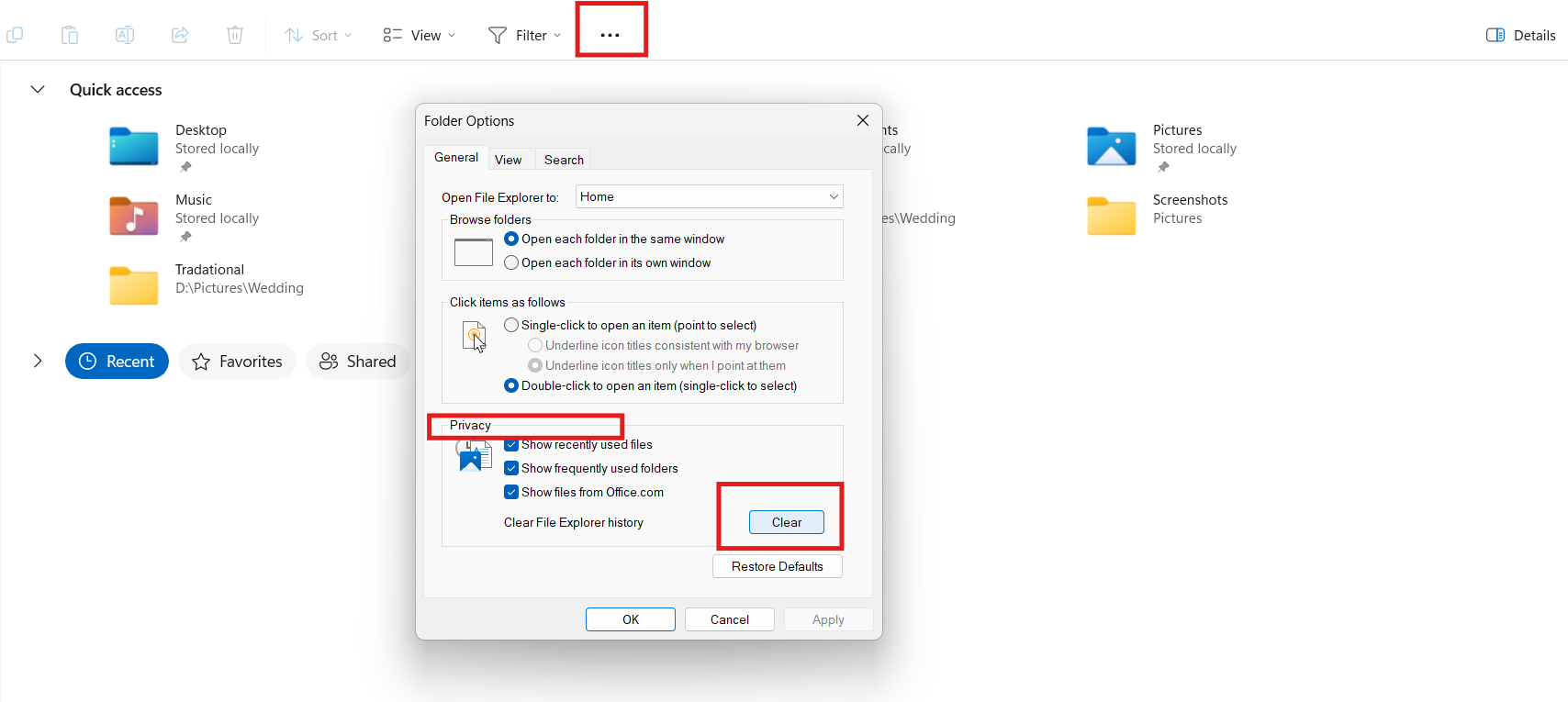
- Then, click the three dots on the ribbon and choose Options.
- Under the General tab, find Privacy, and select Clear.
- Close and reopen File Explorer, then test Quick Access.
Fix 2: Delete Quick Access cache files
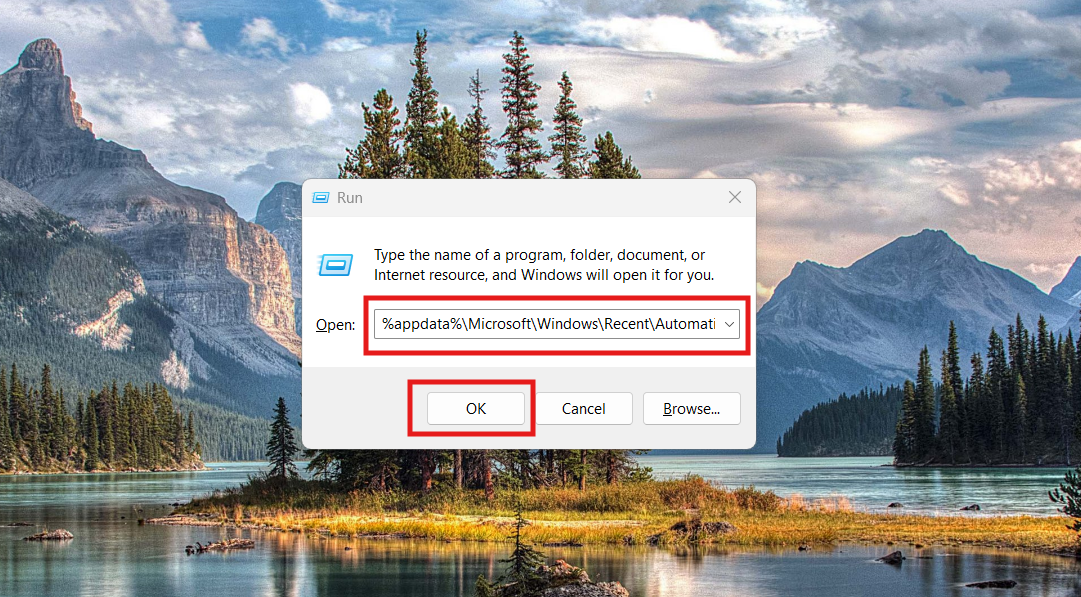
- Press Windows and R, paste %appdata%\Microsoft\Windows\Recent\AutomaticDestinations and press OK.
- Delete all files in that folder.
- Then repeat for %appdata%\Microsoft\Windows\Recent\CustomDestinations.
- If needed, restart your PC and check File Explorer.
Fix 3: Turn off Quick Access features
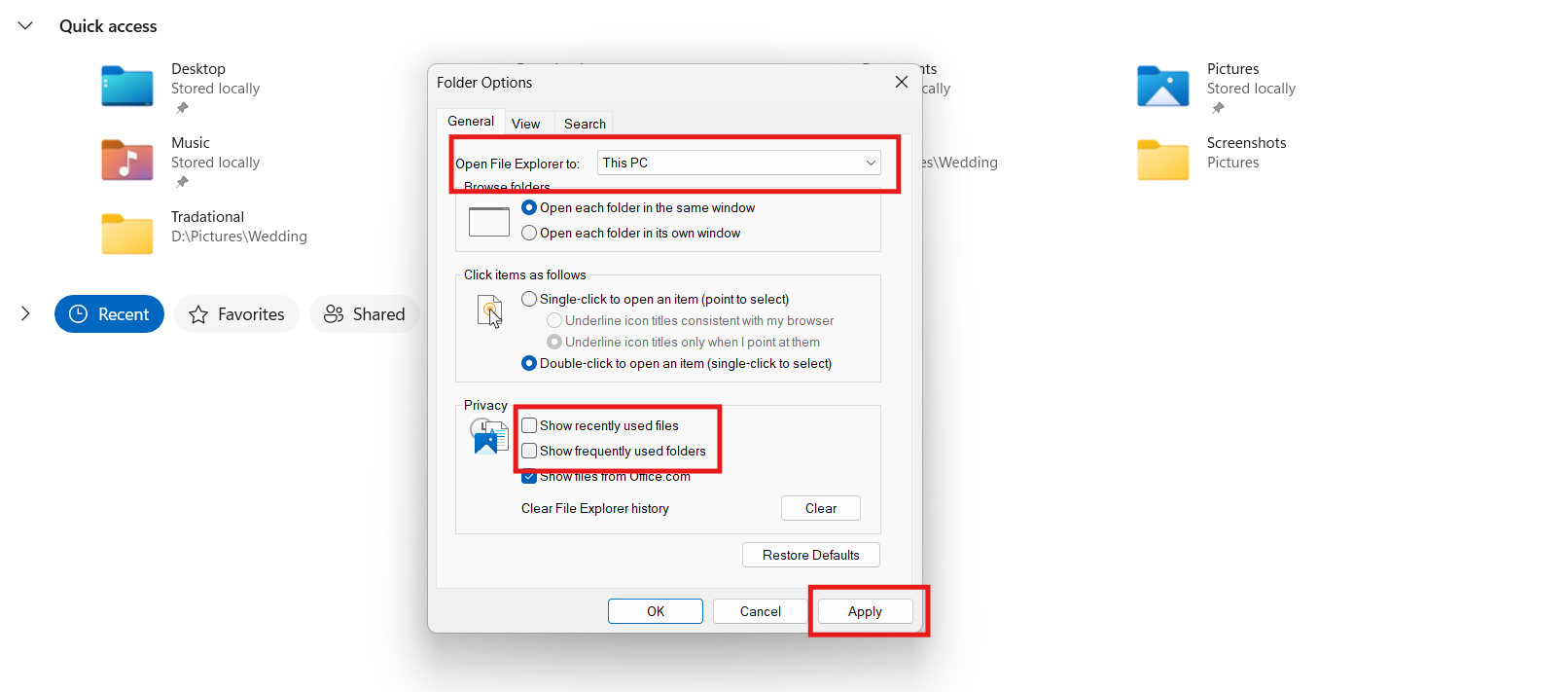
- Open File Explorer Options.
- Change Open File Explorer to This PC.
- Uncheck Show recently used files and Show frequently used folders.
- Click Apply, then OK.
- Restart File Explorer and test.
Fix 4: Restart or reset File Explorer
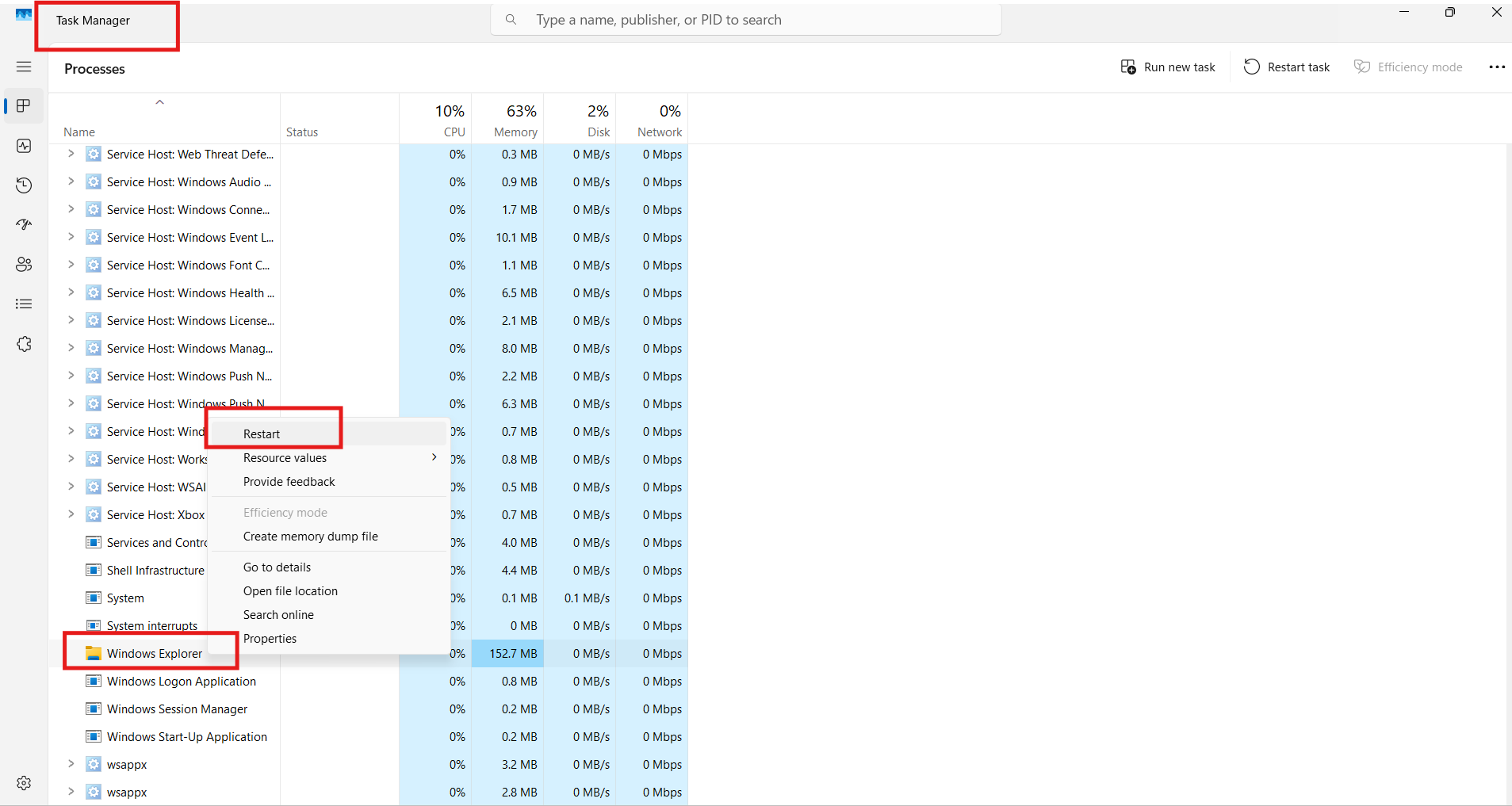
- Press Ctrl, Shift, and Esc to open Task Manager.
- Then, find Windows Explorer, right-click it, and choose Restart.
- If needed, end explorer.exe and start a new explorer.exe task from Task Manager.
Fix 5: Quick Access crashes fix by checking faulty shell extensions or recent apps
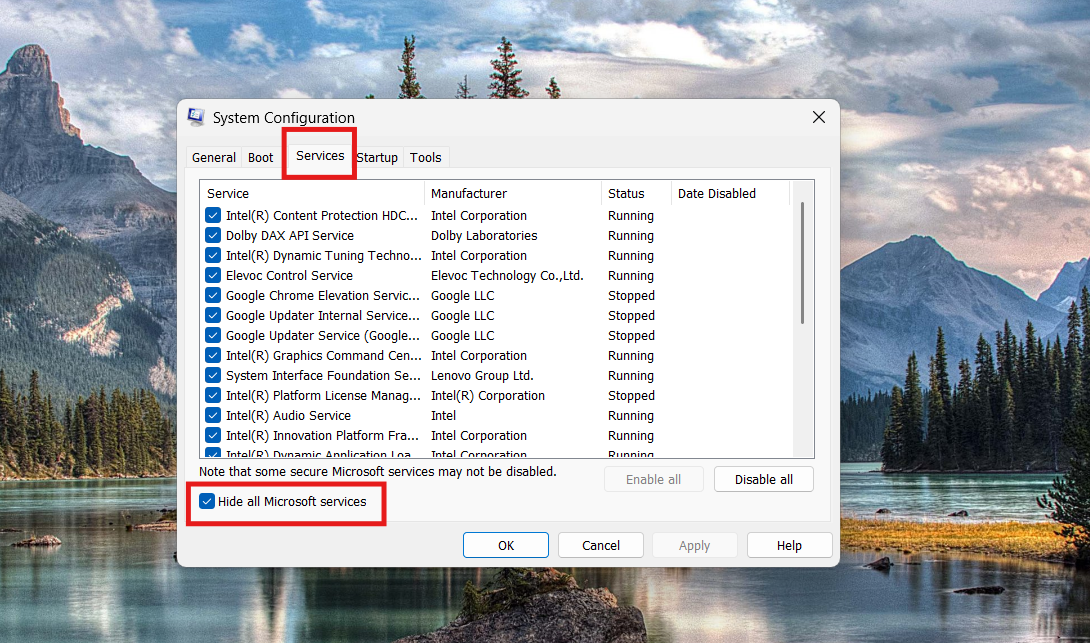
- Use a tool such as ShellExView or perform a clean boot using System Configuration.
- Then, on the Services tab, hide Microsoft services and disable non-Microsoft entries.
- Next, disable startup items in Task Manager, reboot, and test. Re-enable items in small groups to find the culprit.
Fix 6: Repair system files and update drivers
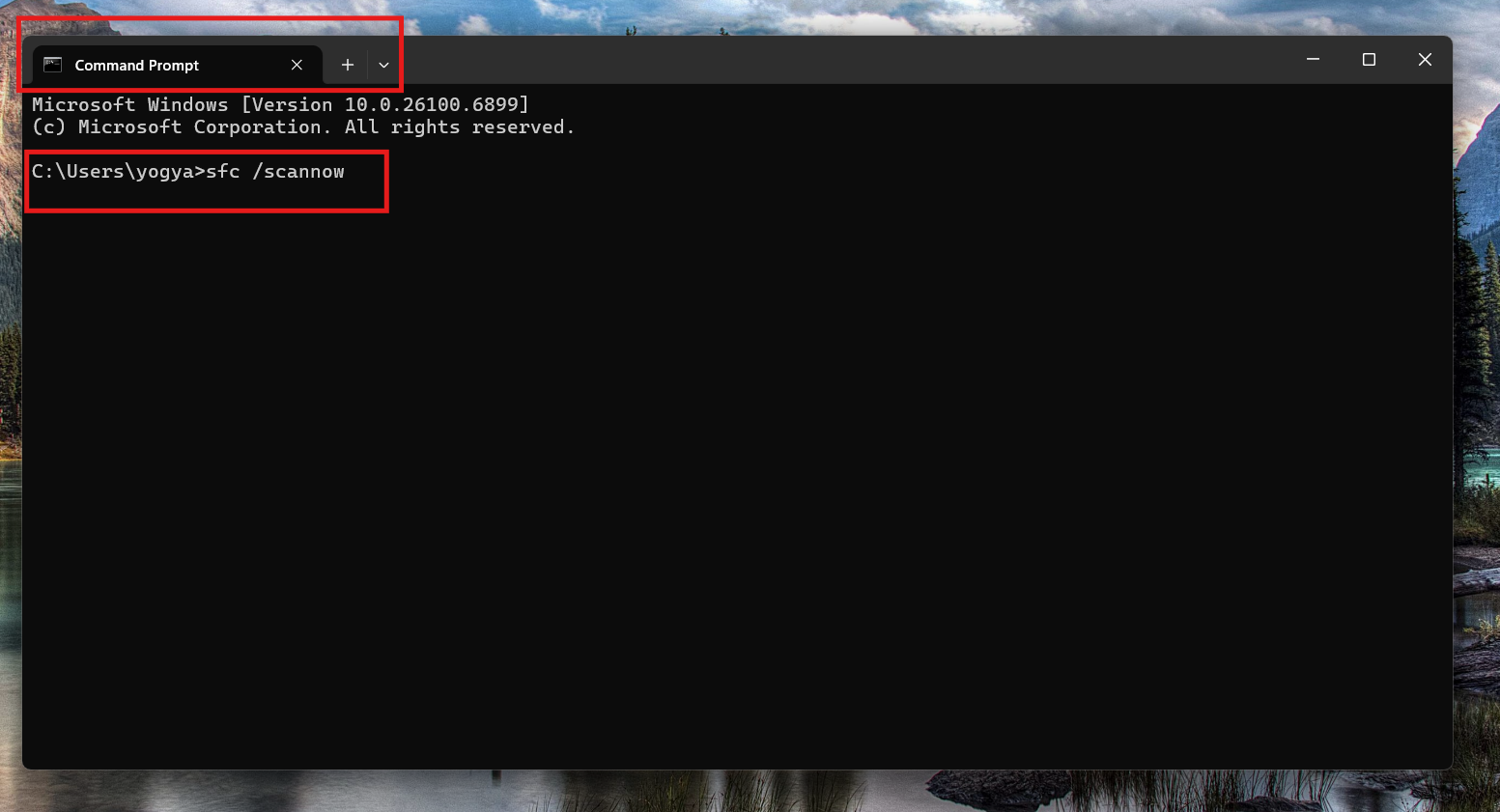
- Open Command Prompt as administrator and run sfc /scannow.
- If issues continue, run DISM /Online /Cleanup-Image /RestoreHealth.
- Update display and chipset drivers from the vendor website, reboot, and re-test.
Quick tip: If File Explorer works in a new user account, migrate your files to that profile. If the Quick Access still crashes File Explorer after all steps, consider a system restore or repairing Windows with installation media.