

If you see a red X overlay on files, folders, or desktop icons in Windows 11, it usually indicates a sync status issue, especially with cloud services like OneDrive, rather than a broken shortcut target.
Page Contents
Remove Red X Icon on Files in Windows 11
The red X does not normally mean the file is missing; it most often means Windows thinks the file isn’t synced or reachable by the sync engine. Below are multiple effective ways to remove these overlays and restore normal icons.
Method 1: Check OneDrive Sync Status
A red X icon frequently signals that OneDrive can’t sync your files due to connection problems, sign-in issues, or storage limits:
1. Click the OneDrive cloud icon in the system tray (near the clock).
2. If it says Paused, Error, or Not signed in, follow the prompts to fix the status.
3. Sign in, resume syncing, or fix account issues.
4. Wait for OneDrive to complete synchronization. The red X should disappear once the file is successfully synced.
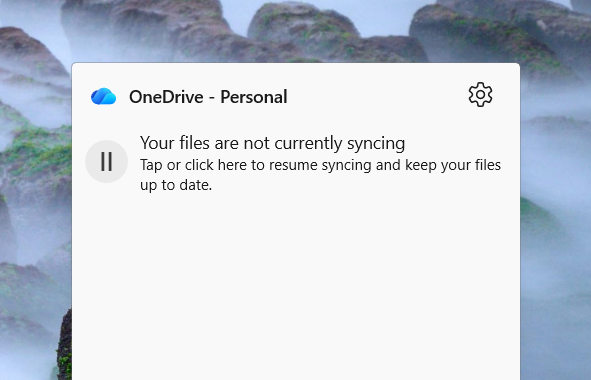
This is the most common cause of the red X overlay on synced files.
Method 2: Move Files Out of OneDrive
Because the red X often comes from cloud sync conflicts, simply moving the file out of a syncing folder (e.g., OneDrive’s Documents, Desktop) can clear the icon:
1. Open File Explorer and go to your OneDrive folder.
2. Select the files/folders showing a red X.
3. Drag them to a local directory that isn’t synced (e.g., C:\Users\<YourUserName>\LocalFiles).
4. Wait a moment, the red X overlay should disappear once the file is no longer tied to cloud sync.
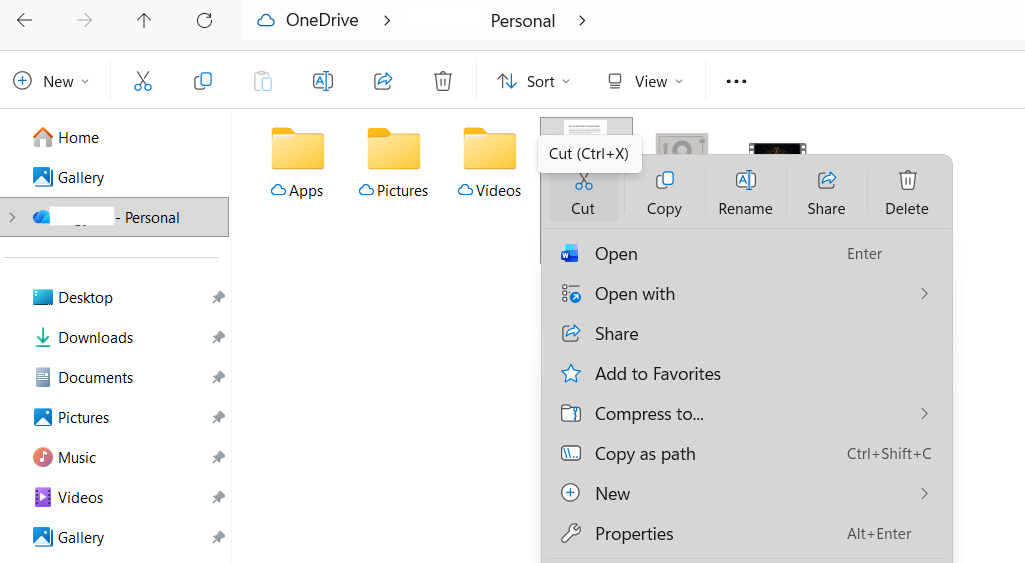
Moving files off OneDrive removes the dependency on sync status, eliminating the overlay.
Method 3: Rebuild the Icon Overlay Cache
Sometimes Windows caches outdated overlay states. Rebuilding the icon overlay cache properly helps clear stuck red X icons:
1. Open Command Prompt as Administrator.
2. Run the following, one command at a time:
taskkill /IM explorer.exe /F
(Your screen will go blank. Do not close the window.)
DEL /A /F /Q "%localappdata%\IconCache.db"
DEL /A /F /Q "%localappdata%\Microsoft\Windows\Explorer\iconcache*"
start explorer.exe
(This restores your desktop.)
3. Once done, restart your PC.
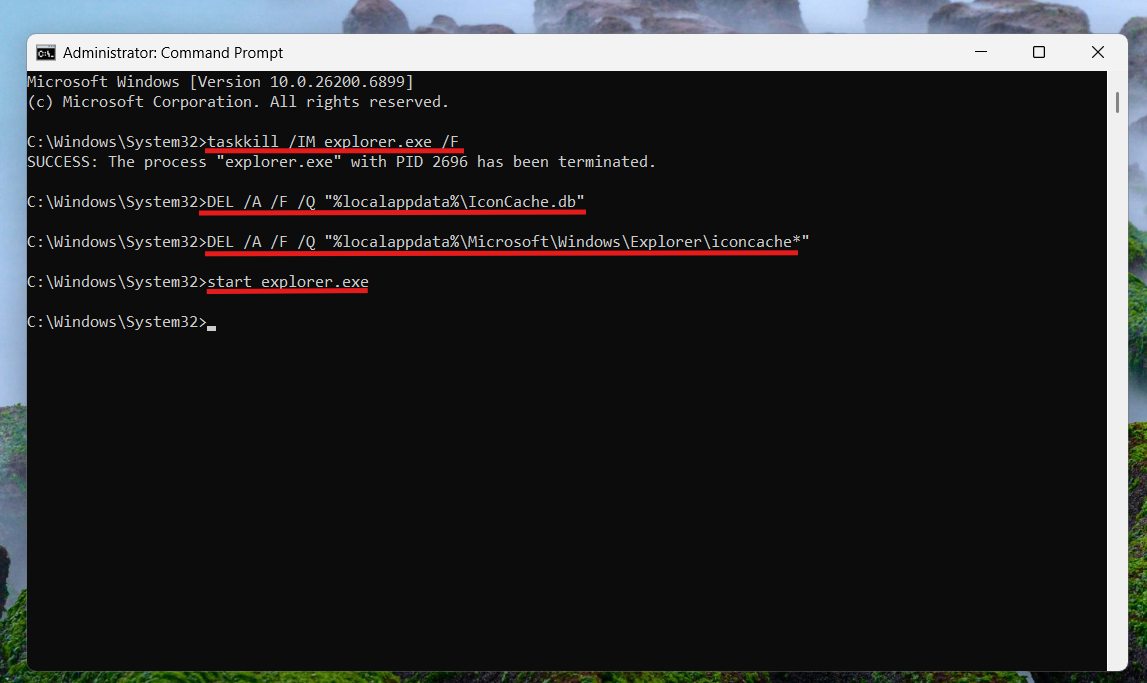
These separate commands stop Explorer, delete the icon cache files, and force Windows to rebuild the cache with current overlay states.
Method 4: Unlink and Relink OneDrive
If OneDrive’s sync connection itself is stuck, re-linking may help:
1. Right-click the OneDrive icon in your taskbar.
2. Go to Settings and then Account.
3. Click Unlink this PC.
4. Sign back in and let OneDrive resync your files.
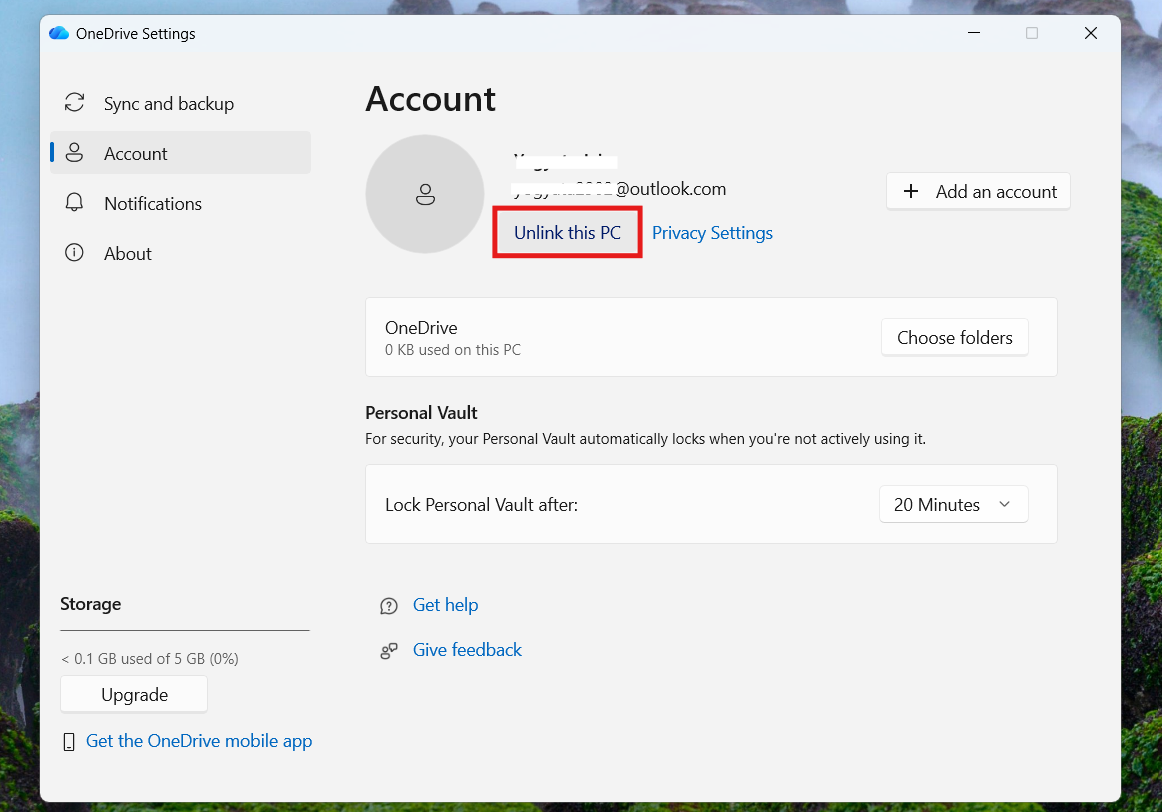
Relinking resets the sync engine’s view of your files and often clears red X overlays.
Method 5: Refresh Explorer / Restart Windows
Sometimes the red X is just a visual problem that doesn’t reflect an actual error:
1. Press F5 on the desktop to refresh icons.
2. If that doesn’t work, restart your computer.
This redraws icon overlays and can remove stale red X marks.
Method 6: Ensure There Are No File Permissions Restrictions
Occasionally, a file’s ACLs or permissions changes can confuse sync engines:
1. Right-click the file/folder with the red X.
2. Select Properties and then Security.
3. Make sure your user account has Full control.
4. If not, click Edit and grant appropriate permissions.
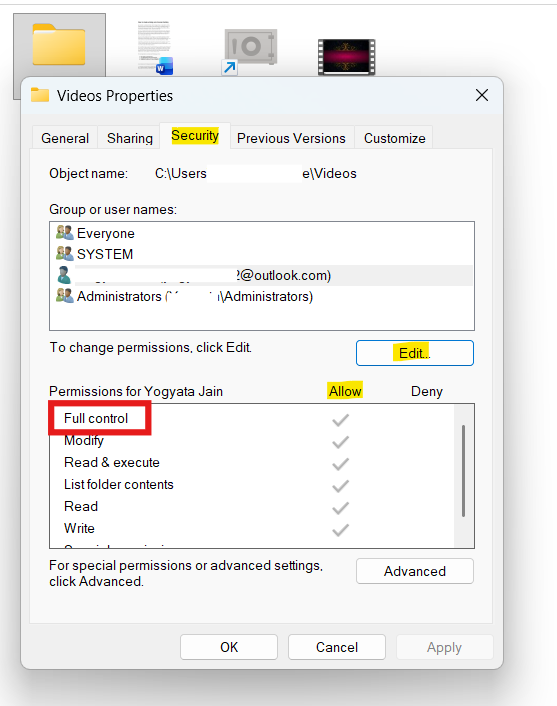
Files in OneDrive that can’t be accessed due to permissions issues may show red X overlays.
A red X icon in Windows 11 isn’t usually about missing files; it’s most commonly related to cloud sync status. You can fix it by checking OneDrive sync, moving files outside synced folders, rebuilding the icon cache with proper syntax, relinking sync accounts, refreshing Explorer, or correcting file permissions.




![Quick Access Crashes File Explorer in Windows 11 [6 Fixes]](https://www.kapilarya.com/assets/File-Explorer-1-768x552.png)
