

No doubt Office is fabulous productivity suite Windows users have used since long time. Office 2013, the present iteration is the best of Office you can get. If you haven’t downloaded or installed yet on your system, checkout following link to get it:
Download Microsoft Office 2013 Professional Plus
Download Microsoft Office 2013 Service Pack 1
Thus the Office setup file downloaded can be used to install Office 2013 in couple of minutes. Office 2013 setup which is incorporated with Bootstrapper technology has inbuilt capability to repair, restore, add or remove features to the package on the go. Bootstrapper is responsible for the initialization of an application built using the Composite Application Library. Recently, while installing this must have system utility, we came around following error:
Page Contents
Something went wrong
Sorry, we ran into a problem.
Go online for additional help.
Error Code: 30088-4
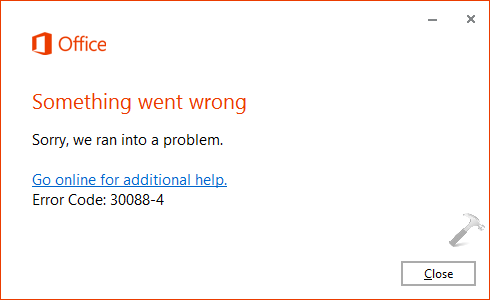
The most probable cause for such issues are the previous Office installation on a system. So if you have a previous installation of Office, then try to remove traces of that install first using following way:
Download Microsoft Fix it To Uninstall Office 2013 Without Leaving Traces
After removing traces, you can try to install Office and see if you get success. Else, you can try following ways to fix this problem:
FIX : Something Went Wrong. Error Code: 30088-4 For Office 2013/2016
FIX 1 – Using Registry
Registry Disclaimer: The further steps will involve registry manipulation. Making mistakes while manipulating registry could affect your system adversely. So be careful while editing registry entries and create a System Restore point first.
1. Press  + R and put regedit in Run dialog box to open Registry Editor (if you’re not familiar with Registry Editor, then click here). Click OK.
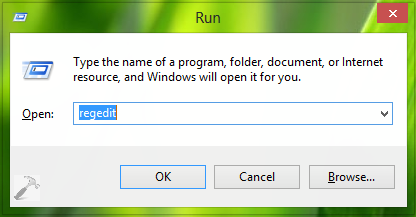
2. In the left pane of Registry Editor window, navigate here:
HKEY_CURRENT_USER\Software\Microsoft\Office
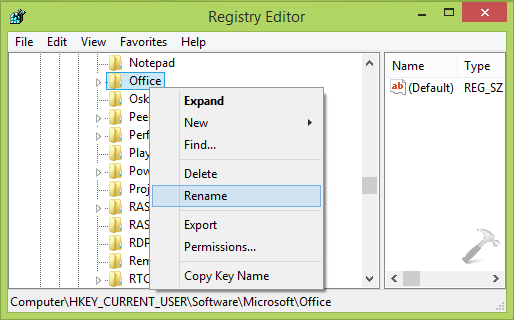
3. In the above shown window, right click Office key and select Export option. Then do a right click again and select Rename, and change the name of key to Office.old. Finally, close the Registry Editor and reboot the machine. After restarting the system. you should be able to install Office 2013 without any hitch.
FIX 2 – Repair Office Installation
If the above mentioned method doesn’t works, then try to repair the Office installation and see if that helps you:
How To Repair Office 2013 Offline
Repairing Office installation have helped many users in such cases, so its worth to try option.
Hope this helps!
Did you know:
1. How To Prevent Internet Usage In Office 2013?





thank you sir it solved my problem.
^^ Glad we could help :)
Finally!! This solved my problem :-)