We all use different kind of Win32 programs/applications or software on our Windows system. Most of the such programs are so designed, that they could work on almost all Windows editions. They only need to run right architecture system for which they’re written.
However, for some specific programs users may face trouble in launching them. Under this scenario, Windows usually displays following application error message, though error code might be different:
Page Contents
The application was unable to start correctly (0xc000007b). Click OK to close the application.
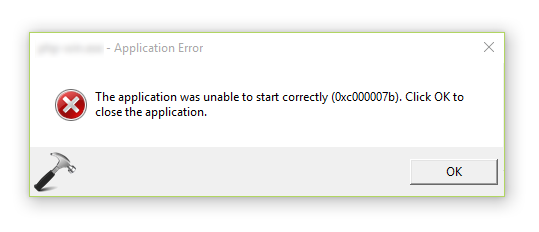
With above mentioned error message, you may receive 0xc0000005, 0xc0000018, 0xc0000022, 0xc0000142, 0xc0150002, 0xc0150004 error codes as well. If you’re victim of this issue and facing this problem with any of the application, here is how to fix it.
FIX: The Application Was Unable To Start Correctly (0xc000007b) In Windows 10/8/7
1. If you’re running the application/program with standard user privileges, try running it as administrator.
2. Reboot the machine and see if you can launch the application then.
3. If the program worked fine with your previous Windows edition(s), you can run it under compatibility mode.
4. Perform the application re-installation, if you’re not concerned with data associated with it.
5. Make sure your Windows 10/8.1/8 have .NET Framework 3.5 installed.
6. Ensure that you’ve installed latest C++ Redistributable Package(s) installed.
7. If you’ve this trouble with native Windows features/programs, try running the SFC scan or use DISM to repair system corruption.
8. You’re recommended to install latest Windows Updates to you to avoid these kind of errors.
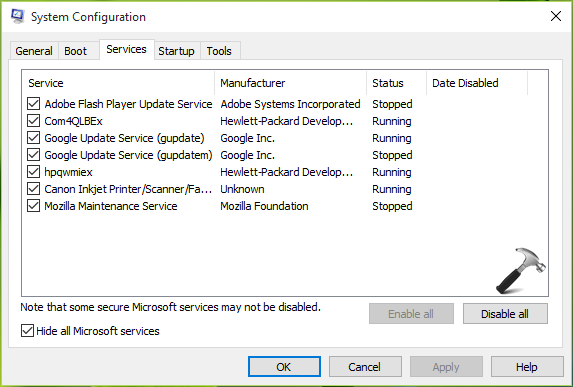
9. Perform clean boot. Just run msconfig command, go to Services tab and check Hide all Microsoft services and then hit Disable all button. Reboot and check the status of issue. Do this step-wise, for each programs, one-by-one disable the corresponding services and keep checking, check if the issue resolves.
10. If issue occurs with different applications on a high frequency, you may consider to Refresh your Windows 10.
11. For a particular app, you can also ask its vendor for the support on this issue.
Hope something helps you to fix this hitch!