

As per Microsoft‘s policy, if your device is upgraded from Windows 8.1/8/7 to Windows 10, it would remain activated for the lifetime of the device. This is valid even if you reinstall Windows 10 on the device. Also if you’ve made any hardware changes, you can reactivate for sure, after re-installation. To take benefit of this, you must link your Microsoft account to Windows 10 digital license, in advance, before making hardware changes.
So to redeem this benefit, you need to run Activation Troubleshooter. Using this troubleshooter, you need to opt for ‘I recently changed hardware on this device‘ option. However, using that, still we can’t reactivate the device.
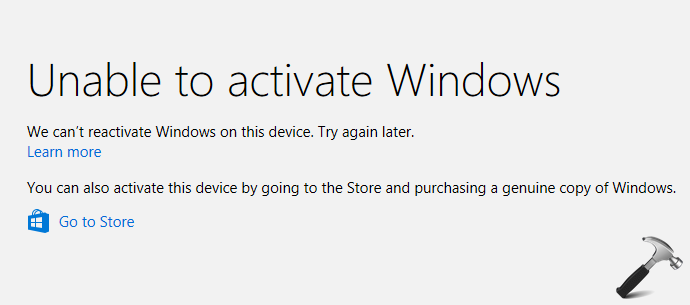
Following is the message we got here:
Page Contents
Unable to activate Windows
We can’t reactivate Windows on this device. Try again later.
If you’re also facing this problem, here is how to solve this issue.
FIX: We Can’t Reactivate Windows On This Device. Try Again Later.
FIX 1 – By Product Specific Product Key
1. Open Settings app and go to Update and security > Activation screen. Click Change product key button in right pane.
2. Now enter your Windows edition product specific key from this list:
Windows 10 Pro: VK7JG-NPHTM-C97JM-9MPGT-3V66T
Windows 10 Home N: 4CPRK-NM3K3-X6XXQ-RXX86-WXCHW
Windows 10 Home Single Language: BT79Q-G7N6G-PGBYW-4YWX6-6F4BT
Windows 10 Home Country Specific: 7B6NC-V3438-TRQG7-8TCCX-H6DDY
Windows 10 Professional N: 2B87N-8KFHP-DKV6R-Y2C8J-PKCKT
Windows 10 Enterprise 2015 LTSB: WNMTR-4C88C-JK8YV-HQ7T2-76DF9
Windows 10 Enterprise 2015 LTSB N: 2F77B-TNFGY-69QQF-B8YKP-D69TJ
Windows 10 Enterprise 2016 LTSB: DCPHK-NFMTC-H88MJ-PFHPY-QJ4BJ
Windows 10 Enterprise 2016 LTSB N: QFFDN-GRT3P-VKWWX-X7T3R-8B639
3. This would not activate your Windows, however will take you one step ahead of the problem. Now again click on Change product key (as done in step 1) and enter your genuine 25-character product key. This time it should activate your Windows 10.
FIX 2 – Activate Via Microsoft Chat Support
If FIX 1 doesn’t works for you, here is another alternative to fix this problem. You can use Microsoft Chat support and ask the tech representative to activate your Windows 10.
Click on following link to chat with Microsoft support:
Link to Microsoft Chat support
Simply click on Chat option and wait for few minutes.
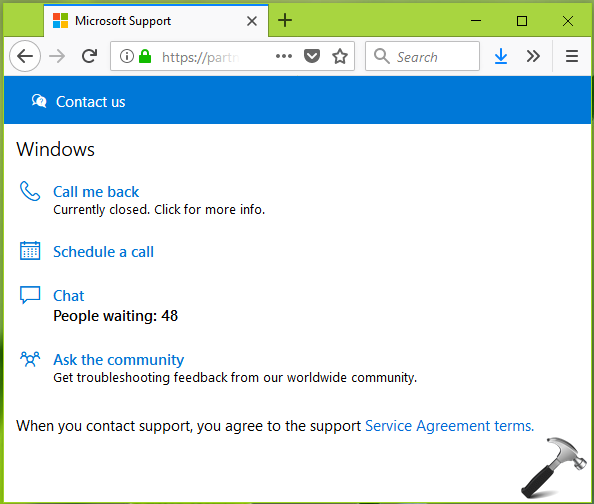
You should be able to chat with the representative. Share them all the details you’ve got and reason for – why you can’t activate your Windows 10. They would definitely help you and activate your machine.
Also check this video:
Hope this helps!



Thanks for getting back to me so quickly. I tried the different solutions, to no avail. Finally, as per your third suggestion, I called customer service and a service personnel after asking me a few questions, remotely connected and activated windows. So, problem solved. Thanks a lot.
^^ Glad the issue is sorted 😀
FIX 1 worked for me, thanks!
^^ Glad we could help 😎
Hi
do you have to link your Microsoft account before or after the hardware change
regards Graeme
^^ You need to link before hardware changes. I’ve added this line specifically to the article, thanks to you!
Thanks so much!!! Resetting the product key worked for me. I had changed out the motherboard on my laptop like 5 times and I was worried Windows wouldn’t let me continue reactivating. This is a lifesaver!!
^^ Glad we could help!