

In our past, we have shared you the fix for the issue related to Security Center not turning on; which you can read here. Few days back, I came to yet another strange issue of non-ability to turn on the Windows Firewall. It is well know that running Windows Firewall is must for a system in order to filter packet data. However, in my case, when I came around this issue, I tried many attempts to start the Windows Firewall service, but each time I was ended up with this:
Page Contents
Windows could not start the Windows Firewall on Local Computer. For more information, review the System Event Log. If this is a non-Microsoft service, contact the service vendor, and refer to service-specific code 5.
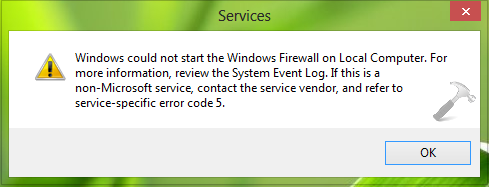
In order to troubleshoot this hitch, I tried to many things like restarting the machine, System File Checker utility (Running SFC /SCANNOW in administrative Command Prompt), running DISM commands for restoring health, but no luck. Then after digging the responsible registry configuration, I was able to troubleshoot the issue, here is what I did which worked for me and should work for you as well:
FIX : Windows Could Not Start The Windows Firewall On Local Computer In Windows 10/8.1/8/7
Registry Disclaimer: The further steps will involve registry manipulation. Making mistakes while manipulating registry could affect your system adversely. So be careful while editing registry entries and create a System Restore point first.
1. Press  + R and put regedit in Run dialog box to open Registry Editor (if you’re not familiar with Registry Editor, then click here). Click OK.
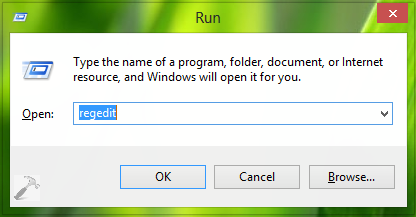
2. Navigate here:
HKEY_LOCAL_MACHINE\SYSTEM\CurrentControlSet\Services\MpsSvc\Parameters
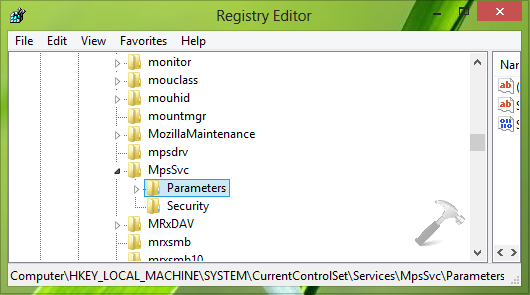
3. In the right pane of this location, take the ownership of Parameters key using this way or RegOwnershipEx.
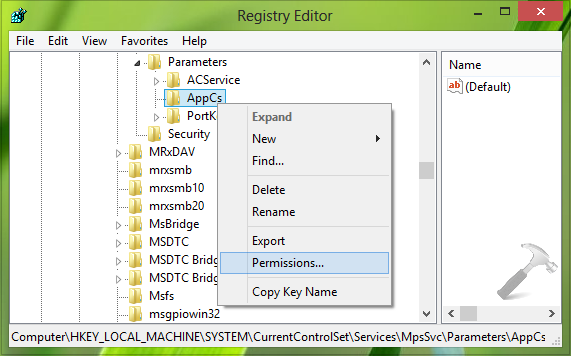
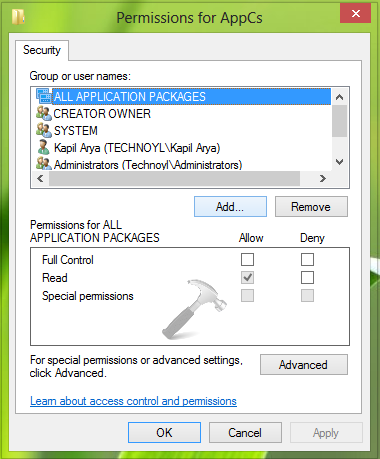
4. Now locate the subkey of Parameters i.e. AppCs key; and right click over it, select Permissions. Click Add in the following window:
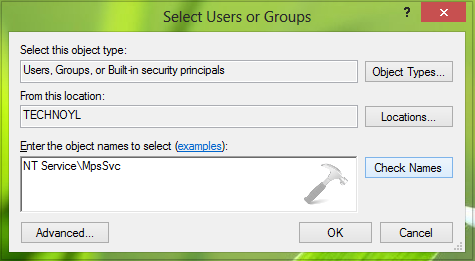
5. Now in the Select Users or Groups window, type the object name NT ServiceMpsSvc and click Check Names.
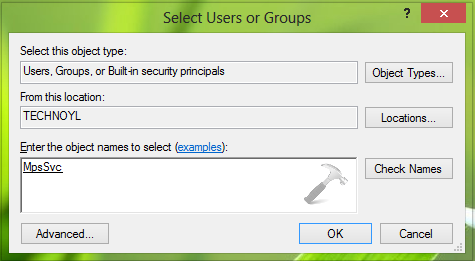
After clicking Check Names, you’ll find the entered NT ServiceMpsSvc turn into underlined MpsSvc. Click OK.
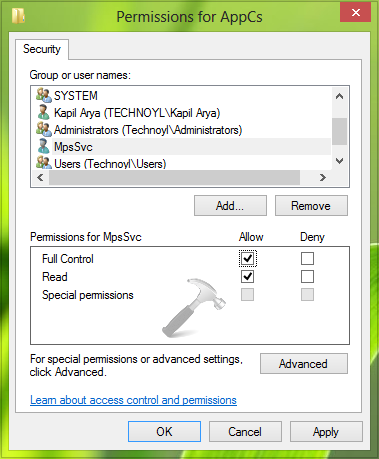
6. Moving on, in the following window, select the group MpsSvc and check the permissions for Full Control and Read. Click Apply followed by OK.
Finally close the Registry Editor and reboot the machine, after restart, you’ll be able to run Windows Firewall service as usual.
That’s it!




Thank you, thank you. For days I have been trying to resolve this Windows Firewall does not turn on problem. Tried every possible proposed solution from Googling. But your registry solution did the trick. Once again thank you. for a solution
^^ Glad we could help :)
Thank You! What a nice tutorial. Solved my problem!
^^ Thanks for feedback :)
i’ve try all the step.. but when apply it, an error occurd..
it says unable to save permission changes on AppCs. Access is denied.. What should i do?
^^ You must take the ownership of Parameters key first.
I followed it to the very end. Then it wouldn’t apply it. Damn !! I thought this would fix my problem. Thanks anyway !
when I get down to “permissions for AppCs” , when I hit apply a windows security box pops up saying “unable to save permission changes for AppCs” access denied.
I’m frustrated – any suggestions ?
^^ Take ownership of the key using this tool: https://www.kapilarya.com/regownershipex-handy-freeware-for-taking-ownership-of-registry-keys
This real worked for me. You are damn good !!!
Windows 8.1 x64
Peace and love (Y)
^^ Glad it helped!
Thank you! A nice tutorial. Solved the problem! Or a God!!!
Hungarian users.
^^ Cool :D
Hello friend, I can’t get ownership to the appCs , I took ownership of Parameters key and tryed the appcs and still getting the message “unable to save permission changes for AppCs” access denied. Please , help me!!
^^ Refer previous comments for hint!
Thank you so much, It worked for me. I spent three days surfing until I reached out your blog. Best regards.
Hi again. Any idea about the root-cause for this issue?
^^ Glad it solved your problem :) Use of third-party software could be a general root cause for such issues.
when I get down to “permissions for AppCs” , when I hit apply a windows security box pops up saying “unable to save permission changes for AppCs” access denied.
Please help.
^^ Refer previous comments/take ownership of AppCs first.
For those people who get access errors maybe try log in with built in admin account?
Can’t seem to get through the 5th step :/
When I type in “NT ServiceMpsSvc” it just pops out a window saying Name Not Found.
I’m having the same problem as Buzzuz, any ideas?