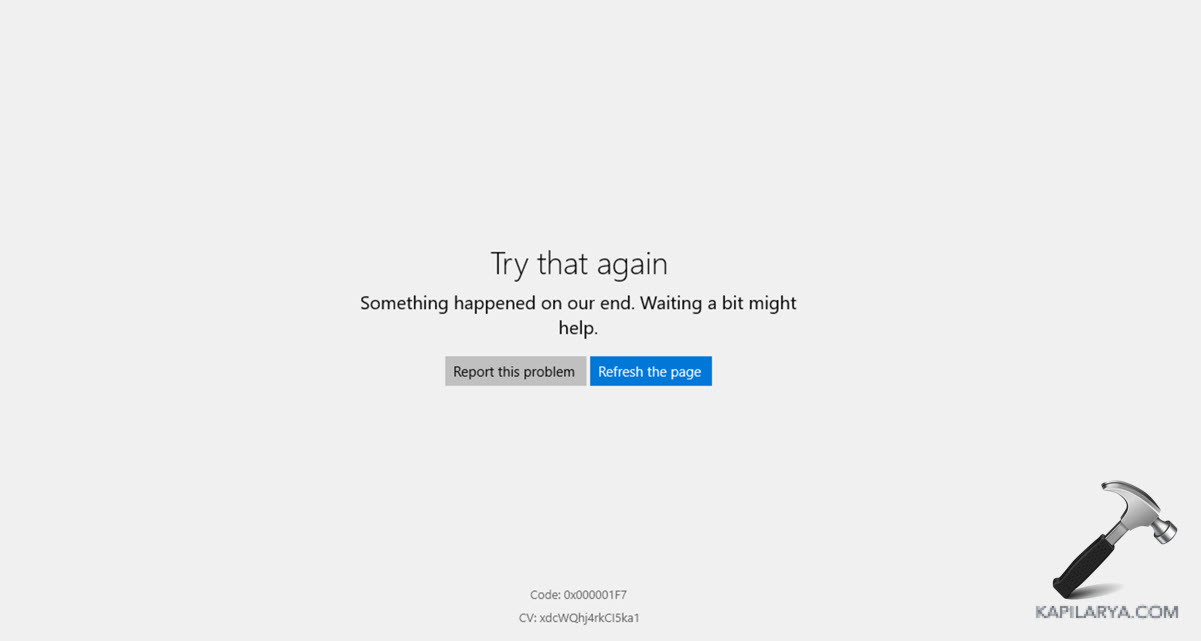
Error code 0x000001F7 often appears when Windows 11 cannot launch or load an app or component properly. It may show when a built-in app fails to open, a system feature cannot start, or related services are misconfigured.
Page Contents
Fix Error code 0x000001F7 in Windows 11
Causes include incorrect date and time settings, corrupted app data, outdated services, or general system corruption. Try the following five solutions one at a time, and restart your PC before checking again.
Fix 1: Correct Date and Time Settings
Incorrect system time or time zone settings can cause authentication or service errors.
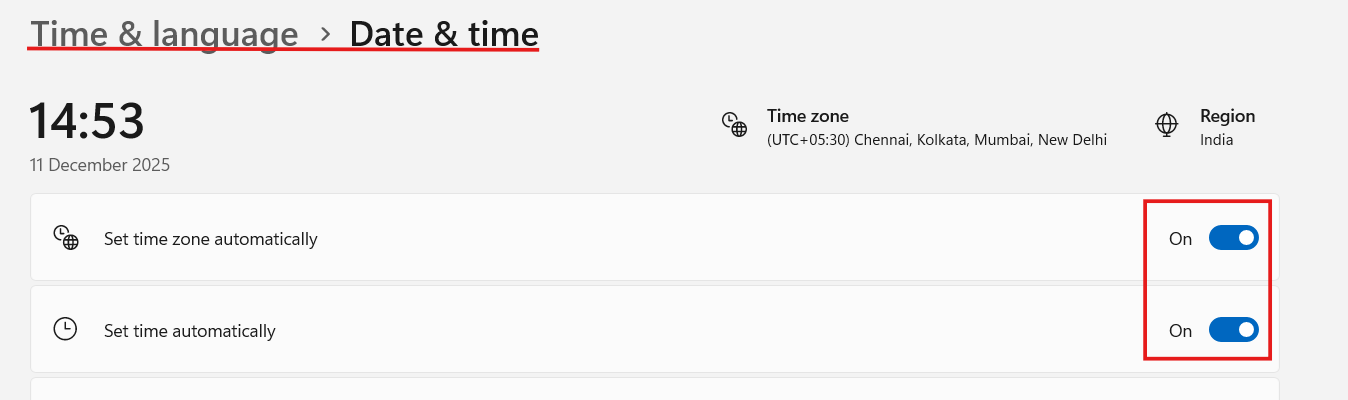
1. Open Settings, then Time & language and then Date & time.
2. Turn on Set time automatically and Set time zone automatically.
3. If issues persist, turn off automatic time, set the date back a few days manually, and restart your PC.
4. Reset the automatic time after testing.
Fix 2: Run the Built-in Apps Troubleshooter
Windows includes tools designed to detect and fix common app or component errors, called troubleshooters. You can use them to fix this issue.
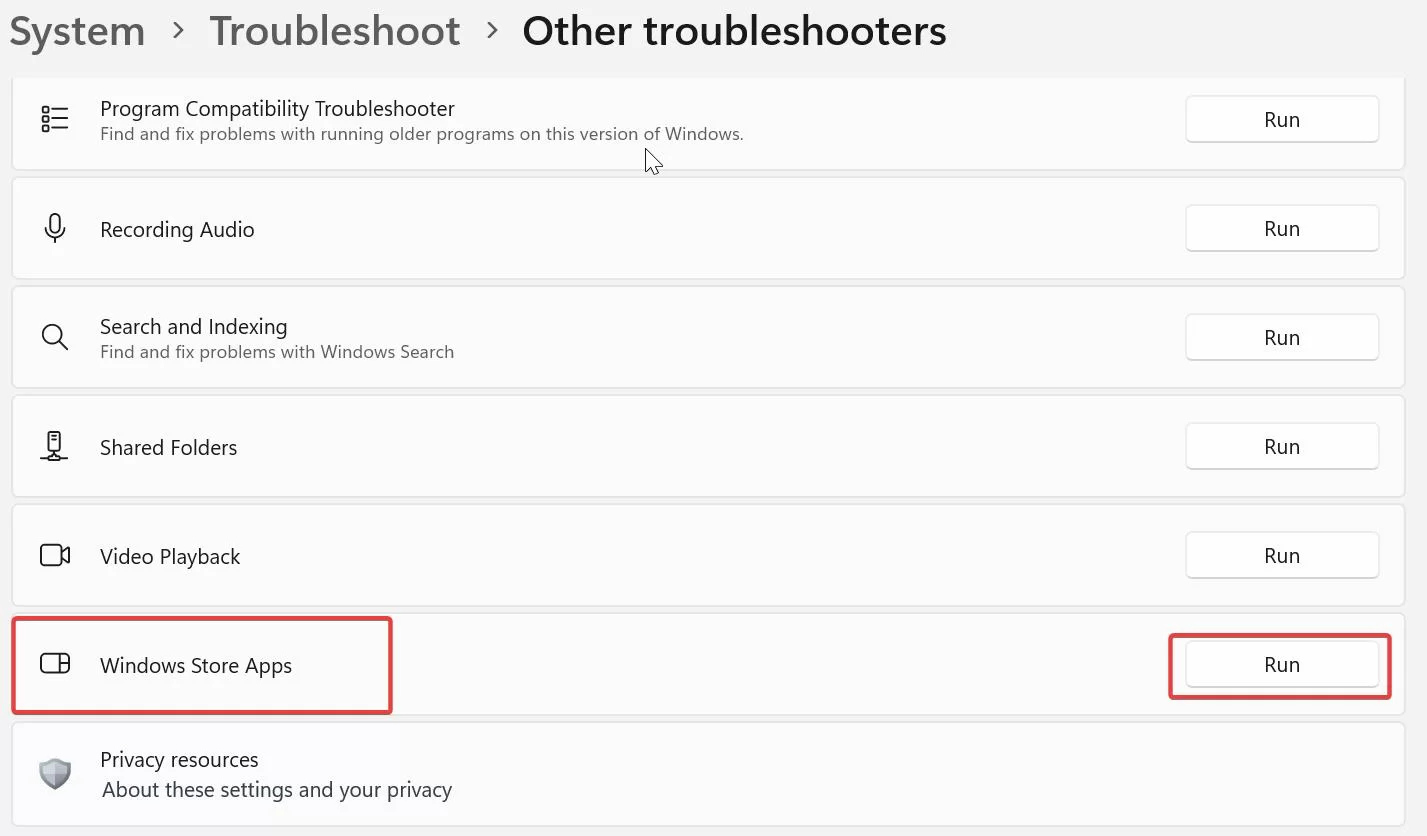
1. Open Settings, then System. Go to Troubleshoot and then Other troubleshooters.
2. Find Windows Store Apps or App Troubleshooter.
3. Click Run and follow the on-screen instructions.
4. Restart your computer once the tool finishes.
Fix 3: Clear Cache and Reset App Data
Cached data or corrupted app settings often block normal operation.
1. Press Windows + R, type wsreset.exe, and press Enter to clear the Windows App Store cache.
2. Once the process completes, restart your PC and test the app or feature that caused the error.

Note: A blank Command Prompt window will open after you click OK. Wait for it to close automatically, which confirms the cache is cleared.
Fix 4: Re-register System Apps
Re-registering apps can fix internal registration conflicts.
1. Open Windows PowerShell as administrator.
2. Run this command to re-register installed apps:
Get-AppXPackage -AllUsers | Foreach {Add-AppxPackage -DisableDevelopmentMode -Register "$($_.InstallLocation)\AppXManifest.xml"}3. After it finishes, restart your computer.

Fix 5: Temporarily Disable Security Software
Security tools sometimes block key Windows components or app services.
1. Open your antivirus or firewall software.
2. Temporarily disable real-time protection.
3. Test the app or operation again.
4. If the error is resolved, re-enable protection and add the trusted app to exceptions.

Quick Tips
1. Always restart your PC after each fix before testing again.
2. Make sure Windows is fully updated in Settings and then Windows Update.
3. If the issue persists, consider creating a new user account and testing under that profile.