

Error code 0x80242008 shows up when Windows Update fails to download or install a pending update, often because a required component was cancelled or interrupted in Windows 11. This problem can occur due to corrupted update files, services not running correctly, conflicts with third-party software, or corrupted system files.
Page Contents
Fix: Windows Update error code 0x80242008
The solutions below help you fix this issue so updates can install properly. Try each of them in turn to see which helps you resolve it.
Fix 1: Restart Update Services and Components
1. Press Windows + R, type services.msc, and press Enter.
2. In the Services window, find these services:
- Windows Update
- Background Intelligent Transfer Service (BITS)
- Cryptographic Services
3. Right-click each one, choose Restart, and make sure its Startup type is set to Automatic.
5. After restarting services, check for updates again.

Fix 2: Run the Windows Update Troubleshooter
1. Open Settings and go to System. Then Troubleshoot and then Other troubleshooters.
2. Find Windows Update and click Run to let Windows detect and fix common update problems.
3. Follow the on-screen prompts and restart your PC when done.

Fix 3: Repair Corrupted System Files
1. Open Command Prompt as administrator.
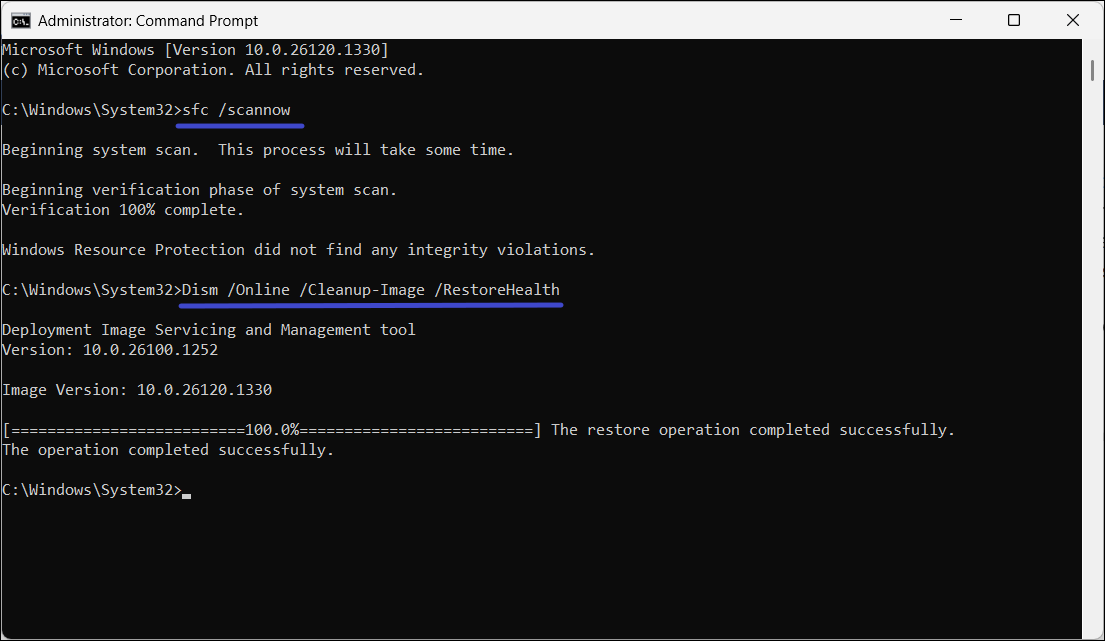
2. Type sfc /scannow and press Enter. Wait for the scan to finish.
3. After this, run these commands one at a time:
DISM /Online /Cleanup-Image /CheckHealth

DISM /Online /Cleanup-Image /ScanHealth

DISM /Online /Cleanup-Image /RestoreHealth
4. Once completed, restart your computer and try updating again.
Fix 4: Reset Windows Update Cache
1. In Command Prompt (Admin), stop update services with these commands one by one:
net stop wuauserv
net stop cryptSvc
net stop bits
net stop msiserver
ren C:\Windows\SoftwareDistribution SoftwareDistribution.old
ren C:\Windows\System32\catroot2 catroot2.old
net start wuauserv
net start cryptSvc
net start bits
net start msiserver
2. Rename the update cache folders:
ren C:\Windows\SoftwareDistribution SoftwareDistribution.old
ren C:\Windows\System32\catroot2 catroot2.old
3. Restart the update services and check for updates once more.

Fix 5: Perform a Clean Boot
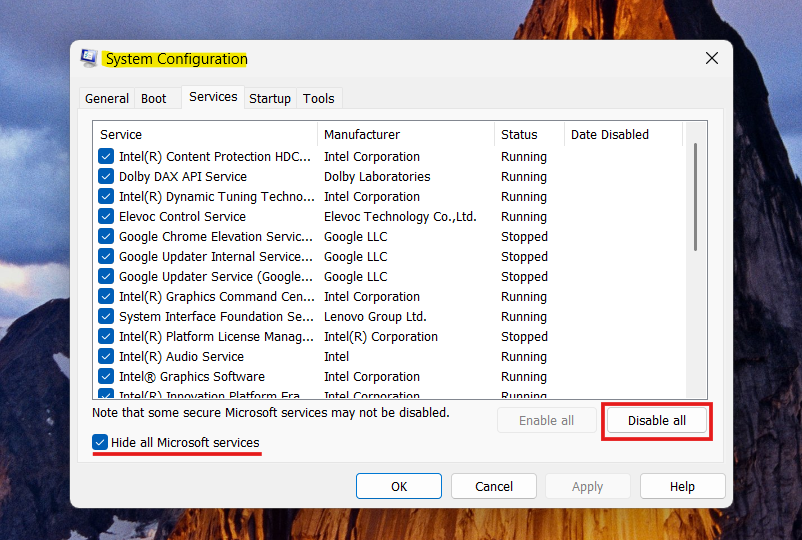
1. Press Windows + R, type msconfig, and press Enter.
2. Under the Services tab, check Hide all Microsoft services and click Disable all.
3. Go to the Startup tab and open Task Manager.
4. Disable all startup items and restart your PC.

5. Try running Windows Update in this clean boot environment.
Quick Tips
1. Restart your computer after each fix before testing again.
2. Ensure your internet connection is stable.
3. Temporarily disable antivirus or firewall software while updating.





