

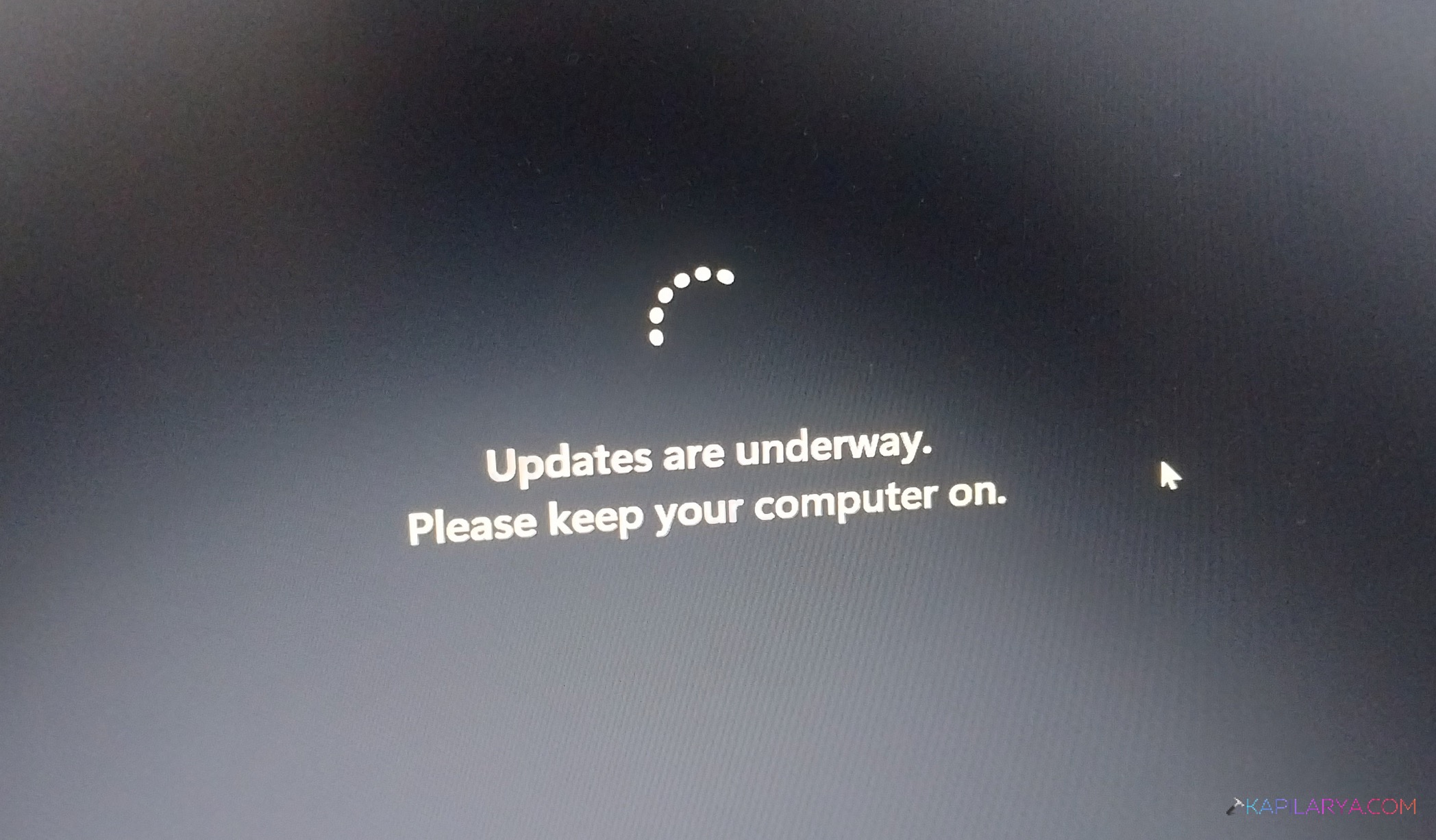
Do you also get updates are underway stuck issue when updating Windows 11? You are about to attend a very crucial online meeting, you boot up your PC, and then Windows thinks it appropriate to update the PC and believes it proper to consider it a perfect moment to install updates. After a few minutes, came a few more, then you see Updates are underway for seemingly ages.
Frustrating, right? This article will take you through eight simple ways that will correct this issue of ‘Updates are underway’ stuck in Windows 11, and recover the performance of your Windows 11 computer.
Page Contents
Why Windows 11 Gets Stuck on “Updates Are Underway”
Windows 11 installs updates in the background. However, a number of behind-the-scenes factors may result in the system getting stuck at the stage of updating-underway. Knowing these causes makes you more assertive as a user during troubleshooting.
The following are the most prevalent reasons:-
- Connection to the internet is volatile, and the download is interrupted.
- The update modules are being affected by corrupted system files.
- Little storage (Windows requires a minimum of 20 GB of free storage).
- Antivirus tools are equipped with conflicting features.
- Bad or corrupt update packages.
- Stopping or unexpected outages in the course of the installation.
Fix: ‘Updates are underway’ stuck in Windows 11
It may be annoying to see the stuck on Windows 11 with the Updates are underway issue, but with the correct actions, you can fix the problem in a few minutes. Having the methods and other tips in this guide, one will be able to fix the issue of update freeze, improve the performance of the PC, and avoid such issues in the future.
Fix 1: Press Ctrl + Alt + Del
At times, the “Updates are underway message fails to move, yet Windows remains interactive in the background.
1. Press Ctrl + Alt + Del keys on the keyboard. Or, use the start menu switch button.
2. In case the screen has changed to the security options menu, then you should click on Sign Out or Restart.

The Windows PC may start correctly. This causes Windows to skip the stuck update and begin the login screen.
Fix 2: Hard Reset Your PC
When your system is still inactive after 30 minutes, you should force a hard reset to get out of the updating loop.
1. You can press and hold the Power Button for 10 to 15 seconds till your PC shuts down.
2. Wait for 10 seconds. Reboot by pressing at the Power Button again.
3. And when Windows continues to repeat the message, go on with the next approach.
Fix 3: Run SFC Scan to Repair System Files
Windows updates normally freeze with corrupted system files. SFC (System File Checker) mends any missing or damaged system files that cause update problems.
1. In this step, press Windows Key + R, type in “cmd” and open Command Prompt with administrator.

2. Enter the below and press Enter. Allow the scan process to finish (can be 10-15 minutes).
sfc /scannow

Restart your PC and see whether the problem is fixed.
Fix 4: Run Windows Update Troubleshooter
Windows also has an in-built troubleshooter, which identifies and corrects update issues automatically.
1. Go to Settings > System > Troubleshoot.
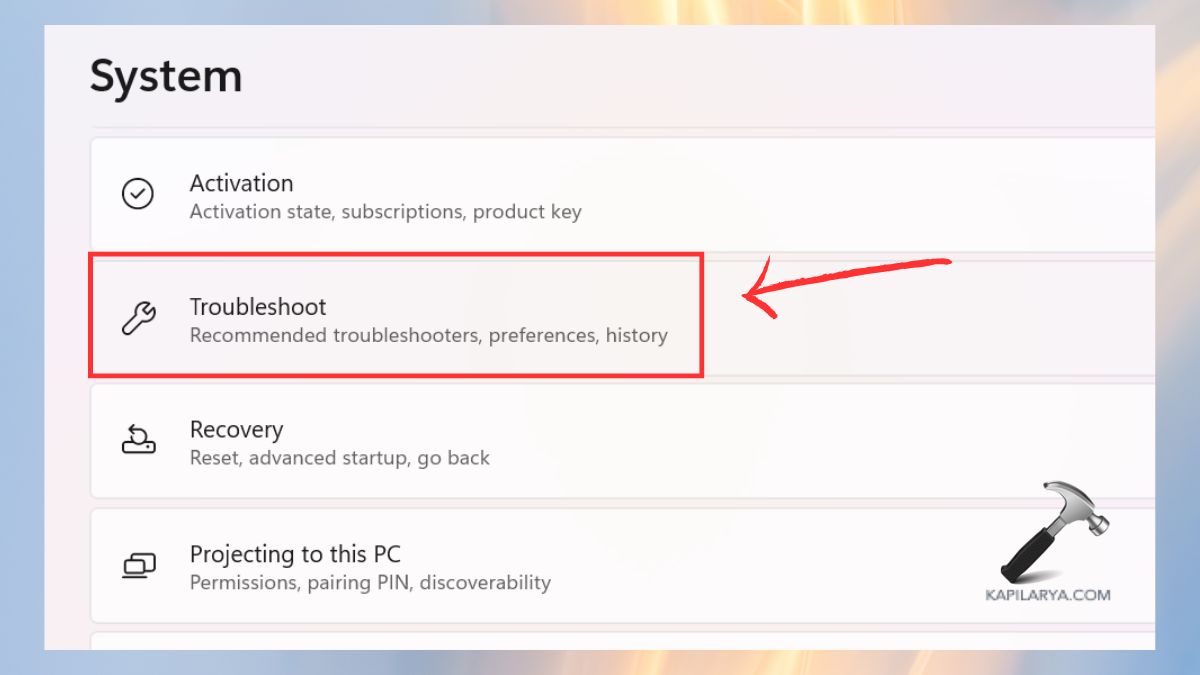
2. Click Other troubleshooters.
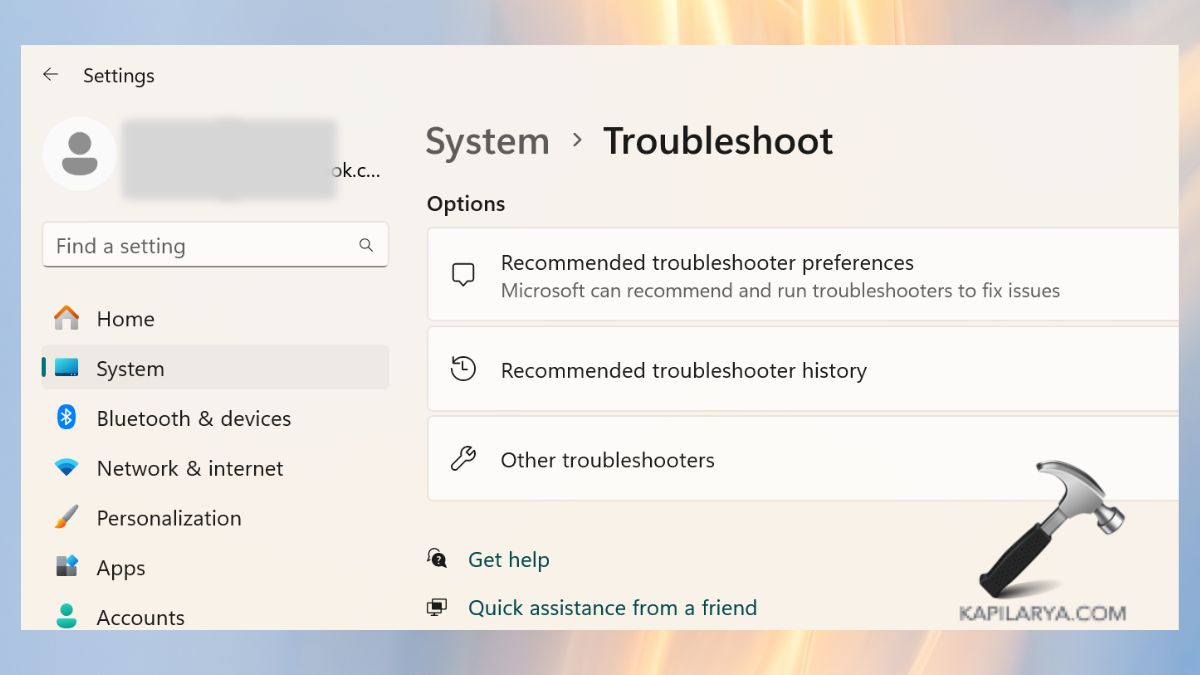
3. Find Windows Update. Click Run. Allow the tool to detect and address mishaps. Restart your PC afterwards.

See also: Run Update troubleshooter from command-line.
Fix 5: Rename the SoftwareDistribution Folder
Update files are kept in a temporary manner in the SoftwareDistribution folder. In case such files become corrupted, Windows updates can be frozen.
1. Open the Command Prompt as an administrator.
2. Enter the commands below one at a time and press Enter after each command:-
net stop wuauserv
net stop bits
ren C:\Windows\SoftwareDistribution SoftwareDistribution.old
net start wuauserv
net start bits
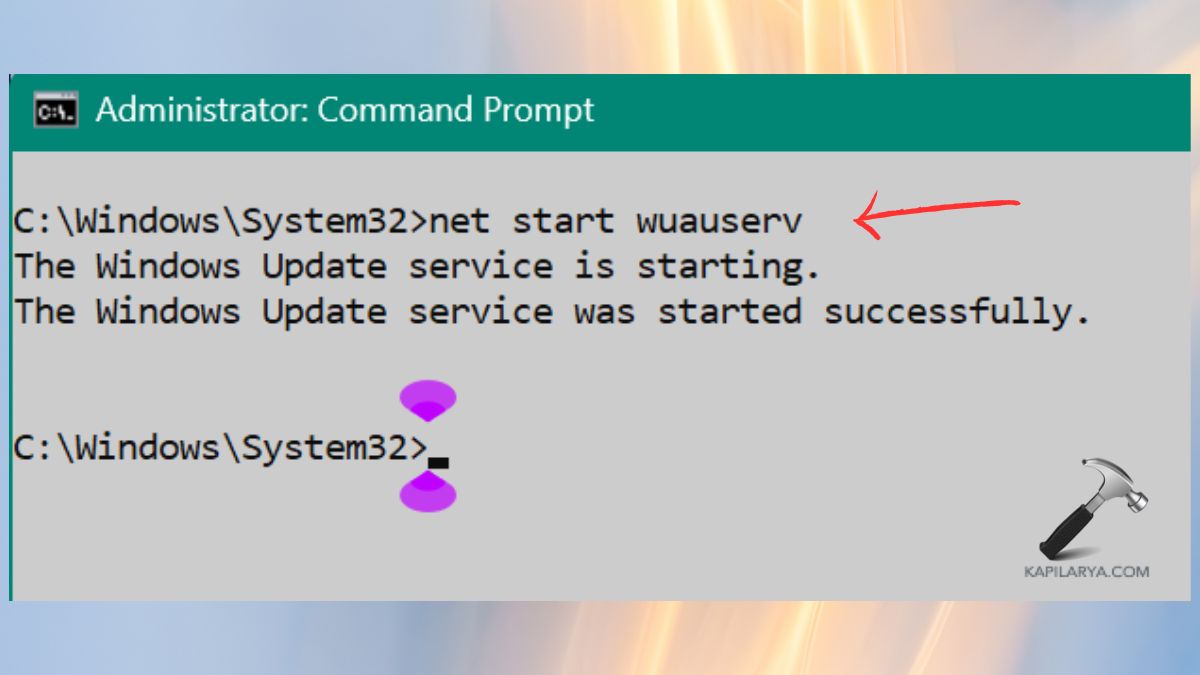
Restart the PC. The windows will automatically form a new SoftwareDistribution folder, correcting the problems of updates.
Fix 6: Perform a System Restore
That is because a deep system problem can be addressed with a system reset in case the above techniques are not able to help.
1. Click on Settings, System, then Recovery.

2. Within the Reset this PC, choose Reset PC.
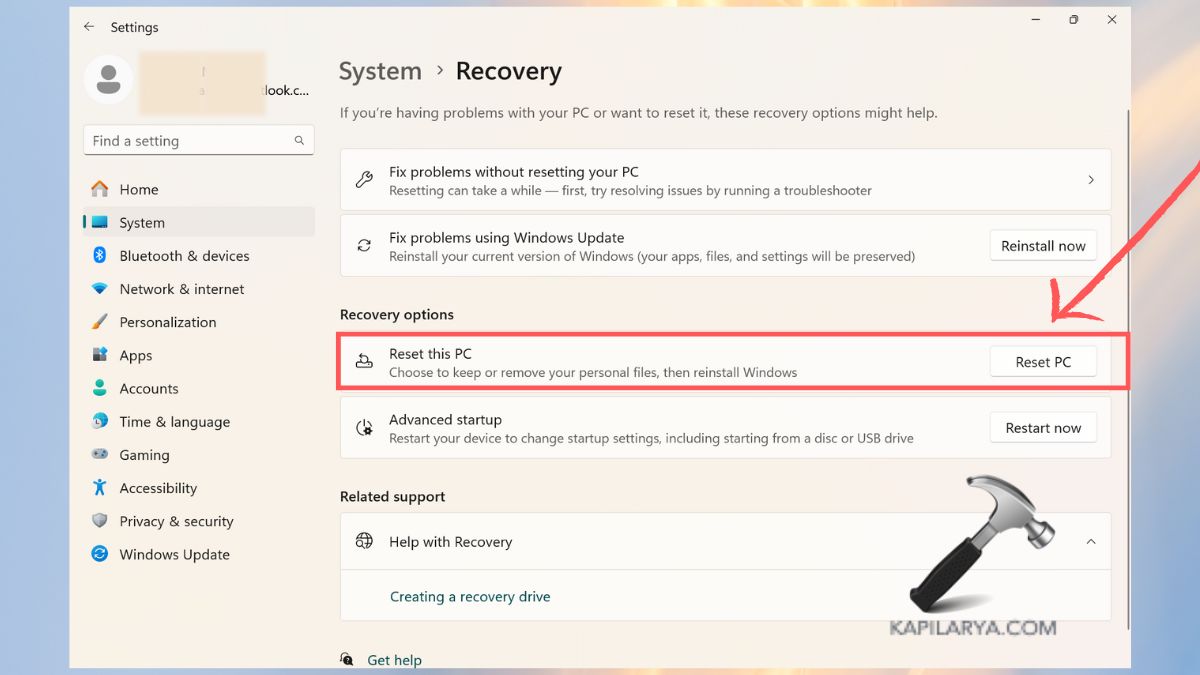
3. Choose Keep my files.

4. Choose Cloud Install or Local Reinstall. This is a secure way of installing Windows once again, but preserving your own files.

Fix 7: Run Automatic Startup Repair
In case your PC used to be healthy a few days ago, then it can be restored to a former System Restore point and be cured.
1. Press the keyboard Windows key, type in Create a restore point, and open it.

2. Then, click the “System Restore” button.

3. Step through the instructions on the screen. Select a restore point done prior to the update problem. This will do a rollback on your system settings without tampering with personal files.

Fix 8: Reset This PC
Startup Repair is a utility that corrects any error that causes failure of Windows to boot properly.
1. Firstly, switch on your personal computer and click the Power Button once more to shut down. Restart 3 times to get into Windows Recovery Environment (WinRE).
2. Click Advanced options > Troubleshoot > Startup Repair.

Allow Windows to scan and fix Startup problems. Hence, this process solves the system conflicts that prevent the update process.
Frequently Asked Questions (FAQs)
Why is my Windows 11 stuck on “Updates are underway”?
It occurs through corrupted update files, incomplete installations, system file errors or power outages occurring during updates.
How long should Windows 11 updates take?
The usual times are 5 to 20 minutes, although significant updates on features have been known to consume as long as an hour. Note that, when it is not responding in more than 30 minutes, attempt the solutions mentioned.
Will I lose my data while fixing this update issue?
The majority of the tools will not destroy your files. The only way that forces the user to take caution is the Reset this PC. However, the user should select Keep my files.
Is it safe to force restart during Windows updates?
Yes, when your PC is not responding. A hard reset can also be required to end the update loop.
That’s it!




