

When the taskbar is unresponsive in Windows 11, the Start button doesn’t open, pinned apps won’t launch, and icons feel frozen, which can severely limit how you interact with your system.

Page Contents
Taskbar unresponsive in Windows 11 [Fix]
This problem may be caused by conflicts in system components, corrupted UI files, or background services that are not functioning correctly. The following solutions will help you restore taskbar functionality.
Method 1: Re-register the Start Menu
Re-registering Start and taskbar components often refreshes the core Windows shell.
1. Press Ctrl + Shift + Esc to open Task Manager.
2. Click File, choose Run new task, type PowerShell, and enable administrative privileges.
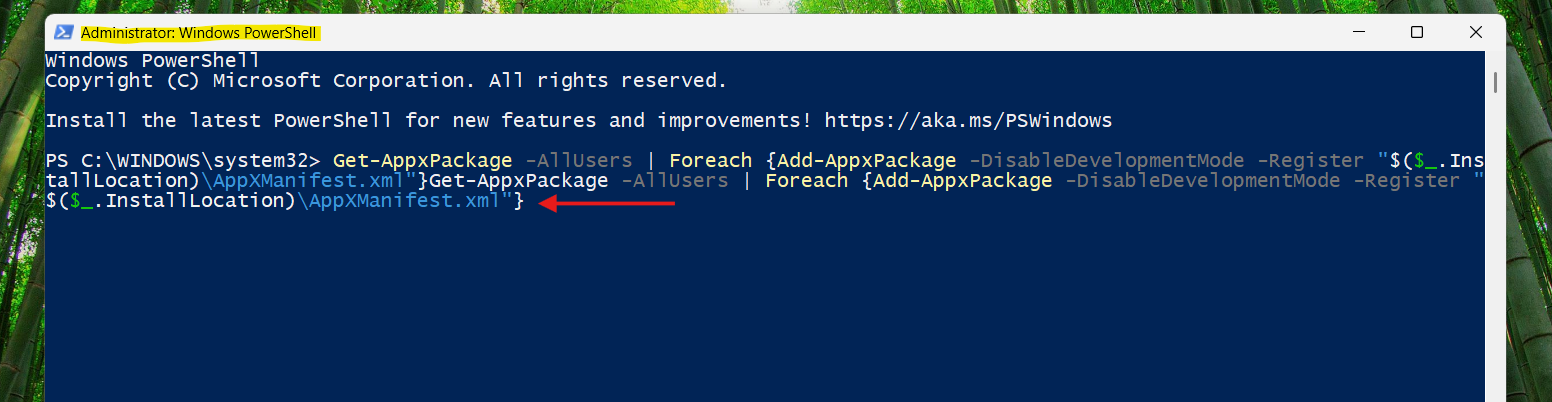
3. Paste this command:
Get-AppxPackage -AllUsers | Foreach {Add-AppxPackage -DisableDevelopmentMode -Register "$($_.InstallLocation)\AppXManifest.xml"}
4. Let the process complete, then restart your PC and test the taskbar.
Method 2: Restart Windows Explorer
Restarting Explorer reloads the interface and can fix temporary freezes.
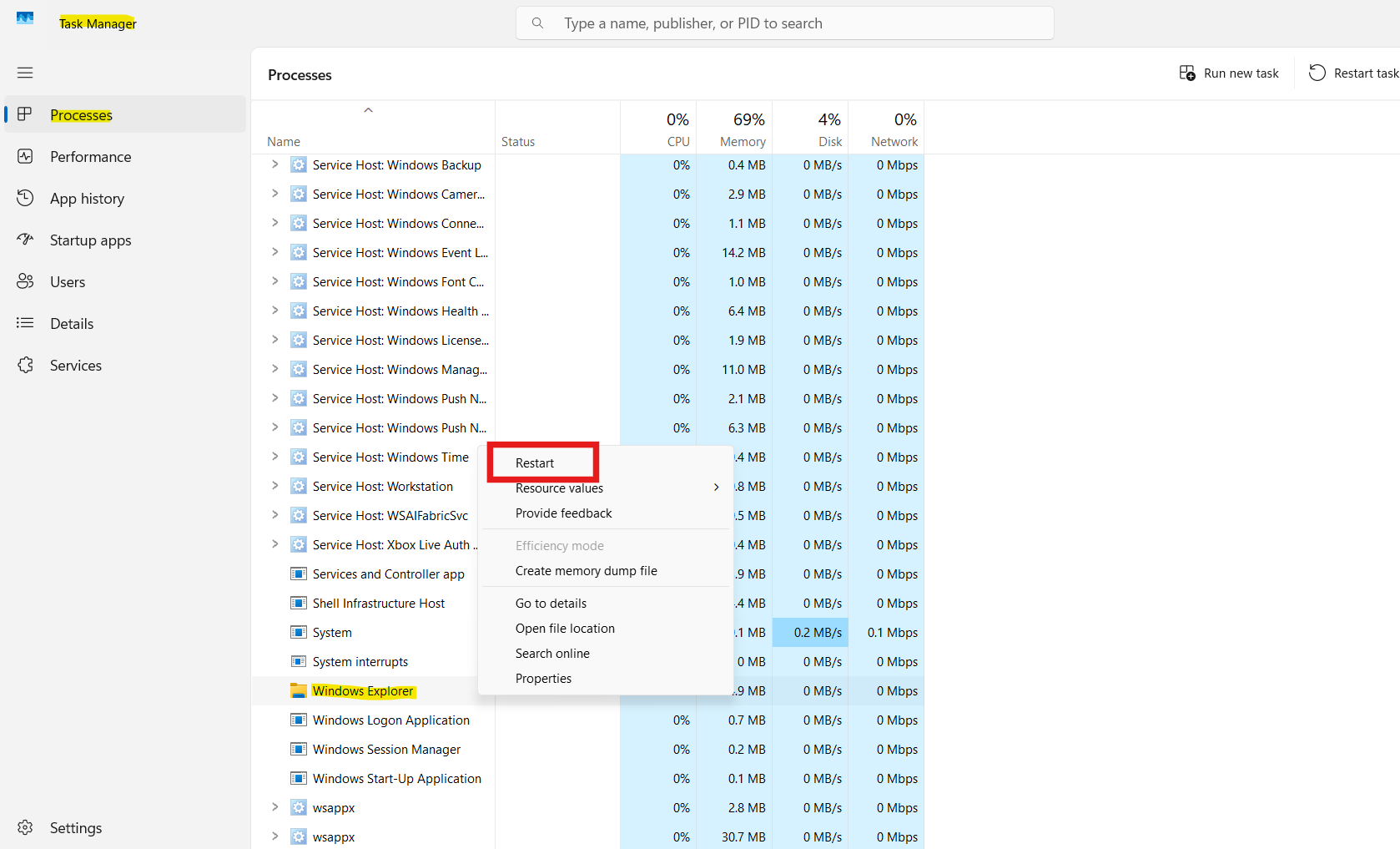
1. Open Task Manager.
2. Under Processes, locate Windows Explorer.
3. Right-click it and choose Restart.
4. The screen may flicker briefly as the taskbar reloads.
Method 3: Clear Corrupted System Files
Damaged system files may cause UI elements to stop responding.
1. Open Task Manager, click File and Run new task, typecmd, and select administrative privileges.
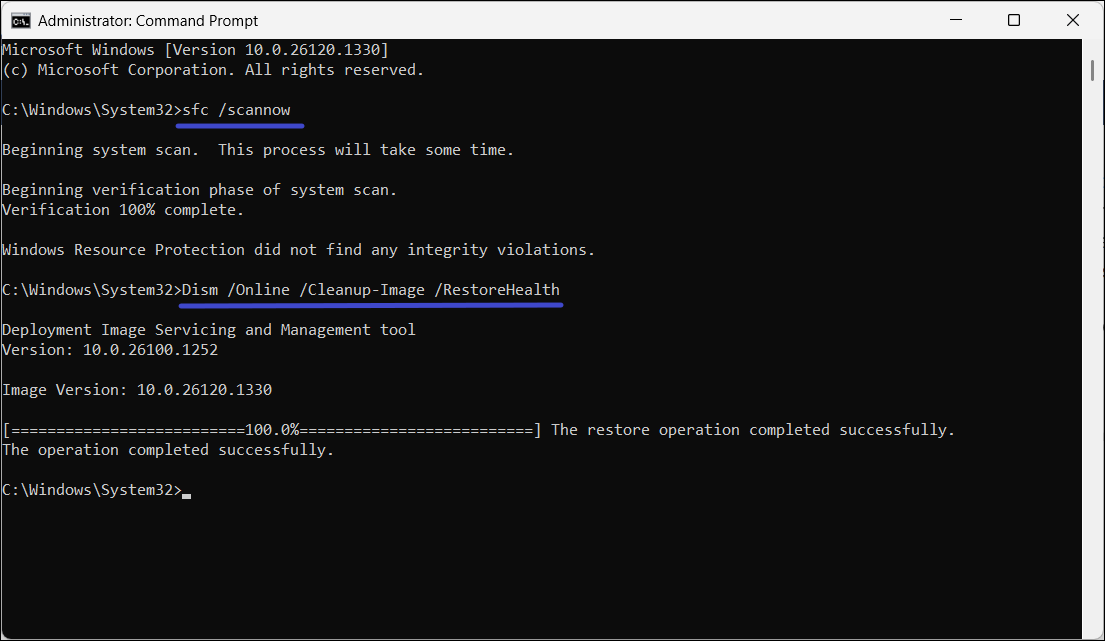
2. Run:
sfc /scannow
3. After it finishes, run:
DISM /Online /Cleanup-Image /RestoreHealth
4. Restart the PC once the scans are complete.
Method 4: Delete the IrisService Registry Entry
A specific background service entry can interfere with the taskbar.
1. Open Task Manager, go to File and then Run new task, type cmd, and enable administrative privileges.
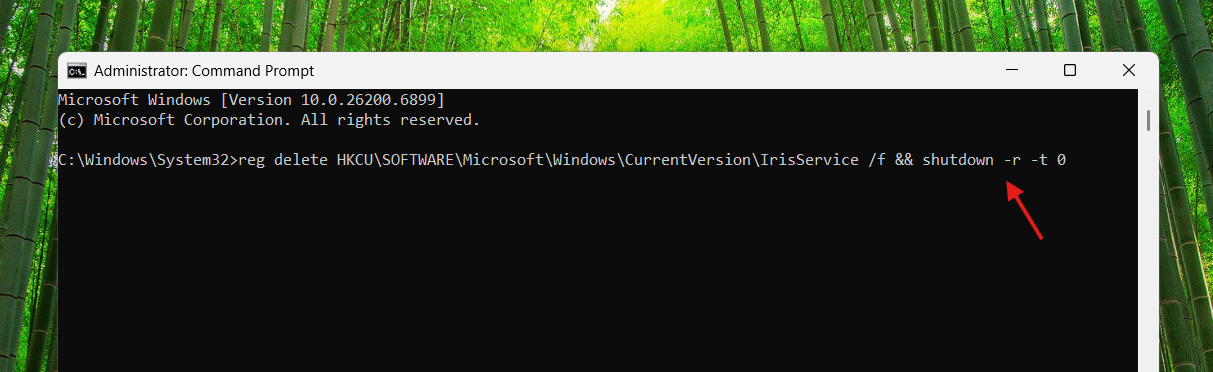
Enter this command to remove the entry and reboot:
reg delete HKCU\SOFTWARE\Microsoft\Windows\CurrentVersion\IrisService /f && shutdown -r -t 0
2. Allow the system to restart and test the taskbar.
Method 5: Uninstall Recent Windows Updates
If the issue started after a patch, rolling it back may help.
1. Open Settings, and then Windows Update, and go to Update history.
2. Select Uninstall updates.
3. Choose the most recent update, remove it, and restart your PC.

Quick Tips
1. Restart after each fix before testing again.
2. Keep Windows updated to benefit from official fixes.
3. If the issue persists, consider creating a new user account and testing under it.



no need to go to task manager.
Win + R “[whatever program]” (Note: Hold Ctrl + Shift as you’re doing this) and then press enter.
No need to overcomplicate.