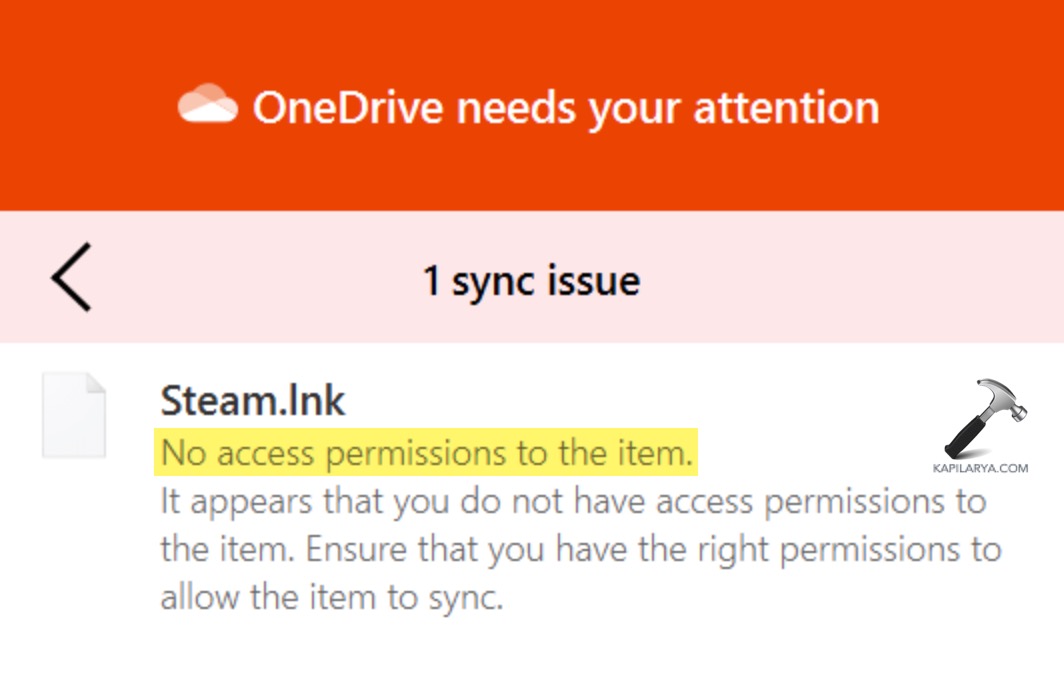
Have you been seeing messages in Windows 11 such as You do not have permission to access this item or No access permissions to the item in OneDrive? The article is here to help you. The problem can cause your files stored on your OneDrive account to be unable to open, edit, or sync. This guide will take you through simple steps to solve the OneDrive errors and regain complete access to the files.
Page Contents
Why Does the “No Access Permissions to the Item in OneDrive” Error Occur?
The reason that causes the error of OneDrive “No access permissions to the item” normally happens when it cannot confirm that your account has the necessary permissions to access or modify. The message might sound serious; however, the reason can be simple and correct.
- The file can either belong to a different account or can be shared out with the wrong access privileges.
- Disrupted or unsuccessful syncing may lead to a temporary lock-out of OneDrive.
- Permission errors may be induced by signing in with some other Microsoft account than the file owner.
- Destroying cache files can make the OneDrive unable to confirm access rightly.
- OneDrive permissions may be tampered with by a corrupted or restricted user profile.
- The older versions might have bugs that result in denial of access errors.
Did You Know about OneDrive No access permissions?
Most users are not aware that OneDrive permissions are also associated with your Microsoft account as well as Windows user profile. A minor cause, such as signing in with another email, updating Windows, or transferring files between devices can destroy file access.
This is why getting the OneDrive permission errors fixed is not a matter of one-size-fits-all; it is a matter of restoring your system, account, and the cloud storage.
And this is the primary reason why we have provided numerous fixes that you can follow.
Fix: No access permissions to the item in OneDrive
OneDrive is an effective cloud storage platform, and any technology may face certain permission and access problems sometimes. With these steps below, you will have your files back and again in no time.
Method 1: Edit File and Folder Permissions in OneDrive
One of the most frequent causes of “no access permissions to the item” in OneDrive is the unreal permissions. This technique is most effective when the file has been distributed in the wrong way, or between account to account.
1. Browse to open OneDrive either in your web browser or in File Explorer.

2. Click on the affected file or the folder on the right side. Choose Details or Manage Access control.
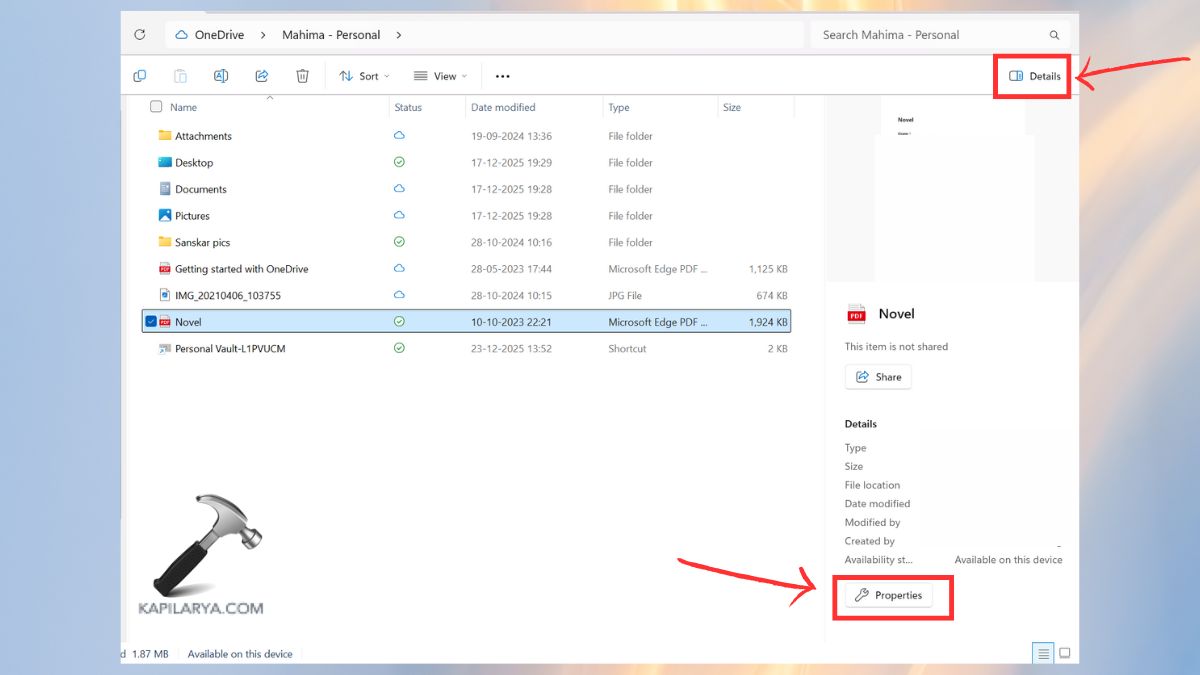
3. Check the access to your email in Security tab, it should have Full Access or Edit. Eliminate unfamiliar or redundant users.
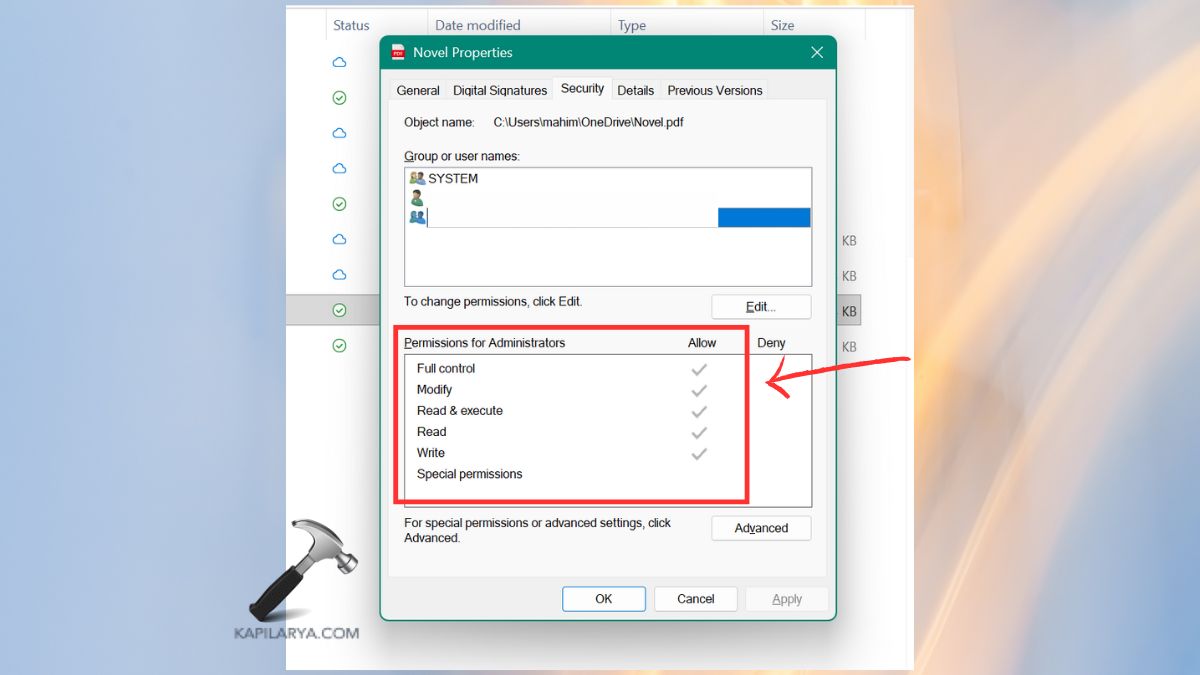
Save and refresh OneDrive.
Method 2: Unlink and Relink Your OneDrive Account
Unlinking and relinking OneDrive is one solution that can refresh your account connection and address authentication. This is a reset of the sync permissions and usually fixes the access-related errors in real-time.
1. Right-click the OneDrive cloud icon on the system tray.
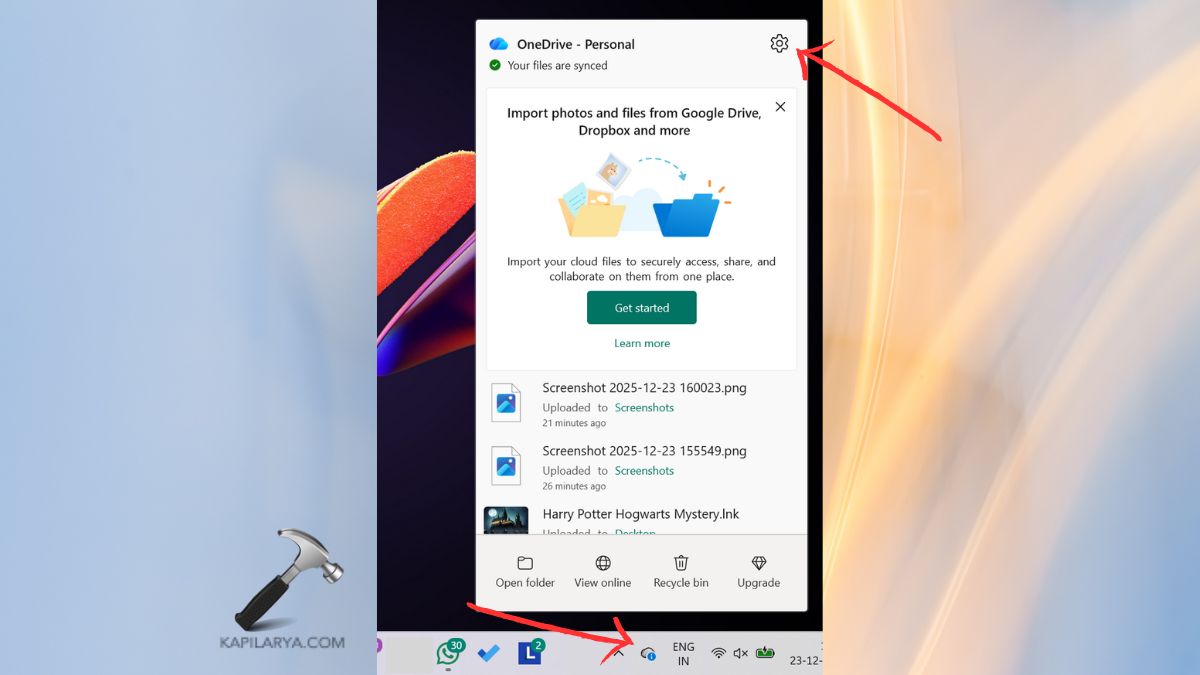
2. Go to Settings > Account. Select Unlink this PC.
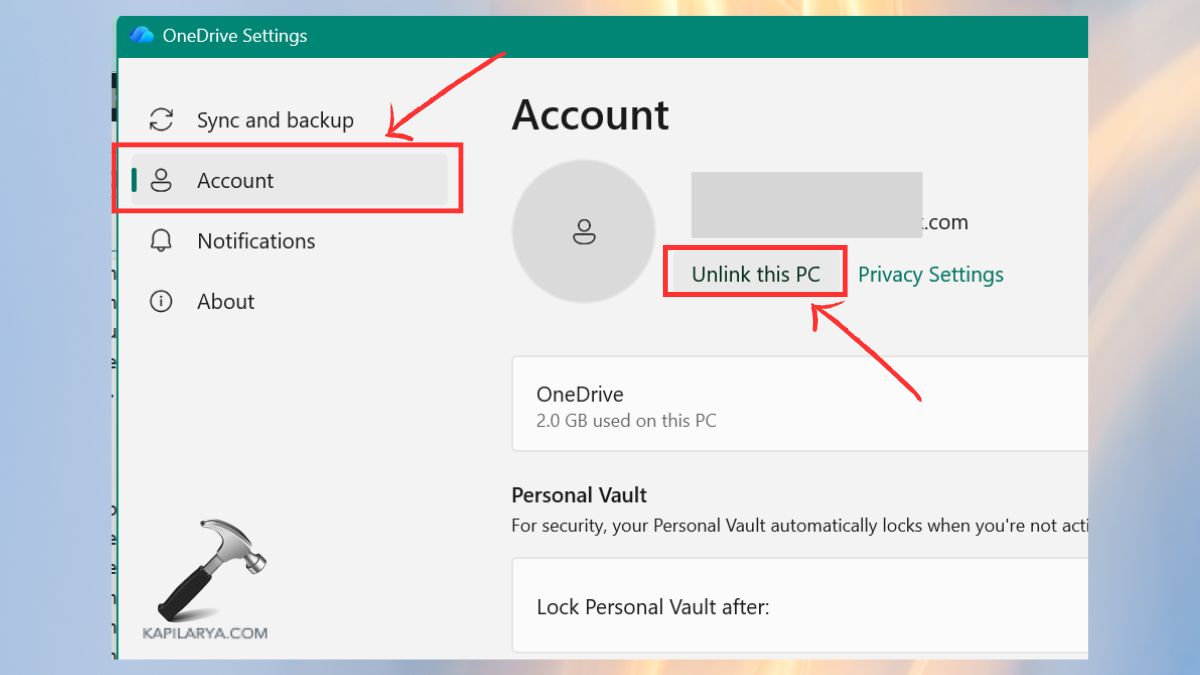
Restart your computer. Reopen OneDrive and log in once again.
Method 3: Reset OneDrive to Fix Permission Errors
OneDrive can be reset to clear the corrupted cache files that might make it impossible to access items. This works very well in terms of sync and permission-based problems.
1. Press Windows + R. Enter the following command and press Enter.
%localappdata%\Microsoft\OneDrive\onedrive.exe /reset

Wait a few minutes.
2. Manually restart OneDrive in case of no execution on initial start-up. If OneDrive does not start up ever, follow this detailed guide on “Fix: OneDrive not starting automatically with Windows 11/10“.
Method 4: Uninstall and Reinstall OneDrive
In case OneDrive files or settings are damaged, one can install the app again and the problem will be fixed. These are the steps to Reinstall OneDrive easily-
1. Click on Settings > Apps > Installed apps.
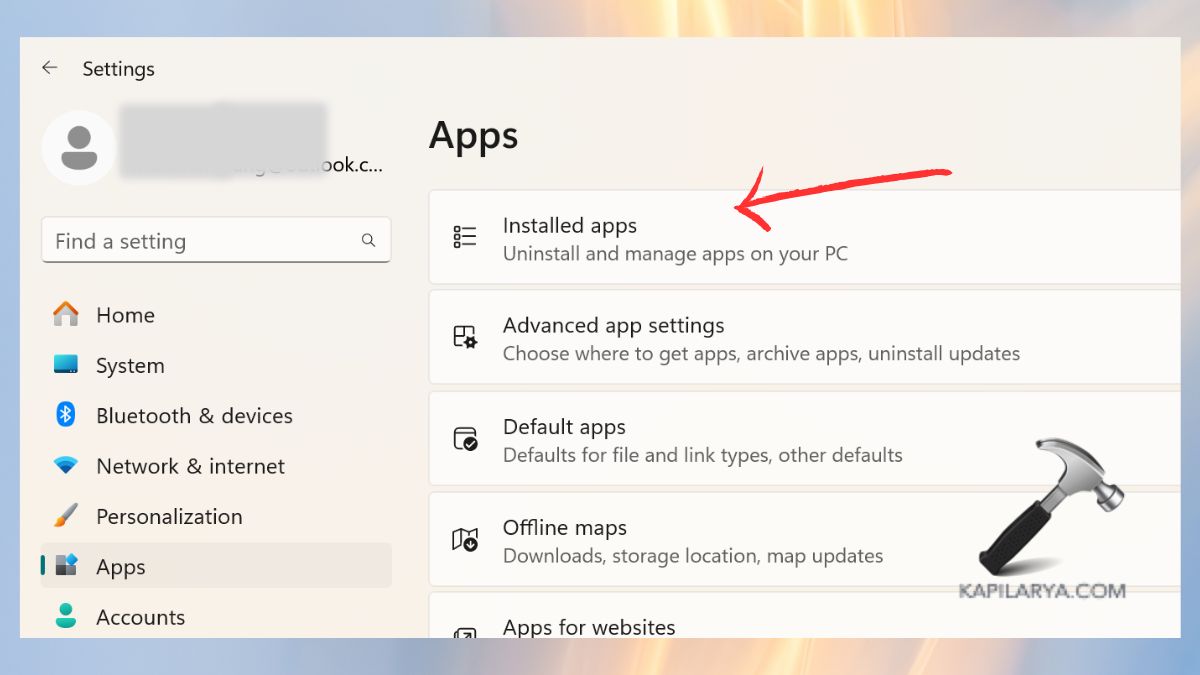
2. Locate the Microsoft OneDrive and uninstall it.
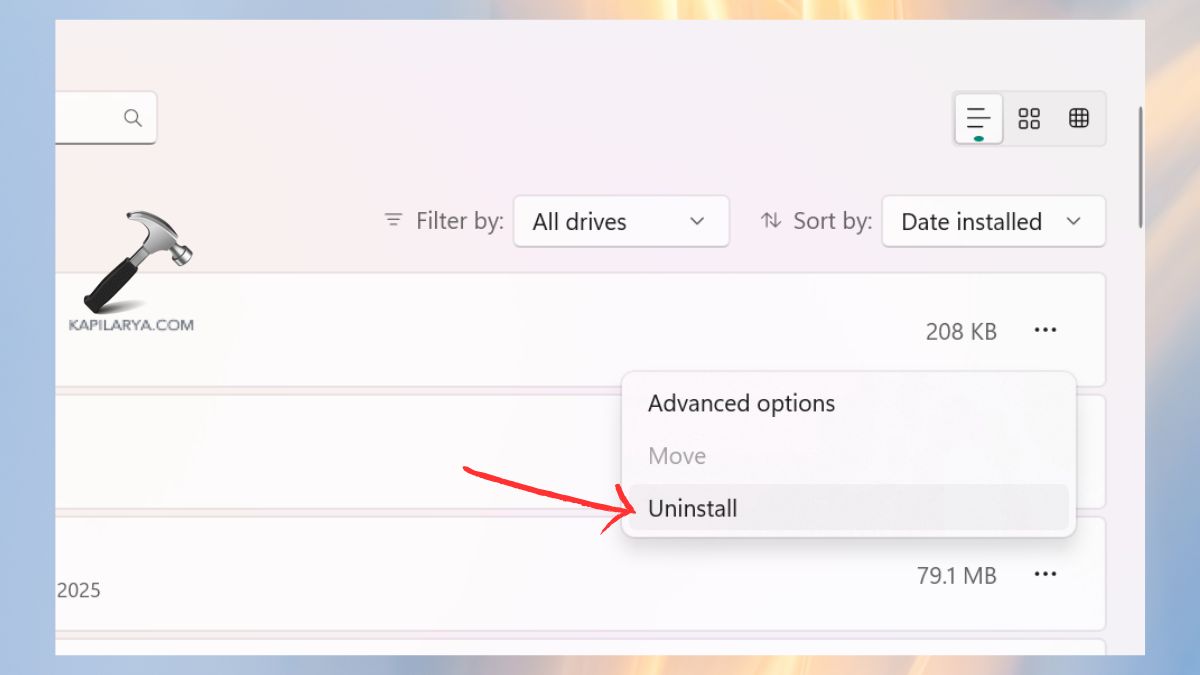
3. Restart your PC. Then, get the new one from Microsoft Store or official website (https://www.microsoft.com/en-in/microsoft-365/onedrive/download). Install and sign in again.

Method 5: Create a New Windows User Profile
Sometimes it is not a OneDrive issue, but it is your Windows profile. This technique is effective in cases where the permission errors are associated with a corrupted Windows user profile. The steps to add a New User Profile:-
1. Click on the Settings > Accounts > Other users.

2. Click Add account.
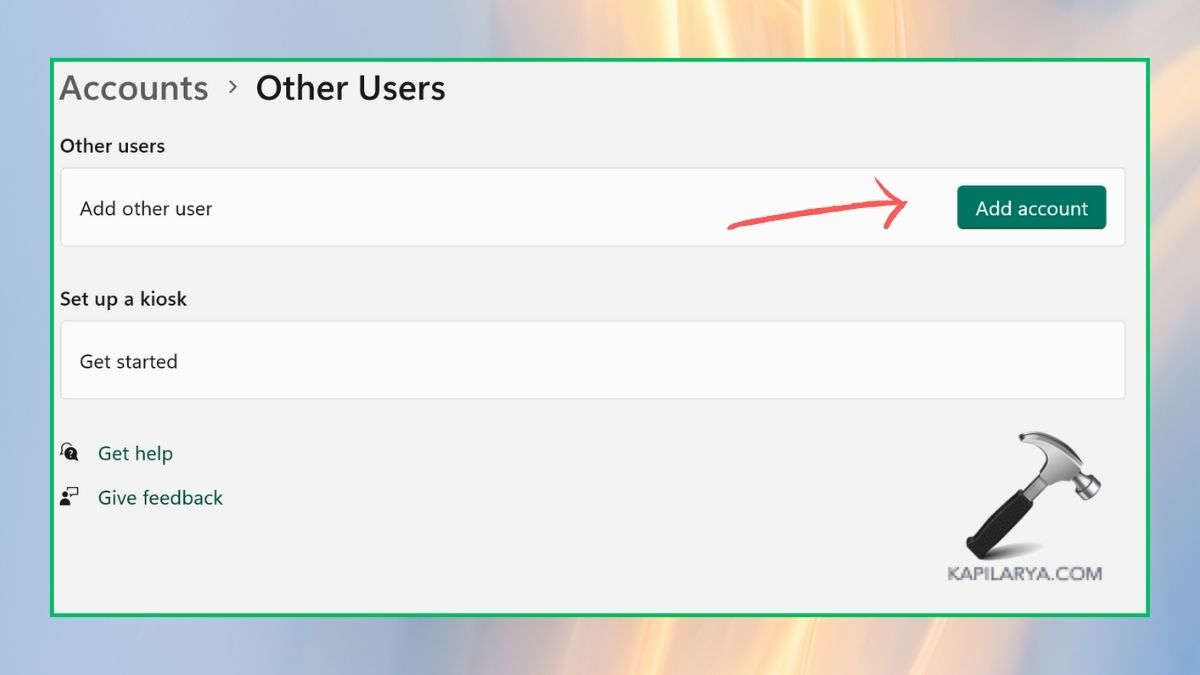
3. Add and proceed with a new local or Microsoft account.

4. Log in using the new profile. Open OneDrive and verify access to files.
Frequently Asked Questions (FAQs)
How do I fix “No access permissions to the item” on OneDrive?
To fix this error, just apply the solutions proposed in this article as reworking with file permissions, unlinking and relinking OneDrive, resetting the app, reinstalling, or creating a new user profile. These are the methods to restart the OneDrive settings and allow you to access your files once again.
What does “no access permissions to the item in OneDrive” mean?
It means that your account does not have the required authority to access, modify, or synchronize a particular file or a folder in OneDrive.
Can this error occur even if I’m the file owner?
Yes. File owners may even experience access issues because of sync issues, cache corruption, or profile errors.
Does resetting OneDrive delete my files?
No. OneDrive will not lose the files in the cloud, only the app settings and a cache will be removed when you reset it.
Is this issue common in Windows 10 and Windows 11?
Yes. Not only Windows 10 but also Windows 11 can be affected by this error and especially after updates or changes in the account.
That’s it!