Fixing OneDrive error codes on Windows 11 doesn’t need to be stressful. You must be using OneDrive to store or access your files; you are likely to have encountered frustrating errors somewhere. The good news? These are not the problems that are rare and are normally simple to correct.
Here we will take you through cases of 25 OneDrive error codes and their step-by-step solutions. If OneDrive is not syncing, displaying random error messages, or having a hard time with your subscription, we have you covered. Towards the end, you will know how to troubleshoot OneDrive on Windows 11 properly.
Page Contents
Fix OneDrive error codes on Windows 11
We have described 25 of the most common error codes in OneDrive below, in a randomized list to give you a variety of them, and the steps required to solve them.
Fix 1: Error Code 0x8004de40
This is an error that typically arises because of network connectivity problems.
1. Eliminate the possibility of internet connectivity. Reconnect it to a different WiFi or restart it.
2. Turn off the VPN or proxy that might be active.

3. Restart OneDrive with the help of keys Win + R, typing the following command, and pressing Enter.
onedrive /reset

Fix 2: Error Code 36 – File Path Too Long
OneDrive will not synchronize files whose file name or path has more than 260 characters.
1. You have to rename the file/folder and make it shorter than 260 characters.

2. Drag the file nearer to the root folder (e.g., Desktop rather than Documents > SubFolder > Subfolder). Restart OneDrive.
Fix 3: Error Code 0x8004def7
This is where your OneDrive account gets suspended temporarily.
1. Enter your Microsoft account with your credentials at “onedrive.com”.
2. In case your account is suspended, activate your account. And in case of a billing problem, refresh or update your payment profile.

Fix 4: “The file or folder already exists on OneDrive”
This failure implies that the folder is already under OneDrive, and this results in duplication.
1. Check the OneDrive folder to verify that the folder with that name exists there.

2. It is possible to rename and delete duplicates. Then, re-sync OneDrive.
Fix 5: Error Code 0x8004def0
This is a program error 0x8004def0, which is triggered when your account credentials have expired.
1. To begin with, log out the OneDrive.

2. Then, sign back into OneDrive.

3. Updating Windows 11 to the new version – go through these actions – Settings > Windows Update > Check for Updates.

4. As for the OneDrive cached credentials, clear it out from Control Panel > Credential Manager > Windows Credentials.

Fix 6: Error Code 0x8004de96
This occurs as a result of wrong sign-in information.
1. On the OneDrive’s sign-in page, enter your correct login details, such as email address and password.
2. Also, ensure Caps Lock isn’t on.
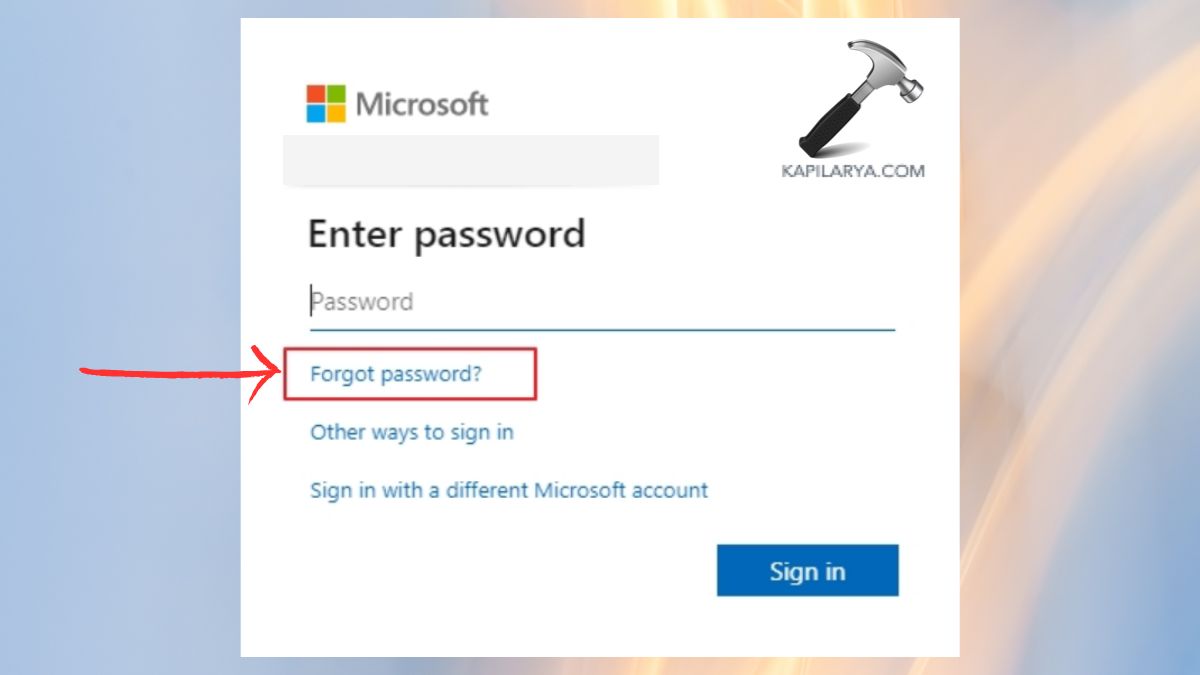
3. In case you can not log in, you can try to reset your password.
Fix 7: Problem Accessing the Store
This happens when OneDrive is unable to connect to the Microsoft Store.
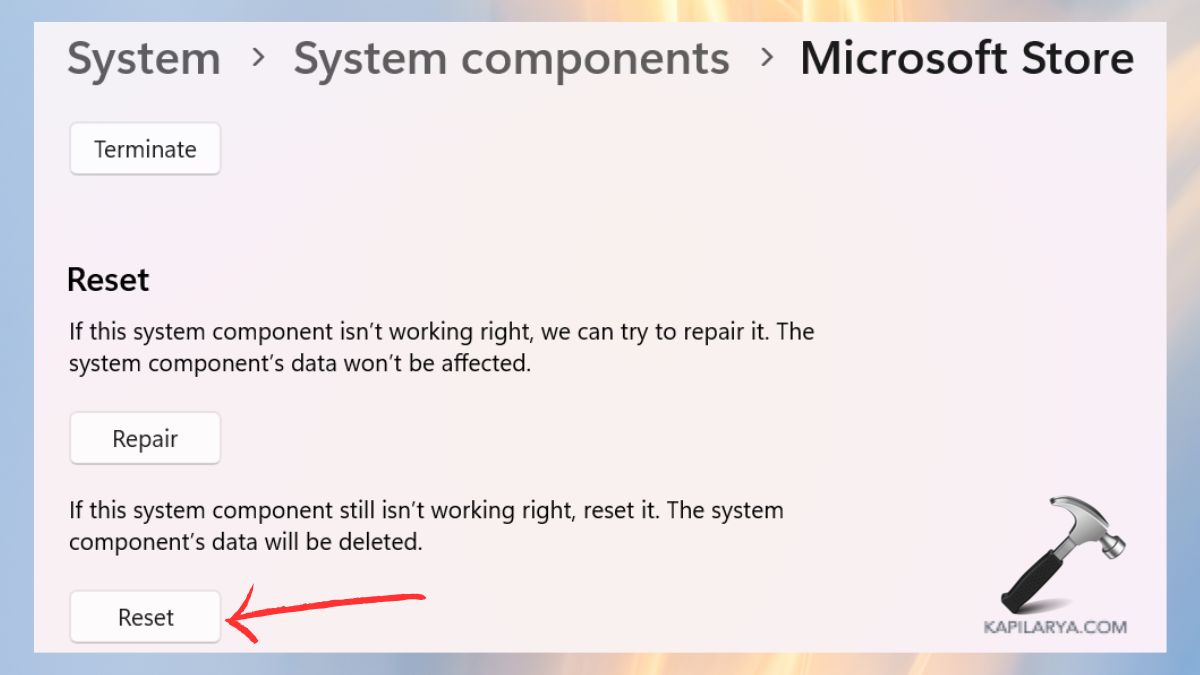
1. Go to Settings > System > System Componenets > and then Microsoft Store > Advanced options > Reset.
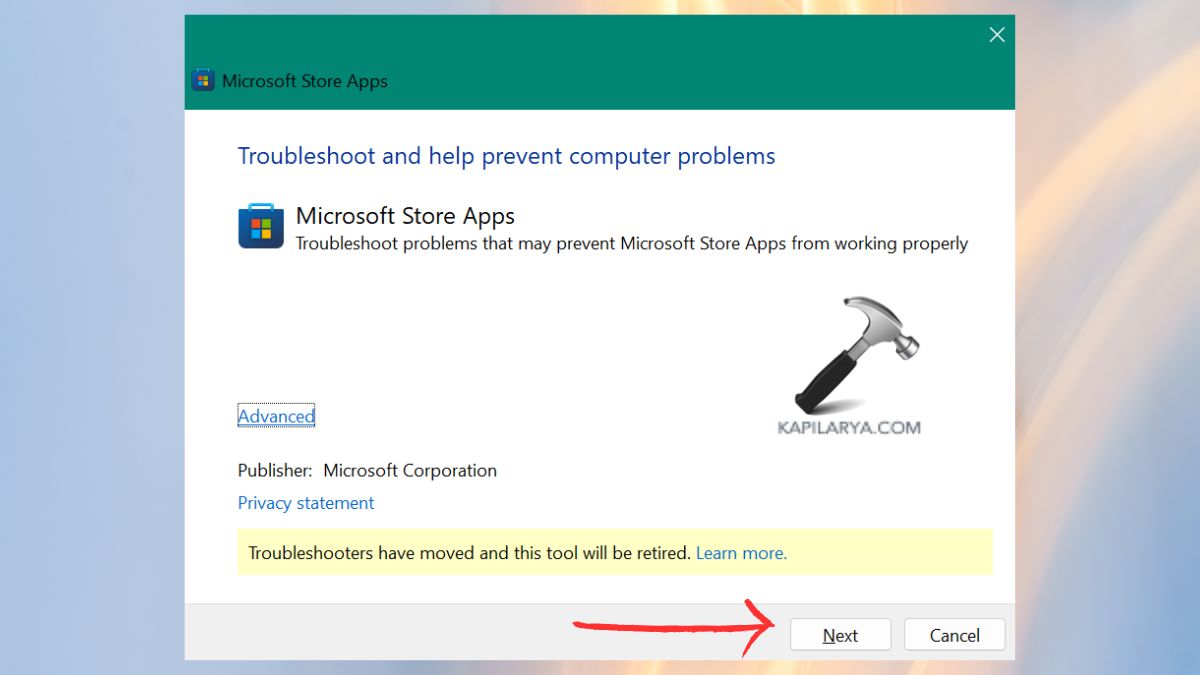
2. Search in settings for “Microsoft Store” and tap to Find and Run the Windows Store apps troubleshooter.

3. Now, get ahead to follow the on-screen steps to run the troubleshooter.
Fix 8: Error Code 0x8004de90
It occurs when attempting to log in using a personal account rather than a work/school account.
1. Check the type of account in OneDrive.

2. Add the right account by clicking on “Sign in with a different account”.

Fix 9: Error Code 1 – General Sync Error
OneDrive does not sync files, and this leads to a General Sync error.
1. Try restarting OneDrive.
2. Confirm Windows 11 updates through the Settings menu under Windows Update > Check for Updates.
3. Make sure you are not surpassing OneDrive storage from Onedrive Settings > Options > Manage Storage.

Fix 10: Subscription is Redeemed on Another Account
As the error’s name suggests, this will happen in case your subscription key is already utilized.
1. Get confirmation as to which account is subscribed to OneDrive or Microsoft.
2. Sign in with that account.
3. Get in touch with Microsoft support in case you have used a different account.
Fix 11: Error Code 0x8004de85 or 0x8004de8a
These error codes normally occur whenever OneDrive is not able to log in to your account. It can arise because of expired credentials or wrong account configuration. In case you have two accounts, the work and personal ones, make sure that you are signing in to one.
1. Click the OneDrive Settings option and remove your account.
2. Re-enter the correct Microsoft account.
3. Reset OneDrive through “Win + R” and enter this command.
onedrive/ reset
Fix 12: Fix Error Code 0x8004deb4
Most frequently in cases where OneDrive is inaccessible because group policies have restricted its usage, especially in work PCs or school PCs.
1. You have to search for and open the Group Policy Editor on your Windows system. Or you can search it in Run box with “gpedit.msc”.

2. Go to Computer Configuration > Administrative Templates > OneDrive.
Check whether the option OneDrive “Prevent the usage of OneDrive for file storage” is switched on.
If yes, switch it to not configured or disabled.

Note: In case you are using a PC managed by a company, you will have to do this when you contact your IT administrator.
Fix 13: Fix Error Code 6 – Timeout Issue
Error Code 6 occurs when OneDrive takes too long to connect to Microsoft servers. This is primarily an issue of connectivity.
1. Reboot your Wi-Fi router and make sure that you are connected.
2. A temporary disability of the firewall or antivirus software that might block OneDrive. Then, close the OneDrive and restart.
3. In case of VPN, disconnect it and restart syncing.
Fix 14: Fix Error Code 2 – File Sync Error
The error comes in case OneDrive is unable to upload or sync a file. It can either be because of unsupported file names, size, or corruption.
1. Title the file ( eliminate special signs such as percentages, hashes, at signs, etc.). Make sure the file size does not exceed the OneDrive 250GB capacity.

2. Verify whether the file is already open in a different application. In case yes, save it and then sync. The next step is to move the file to another place and repeat the syncing operation.
Fix 15: Fix “Sorry, OneDrive Can’t Add Your Folder Right Now”
You will see this error when you are attempting to synchronize a folder that OneDrive does not permit, such as system folders or limited drives.
1. Move the folder off restricted folders (e.g., do NOT absolutely rely on synchronization between “C:\Windows” or “C:\Program Files” and such a folder).
2. Make it in the user directory, such as Documents or Desktop.
You may restart OneDrive and attempt to synchronize again.
Fix 16: Fix Error Code 0x80040c81
Such an error may be common when OneDrive fails to update, or file corruption is experienced.
1. The first one is to run the System File Checker.
a. Open Command Prompt as administration (Run as Administration).

b. Just enter this command and press enter.
sfc /scannow

2. Then, reinstall OneDrive.
a. Go to Settings > Apps > Installed Apps > OneDrive > Uninstall.

b. Install OneDrive on the official Microsoft website (https://www.microsoft.com/en-in/microsoft-365/onedrive/download). Reboot your computer and log in.

Fix 17: Fix Error Code 0x80010007
This one is associated with file or folder permission, which implies that OneDrive does not have access to the place where your files can be found.
1. Right-click the problem folder and then choose the Properties option.

2. Click the Security tab and under the same, Edit. Choose an account and make sure that Full Control is on. Implement changes and restart OneDrive.

Fix 18: Fix “Unable to Apply the Subscription”
This will cause OneDrive not to verify or implement your Microsoft 365 subscription. In some cases, subscriptions can take a couple of hours to update, and at that point, you need to wait before giving another attempt.
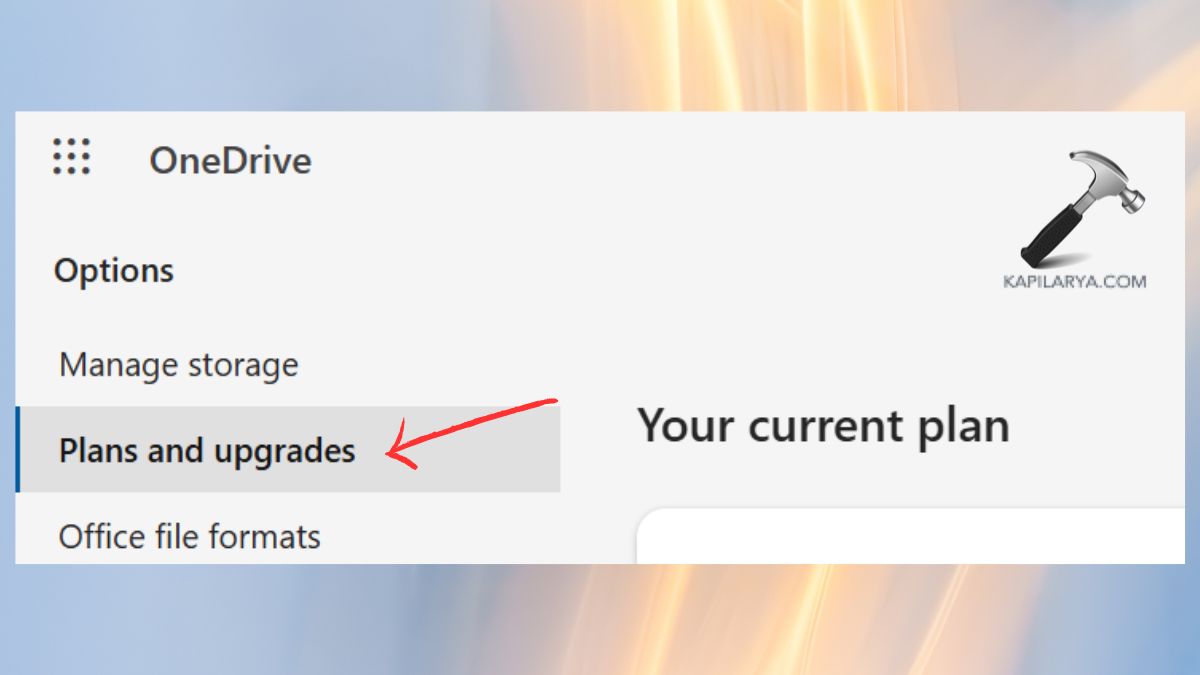
1. Go to Microsoft services in Plans and Upgrades to check your subscription status.
2. The account used to subscribe must be one that you are logged in with.
Fix 19: Fix Error Code 0x8004ded7
This is a mistake that prevents the user from signing in because the authentication token has expired.
1. Completely close the OneDrive on the system.
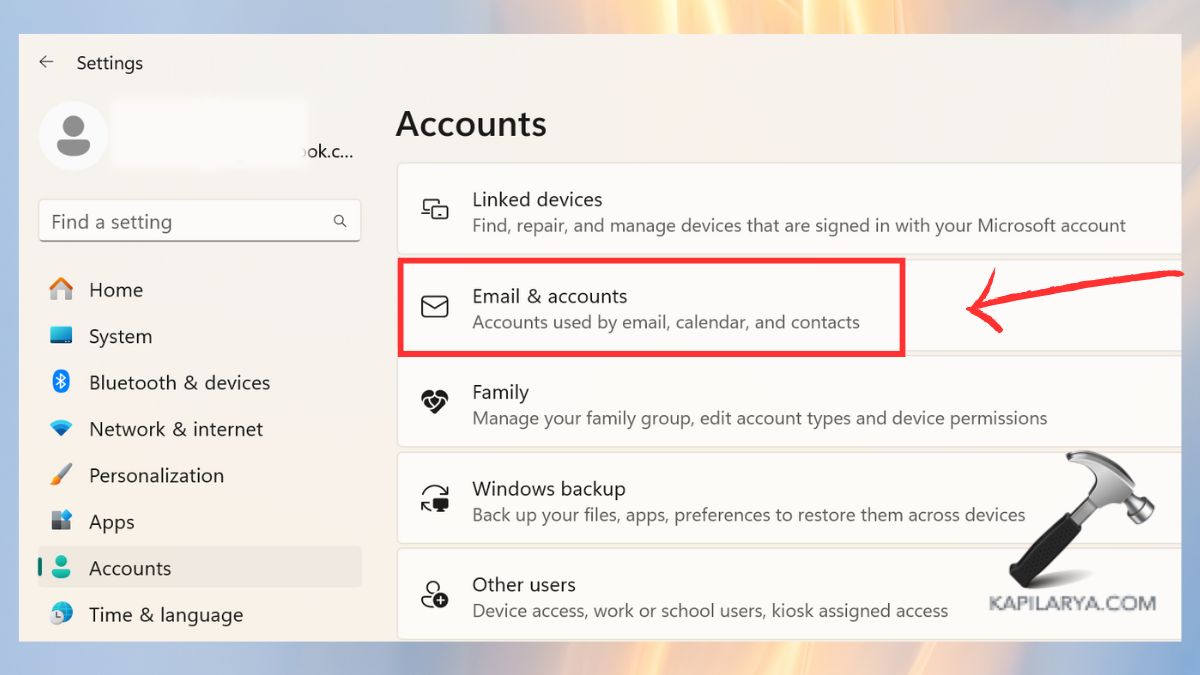
2. Go to the Settings > Accounts > Email and Accounts > remove your Microsoft account option in case of wrong listing.
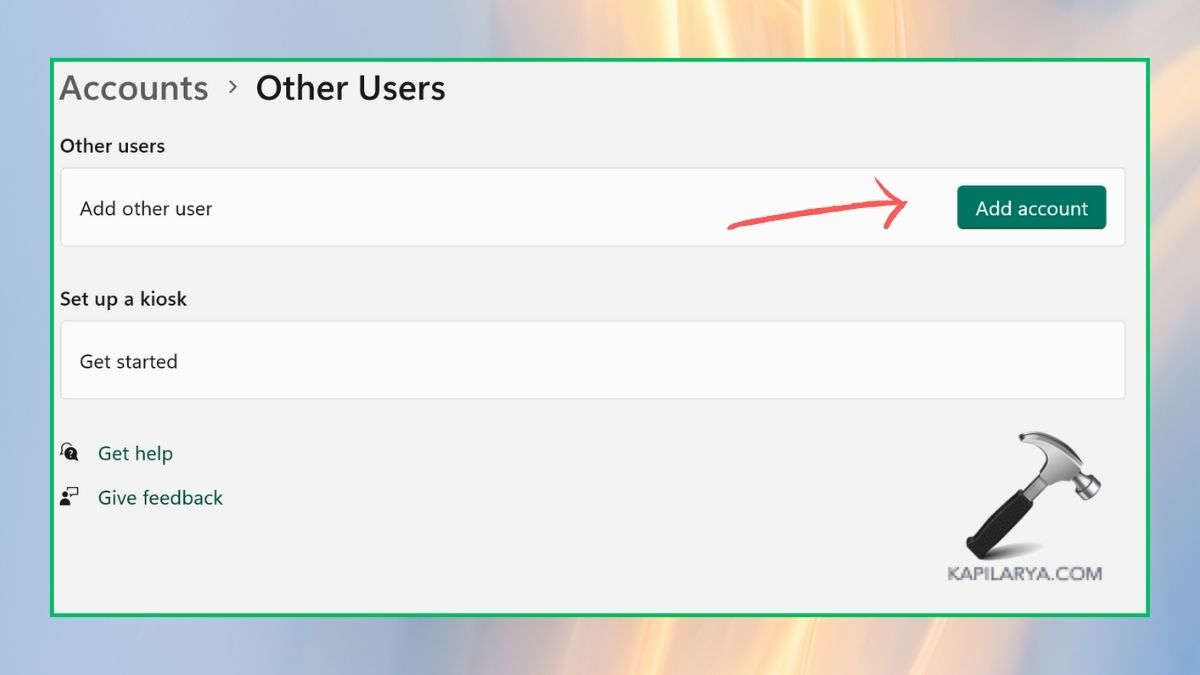
3. Add your account once again and log in.
4. Then, clear all the OneDrive or Microsoft cached credentials in Control Panel > Credential manager.
Fix 20: Fix Error Code 0x80004005
It is a general, unspecified error of OneDrive, which is generally the result of discarded files (or incomplete updates).
1. Restart your PC and OneDrive.
2. Test whether there are any new files added, and if they are either corrupted or unsupported files, you must delete them.

3. Run Windows update check to make sure your system is up to date.
Fix 21: Fix Error Code 0x8004dea3
This is an error that typically occurs because of multi-factor authentication (MFA) problems with signing in.
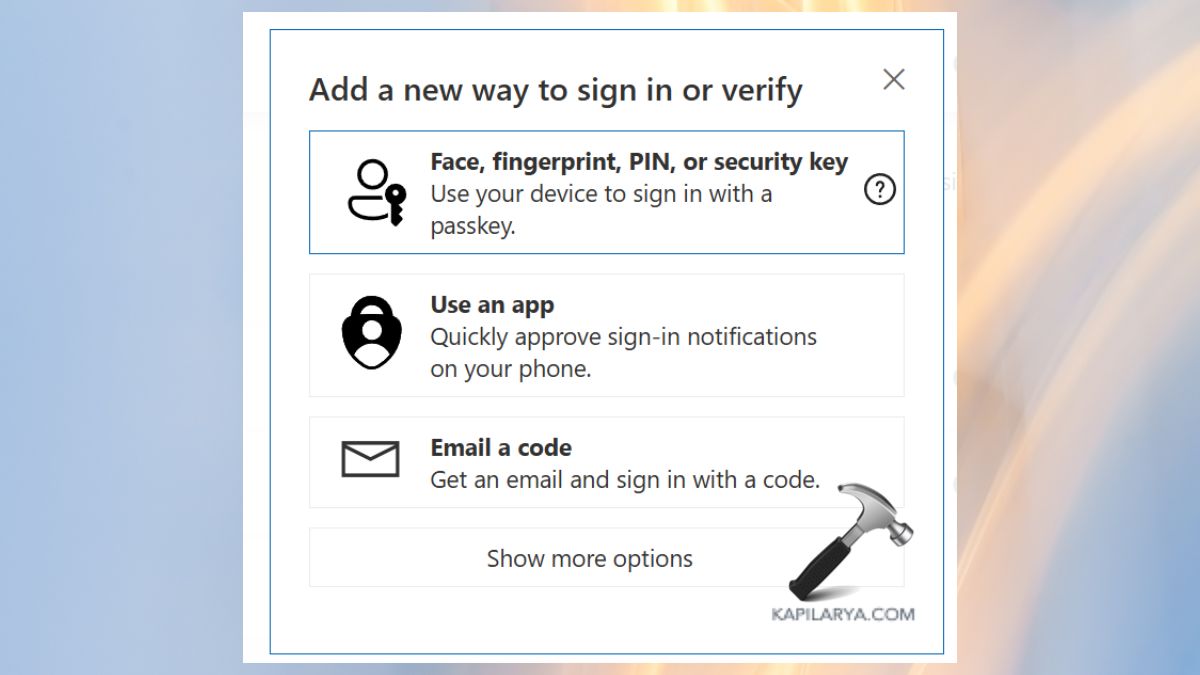
1. You must ensure that MFA is properly modeled in your Microsoft account in Security > “Manage how I sign-in”.

2. Look in your phone or authentication application and see the prompts for sign-in approval. Reboot OneDrive and re-log in.
Fix 22: Fix Error Code 0x8004ded2
This glitch refers to the nondomestic or policy limitation that OneDrive cannot be synced. To fix OneDrive error code 0x8004ded2 on Windows 11, follow these steps.
Note: In case you are using a school or work PC, it has to be checked with your administrator. Otherwise, disconnect your account from the OneDrive and reconnect.
1. Clear OneDrive to remove policies in the cache. Click on Win + R and type the following.
onedrive /reset
2. Then, make sure that Windows 11 is properly patched to the current version.
Fix 23: Fix Error Code 0x8004de80 or 0x8004de86
These are the errors that appear when one drive fails to access account information.
1. Reboot your PC and re-open OneDrive.
2. Log out and log in to OneDrive using the right credentials.
Fix 24: Fix Error Code 0x8004def4
This can happen in cases when OneDrive cannot confirm your subscription.
1. Visit Microsoft services (https://www.microsoft.com/en-in/microsoft-365/products-apps-services) and renew the subscription.

Make sure that your line of payment is validated when your subscription expiry is approaching.
2. Sign out and log back in to the settings of OneDrive. Restart your PC and try again.
Fix 25: Fix Error Code 0x8004def7 – Storage Issue
This error normally indicates that your OneDrive cloud is full, hence you can not sync more files.
1. Clear the OneDrive Recycle Bin on the web to get space. Erase unneeded files in your OneDrive.

2. Clean up big files or copy files on a regular basis to ensure you are maintaining optimized storage. Transfer unnecessary files to the hard disk.
3. You can purchase a bigger storage plan when necessary.
Frequently Asked Questions (FAQs)
That’s it!