Having the OneDrive blank white screen on Windows 11, you are at the right place. This has been reported by many Windows users who open OneDrive with a window that is all white and is not responsive. We will also guide you on six effective solutions to fix the OneDrive white screen problem in Windows 11 in this article. Let’s make OneDrive get rid of that horrible blank white screen!

Page Contents
What Causes the OneDrive Blank White Screen on Windows 11?
The problem that “OneDrive has a blank white screen tends to occur when the app does not load correctly because of glitches, old software, corrupted cache, or even bad internet connectivity. The worst part? It is capable of depriving you of your files at the most crucial times. The detailed causes can be:
- The old versions of OneDrive do not interface with the new Windows 11 updates.
- OneDrive may fail to start up because of temporary bugs in the Windows environment.
- Accumulation of old, cached information may lead to the freezing or the appearance of a white screen on OneDrive.
- OneDrive requires a growing and available connection to open your files.
- In case OneDrive was not installed properly or its files were corrupted, the app can immediately fail to boot.
You are now aware of what is going on behind the scenes, and now comes the best part, which is to correct it.
Fix: OneDrive blank white screen on Windows 11
A OneDrive empty white screen on Windows 11 may be irritating, particularly when it is part of your daily routine. Through these actions, you will not only resolve the problem with the white screen, but you will also make sure that your OneDrive will work well in the future.
Method 1: Check for Windows Updates
Old versions of Windows might also result in compatibility problems that result in the failure to load OneDrive. The installation of the recent Windows updates guarantees the efficient working of OneDrive.
1. Click on Windows + I to open Settings.
2. Tap on the Window update on the left side. Click on Check for updates.

In case of an update, then update your computer and restart your PC.
Method 2: Reinstall OneDrive
OneDrive blank screen problem can be resolved immediately by reinstalling the system files of the OneDrive again in case they are corrupted. These are the steps that follow to reinstall OneDrive.
1. Click on Windows + R, enter the following command, and press Enter.
appwiz.cpl

2. Find Microsoft OneDrive on the list. Click on the right and choose Uninstall.
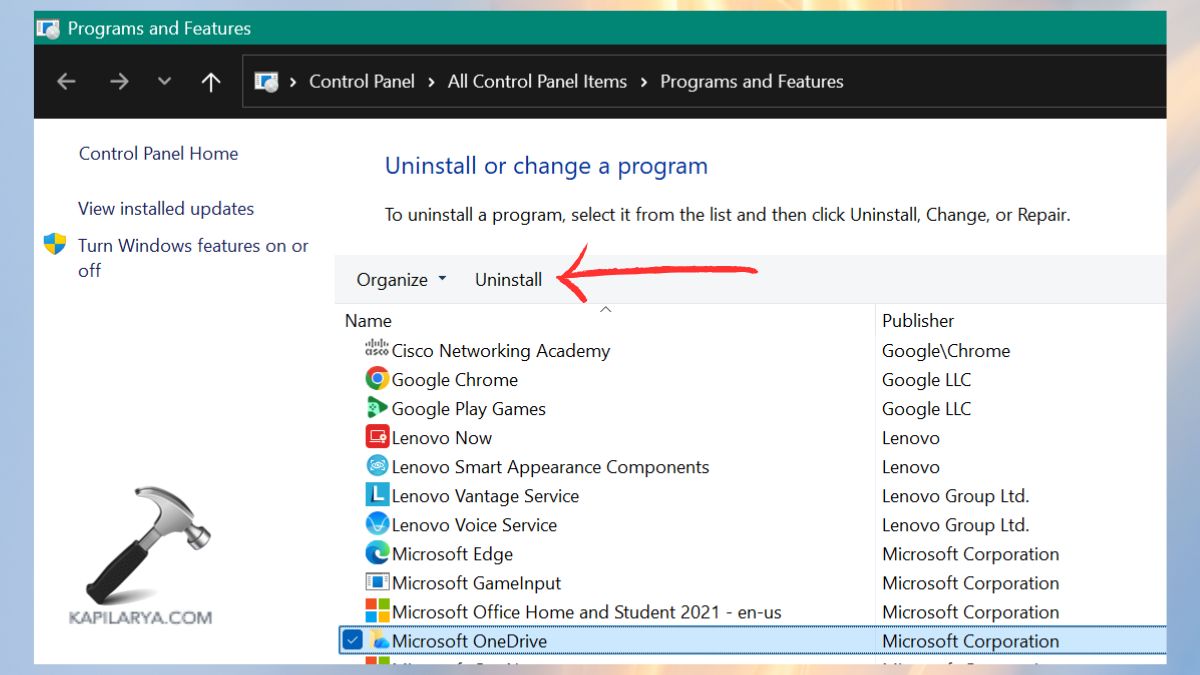
3. Once it has been uninstalled, visit the official download page of OneDrive or Microsoft Store. Install the current version of OneDrive.

At this point, again sign in, and determine whether the white screen problem has disappeared.
Method 3: Update OneDrive
There are cases when the OneDrive itself is obsolete, so it might cause some performance malfunctions or a blank screen. Microsoft continuously updates these bugs.
1. Click the OneDrive in the system tray on the right-hand side.
2. Choose Settings > About > Version info.
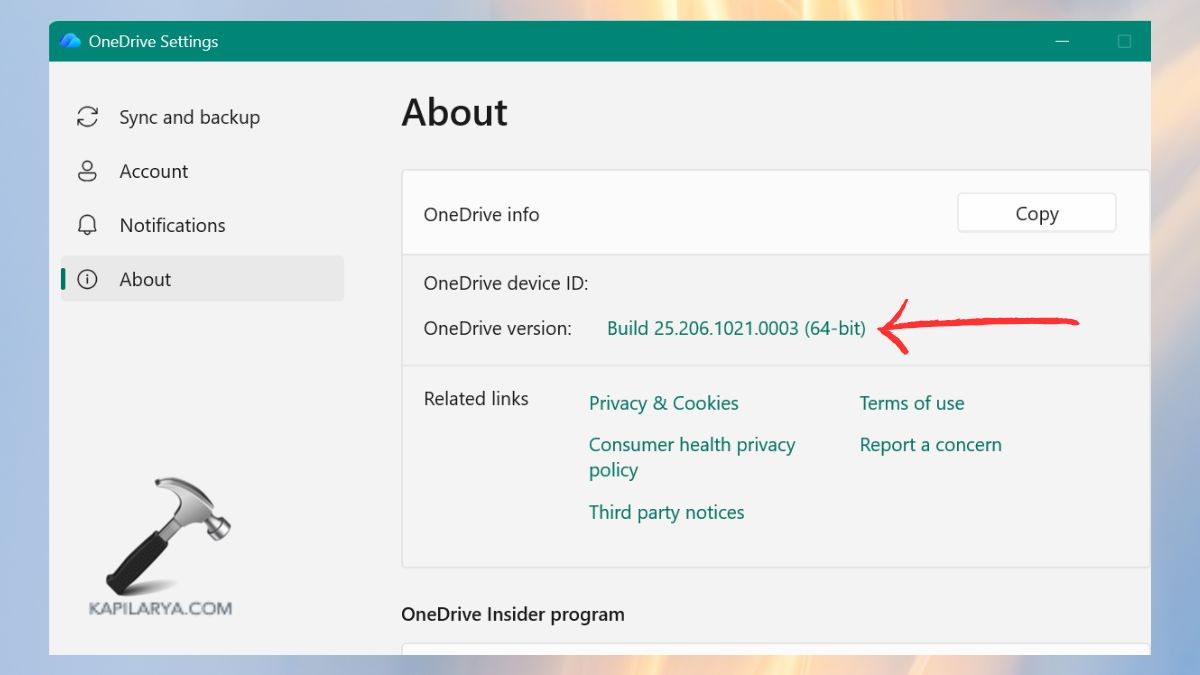
3. Go to the Microsoft official site and verify whether there is a new version. Install and download it (where necessary).
Related: How to update apps in Windows 11.
Method 4: Restart OneDrive
The temporary glitches in OneDrive can be resolved by a simple restart.
1. To use Task Manager, press Ctrl + Shift + Esc. Or just go on, search and open it in the Start menu.
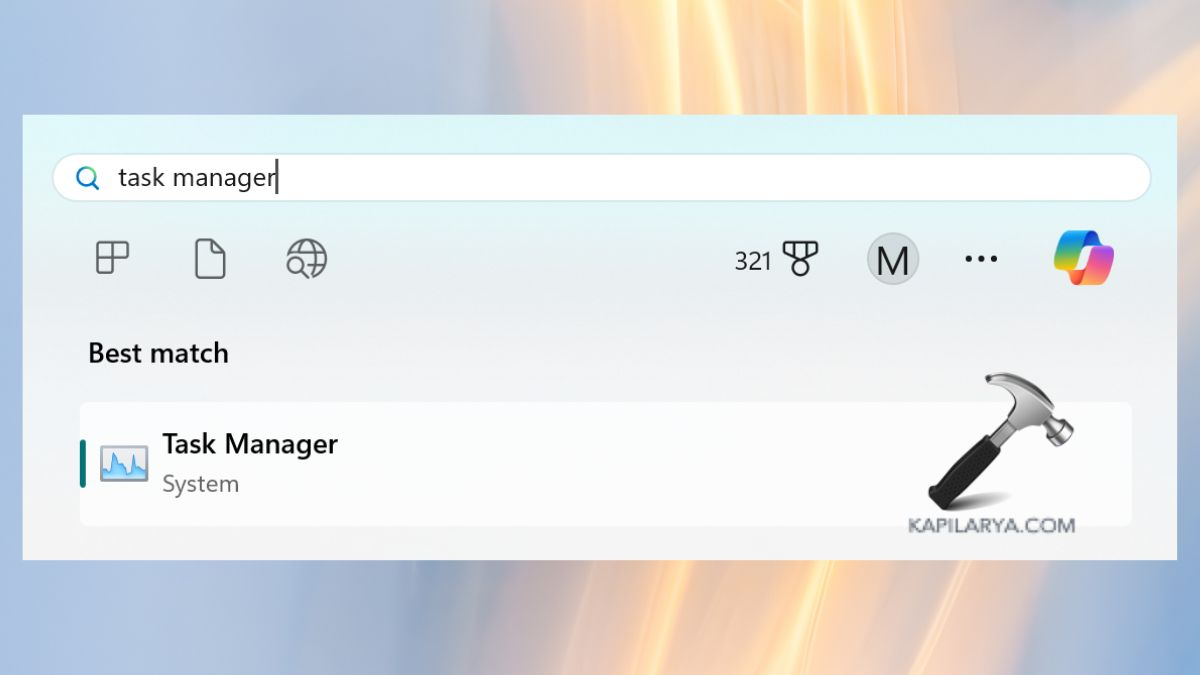
2. Identify and choose Microsoft OneDrive as a process. Click End Task.
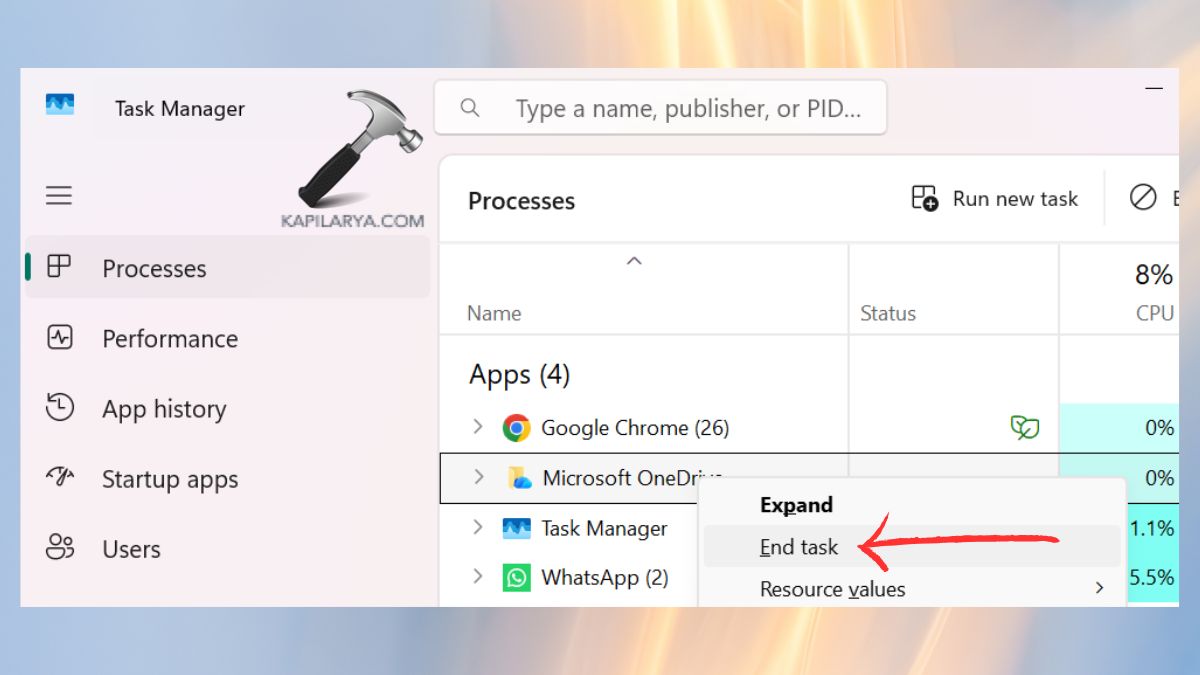
3. At this point, feel free to open the Start menu and type OneDrive and press Enter to start it.

Restart and make sure that OneDrive boots up successfully without a white screen.
Method 5: Check Internet Connection
OneDrive may not be able to load its material with a slow or unstable internet connection, leading to a blank or white screen. Also, remember to make sure that you are connected to a stable Ethernet or Wi-Fi network.
1. Restart your router or modem.
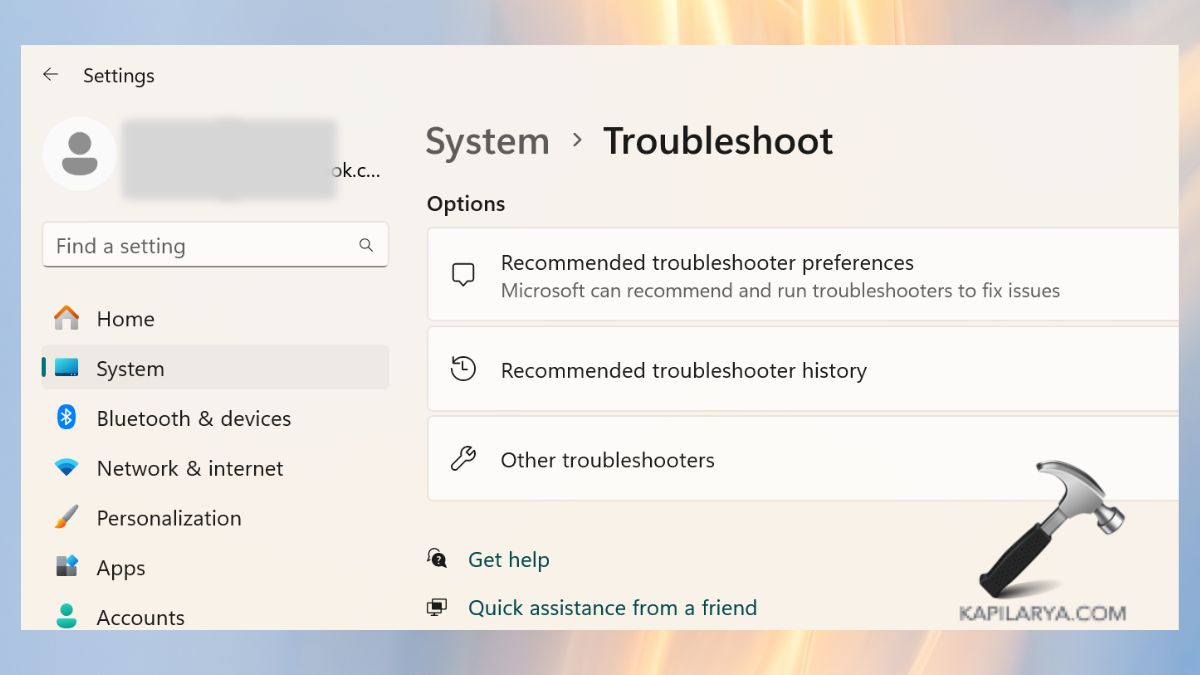
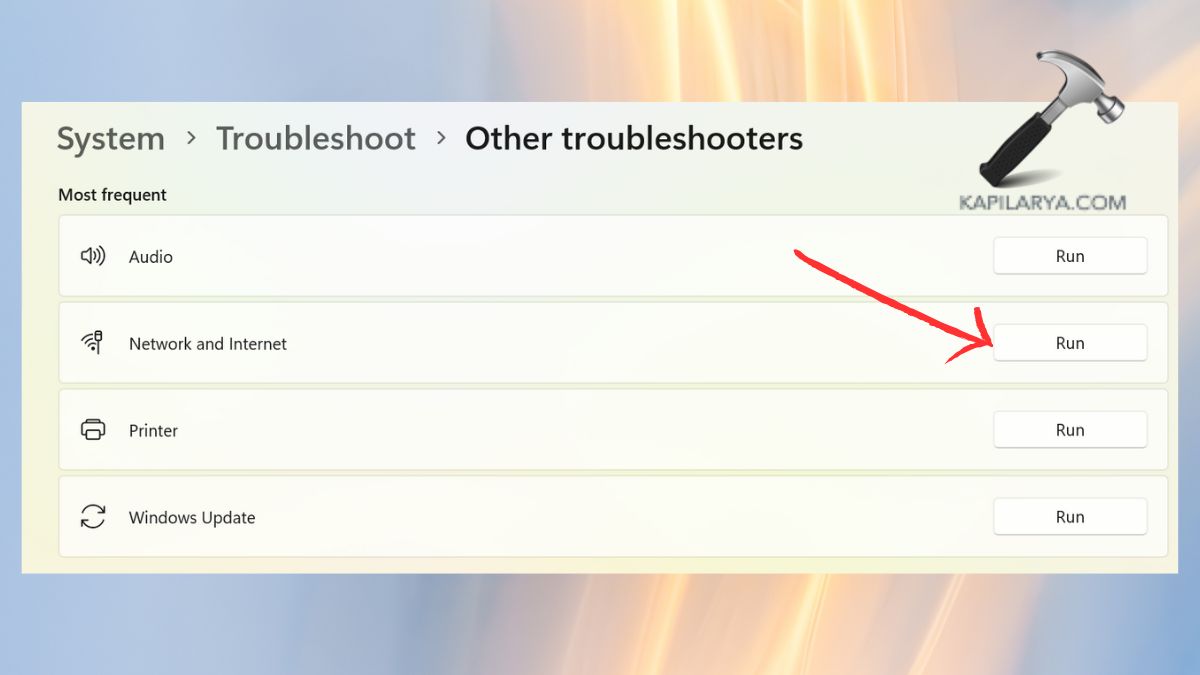
2. Use the following steps to run the Windows network troubleshooter:-
a. Hit the keys as “Windows + I” > choose System > Troubleshooters > Other troubleshooters.
b. Run the Network Internet troubleshooter.
When you are sure that your connection is stable, you need to open OneDrive again and check whether it works.
Method 6: Clear the Cache
OneDrive white screen errors may be due to a corrupted cache. In case all the steps mentioned above had no effect, clearing the cache resets OneDrive without any of your files being deleted.
1. Press Windows + R keys to open the Run box.
2. Enter this command and press Enter.
%localappdata%\Microsoft\OneDrive\onedrive.exe

This command syncs files to clear the cache files and refresh OneDrive, which most of the time resolves the problem of the white screen immediately.
3. Wait for some seconds, and OneDrive will start again. Otherwise, open it manually using the Start menu.
In case this guide assisted you, pass it to the people who may be going through the same problem.
Frequently Asked Questions (FAQs)
That’s it!