

We all know that we can repair our Windows using DISM command-line tool. Generally DISM tool is the next choice, in case if System File Checker fails to repair the machine. You can learn more about DISM commands to repair Windows, in this article.
After upgrade to recently released Windows 10 Creators Update (V1703), some users found that DISM restore command fails to work. However, the restore command was working perfectly on previous versions, such as V1507, V1511, V1607. So, on running Dism /Online /Cleanup-image /RestoreHealth on Windows 10 V1703, following error occurs:
Page Contents
Error: 0x800f0906; The source files could not be downloaded.
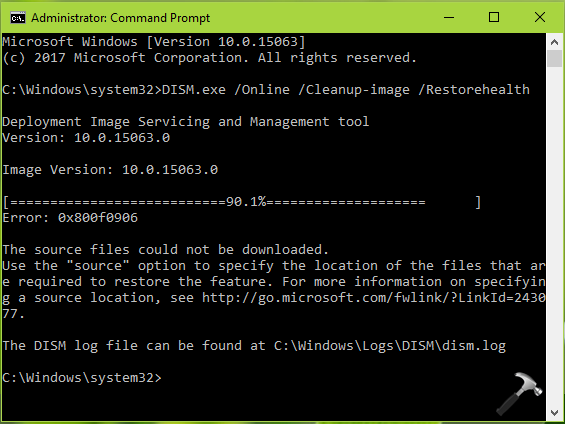
Though you can manage to overcome this error by specifying a source to repair Windows image as mentioned in this fix. But if that doesn’t works, you can go ahead with the steps mentioned below, especially for Windows 10 V1703.
FIX : DISM Error 0x800f0906 On Windows 10 V1703
Registry Disclaimer: The further steps will involve registry manipulation. Making mistakes while manipulating registry could affect your system adversely. So be careful while editing registry entries and create a System Restore point first.
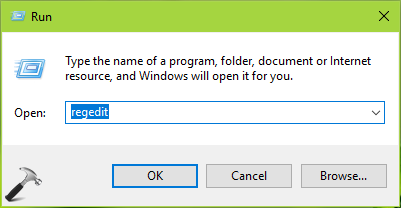
1. Press  + R and put regedit in Run dialog box to open Registry Editor (if you’re not familiar with Registry Editor, then click here). Click OK.
2. In left pane of Registry Editor window, navigate to following registry key:
HKEY_LOCAL_MACHINE\SOFTWARE\Microsoft\Windows\CurrentVersion\Component Based Servicing\PackageIndex\Microsoft-Windows-TestRoot-and-FlightSigning-Package~31bf3856ad364e35~amd64~~0.0.0.0
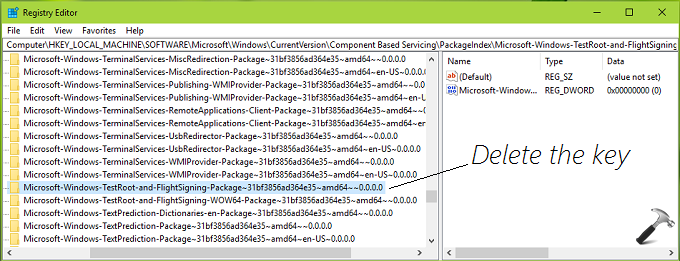
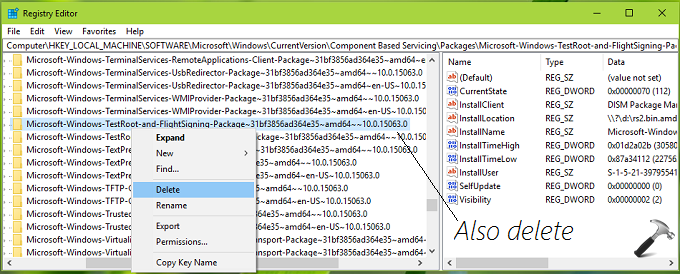
3. Backup the Microsoft-Windows-TestRoot-and-FlightSigning-Package~31bf3856ad364e35~amd64~~0.0.0.0 registry key by right click on it and select Export. Now take the ownership of registry key and right click on it, select Delete. Similarly, backup and delete following registry key as well:
HKEY_LOCAL_MACHINE\SOFTWARE\Microsoft\Windows\CurrentVersion\Component Based Servicing\Packages\Microsoft-Windows-TestRoot-and-FlightSigning-Package~31bf3856ad364e35~amd64~~10.0.15063.0
Close Registry Editor.
4. Press + E to open File Explorer. Assuming Windows is installed on C: drive, navigate to C:\Windows\servicing\Packages. Here, look for Microsoft-Windows-TestRoot-and-FlightSigning-Package~31bf3856ad364e35~amd64~~10.0.15063.0 and Microsoft-Windows-TestRoot-and-FlightSigning-Package~31bf3856ad364e35~amd64~~10.0.15063.0.mum files and delete them.
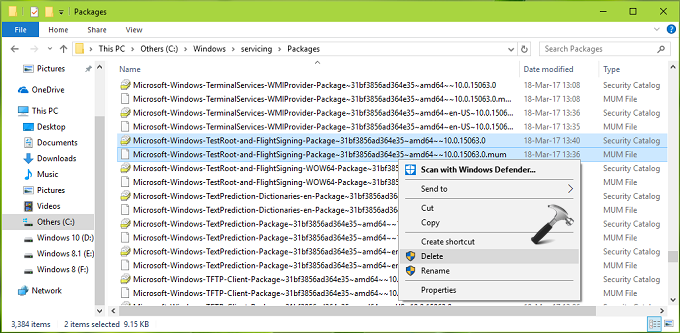
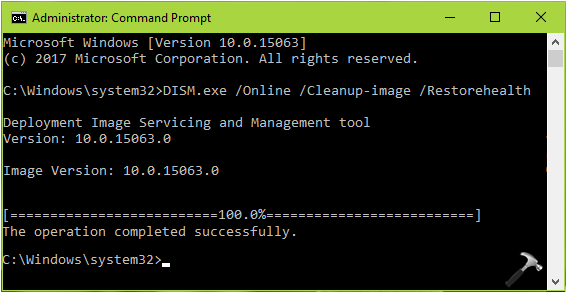
Close File Explorer and now re-try the DISM restore command and this time it should work fine.
Hope this helps!






Absolutely brilliant! This has driven me nuts and I have been looking all over the net for a solution. Yours was the first that worked. Thanks!
^^ Glad we could help 😎
Thanks for this, this has been a long time issue for me. I spent the whole day looking for answers and I think this is the only place that mentions it. I was getting the DISM Error 0x800f081f, The Source Files Could Not Be Found error rather than the can’t download error and it seems to have solved that. The taking control part seems complex but I found it was just a case of right clicking on the registry entry, going to permissions and ticking the box for Full Control next to my username. Thanks again.
^^ Glad to see it helped you 😊
Worked perfectly. Thanks!
^^ Awesome!
Great solution 😊😊😊excellent thx a lot
^^ Happy to help!
Great solution
Thanks for your help
^^ Glad to help 😎