The Netwsw00.sys BSOD on Windows 11 is typically associated with a faulty or incompatible wireless network driver. This system file is commonly associated with Intel Wi-Fi drivers, and when it becomes corrupted or conflicts with Windows updates, it can trigger repeated blue screen errors. This article will help you to resolve the error with different possible solutions.

Page Contents
Fix Netwsw00.sys BSOD on Windows 11
Use the fixes listed below one by one until the issue is resolved.
Method 1: Repair Corrupted System Files (SFC & DISM)
System file corruption can lead to driver instability. Both sources recommend using built-in Windows repair tools.
1. Right-click the Start button and select Terminal (Admin) or Command Prompt (Admin).
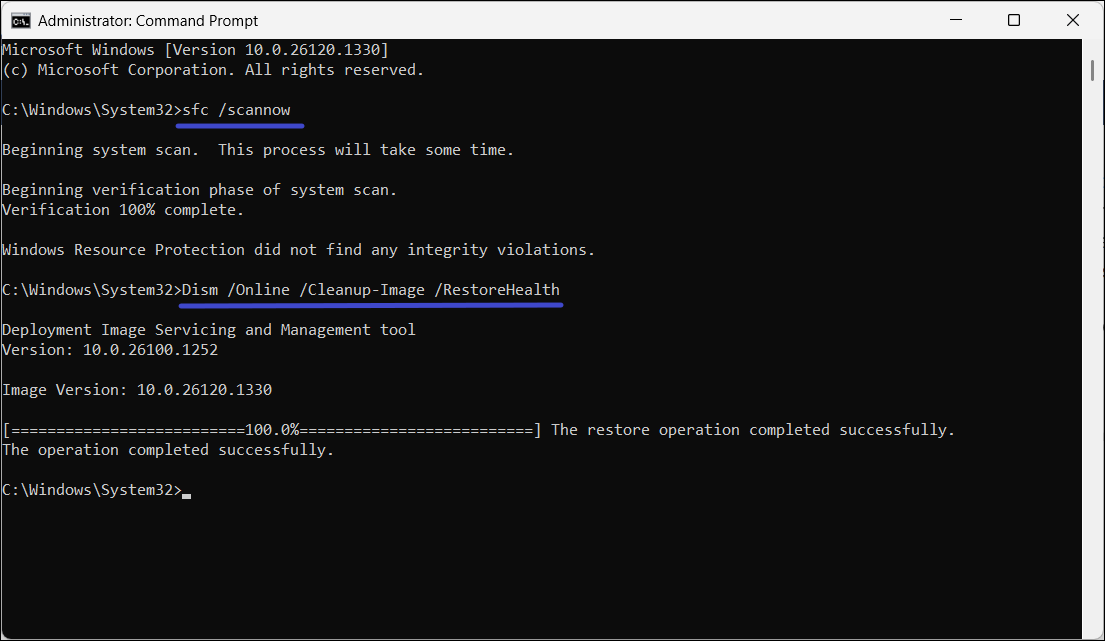
2. Type sfc /scannow and press Enter. Wait for the scan to complete.
3. Once finished, type:
DISM /Online /Cleanup-Image /RestoreHealth
And press Enter.
4. Restart your PC.
Method 2: Update or Roll Back the Network Driver
Since this BSOD is driver-specific, managing the Intel Wireless adapter version is the most effective fix.
1. Press Win + X and select Device Manager.
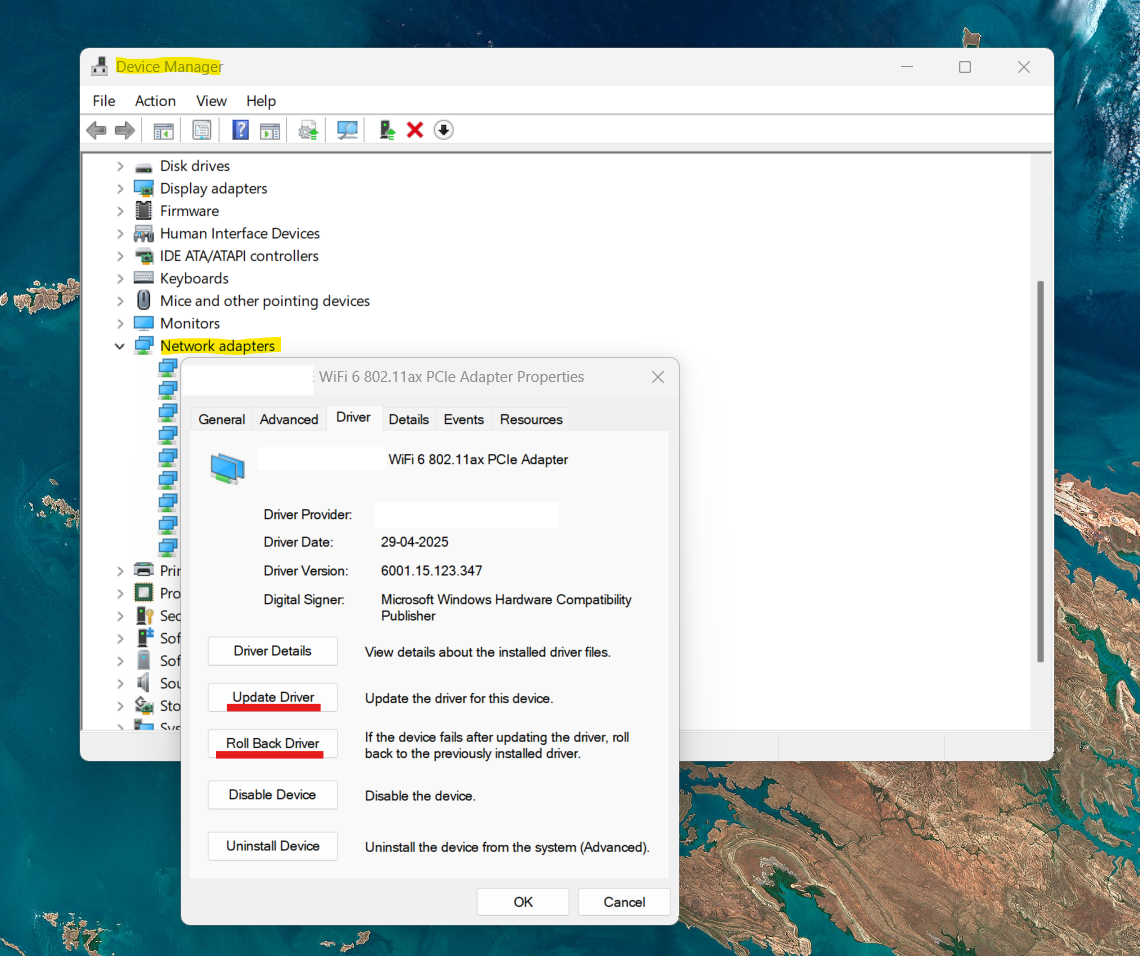
2. Expand Network adapters, right-click your Intel(R) Wireless adapter, and select Properties.
3. Under the Driver tab, if the option is available, click Roll Back Driver (if the error started after a recent update).
4. If not, click Update Driver and select Search automatically for drivers.
Method 3: Reset Network Settings
Resetting the network stack clears out corrupted configurations or cached IP/TCP settings that might be causing the driver to crash.
1. Open Settings and go to Network & Internet.
2. Click on Advanced network settings.
3. Select Network reset and click Reset now.
4. Your computer will restart automatically after five minutes.

Method 4: Perform a Clean Boot
Third-party software, such as antivirus programs or VPNs, can interfere with the Netwsw00.sys driver.
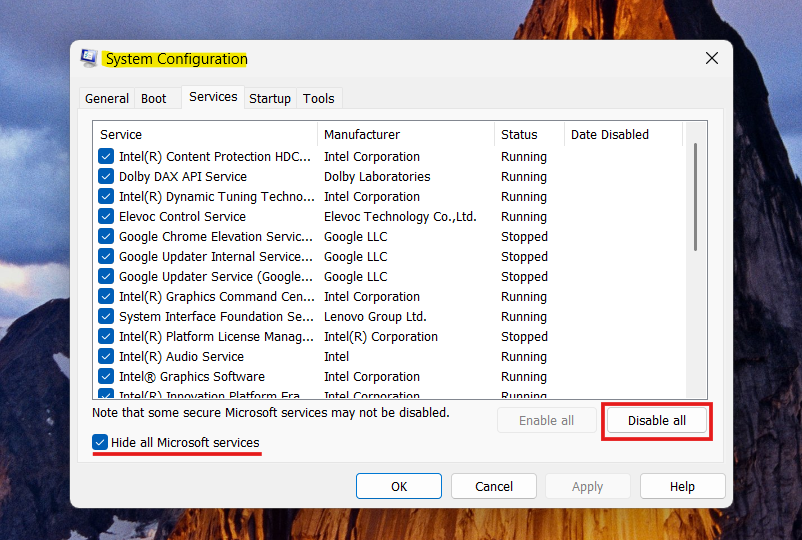
1. Press Win + R, typemsconfig, and press Enter.
2. In the Services tab, check Hide all Microsoft services, then click Disable all.
3. In the Startup tab, click Open Task Manager and disable all startup items.
4. Restart your PC to see if the BSOD persists in this clean environment.

Method 5: Reinstall the Wireless Network Adapter
If the driver file itself is corrupted, a fresh installation is necessary.
1. Open Device Manager and find your Wireless adapter under Network adapters.
2. Right-click it and select Uninstall device. If prompted, select the box to attempt to remove the driver for this device.
3. Restart your computer. Windows will automatically attempt to reinstall the generic driver upon reboot.

Method 6: Check for Windows Updates
Microsoft frequently releases Optional Updates that specifically target driver compatibility issues for Intel hardware.
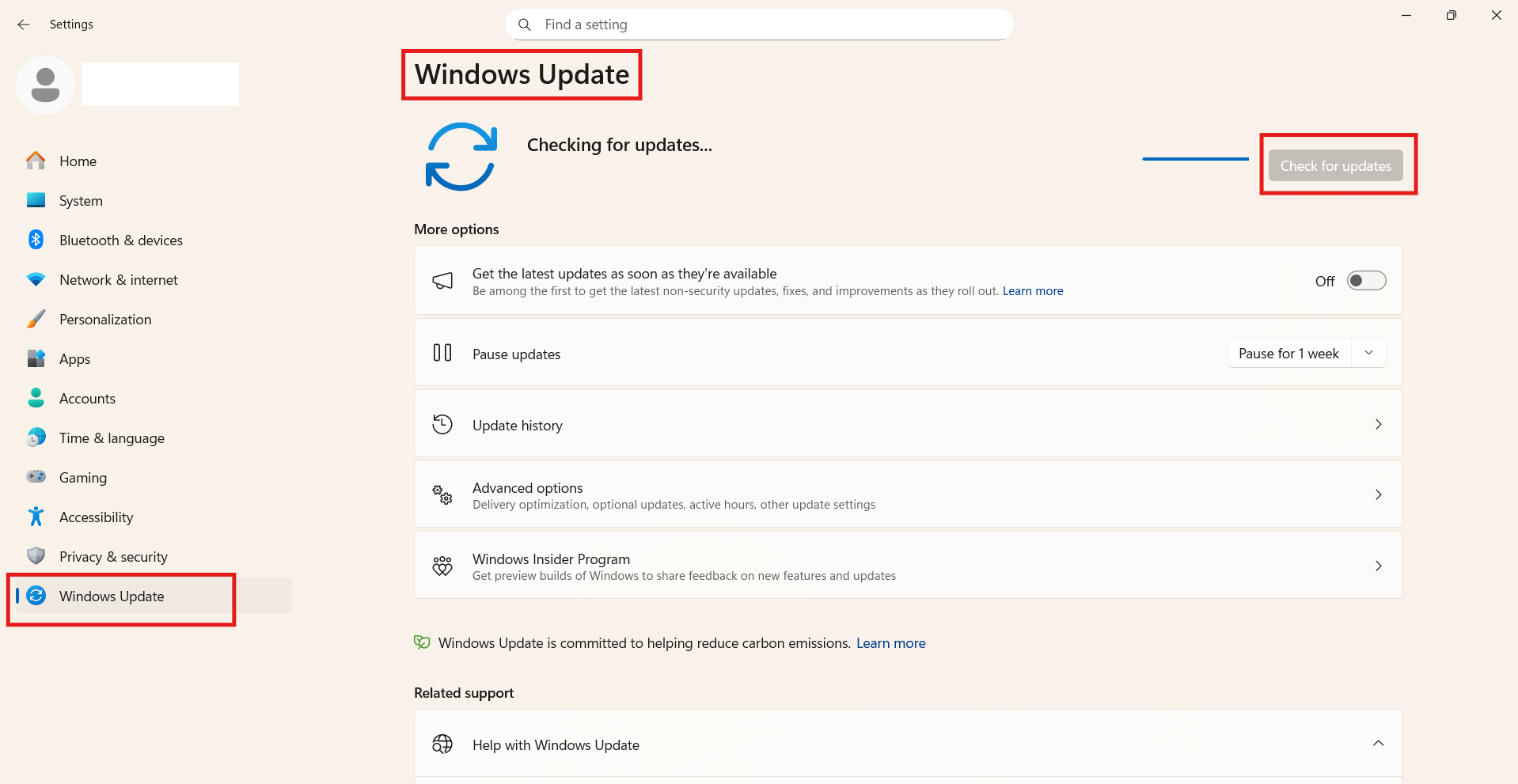
1. Go to Settings, then Windows Update.
2. Click Check for updates and install all pending items.
3. Check Advanced options and click on Optional updates to see if there is a specific Intel driver update listed there.
Method 7: Use System Restore
If the BSOD started recently, reverting Windows to a previous state can undo the changes that caused the conflict.
1. Press Win + S and type Create a restore point.
2. Click the System Restore button.
3. Choose a restore point dated before the blue screen errors began.
4. Follow the prompts and allow Windows to restart and revert changes.

Conclusion
The Netwsw00.sys error is almost exclusively a networking conflict. Fact-checking confirms that reinstalling or updating the Intel Wi-Fi driver is the most successful solution. If the issue persists after all software fixes, it may indicate a failing physical Wi-Fi card, which would require hardware replacement.