

Memory Integrity BSOD is a Windows 11 bug that can crash your computer abruptly. It may slow down your work, and it may cause information loss. This bluescreen is usually associated with the fundamental system operations and driver compatibility whenever Memory Integrity is turned on in Windows Security because of Core Isolation. Although this is a feature that helps to enhance system protection against malware and attacks, it can at times cause conflicts.
Don’t sweat it if you’ve been encountering a Memory Integrity-related Blue Screen of Death (BSOD). In this article, you will learn how to go about troubleshoot the Memory Integrity BSOD on Windows 11 through 7 useful ways.
Page Contents
Fix Memory Integrity BSOD in Windows 11
Method 1: Check for Corrupt or Incompatible Drivers
One of the biggest reasons for the Memory Integrity BSOD in Windows 11 is corrupt or outdated drivers. Windows Memory Integrity is highly immune to malfunctioning or unsigned drivers.
1. Hit Windows + X and go to Device Manager.

2. Open all sections and check on all yellow signs.

3. Right-click the driver that is not working and choose Uninstall device.

Note: Most times, the drivers get reinstalled after a restart. If you wish to manually add the drivers, go to the site of your device manufacturer and find the newest version.
Method 2: Test Your RAM for Errors
Bad memory chips have the potential to provoke nightmare bugs such as the Memory Integrity BSOD. A way to find the bad RAM as a source is to run a memory diagnostic test.
1. Press Windows + R, paste the below command, and press Enter.
mdsched.exe

2. Restart now => Pick to check problems. Start Windows Memory Diagnostic automatically and wait until the reboot to show the result.

Method 3: Disable XMP Profile (If Applicable)
In extreme cases, failure to use a strictly compatible RAM with the profile setting used on the XMP (Extreme Memory Profile) option in the BIOS may also cause instability in the system.
1. Restart your computer and press the BIOS key (key usually F2, Del, Esc) at the beginning of the boot.
2. Go to your Overclocking or Memory. Find the option of XMP Profile and change it to Disabled.
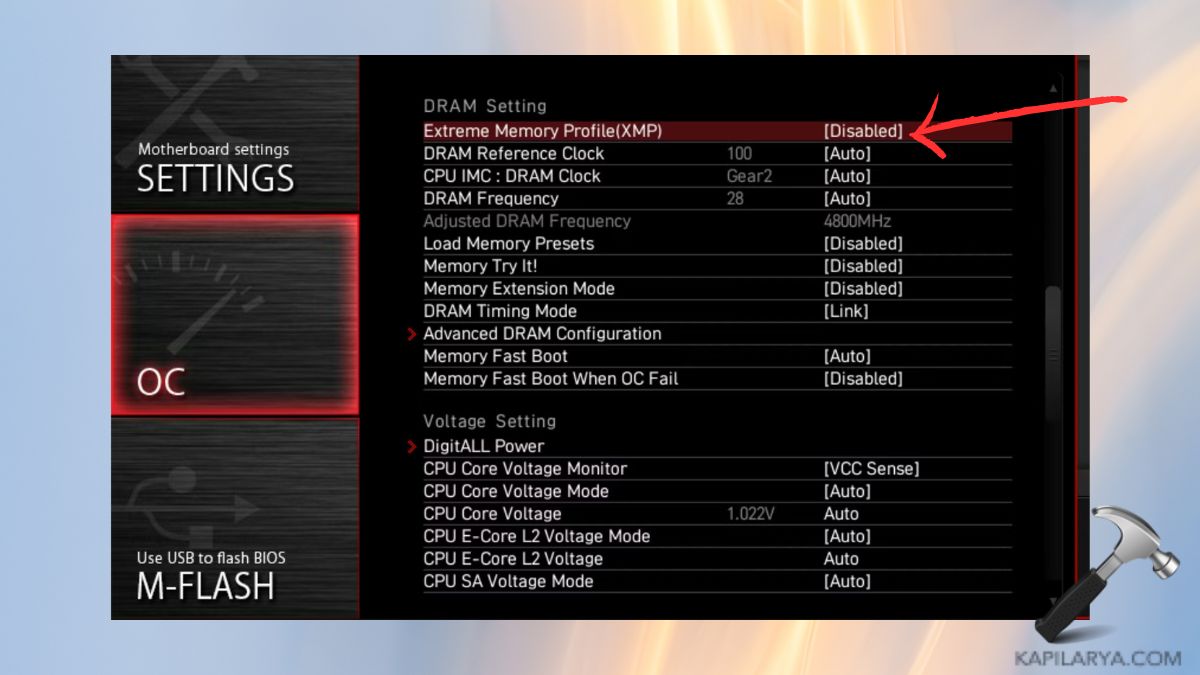
3. Save and exit the Settings page.
Note: Disabling XMP can limit the memory frequency, leaving more stability and no BSODs.
Method 4: Update BIOS and Chipset Drivers
Drastic BIOS or chipset drivers may also lead to low-level conflicts with Memory Integrity and the Windows kernel-level.
1. Go to the official support website of your PC or motherboard manufacturer. Get the updated BIOS/chipset drivers for your version. Updating the BIOS is done by adhering to the instructions of the manufacturer.
2. Press the reboot button once you are done installing.
Warning: There is a risk with the BIOS updates. Make sure to always connect your device to the charging port, and no interruptions during the updating process.
Method 5: Restore Your System Using System Restore
In case the Memory Integrity BSOD occurred recently, your PC can be returned to a functioning state with a System Restore, but without losing personal files.
1. Press S and Windows to open the search bar of Windows and type “Create a restore point” and press Enter.

2. Go to the tab System Protection and click System Restore.

Wait to finish the restoration.
Method 6: Check for Windows Updates
Microsoft often applies security as well as driver fixes that resolve BSOD errors and enhance the Memory Integrity compatibility.
1. Within Settings, go to Windows Update.
2. Click Check for updates. In case updates are identified, install the updates and restart your PC.

Method 7: Reset Your PC
A final resort to correct a Windows 11 problem is to Reset your PC to replace all the software and eliminate hidden software conflicts.
1. Open the Settings > System > Recovery.

2. Choose Reset this PC under the Recovery options.
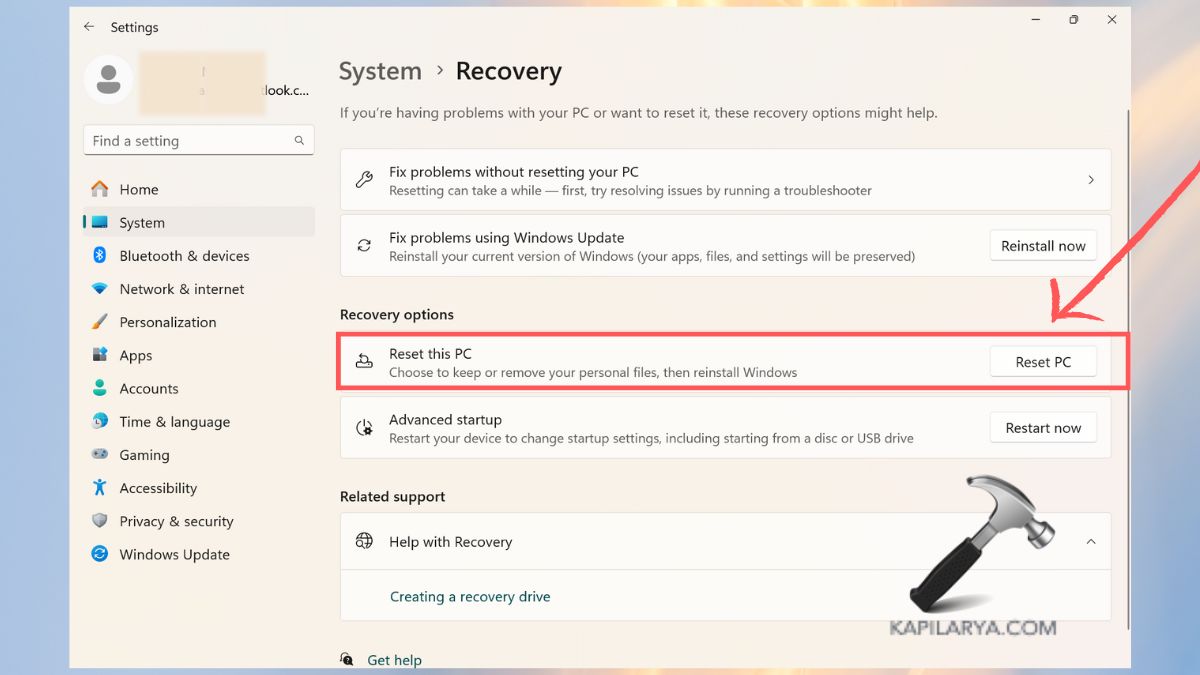
3. Select Keep my files or Remove everything based on your liking.

4. Finally, follow the prompts to complete the reset.
Frequently Asked Questions (FAQs)
#1 Is it safe to disable Memory Integrity in Windows 11?
Yes, when Memory Integrity is disabled, it can enhance compatibility at the cost of the system security a little. Turn it off only when you use it consistently and crash or have driver problems.
#2 Can outdated hardware cause Memory Integrity BSOD?
Absolutely. Core Isolation in Windows 11 can also incur incompatible Core Isolation settings, older RAM, older motherboards, or outdated drivers.
#3 Will reinstalling Windows fix Memory Integrity BSOD permanently?
Deep-seated problems can often be cured with a reinstallation, or reset of Windows. But the BSOD might reappear if hardware problems or BIOS issues are not solved.
That’s it!




I suffered this after a Ninja insider update to 27909 caught me off guard. I reinstalled the GPU and some Intel ME software updates; I figured it had to be something simple, as it didn’t happen in Safe Mode.
I knew it was definitely memory related, but I couldn’t for the life of me think of anything else, but just as I was going to attempt a rollback, I went for the Hail Mary & I headed over to Windows Security>Device Security>Core Isolation & Disabled Memory Integrity, restarted, logged in, and then waited with bated breath. After an hour I was convinced, it was either that specifically or something that interacts with it.
As a downside, I couldn’t log into my main account for 2 hours due to the amount of GSODs; I was previously logging into a secondary local account prior.